
When the predictive text on your Galaxy S26+ stops working, it feels like you're typing with one hand tied behind your back. Word suggestions vanish, autocorrect starts making bizarre changes, or the whole smart typing system just freezes up. Since this is a brand new device running the latest One UI 8.5, there's a good chance a simple software tweak will get it back on track.
The quickest thing to try is a simple restart. Press and hold the Volume Down button and the Side/Power button together for about 10 seconds until you see the Samsung logo. This clears out any temporary glitches in the system that might be affecting the keyboard's AI features.
Check Your Smart Typing Settings
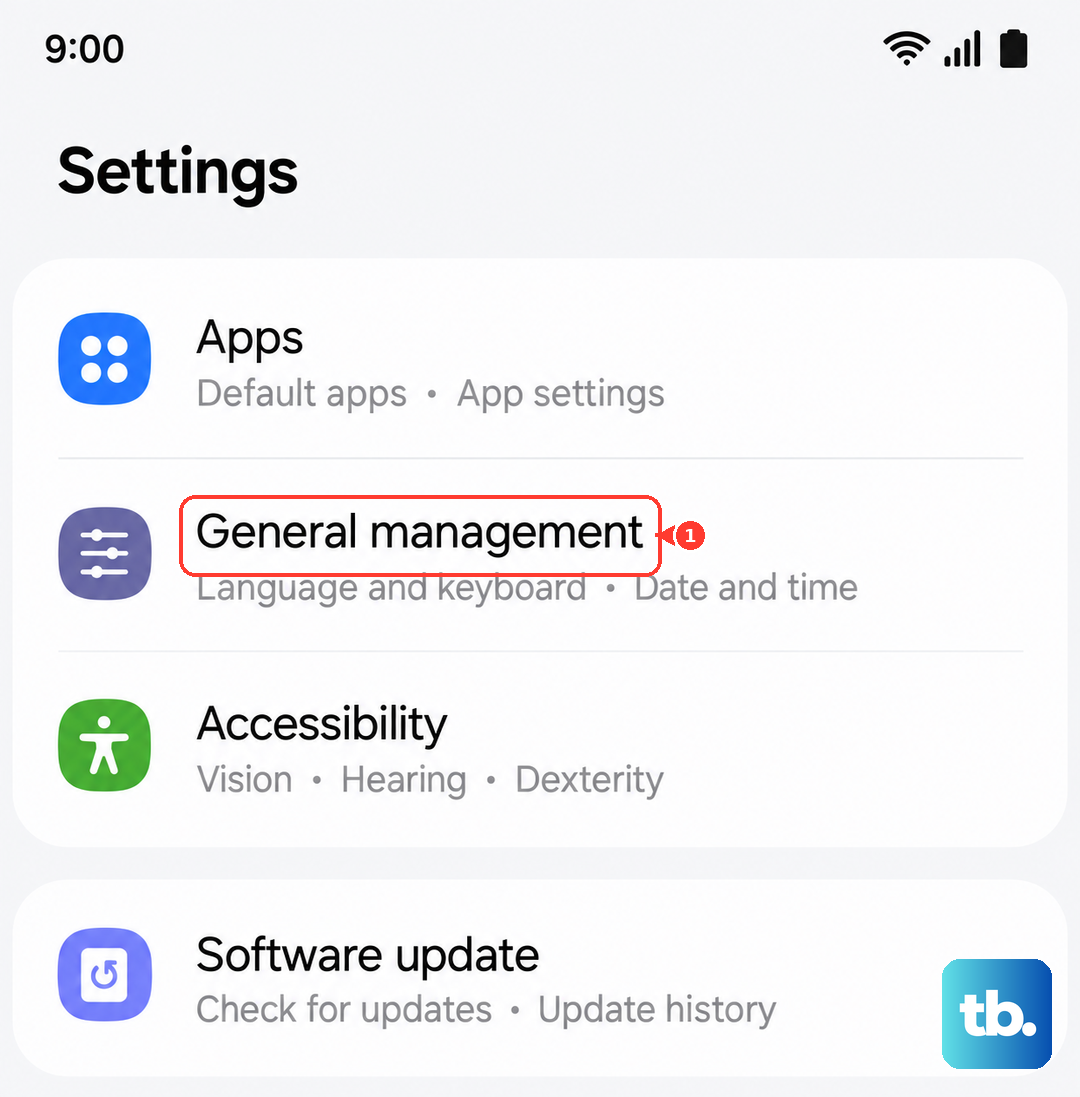
Before diving deeper, it's worth a quick look to make sure the feature hasn't been accidentally turned off. Open your Settings, go to General Management > Language & Input > On-Screen Keyboard, and tap on Samsung Keyboard.
Tap on Smart typing and make sure the switch next to Predictive text is turned on. While you're there, you can also toggle it off and back on again to refresh the feature. I've seen this simple toggle fix the issue on several new S26+ units.
Clear the Keyboard's Cache
If predictive text is on but still broken, the next step is to clear the keyboard's cache. This gets rid of temporary files that can become corrupted, especially after a recent software update. Go to Settings > Apps, then tap the three-dot menu in the top right and select Show system apps.
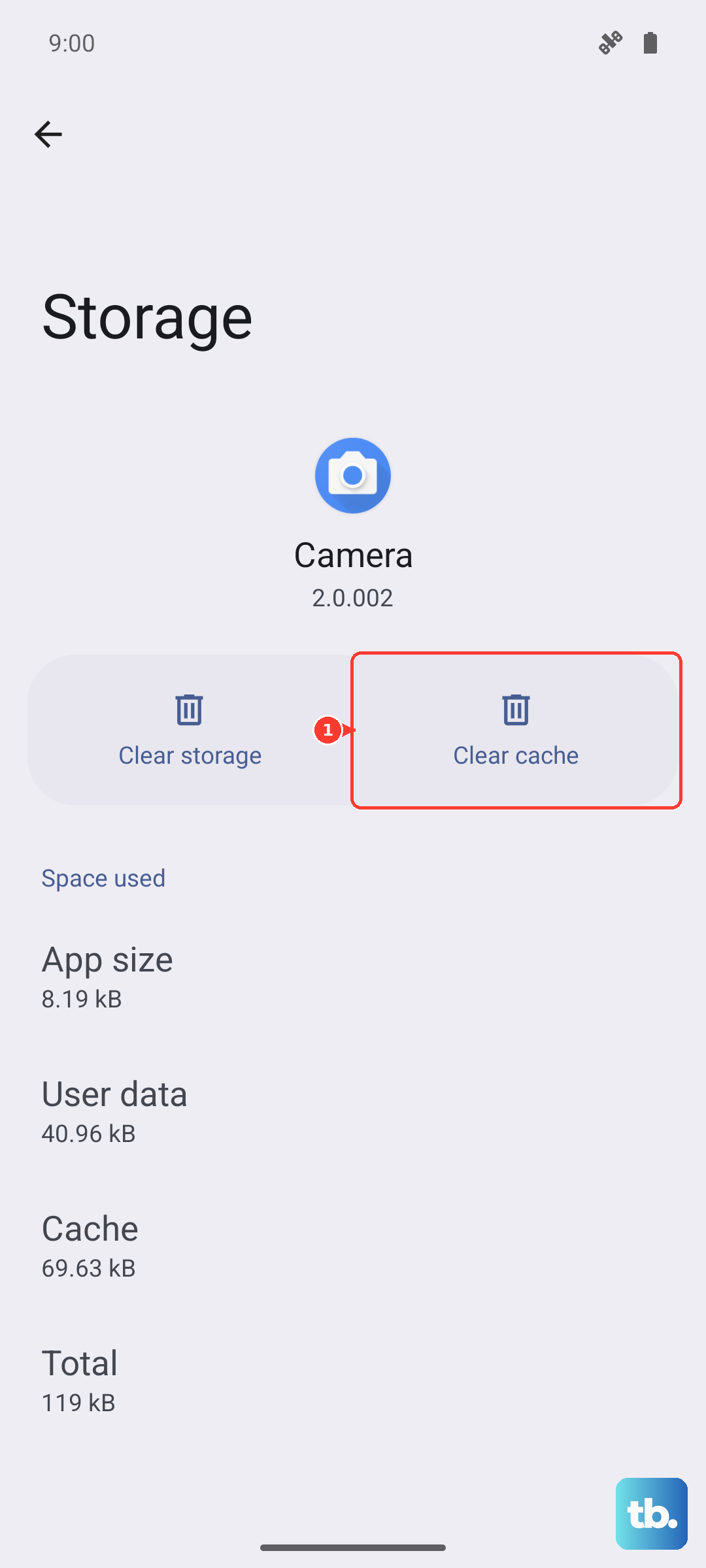
Find and select Samsung Keyboard in the list. Tap on Storage, then tap Clear Cache. This is a safe first step that won't delete any of your personal dictionary words or settings.
Update the Keyboard and Language Packs
Your Galaxy S26+ uses an AI-powered keyboard that receives frequent updates. An outdated version could be the culprit. First, check for a keyboard update in the Galaxy Store. Open the app, tap the menu icon, and go to Updates.
You should also update your language packs. Go back to Settings > General Management > Language & Input > On-Screen Keyboard > Samsung Keyboard. Tap Languages and types, then Manage input languages.
Tap the three-dot menu in the top corner and select Check for an update. Downloading the latest language data is crucial for accurate predictions.
Reset the Keyboard to Default Settings
If predictions are still off, resetting the keyboard can wipe out any deeper configuration errors. This will erase your personalized dictionary and any custom settings, so it's a more thorough fix. Head to Settings > General Management > Language & Input > On-Screen Keyboard.
Tap on Samsung Keyboard, then scroll down and tap Reset to default settings. Confirm your choice. After the reset, you'll need to go back into the Smart typing menu and re-enable predictive text.
Install the Latest One UI Software Update
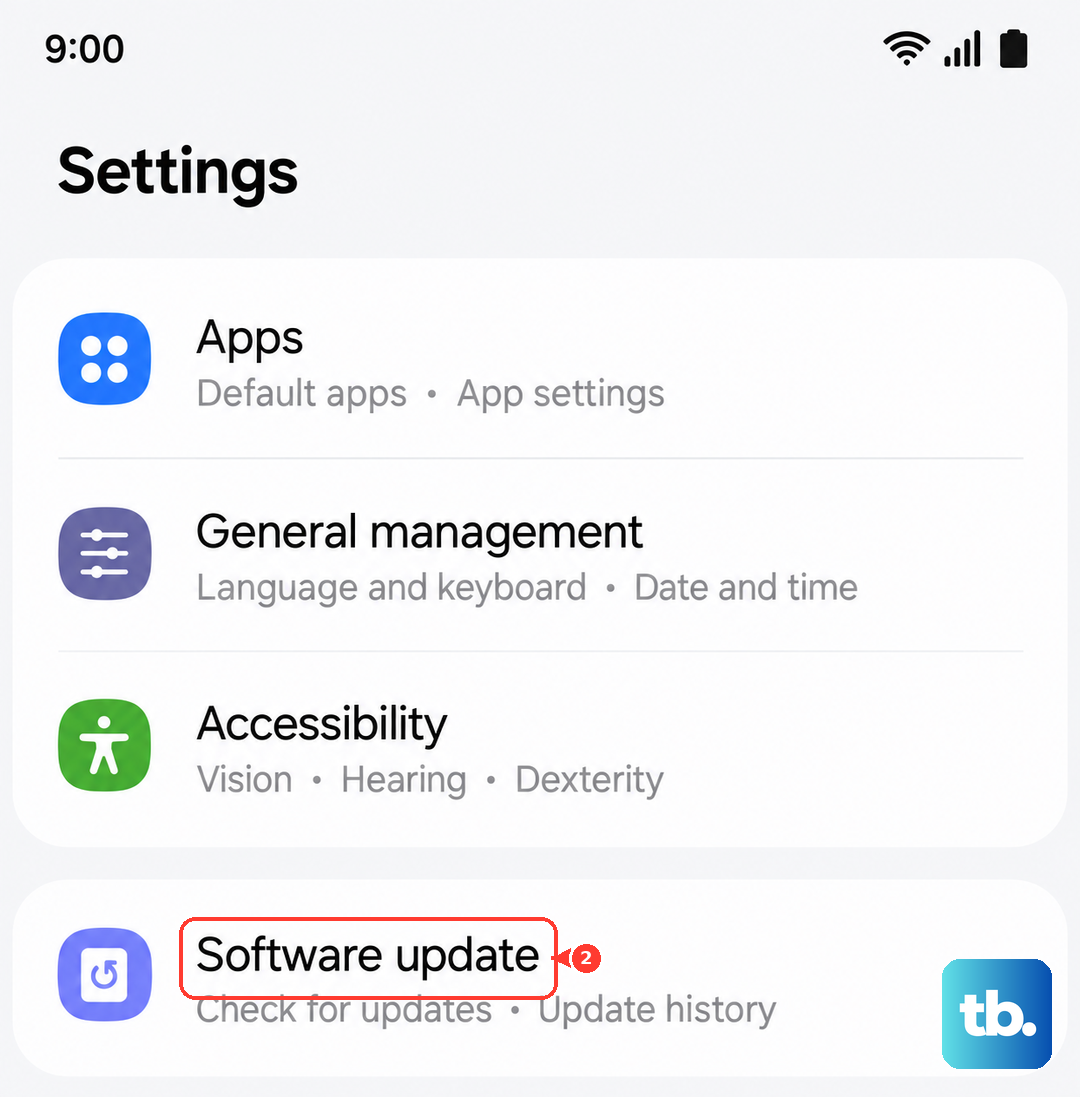
Since the S26+ and One UI 8.5 are so new, early software bugs are a common cause for features like this to act up. Samsung is quick to release patches. Go to Settings > Software update and tap Download and install.
Make sure your phone is connected to Wi-Fi and has a good charge. Installing the latest patch is often the definitive fix for widespread issues reported in the first few months of a new model's release.