
When the predictive text on your Samsung Galaxy Tab S9 stops working, it can really slow you down. You might notice word suggestions have vanished, autocorrect is making bizarre changes, or the whole typing experience just feels off. The good news is this is almost always a software hiccup you can fix yourself.
I'd start with the simplest solution first. Give your tablet a quick restart by pressing and holding the Volume Down and Side button together for about ten seconds. Wait for the Samsung logo to appear before letting go. This clears out any temporary glitches in the system that might be affecting the keyboard.
Check Your Keyboard Settings
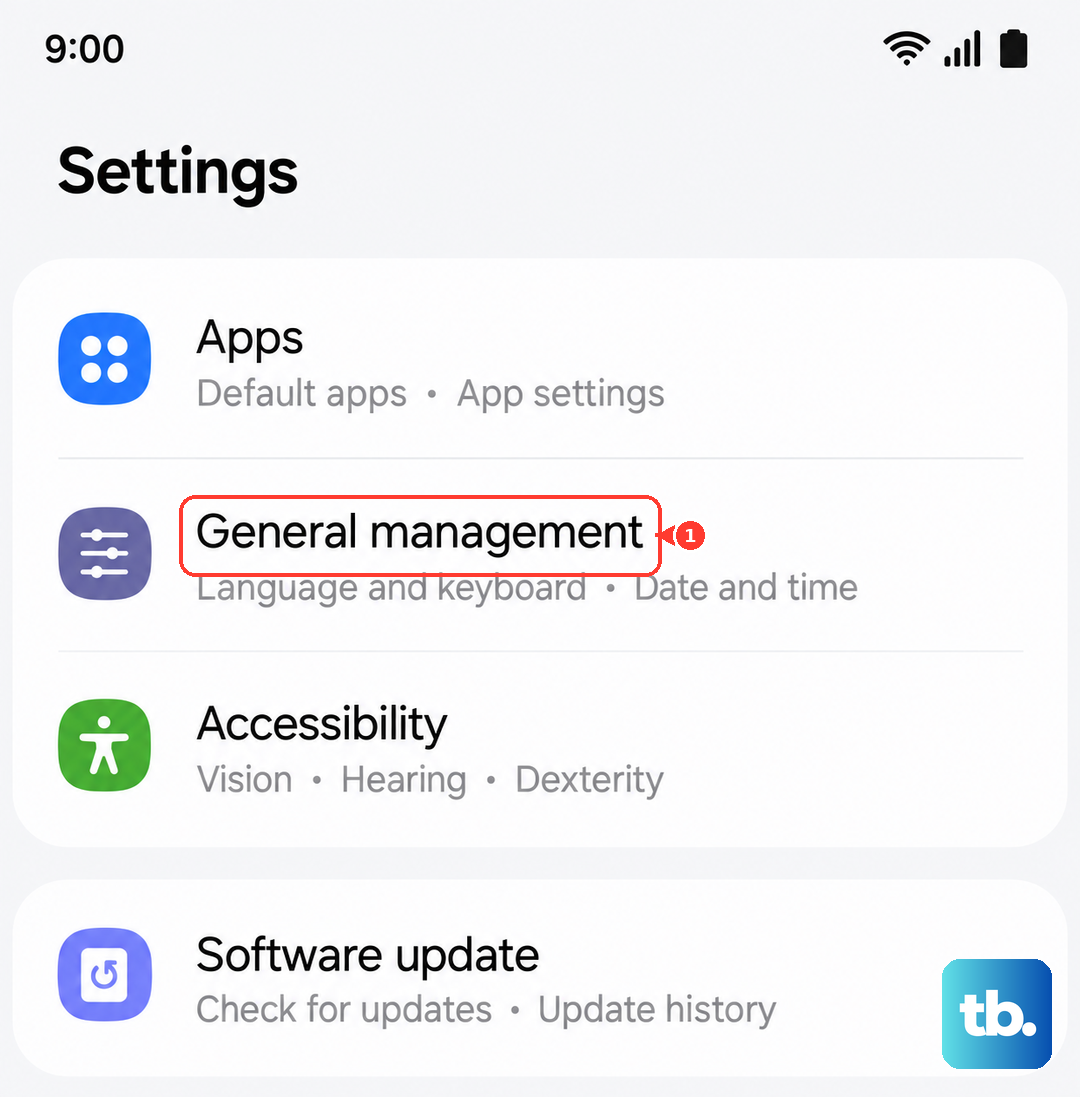
Before diving deeper, it's worth a quick look in your settings to make sure predictive text hasn't been accidentally turned off. Open the Settings app on your Tab S9 and tap on General Management. From there, go to Language & Input, then On-Screen Keyboard, and select Samsung Keyboard.
Tap on Smart typing and make sure the switch next to Predictive text is turned on. While you're there, you can also toggle it off and back on again. This simple refresh can sometimes kick the feature back into gear if it's stuck.
Clear the Keyboard's Cache
If a restart didn't help, the next step is to clear the keyboard app's cache. This gets rid of temporary files that can become corrupted and cause problems. Go to Settings, then Apps. You might need to tap the three-dot menu in the top right and select Show system apps to find it.
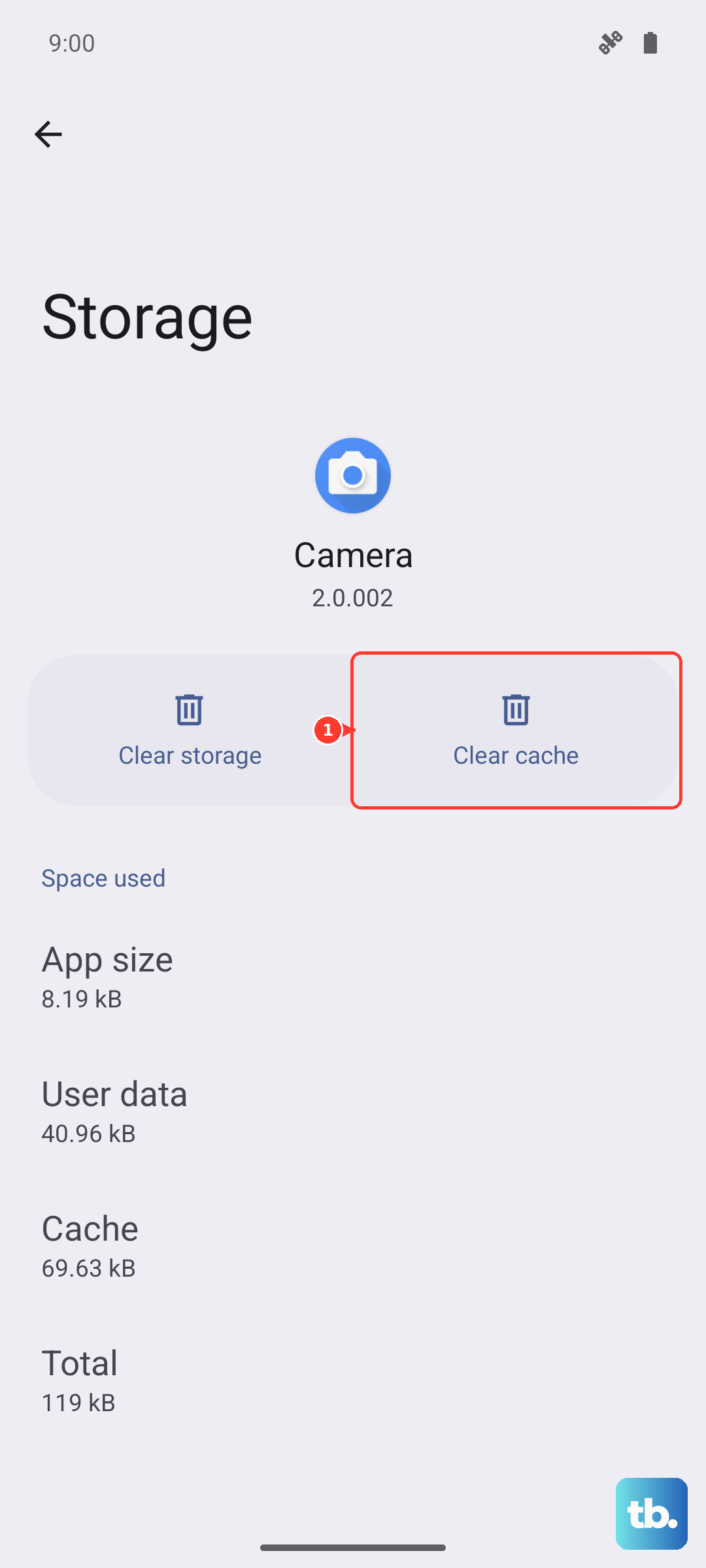
Find and tap on Samsung Keyboard in the list. On the next screen, tap Storage, then tap the Clear Cache button. This won't delete any of your personal data or saved words, it just cleans out the temporary junk. I'd do the same for Samsung Keyboard Neural Beta if you see it listed.
Update the Keyboard and Language Files
An outdated keyboard app or language pack can definitely cause issues. First, check for a keyboard update in the Google Play Store. Open the Play Store, tap your profile icon, and go to Manage apps & device. Look for updates, or search for "Samsung Keyboard" directly to see if an update is available.
You should also update your input language. Go back to Settings > General Management > Language & Input > On-Screen Keyboard > Samsung Keyboard. Tap Languages and Types, select your language (like English), and then tap Manage input languages. Tap the three-dot menu in the top corner and choose Check for an update.
Reset the Keyboard to Its Default State
When predictive text is still misbehaving after the steps above, resetting the keyboard can be the most effective fix. This will return all its settings to factory default. You'll find this option in the same menu: Settings > General Management > Language & Input > On-Screen Keyboard > Samsung Keyboard.
Look for the option labeled Reset to default settings and tap it. Be aware that this will erase any custom dictionary words you've added and reset your personal keyboard preferences, like theme or layout. It's a clean slate, which often solves persistent corruption.
Clear the Keyboard's App Data
If a reset doesn't do the trick, the final step before more drastic measures is to clear the app's data. This is a more thorough version of clearing the cache. You'll find it in the same place: Settings > Apps > Samsung Keyboard > Storage.
This time, tap Clear Data instead of Clear Cache. A warning will pop up because this will delete all the app's data, including your personalized settings and learned words. Your keyboard will act like it's brand new. This step resolves issues that are deeply rooted in corrupted settings files.