
The fingerprint scanner on your Galaxy A26 5G stops working at the worst possible time. You're stuck entering your PIN every time you want to unlock it, and it gets old fast. Fortunately, most of the time this is a software issue you can fix in a few minutes.
The A26 5G uses a side-mounted fingerprint sensor built into the power button. It's usually fast and reliable, but a few things can throw it off. Let's run through the fixes that work on this specific device.
Clean the Sensor
This sounds too simple, but it's the most common fix. The side-mounted sensor on the A26 5G sits right where your thumb rests, so it picks up oils, dust, and pocket lint throughout the day. Grab a soft, dry microfiber cloth and wipe the power button area gently. Don't use alcohol wipes or any liquids. If the sensor looks clean and still doesn't work, move on to the next fix.
Restart Your A26 5G
A quick reboot clears out minor software hiccups that can interfere with the fingerprint reader. On the Galaxy A26 5G, you can force a restart by pressing and holding the Volume Down and Power buttons together for about 10-15 seconds. The phone will restart on its own. Once it's back up, try registering your fingerprint again.
Check for One UI 7 Updates
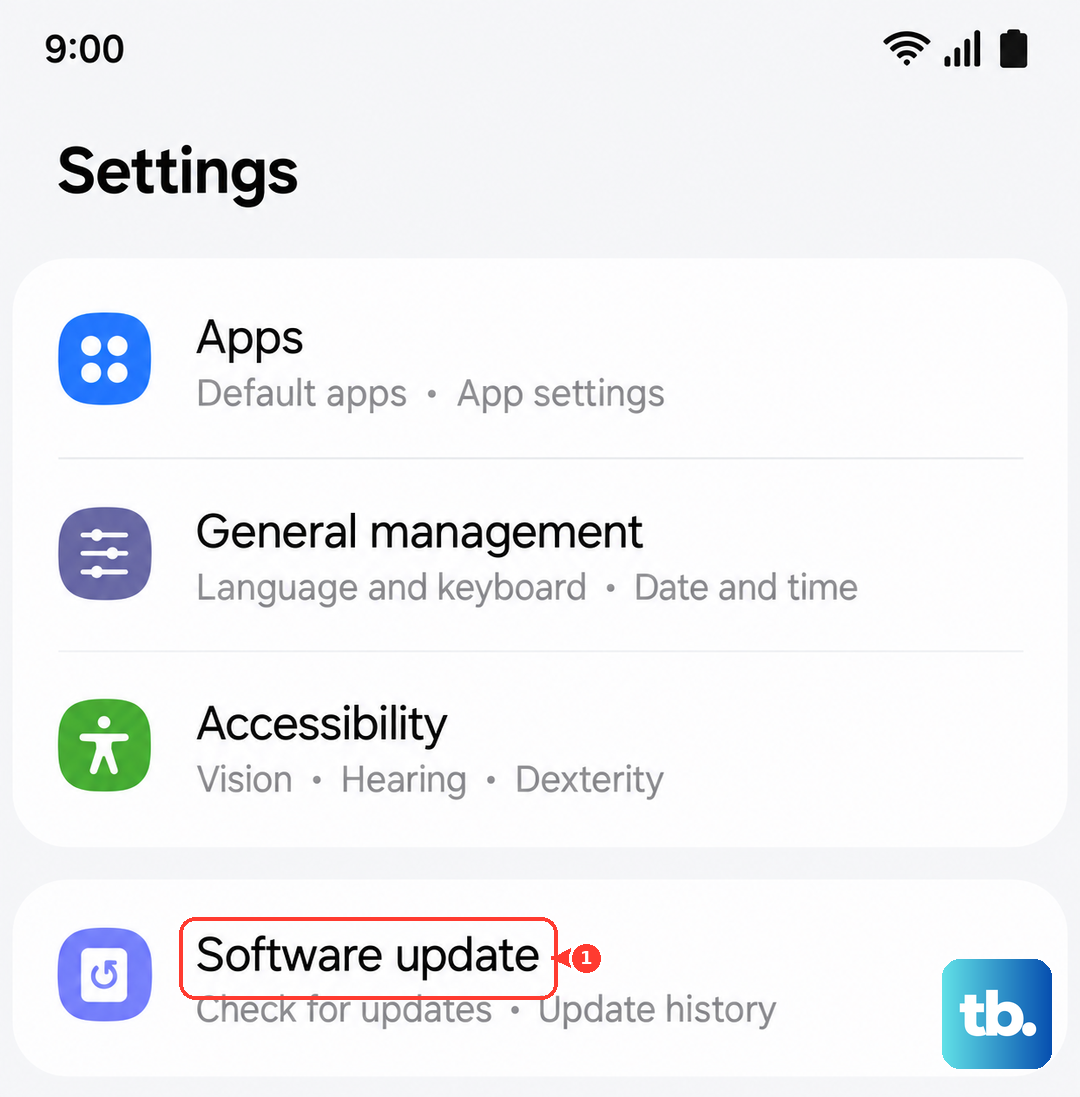
Samsung rolls out software updates for the A26 5G regularly through One UI 7. Some of those updates include fixes for biometric issues. Head to Settings > Software update > Download and install. If there's an update waiting, install it and test the sensor afterward. This is a common fix after major OS patches.
Take Off Your Screen Protector
The A26 5G fingerprint reader isn't under the display, it's on the side. But thick screen protectors, especially tempered glass ones with adhesive that wraps around the edges, can bulge near the power button and interfere with the sensor. Try peeling off the protector temporarily and see if the scanner works normally. If it does, look for a screen protector that's specifically cut to avoid the button area.
Re-Register Your Fingerprints
If the sensor reads your finger sometimes but not consistently, the stored fingerprint data might be outdated or incomplete. Delete and re-add your prints. Go to Settings > Biometrics and security > Fingerprints, enter your PIN, tap the registered print, and hit Remove. Then add a fresh scan. When you register the new one, rotate your finger so the sensor captures the edges and tip, not just the center. Register the same finger twice if you use it most often, this gives the sensor more data to work with.
Adjust Your Finger Placement
On the A26 5G, the sensor is flush with the side frame. If you're missing the sweet spot, the phone won't register the touch. Make sure your entire fingertip covers the button, not just the top or side. And don't tap it quickly, hold your finger on the sensor for about half a second. The A26 5G can be picky about speed, so a steady press works better than a quick tap.
Turn Off Finger Sensor Gestures
One UI 7 lets you use the fingerprint sensor for gestures like pulling down the notification shade. Some users report that this feature makes the sensor less responsive for unlocking. Go to Settings > Advanced features > Motions and gestures and toggle off Finger sensor gestures. Restart the phone and see if the unlock response improves.
Clear the System Cache
If the sensor is completely unresponsive and other fixes haven't worked, clearing the cache partition can help. This doesn't delete your data or accounts, it just removes temporary system files that might be corrupted. Power off the A26 5G completely. Then press and hold the Volume Up and Power buttons together. When the Samsung logo appears, release both buttons. Use the volume keys to highlight Wipe cache partition and press the Power button to select it. Confirm the action, then select Reboot system now. This takes about 30 seconds total.
Use a Different Finger
Changes to your skin can affect fingerprint recognition. If you've been doing manual work, swimming, or your hands are just dry from cold weather, your usual thumb might not register. Try unlocking with a different finger, or register a secondary finger that's less affected by daily wear. The A26 5G stores multiple prints easily, so add a backup finger now while the scanner is working, even if only intermittently.
Keep a Backup Unlock Method
This is more of a workaround than a fix, but it's essential. Go to Settings > Lock screen and AOD > Screen lock type and make sure you have a PIN, pattern, or password set. When the fingerprint sensor acts up, you'll still get into your phone. You can also toggle the fingerprint unlock off temporarily under Settings > Biometrics and security > Fingerprints if the scanner keeps failing and locking you out.
If none of these steps get the sensor working again, the issue is likely hardware-related. The fingerprint reader is integrated into the power button assembly on the A26 5G, and a loose connection or physical damage can cause it to stop responding entirely. In that case, the phone needs a repair, the power button and sensor come as a single unit that a technician can replace.