Tapping the gear icon on your Samsung Galaxy A16 should open your controls in a second, so it is frustrating when the Settings app flashes onto the screen and closes itself, or freezes the moment you try to change Wi-Fi, sound, or display options. A crashing Settings app usually points to a temporary software hiccup, a pending update, or a corrupted cache rather than a broken phone, which means you can almost always fix it yourself. The steps below are arranged from the quickest and safest to the most thorough, so start at the top and stop as soon as Settings opens normally again.
Everything here uses Samsung One UI's standard menus, which stay consistent across recent One UI versions, so they apply whether your A16 is on its launch software or a newer build. None of the early fixes erase your phone, and the only step that wipes it is clearly flagged near the end.
Force restart to clear a one-time glitch
When an app like Settings keeps closing, the fastest fix is a force restart, which clears the temporary memory state that may be tripping it up. This does not delete any of your data, photos, or apps. Make sure the phone has enough battery charge to restart before you begin.
Press and hold the Volume down and Side buttons simultaneously for approximately 10 seconds.
Keep holding until the screen goes black and the Samsung logo appears, then release.
Once the phone finishes booting, open Settings again to see whether it stays open. If it still crashes, move on to the next fix.
Install any pending One UI software update
Outdated firmware is one of the most common reasons a built-in app starts crashing, and Samsung regularly ships stability fixes through software updates. Installing the latest build often resolves the problem on its own. Connect to Wi-Fi and keep the phone charged before you start.
Using two fingers, swipe down from the top right corner of the screen, and then tap the Settings icon.
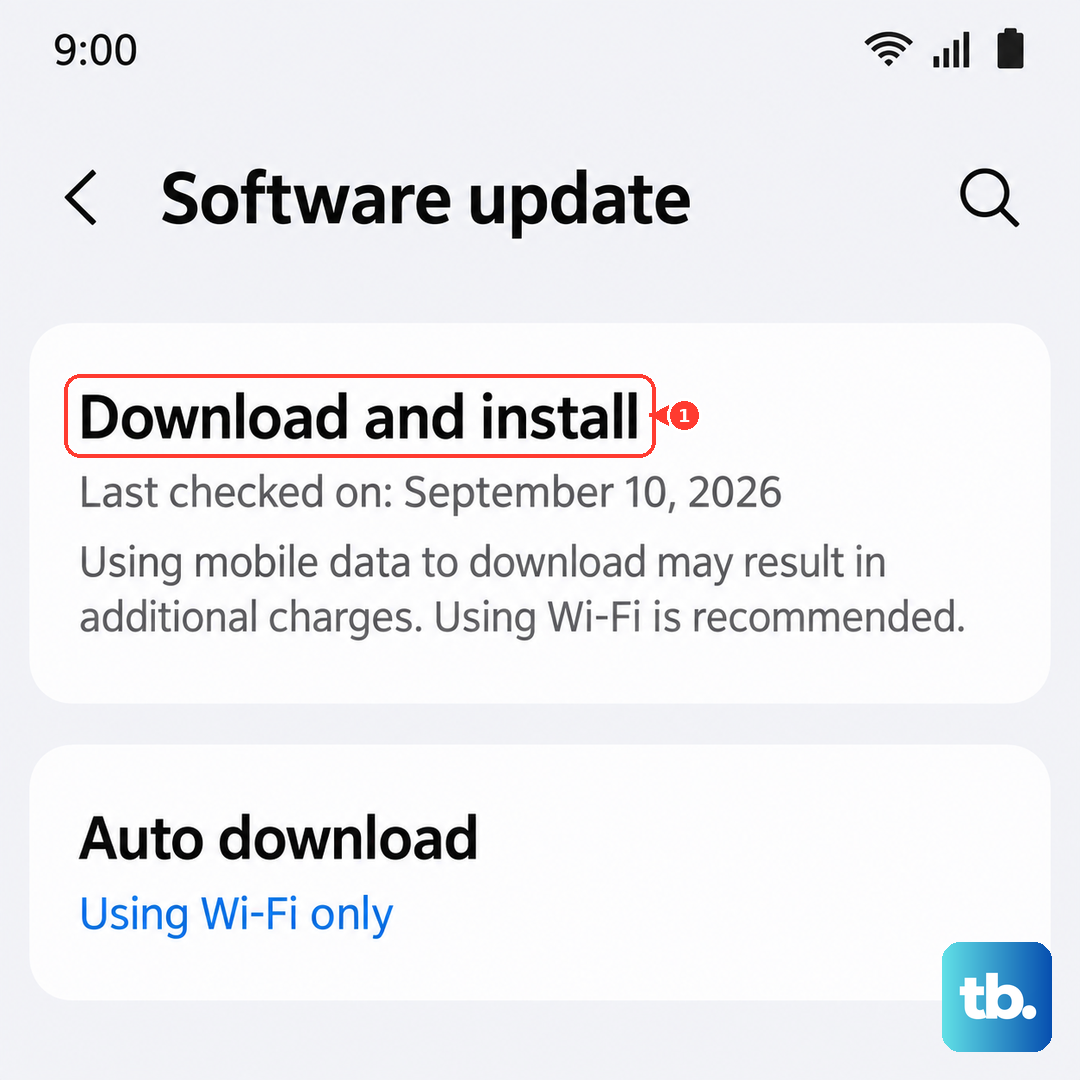
Next, swipe to and then tap Software update (or System updates).
Tap Download and install (or Check for software updates), then let the phone finish and restart if prompted.
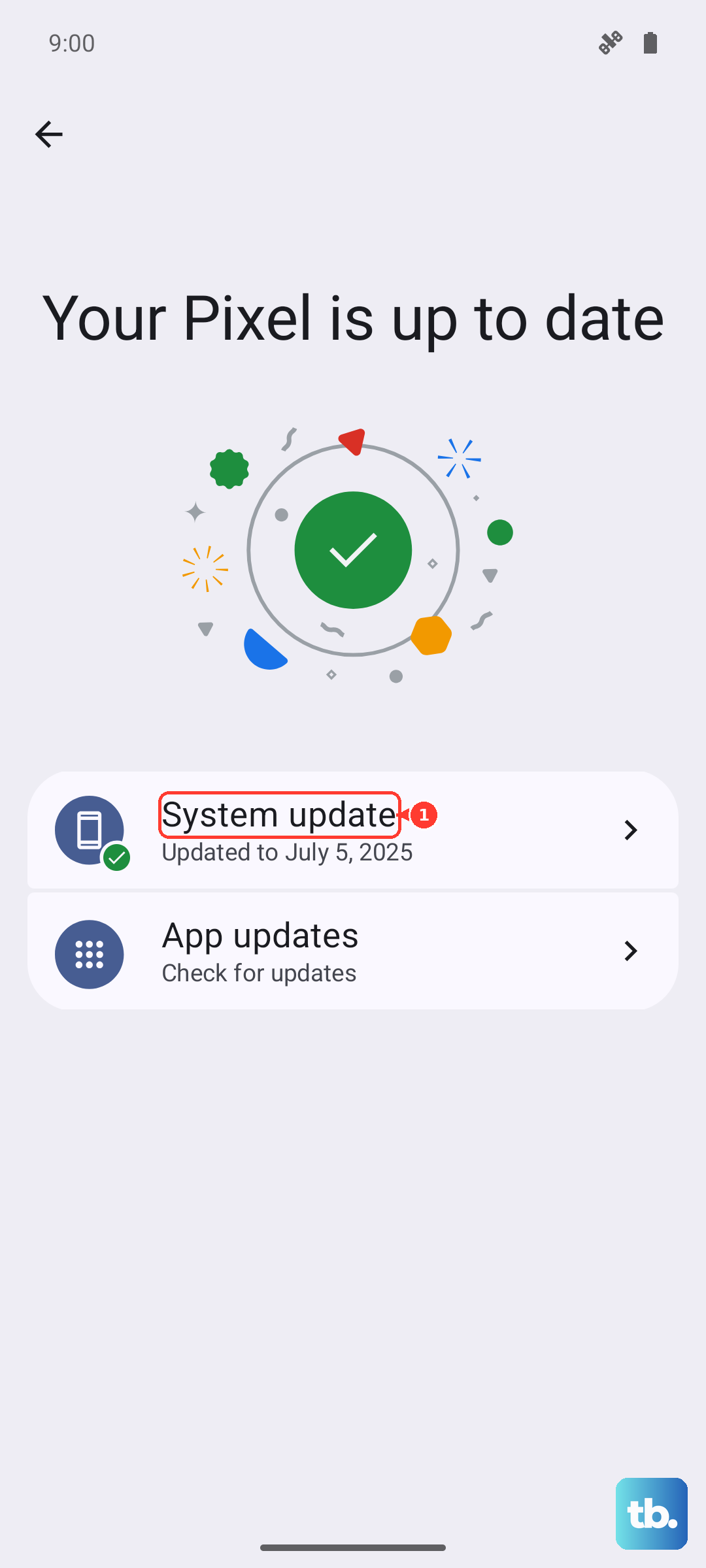
To confirm which build you are on after it installs, open Settings > About phone > Software information. Your A16 is eligible for up to 6 generations of OS upgrades and 6 years of security maintenance, so it is worth keeping current.
Clear the crashing app's cache, then its data
Every app stores temporary files that can become corrupted and cause repeated crashes. Clearing the cache removes only those residual files without touching your settings or saved content, which makes it a safe early step. If the cache alone does not help, clearing the data resets the app fully.
Open Settings, and then swipe to and tap Apps.
After that, select or search for the app that keeps crashing.
Tap Storage, and then tap Clear cache.
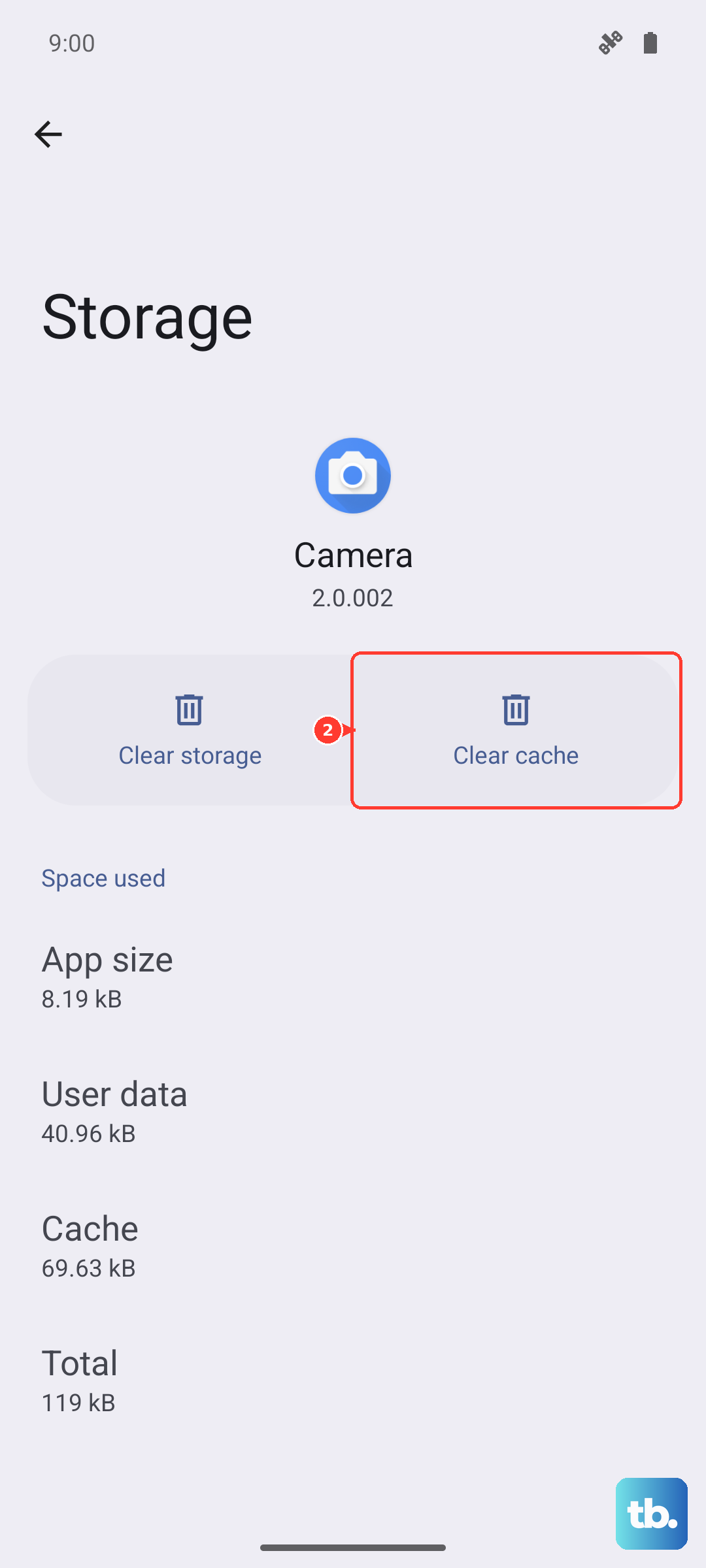
Reopen the app and test it.
If it still crashes, return to Storage, tap Clear data, and then tap Delete.
Be aware of Samsung's warning here. Clearing the data will reset the app to factory default settings, and any personal settings or data saved on the app will be removed.
Free up memory with Device care
When your A16 runs low on free memory or storage, apps can close unexpectedly because there is not enough room for them to run. Samsung's built-in Device care tool tidies this up in one tap. It clears unneeded items from memory, deletes unnecessary files, scans for malware, and closes apps running in the background.
From Settings, swipe to and tap Device care.
Then tap Optimize now and let the scan complete.
For more headroom, tap Memory, then tap Clean now to free RAM by stopping background apps.
With more memory available, the Settings app has room to load fully instead of being forced to close.
Boot into Safe mode to spot a rogue app
Safe mode starts your phone with only its built-in apps active, leaving everything you have downloaded switched off. If Settings stops crashing in Safe mode, a third-party app you installed is the likely culprit. This is a diagnostic step, and it does not delete anything.
Open the Power menu, then touch and hold Power off until the Safe mode icon displays.
Then tap Safe mode to restart into it.
Test the Settings app while in Safe mode.
If the crashing stops, the problem is a downloaded app, most likely one you added recently.
From the App drawer, touch and hold the suspect app, then tap Uninstall.
Restart the phone normally to exit Safe mode, and remove apps one at a time until the crashes are gone.
Back up your data, then factory reset as a last resort
If Settings keeps crashing after everything above, a factory data reset returns the phone to its original software state and clears out whatever is causing the conflict. This erases your apps, accounts, photos, and files, so treat it as a true last resort and back up first. Samsung's own warning is blunt. Please save any information you need prior to the factory reset because your personal information may not be recovered.
Back up your content to Samsung Cloud, or to a computer using Samsung Smart Switch, before you continue.
When your backup is finished, follow the reset path.
- 1.Open Settings > General management > Reset.
- 2.Tap Factory data reset, then tap Reset.
- 3.Tap Delete all, entering your lock credentials or Samsung account password if prompted.
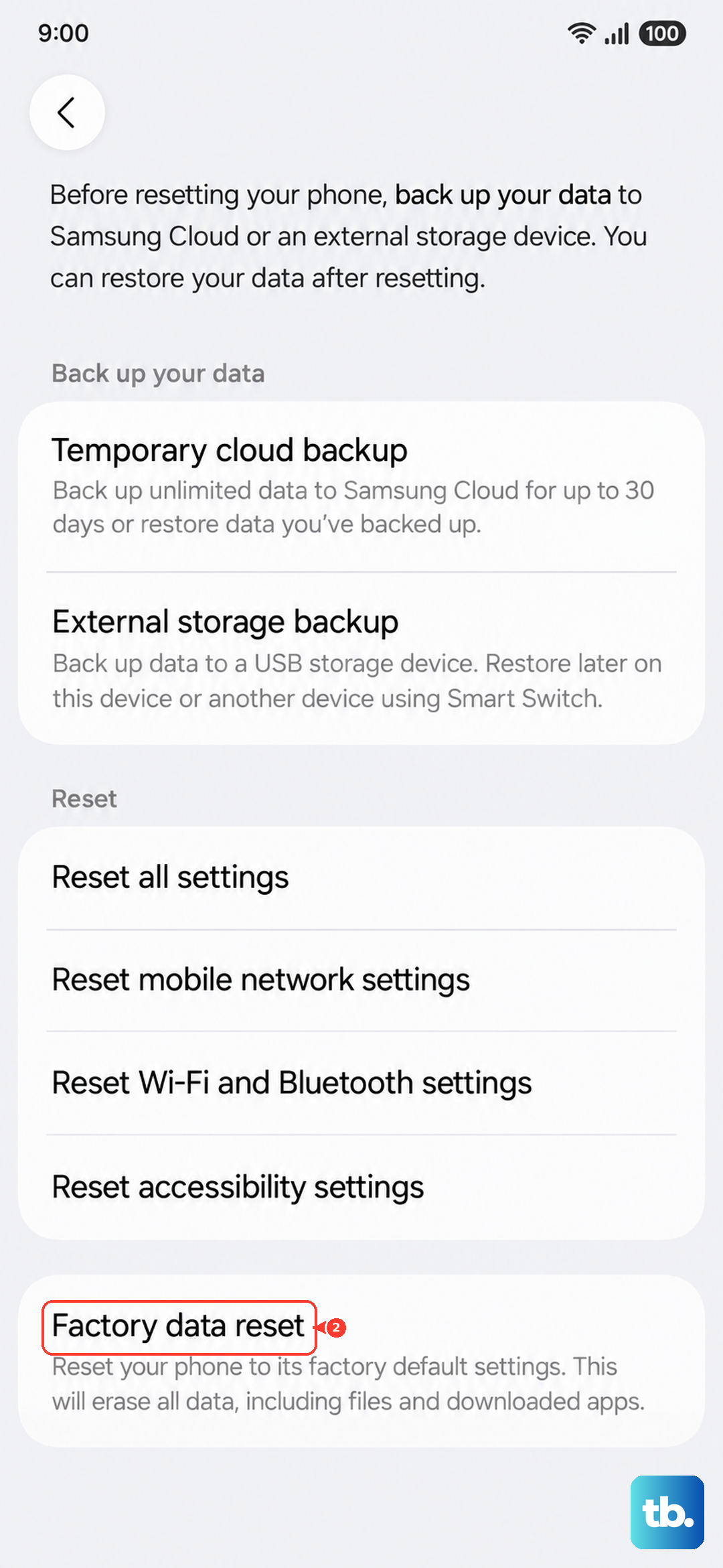
The phone will erase itself and restart as if new. Sign back in and restore your backup to bring your content back.
When to book a Samsung repair or get support
If the Settings app still crashes even after a clean factory reset, the cause may be deeper than software, and it is worth getting Samsung involved. Start with the Samsung Members app, which is built into the phone and offers support and diagnostics. You can also reach Samsung's team directly.
Run a diagnostic or open a support request in the Samsung Members app.
Chat with or call Samsung at 1-800-SAMSUNG.
Request a walk-in, mail-in, or "We Come to You" repair through Samsung's official support service.
Have your model number ready (SM-A165 for the 4G/LTE version or SM-A166 for the 5G version) so support can match your exact device.
Frequently Asked Questions
Will clearing the cache delete my data on the Galaxy A16?
No. Clearing the cache only removes temporary residual files and leaves your settings and saved content intact. Clearing data is the stronger option that resets the app to its default settings and removes data saved in it, so use that only if the cache clear does not help.
How do I force restart a frozen Galaxy A16?
Press and hold the Volume down and Side buttons simultaneously for approximately 10 seconds, until the screen goes black and the Samsung logo appears. This restarts the phone without erasing any data and clears the temporary glitch behind many app crashes.
How can I tell if a downloaded app is causing Settings to crash?
Boot into Safe mode, which runs only the phone's built-in apps. Open the Power menu, touch and hold Power off until the Safe mode icon displays, then tap Safe mode. If Settings behaves normally there, a downloaded app is the cause, and you can uninstall recent additions one at a time.
Do I have to factory reset to fix a crashing Settings app?
Usually not. A force restart, a software update, clearing the app's cache, and running Device care resolve most crashes. Keep a factory reset as a last resort, and only after you have backed up your data, because it erases everything on the phone.
How do I check which software version my Galaxy A16 is running?
Open Settings > About phone > Software information to see your current build. Keeping the phone updated matters because your A16 supports up to 6 generations of OS upgrades and 6 years of security maintenance, and updates often include stability fixes.