
If your Realme GT 7 Pro has suddenly gone silent, missing calls and messages because the vibration motor isn't working, it's a surprisingly common hiccup. The good news is that it's almost always a software or settings issue you can fix yourself in a few minutes.
Restart Your Phone
Before diving into settings, give your phone a quick reboot. This clears out any temporary glitches in Realme UI 6.0 that might be stopping the vibration. Just press and hold the Power button for about 10 seconds until you see the Realme logo appear and the phone restarts.
It's a simple step, but I've seen it resolve the issue more times than I can count. Think of it as giving the system a fresh start.
Verify Your Sound and Vibration Mode
Your phone might be in a mode that disables vibration entirely. Swipe down from the top of your screen twice to open the full Quick Settings panel. Look for the sound mode tile, it might say "Ring," "Vibrate," or "Silent."
Make sure it's set to either "Ring" or "Vibrate." If it's on "Silent," the GT 7 Pro won't vibrate for anything. You can also check this by going to Settings > Sound & vibration and looking at the "Sound mode" option at the top.
Check the Core Vibration Toggles
Head into your settings to make sure vibration is fundamentally enabled. Open Settings > Sound & vibration. Here, you'll find a few critical switches.
First, ensure "Vibrate on ring" is turned on. Right below that, check "Vibrate on silent." Even if your phone is in vibrate mode, this second toggle needs to be active. It's worth toggling both off and back on again to reset the connection.
Adjust Vibration Strength
The Realme GT 7 Pro lets you control how strong its vibrations are. If the intensity is set too low, you might not feel it, especially if the phone is in a pocket or bag. In Settings > Sound & vibration, tap on "Vibration intensity."
You'll see sliders for "Incoming call," "Notification," and "Touch feedback." Crank these up to a higher level and test if you can feel the difference. The Snapdragon 8 Elite chipset can handle these haptics just fine, so don't worry about setting them to max.
Review App-Specific Notification Settings
Sometimes, the problem isn't with the phone but with individual apps. If your messages app vibrates but your email app doesn't, you need to check each app's notification permissions. Go to Settings > Notifications & status bar > App notifications.
Find the app that's not vibrating, tap on it, and make sure notifications are "Allowed." Then, tap on the notification category (like "New messages") and ensure the "Vibrate" option is checked. Realme UI can be granular here, so it's easy for a setting to get turned off by accident.
Test and Configure Touch Feedback
For a quick test of the vibration motor itself, try using your keyboard. Open any app where you can type and tap on the keys. You should feel a short buzz with each press if touch vibration is on.
If you don't feel anything, enable it by going to Settings > Sound & vibration > System vibration. Turn on "Touch vibration." This is a great way to instantly know if the hardware is capable of vibrating at all.
Check for a Software Update
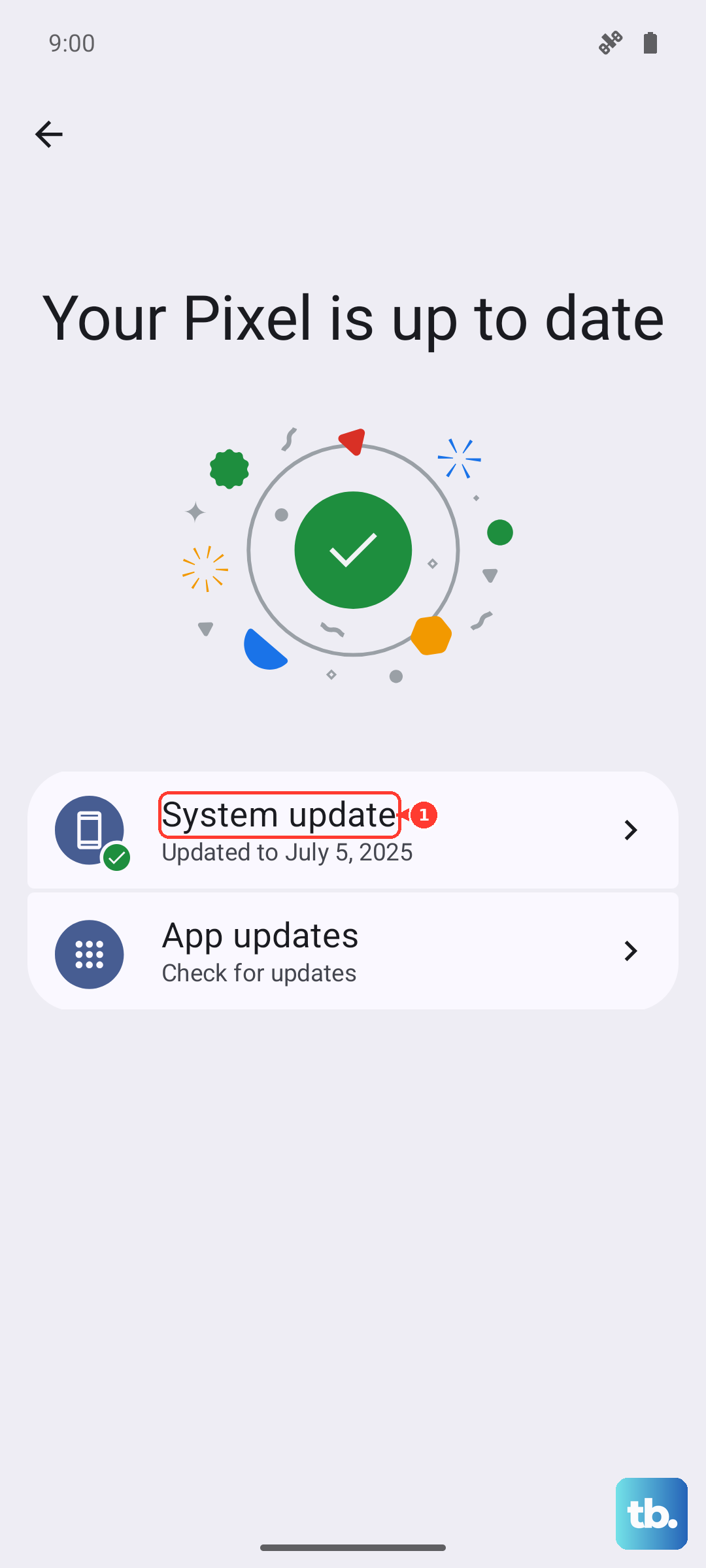
Since the GT 7 Pro launched with Android 15 and Realme UI 6.0, there's a good chance early software builds had some bugs. Realme is typically quick with updates to iron these out. Go to Settings > About device > Realme UI version and tap on "Check for updates."
If an update is available, install it. A system update can fix underlying software conflicts that are preventing the vibration motor from receiving the correct signals. Make sure your phone is connected to Wi-Fi and has a decent charge, as the 120W charger can top you up fast if needed.
Boot Into Safe Mode
If the vibration works in some places but not others, a third-party app you installed could be interfering. Booting into Safe Mode temporarily disables all downloaded apps. To enter Safe Mode, press and hold the Power button until the power menu appears.
Then, long-press the "Power off" option on your screen. A prompt will ask if you want to reboot to Safe Mode. Tap "OK." Once in Safe Mode (you'll see "Safe Mode" in the bottom corner), test your vibration. If it works perfectly here, you know a downloaded app is the culprit.
Restart your phone normally to exit Safe Mode and start uninstalling recently downloaded apps one by one to find the offender.
Reset All Sound and Vibration Settings
If you've been tweaking settings and aren't sure what you changed, Realme UI offers a way to reset just your sound preferences without touching your personal data. Navigate to Settings > System > Reset options.
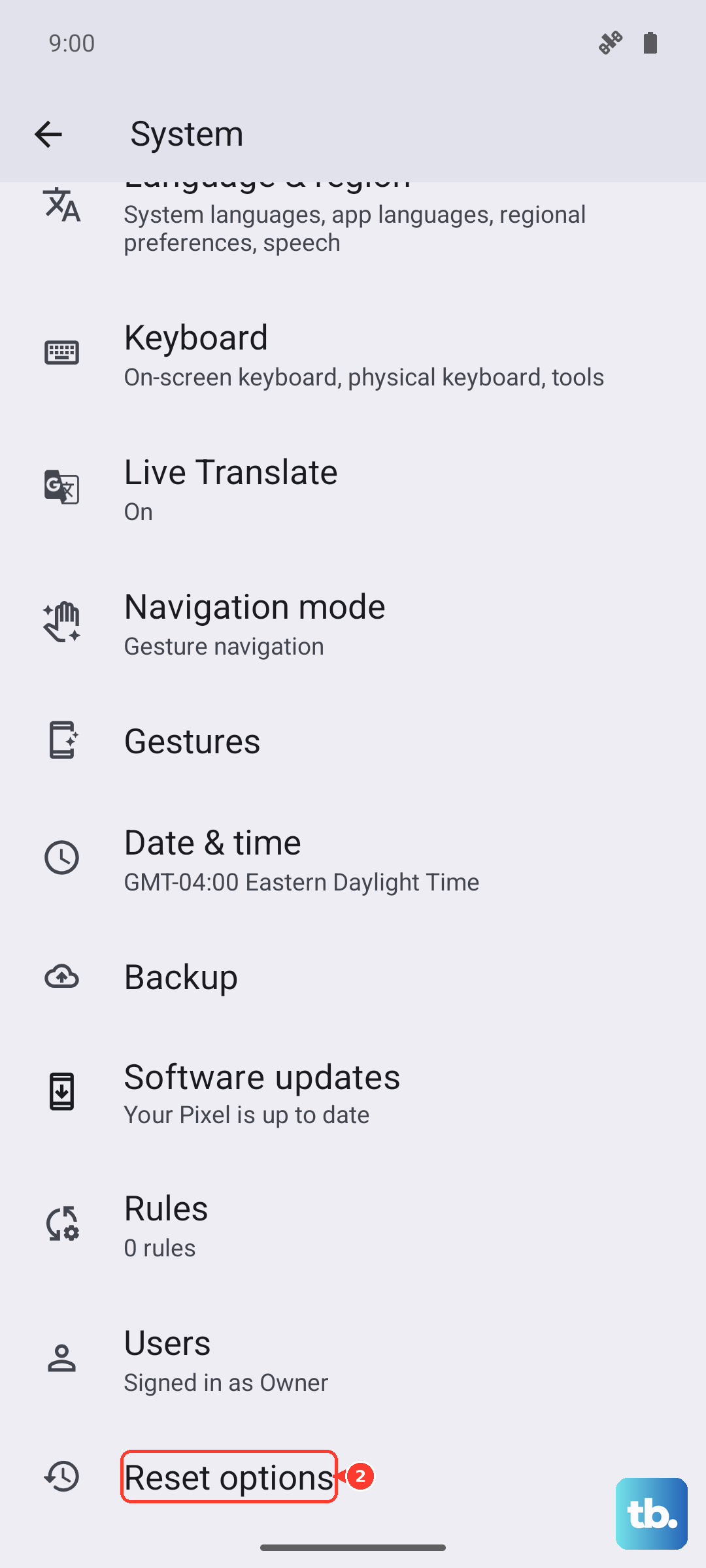
Tap on "Reset sound, vibration, and accessibility settings." Confirm your choice. This will revert all your ringtones, volume levels, and vibration settings back to their factory defaults, which often clears up any misconfiguration causing the problem.
Consider a Hardware Test
After all these steps, if the vibration is completely dead, no touch feedback, no test patterns, nothing, it's time to consider the hardware. The vibration motor is a small physical component that can, in rare cases, fail or become disconnected.
Before assuming the worst, remember the GT 7 Pro has an IP69 rating. If it's been exposed to high-pressure water jets, it's possible moisture could be a factor, though the rating should protect it. If you suspect a hardware fault, contacting Realme support is the next logical step, as the phone is still very new and likely under warranty.