
When your Realme GT 7 Pro's GPS starts dropping signal, it can leave you stranded mid-navigation or cause apps to behave oddly. This is usually a software hiccup that you can fix yourself. I'd start with the quick refresh methods first, as they solve the problem most of the time.
Refresh Your GPS Connection
The fastest way to kickstart a struggling GPS is to toggle it off and on. Swipe down twice from the top of your screen to open the full Quick Settings panel. Look for the Location icon, which looks like a teardrop-shaped dot, and tap it to turn it off.
Wait about 20 seconds, then tap it again to turn it back on. This simple reset clears the temporary connection to the satellites and often gets things working again instantly. It's the equivalent of giving your phone's location hardware a quick nap.
Perform a Force Restart
If toggling doesn't help, a force restart is your next best move. This clears out any minor glitches in Realme UI 6.0 that might be interfering with system services like GPS. Just press and hold the Power button on the side of your phone.
Keep holding it for about 10 seconds, or until you see the Realme logo appear on the screen as it reboots. This is a soft reset that doesn't delete any of your data, but it can resolve a surprising number of quirky software behaviors.
Check Your Location Mode and Permissions
Your phone has different ways of determining location, and the wrong setting can cause spotty performance. Open Settings and tap on Location. At the top, make sure the main toggle is switched on.
Next, tap on Location services or Google Location Accuracy. For the best GPS performance, especially while driving, you need to select High accuracy mode. This uses GPS satellites, Wi-Fi, and mobile networks together to pin down your location.
Also, check that your navigation app has permission. Go to Settings > Apps > [your maps app] > Permissions. Make sure Location is set to "Allow all the time" or "Allow only while using the app" for reliable tracking.
Disable Battery Optimization and Power Saving
The Realme GT 7 Pro's software is designed to maximize that impressive 6500mAh battery, sometimes by limiting background processes. These optimizations can accidentally throttle your GPS. First, pull down the Quick Settings shade and make sure any power saving icon is not active.
Then, go to Settings > Battery. If Power Saving Mode or Super Power Saving Mode is on, turn it off. For a more targeted fix, go to Settings > Apps > [your maps app] > Battery and set the optimization to Unrestricted.
Reset Network Connections with Airplane Mode
This trick resets all the radios in your phone at once, which can clear up conflicts. Swipe down for Quick Settings and tap the Airplane Mode icon. Wait for 15 full seconds, this gives everything time to fully power down.
Then, tap the icon again to turn Airplane Mode off. Your phone will reconnect to mobile data and Wi-Fi. This process also gives the GPS chip a fresh start, which can help it acquire satellites more cleanly.
Update Your Apps and System Software
An outdated version of Google Maps, Waze, or Realme UI itself can have bugs that affect location stability. Open the Google Play Store, tap your profile icon, and go to Manage apps & device. Tap Update all to get the latest versions of everything.
For the system, go to Settings > About phone > Realme UI version. Tap on the top banner to check for updates. Realme frequently releases updates that improve system stability and hardware performance, including for the Snapdragon 8 Elite's components.
Clear the App Cache and Data
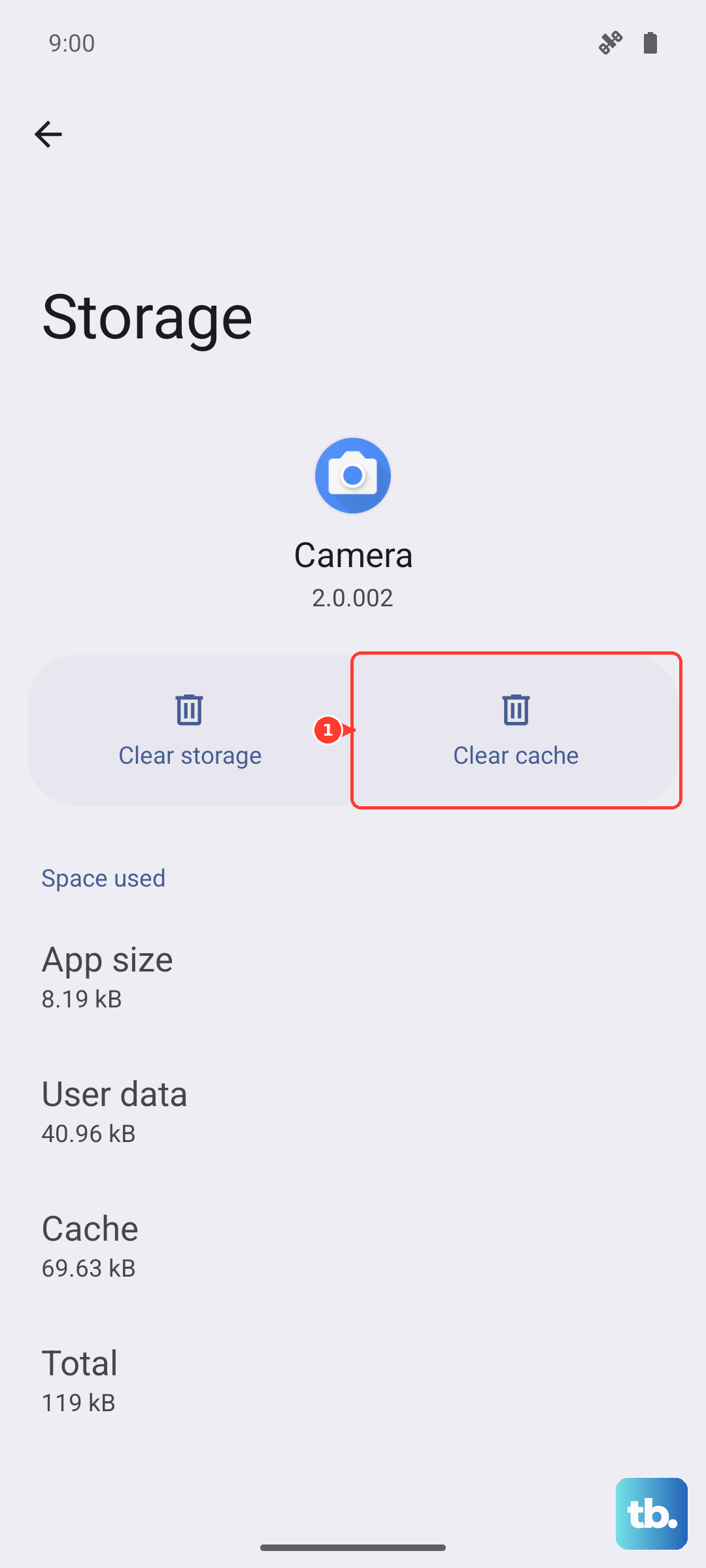
Over time, the navigation app's stored files can become corrupted. This doesn't delete your saved places, but it clears out temporary junk. Go to Settings > Apps > Google Maps (or Waze, etc.).
Tap on Storage usage. First, tap Clear cache. If the GPS is still unreliable, you can tap Clear data. Just be aware this will reset the app to its default settings, so you might need to log back in.
Consider Your Physical Environment
The Realme GT 7 Pro has a strong antenna array, but physics still applies. GPS signals are line-of-sight and struggle indoors, in dense urban canyons, or under heavy tree cover. If your signal keeps dropping, try moving to a more open area.
While the phone has an IP69 rating for water resistance, a very thick or metal-heavy case can sometimes interfere with signal reception. Try removing the case temporarily to see if your GPS lock becomes more stable.
Boot Into Safe Mode to Check for App Conflicts
Sometimes, a third-party app you installed can interfere with location services. Booting into Safe Mode temporarily disables all those apps. Press and hold the Power button until the power menu appears.
Now, tap and hold the Power off option on your screen. A prompt will appear asking if you want to reboot to Safe Mode. Tap OK. If your GPS works perfectly in Safe Mode, a recently installed app is likely the culprit. Restart normally to exit.
Use a GPS Test App for Diagnosis
If you've tried everything and the signal is still weak, it's helpful to see what's happening at the satellite level. Download a free app like "GPS Test" or "GPS Status" from the Play Store. Open it and go outside with a clear view of the sky.
The app will show you how many satellites your phone can "see" and how strong the connection is. If it consistently shows zero satellites, there might be a deeper hardware issue. If it sees plenty of satellites but your maps app still fails, the problem is almost certainly software-based on your Realme GT 7 Pro.