
A slow Razer Blade 16 can feel like a betrayal, especially when you're paying for top-tier gaming performance. That lag when opening apps or stutter in games is usually a software or configuration issue you can fix yourself.
Restart Your Blade 16
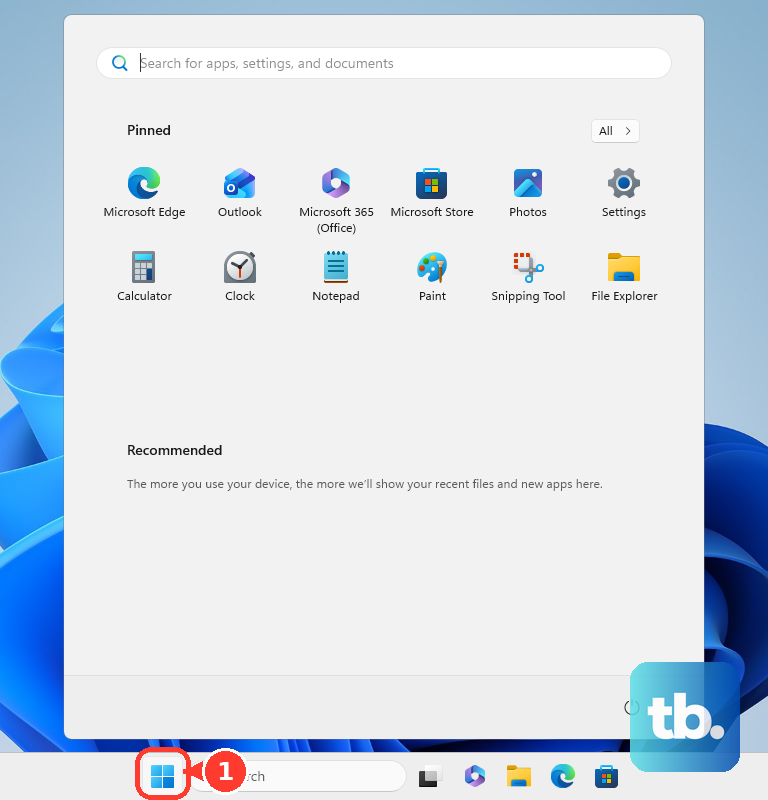
If you just close the lid and put it to sleep for days, background processes and memory can get clogged up. Click Start > Power > Restart. Don't just shut down, as Windows fast startup doesn't fully clear the system state. A full restart flushes everything and is the easiest first step.
Check Task Manager for Culprits
Press Ctrl + Shift + Esc to open Task Manager. Click the CPU, Memory, or GPU columns to sort by what's being used the most. Look for any single process using an unusually high percentage. I've seen Razer Synapse itself occasionally spike CPU usage. Right-click and End task on anything non-essential that's hogging resources.
Manage Razer Synapse and Startup Apps
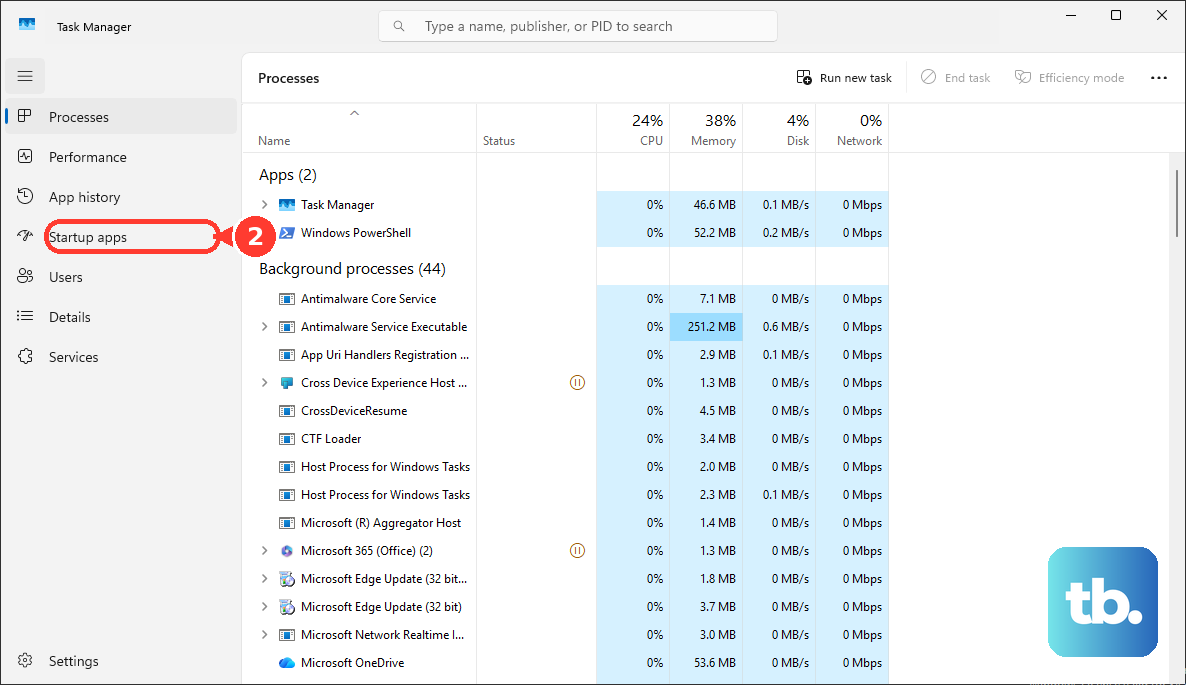
Open Task Manager and go to the Startup apps tab. Disable programs you don't need launching automatically, like game launchers or chat apps. Pay special attention to Razer Synapse. While it's needed for RGB and performance profiles, it can be resource-heavy. You don't need to disable it, but ensure it's updated. Too many startup apps slow down boot times and eat RAM in the background.
Free Up Drive Space
An SSD that's almost full will slow down dramatically. Go to Settings > System > Storage. Turn on Storage Sense to let Windows clean up temporary files automatically. You can also click Temporary files to manually clear out update leftovers and your recycle bin. Try to keep at least 20% of your main drive free.
Update Your Drivers Directly
Go to Settings > Windows Update first to get the latest system patches. For your NVIDIA GPU, don't rely solely on Windows Update. Go to NVIDIA's website directly and download the latest Game Ready driver for your specific GPU model. Outdated graphics drivers are a huge cause of game stuttering and general lag on gaming laptops.
Switch to High Performance Mode
Click the battery icon in your system tray and move the slider all the way to Best performance. You can also go into Settings > System > Power & battery and set the power mode there. On battery, Windows throttles performance to save power, so for gaming or demanding tasks, always plug in and use the highest performance setting.
Check for Thermal Throttling
The Razer Blade 16 is powerful but can run hot. High temperatures during gaming can cause the CPU and GPU to throttle, reducing speed to cool down. Use a monitoring tool like HWiNFO to check your temperatures under load. If they're consistently hitting the 90s (Celsius), make sure the laptop's vents are clear and it's on a hard, flat surface for proper airflow.
Adjust In-Game and Windows Visual Settings
If a specific game is slow, lower graphics settings like shadows, anti-aliasing, and ray tracing. For general Windows slowness, you can reduce visual effects. Search for "Adjust the appearance and performance of Windows" in the Start menu. Choose Adjust for best performance to turn off animations and transparency, which can free up GPU resources.
Consider a Clean Windows Installation
If you've tried everything and the system is still bogged down, a reset can help. Go to Settings > System > Recovery > Reset this PC. Choose Keep my files to reinstall Windows while keeping your personal data. This removes all your apps and settings, giving you a fresh start without any accumulated software bloat.
Monitor Your Battery's Health
This is a specific tip for Razer Blades. Over time, the battery can swell, a condition known as battery bloat. A swollen battery can physically impede performance and is a safety concern. If your laptop's trackpad is clicking oddly, the bottom case is bulging, or it won't sit flat on a table, turn it off, unplug it, and contact Razer support immediately. Regularly checking for these signs is good practice.