You click the Outlook icon and nothing happens, or you get the message "Cannot start Microsoft Outlook. Cannot open the Outlook window." Maybe it flashes open and dies, hangs forever at "Loading Profile," or drops you into Safe Mode every time. Whatever the symptom, your mail, calendar, and contacts feel locked away.
The good news: this is almost always a fixable software problem, not lost data. A faulty add-in, a corrupted profile, a damaged data file, or a stale Office build is usually behind it.
Work through the fixes below in order. They are arranged quickest and most-common first, so you have a strong chance of being back in your inbox within the first two or three steps. Note that "classic Outlook" and "new Outlook" are separate apps with separate fixes, so we cover both.
Start Outlook in Safe Mode to Isolate the Cause
Faulty or incompatible add-ins are the single most common reason classic Outlook will not open. Safe Mode launches Outlook without add-ins and customizations, so if it opens this way, you have found your culprit.
- 1.Press the Windows key + R to open the Run dialog (or right-click Start and choose Run).
- 2.In the Open box, type outlook.exe /safe and select OK. (Alternatively, hold the Ctrl key while launching Outlook.)
- 3.If a Choose Profile dialog appears, accept the default Outlook profile and choose OK.
- 4.If prompted, enter your password and choose Accept.
You will know you are in Safe Mode when a safe-mode label appears at the top of the window and the taskbar icon shows a caution symbol. If Outlook opens this way, move to the next fix to track down the bad add-in.
Disable COM Add-ins, Then Re-enable One at a Time
With Outlook open in Safe Mode, turn off add-ins and find the one breaking startup. Disable them rather than deleting them.
Select File > Options > Add-ins.
At the bottom, make sure the Manage box shows COM Add-ins, then select Go.
Record or screenshot which add-ins are currently checked so you can restore the good ones later.
Clear all the check boxes to disable the add-ins, then select OK.
Select File > Exit, then restart Outlook normally (Windows key + R, type Outlook).
If Outlook now starts normally, an add-in was the problem. Re-enable them one at a time through File > Options > Add-ins, restarting Outlook after each one, until the app breaks again. Leave that problematic add-in disabled.
End Leftover Office Processes Stuck in the Background
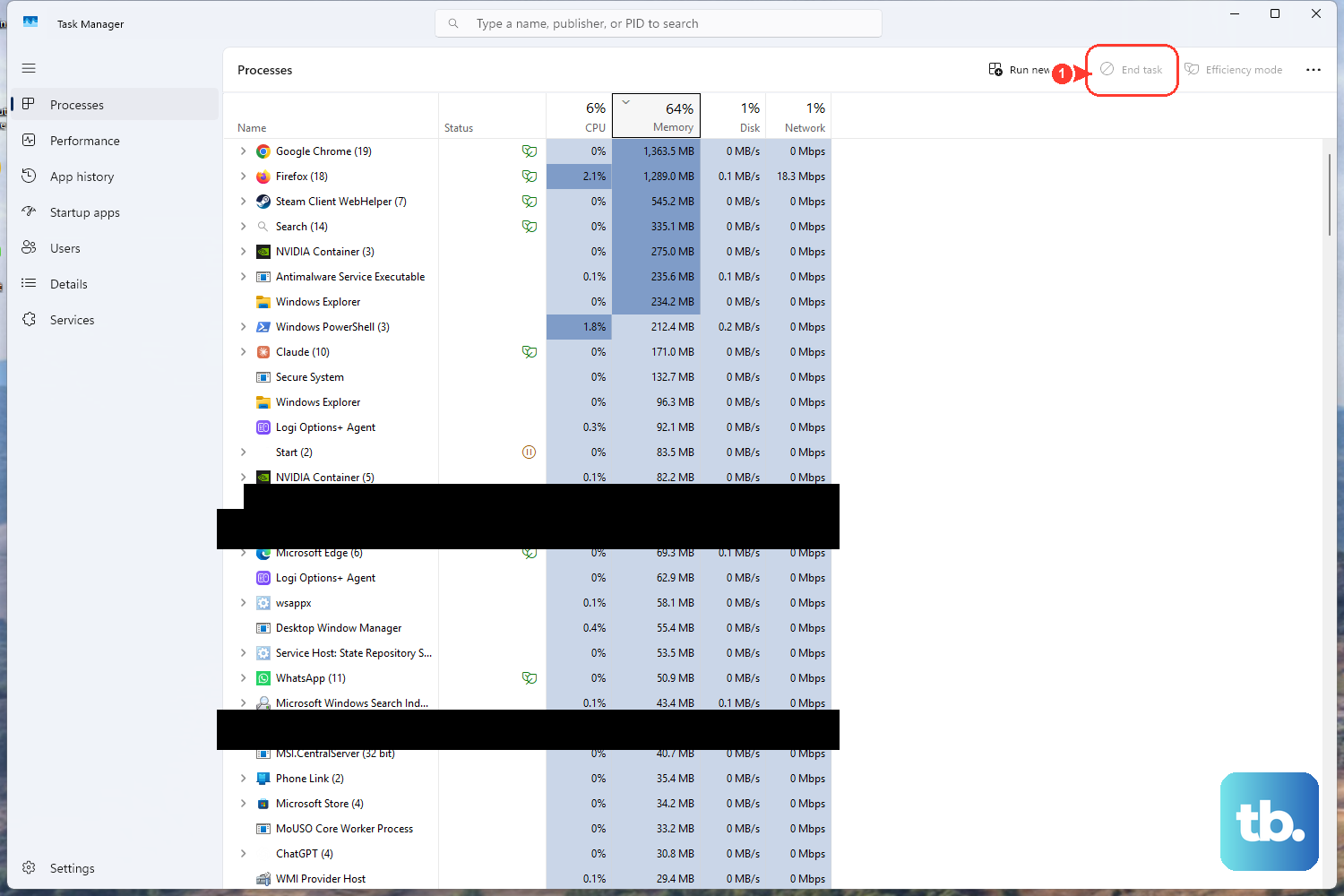
Sometimes a previous Outlook instance or sync is still running and locking the app, which shows up as Outlook refusing to open or hanging at "Loading Profile." Clearing those processes lets a fresh copy launch.
Right-click any empty space on the Taskbar and select Task Manager.
Under the Processes tab, locate every Office process (for example, Microsoft Outlook, OUTLOOK.EXE, or olk.exe).
Select an Office process and choose End task; repeat for every Office process listed.
Relaunch Outlook.
One caution for the loading-profile hang: opening Account settings (clicking your profile picture or going to File > Account) can re-trigger the freeze, so avoid that area until the app is stable.
Reset the Navigation Pane
The navigation pane keeps its own settings file, and if that file is corrupted, Outlook can fail to start. A single command rebuilds it.
Close Outlook completely.
Press the Windows key + R to open the Run dialog.
In the Open box, type Outlook.exe /resetnavpane and select OK.
Outlook will rebuild the navigation pane and attempt to open. This removes your nav-pane customizations, so if you use Outlook on more than one computer, run the command on each of them.
Repair Office With Quick Repair, Then Online Repair
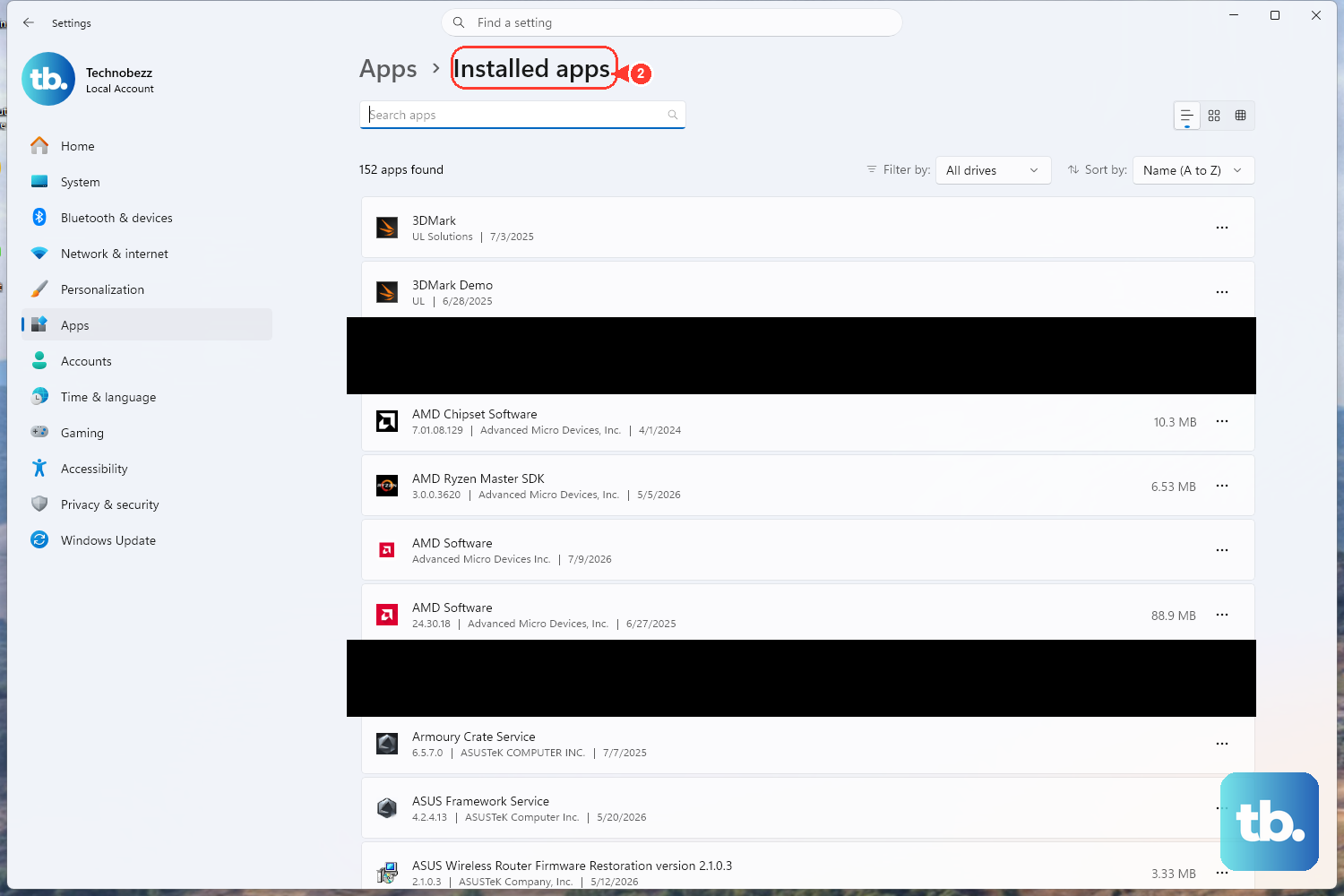
Damaged Office program files can stop Outlook cold. The built-in repair tool replaces those files. Note that it repairs the entire Office suite, not just Outlook.
Close all Office apps.
On Windows 11, right-click Start > Installed apps. On Windows 10, right-click Start > Apps and Features.
Find your Microsoft 365 or Office product in the list.
On Windows 11, click the three dots next to it and select Modify. On Windows 10, select the product and choose Modify.
For Click-to-Run installs, choose Quick Repair > Repair first; it replaces corrupted local files and needs no internet.
If the problem remains, restart the PC and run Online Repair > Repair, which downloads fresh files, requires an internet connection, and takes longer.
If you have an MSI-based install instead, the Change your installation window shows Repair; select Repair, then Continue.
Install Office and Windows Updates
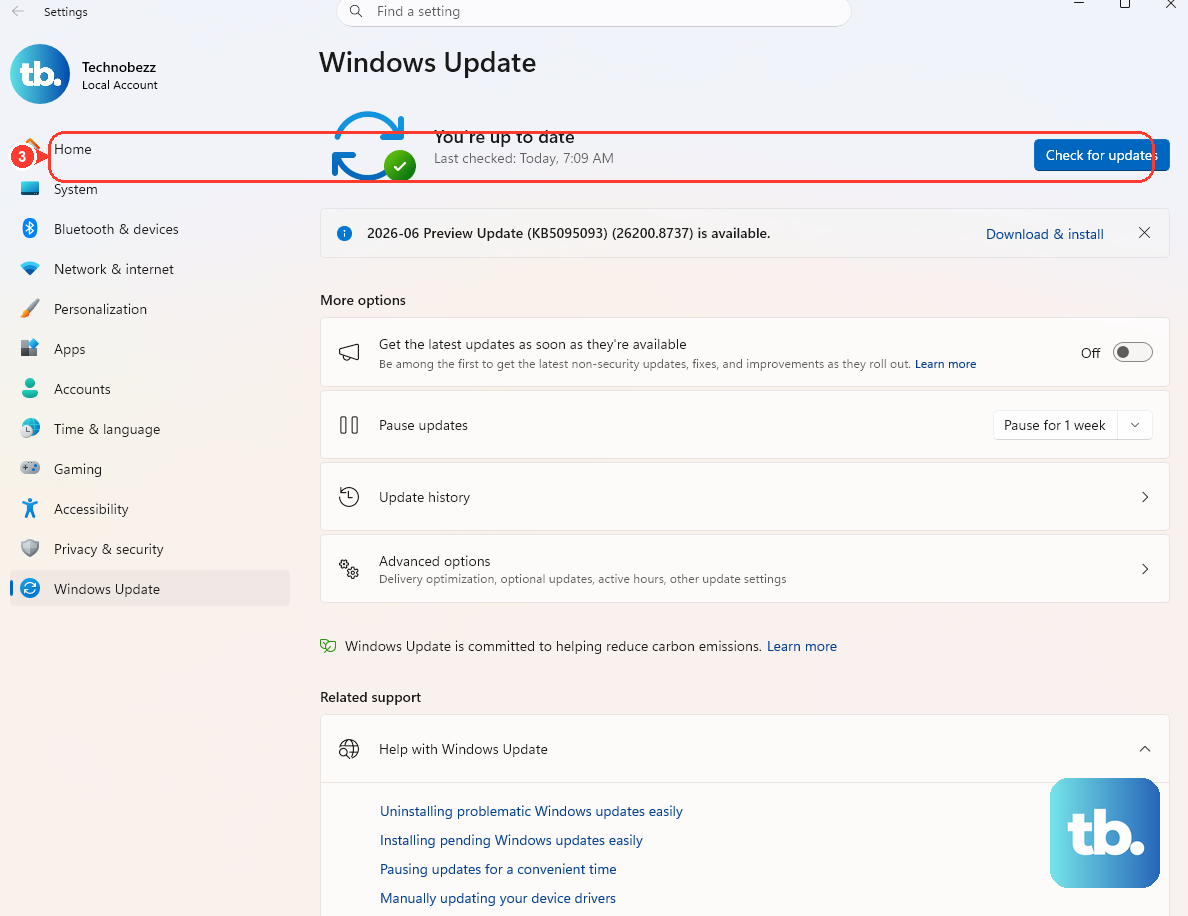
Missing Office or Windows updates can leave Outlook with bugs that block startup. Because Outlook itself will not open, update it from another Office app.
Open Word, then go to File > Account > Update Options > Update Now.
Confirm the new build afterward at File > Account.
Separately, install all pending Windows updates at Settings > Windows Update > Check for updates.
Restart and try opening Outlook again.
Create a New Outlook Profile
Your profile stores all your account settings, and a corrupted profile is a frequent cause of startup failures. Building a fresh one is the test.
Hold the Shift key while starting Outlook to bring up the profile picker. (You can also open the picker from the Run dialog by typing Outlook.exe /profiles, or, if Outlook is already running, from File > Account Settings > Change Profile.)
In the profile picker, select Options, then select New, type a name for the new profile, and choose OK. Add your email account to the new profile when prompted.
Restart Outlook, and in the Choose Profile dialog, pick the newly created profile from the drop-down, then choose OK.
If Outlook starts normally, the original profile was corrupted.
Back up your data files before removing the old profile, because offline cached content is deleted when a profile is removed. One limitation to know: the Control Panel Mail applet only appears after Outlook has been installed and run at least once, and it cannot add or manage profiles for Modern Authentication accounts such as Microsoft 365, Outlook.com, or Gmail. For those accounts, use the Shift-key profile picker described above.
Repair Your Outlook Data Files
If mail, calendar, contacts, or tasks live in a damaged .pst file, the Inbox Repair tool (scanpst.exe) can fix it.
Exit Outlook completely.
Browse to the tool location. For Outlook 2016, 2019, and Microsoft 365 it is C:\Program Files (x86)\Microsoft Office\root\Office16.
Back up your .pst or .ost data file first, since the tool modifies the original.
Open SCANPST.EXE.
Select Browse and choose the data file to scan. To find its path, in Outlook go to File > Account Settings > Account Settings > Data Files tab.
Choose Start to begin the scan, and if errors are found, choose Repair (the tool creates a .bak backup during the process).
Start Outlook when the repair completes.
An .ost file (used by Exchange accounts) cannot be repaired directly. Instead, delete the .ost file and Outlook will recreate it on the next launch.
Fix New Outlook for Windows Specifically
If you use the new Outlook app, the classic troubleshooters above do not apply. Restart it or reinstall it from the Microsoft Store instead.
Right-click Start > Task Manager, select Microsoft Outlook, then End task. Confirm new Outlook is fully closed, close Task Manager, and reopen the app.
If that fails, uninstall it: from the Start menu, find "new Outlook for Windows," expand the list option, and select Uninstall.
Reinstall by opening the Microsoft Store, searching for new Outlook, and selecting Get. If your accounts are not added automatically, follow the prompts to add them.
New Outlook requires Windows 10 version 17763.0 or later.
Handle Known Issues and Special Cases
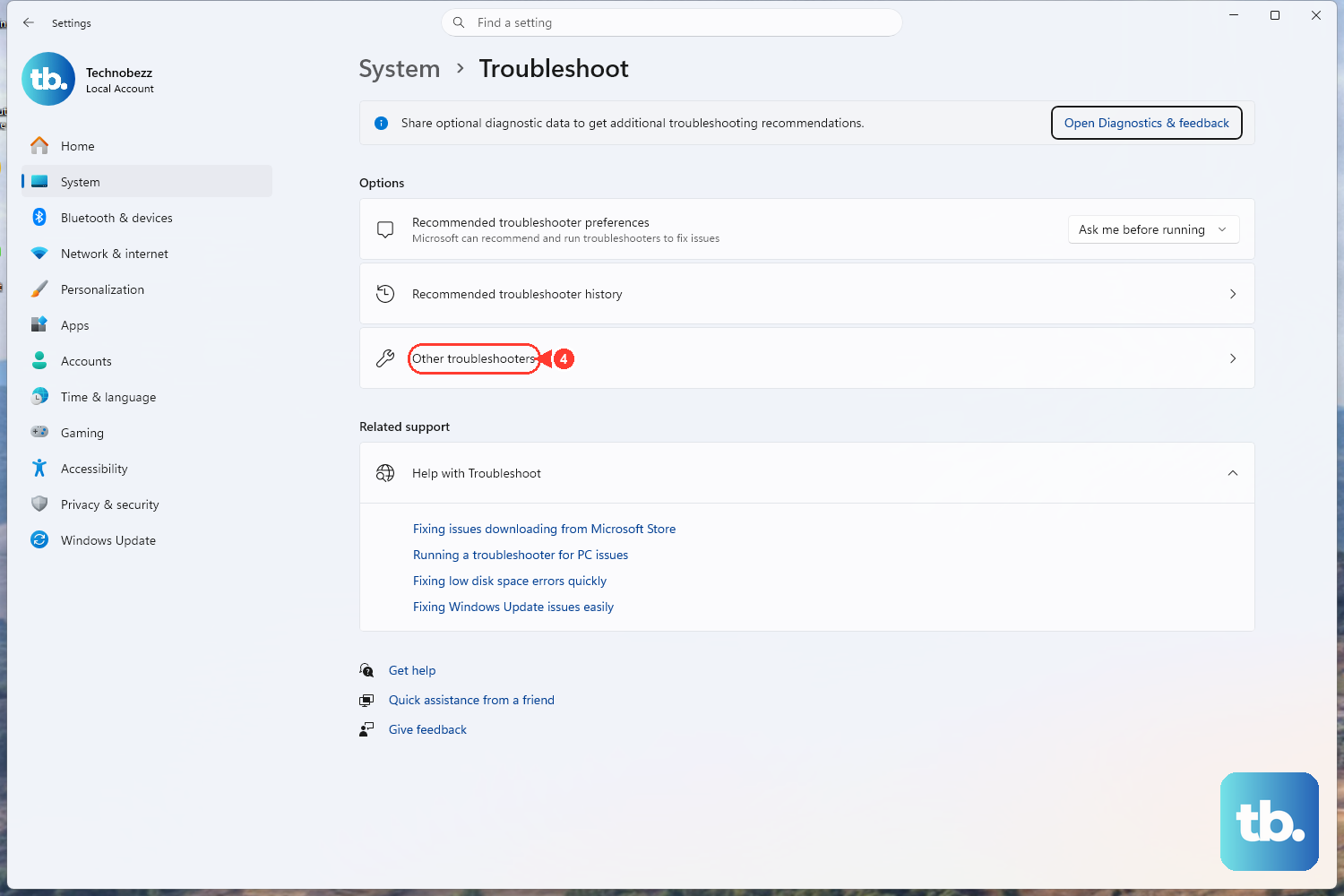
A few specific situations need their own targeted fix rather than the general steps above.
Classic Outlook crashes straight into Safe Mode (starting March 12, 2026). Older builds (Version 2402 / Build 17328.20142 or lower on Current Channel) crash when used with a specific Teams Meeting Add-in version. Update Office from Word (File > Account > Update Options > Update Now) and confirm the build exceeds 17328.20142, or run Online Repair. As a temporary measure, launch Outlook holding Ctrl, go to File > Options > Add-ins > Go, uncheck the Microsoft Teams Meeting Add-in for Microsoft Office, select OK, and restart. The permanent fix shipped in a later Teams version.
"The attempt to log on to Microsoft Exchange has failed." This particular error is a service-side authentication issue, not a local one, so Safe Mode, profile, and .ost steps will not help. Use Outlook on the web or new Outlook to reach your mailbox in the meantime. Microsoft has fixed this, but if it persists, a Microsoft 365 administrator should open a support case from the Admin portal.
A "publisher's website" error on a brand-new PC. If you see "We couldn't verify and install this because it is not available in the Microsoft Store. To install, download it from the publisher's website," classic Outlook is simply not installed; new Windows devices ship with new Outlook only. This is not corruption. Install classic Outlook from Microsoft's official download for your language, and follow the prompts.
Automated diagnostics. Outlook startup and profile diagnostics now live in the Windows Get Help app (Windows 10 or higher, run on the same PC as Outlook). The older consumer Support and Recovery Assistant app and its command-line utility have been deprecated. Get Help troubleshooters do not apply to new Outlook and may be disabled by organization policy.
Frequently Asked Questions
How do I know if an add-in is the problem?
Start Outlook in Safe Mode (Windows key + R, type outlook.exe /safe, or hold Ctrl while launching). If Outlook opens in Safe Mode but not normally, an add-in or customization is the cause. Disable your COM add-ins, then re-enable them one at a time to find the culprit.
Will fixing Outlook delete my emails?
The repair steps are designed to preserve your data, but a few actions carry risk. Removing a profile deletes offline cached content, and the Inbox Repair tool modifies your data file, so back up your .pst or .ost file before running scanpst.exe or removing a profile.
What is the difference between Quick Repair and Online Repair?
Quick Repair only replaces corrupted local files and works without internet, so try it first. If the problem remains, restart your PC and run Online Repair, which downloads fresh files, requires an internet connection, and takes considerably longer. Both repair the entire Office suite, not just Outlook.
Why can't I open classic Outlook on my new computer at all?
Windows devices shipped from 2024 onward come with new Outlook only, so classic Outlook was never installed. Launching it shows a message pointing you to the publisher's website. Download and install classic Outlook from Microsoft's official page for your language to add it.
My Outlook hangs at "Loading Profile." What should I do?
Open Task Manager, end every Office process listed (such as OUTLOOK.EXE and olk.exe), and relaunch Outlook. Avoid opening Account settings or clicking your profile picture afterward, because that area can re-trigger the hang.
Do these fixes work for the new Outlook app too?
Not the classic ones. The new Outlook for Windows is fixed by restarting it through Task Manager or by uninstalling and reinstalling it from the Microsoft Store. The classic troubleshooters, Get Help diagnostics, and commands like /resetnavpane do not apply to new Outlook.