
Seeing that "storage full" warning on your OnePlus Open can really stop you in your tracks, especially when you're trying to capture a moment on that beautiful inner display. The good news is that Android and OxygenOS give you a lot of control to clean things up. You can often free up dozens of gigabytes without losing anything important.
Check Your Storage Breakdown First
Head to Settings > Storage. This screen gives you a complete breakdown of what's filling up your space. Wait a moment for it to calculate. You'll see categories like Apps, Images, Videos, and Audio, along with a handy graph. This tells you exactly where to focus your cleanup efforts first.
Clear App Caches (The Quick Win)
App caches are temporary files that can balloon in size over time. In the Settings > Storage menu, tap on Apps. You'll see a list sorted by storage usage. Tap on any large app, like Instagram, TikTok, or Chrome. Inside its storage details, you'll find a Clear cache button. This deletes temporary data without touching your login or personal settings within the app.
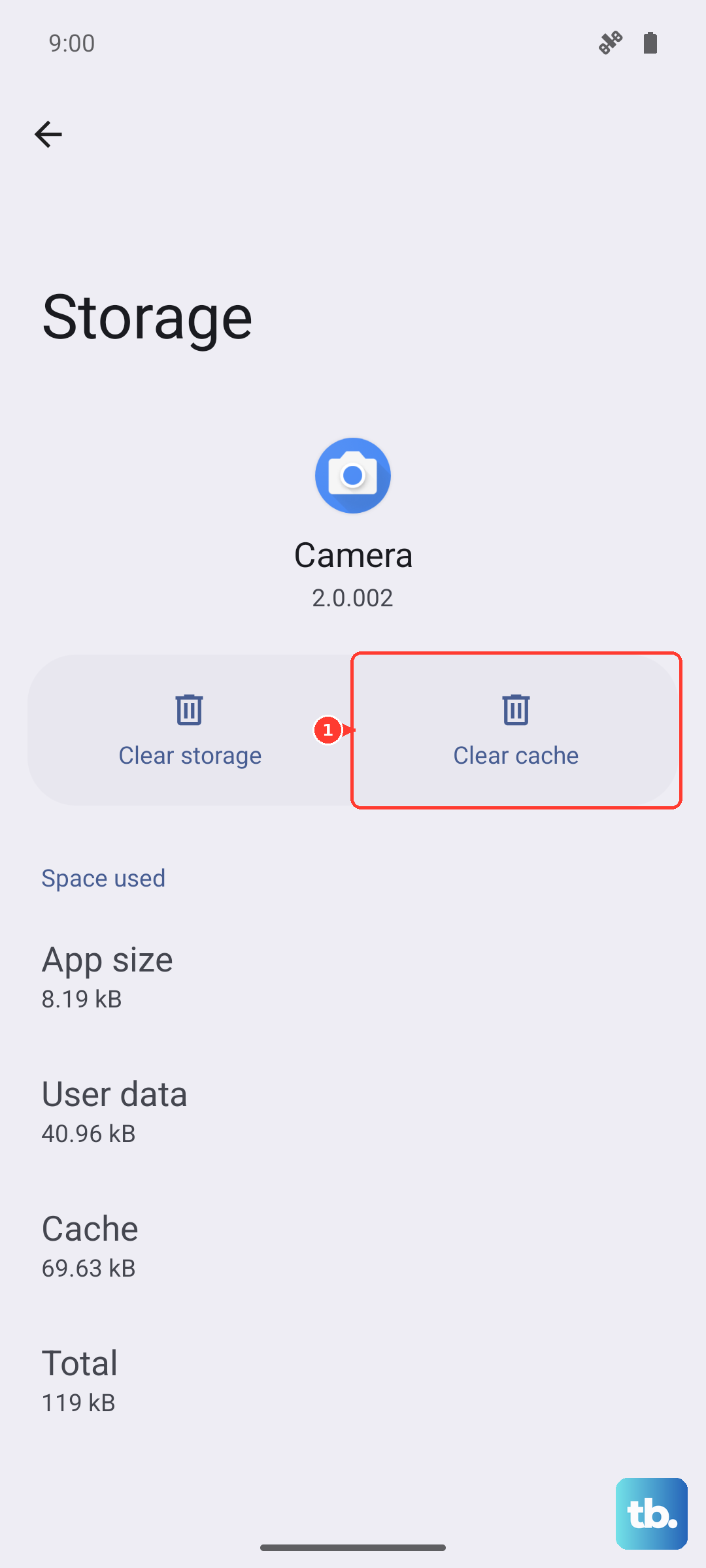
For a broader clean, you can use the built-in cleaner. Go to Settings > Additional settings > OnePlus Cleanup. It can scan for and remove junk files, including app caches, with a single tap. I'd start with this one, as it's often the fastest way to reclaim a few gigabytes.
Manage Your Photos and Videos
Media files are almost always the biggest space hog. Open the Photos app and use the Clean tool. It can help you find and delete similar photos, screenshots, and blurry images. Don't forget to empty the Recently Deleted folder afterward, as those files still take up space for 30 days.
Consider backing your photos up to Google Photos or another cloud service. Once they're safely backed up, you can use the "Free up space" feature in Google Photos to remove the full-resolution copies from your phone, leaving behind smaller, optimized versions.
Offload or Uninstall Unused Apps
Go back to Settings > Storage > Apps and scroll through the list. Look for apps you haven't opened in months. For some apps, you might see an option to Uninstall updates or Clear data. Be careful with "Clear data," as it will reset the app completely, like it's brand new.
If you're hesitant to delete an app entirely, see if it supports offloading. Some apps, when uninstalled through the Google Play Store, will offer to keep your data. You can always reinstall it later and pick up right where you left off.
Review Downloads and Offline Content
Open your Files app and navigate to the Downloads folder. This is where PDFs, APK files, and other documents from your browser end up. Delete anything you no longer need.
Also, check your streaming apps. Spotify, Netflix, and YouTube Music store songs, shows, and podcasts for offline listening. Open each app, go to your library or downloads section, and remove content you've already finished. This can easily free up 10GB or more if you're an avid downloader.
Clear Message Attachments
Messaging apps like WhatsApp, Telegram, and even your default SMS app store every photo, video, and file you've ever received. In WhatsApp, for example, go to Settings > Storage and data > Manage storage. You can review large files and bulk delete them. For your standard Messages app, you might need to go into conversation threads and manually delete old media.
Check for System Update Residual Files
After a major Android or OxygenOS update, leftover installation files can sometimes linger. You can often find these in the Files app under a folder like "Software update" or "OTA." If you see large files with names like "update.zip," it's usually safe to delete them after the update is complete and your phone is running smoothly.
Consider the Hinge and Display Care
While not a direct storage fix, keeping your OnePlus Open in good shape prevents issues. The inner screen's crease can attract dust, and debris in the hinge might eventually cause problems. Gently clean the hinge area with a soft, dry brush regularly to prevent buildup. Avoid pressing on the inner display with fingernails or sharp objects to protect it from damage.
Use a Computer for a Deep Clean
If you're still tight on space, connect your OnePlus Open to a computer with its included USB-C cable. When you select "File Transfer" mode, you can browse your phone's internal storage directly from your computer. This makes it much easier to find and delete large, forgotten video files or duplicate folders that are hard to spot on the phone's smaller screen.