
Keeping your OnePlus Open updated is one of the best things you can do for it. You get the latest security patches, bug fixes for things like the inner screen software, and sometimes even new features for the unique foldable experience. The process is straightforward, but there are a few specifics for your Open.
Check for an Update Now
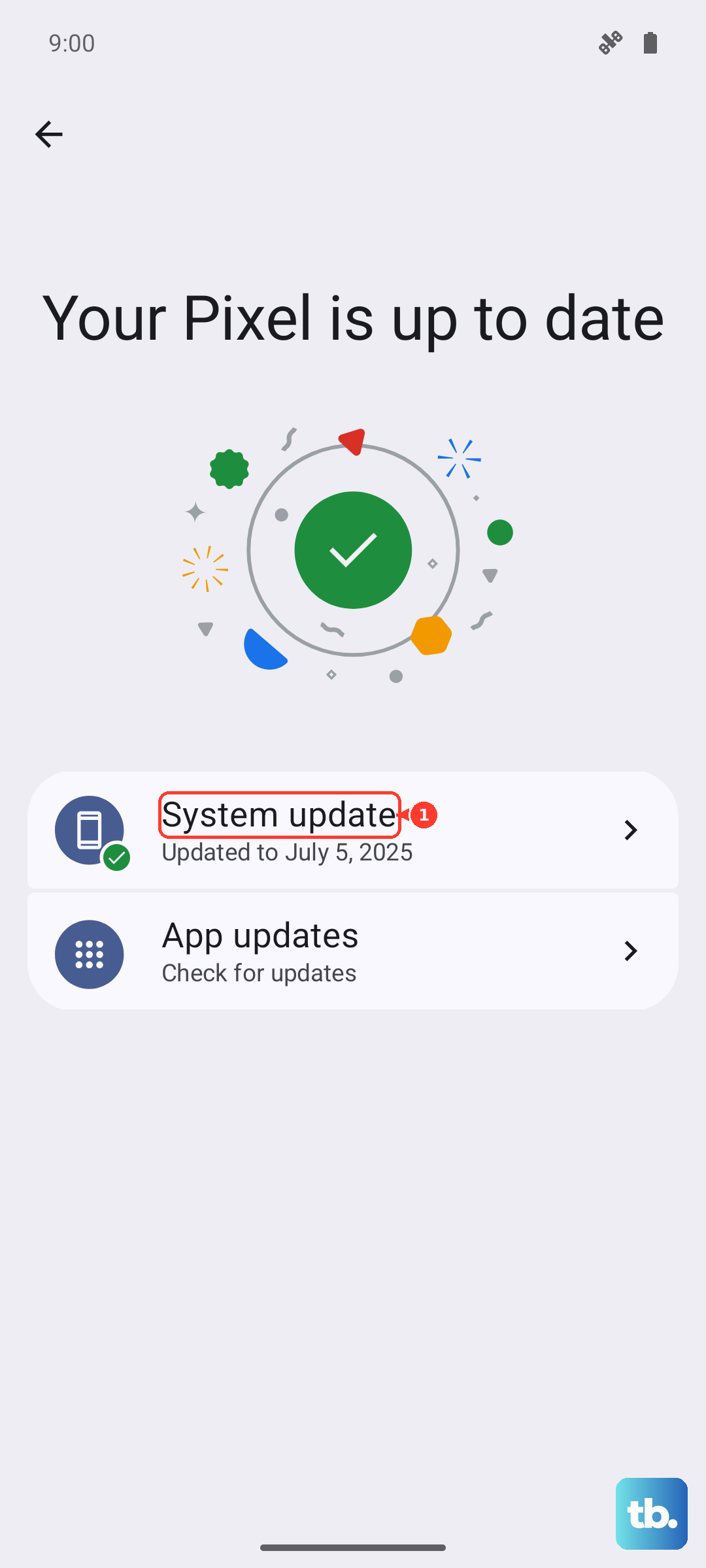
Open your Settings app and scroll down to About device. Tap on it, and then select Software update. Your phone will immediately check with OnePlus servers to see if a new version of OxygenOS is available for your model.
If an update is ready, you'll see a button to download it. I'd recommend plugging in your 67W SUPERVOOC charger first, as major OS updates can be large. Also, make sure you're connected to a stable Wi-Fi network before you start the download.
Install the Update
Once the download finishes, your phone will prompt you to install. Tap Install now. Your OnePlus Open will reboot and begin the installation process. This can take several minutes, so don't panic if you see the OnePlus logo for a while.
The phone will restart again when it's done. You'll land back on your lock screen, and everything should be updated. It's a good idea to open a few apps afterward to make sure the new software is running smoothly on both the cover and inner displays.
Set Up Automatic Updates
To make sure you never miss a security patch, you can enable automatic downloads. Go back to Settings > About device > Software update. Tap the three-dot menu in the top right and select Settings.
Here, you can toggle on Auto download over Wi-Fi. With this on, your Open will quietly download updates when it's idle and on Wi-Fi. You'll still get a notification to approve the installation, giving you control over when the phone restarts.
If an Update Fails or Gets Stuck
Sometimes a download can fail due to a spotty connection. If that happens, try switching to a different Wi-Fi network and checking for the update again. If the installation itself seems frozen, a force restart usually clears it up.
Press and hold the Power button on the right side of your Open for about 10 seconds, until you feel it vibrate and the screen goes black. Release the button, and it will boot back up. You can then go back to the Software update menu to try the process again.
Update Your Apps Separately
System updates are crucial, but your apps need love too. Open the Google Play Store, tap your profile icon in the top right, and go to Manage apps & device. Under the "Updates available" section, tap Update all.
Keeping apps updated is especially important for foldables. Developers often release optimizations for larger screens and multitasking features that your Open can take full advantage of. Outdated apps can sometimes cause odd behavior on the inner display.
Check Your Android Version and Security Patch
To confirm your update was successful, go to Settings > About device. Look at the "Android version" and "Android security update" lines. This tells you exactly which iteration of Android and the latest security patch you're running.
Your OnePlus Open launched with Android 13 and was upgraded to Android 14. Major Android version updates are less frequent but bring significant changes, while the monthly security patches are essential for keeping your data safe.
Don't Forget Google Play System Updates
This is an extra layer of updates that comes directly from Google. Go to Settings > Security & privacy > System & updates and tap on Google Play system update. Tap "Check for update" and install any that are available.
These updates improve core Android services and can deliver security fixes faster than waiting for a full OxygenOS update from OnePlus. It's a quick check that's worth doing every couple of months.
If you ever experience new software glitches after an update, like odd animations around the crease or hinge sensor issues, a simple restart often resolves them. Just hold the power button and select "Restart" to give your freshly updated system a clean start.