
Your OnePlus Open builds up temporary files and cached data as you use it. When you notice apps getting sluggish or your storage feeling full, clearing out this cache can often give your phone a fresh start. It's a simple maintenance task that can solve a lot of common hiccups.
Clear Individual App Cache
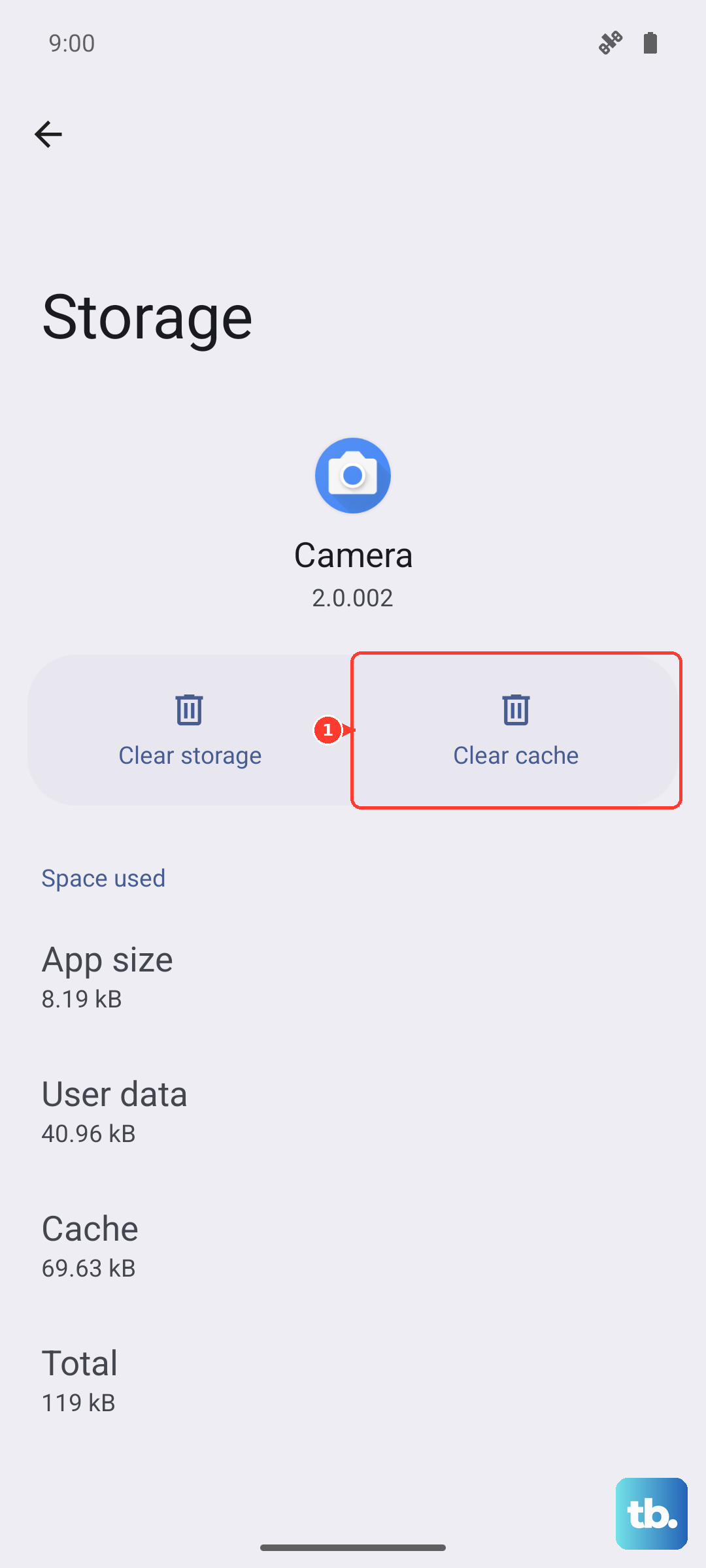
Head to your Settings and tap on Apps. You'll see a list of all your installed applications. Tap on any app, then select Storage usage. Here, you'll find the Clear cache button. Tapping it removes the app's temporary files without touching your login info or saved data.
I'd focus on apps that tend to hoard cache, like Chrome, YouTube, Instagram, and Spotify. These are usually the biggest offenders when it comes to taking up unnecessary space.
Use the Built-in Storage Cleaner
OxygenOS on your OnePlus Open includes a handy cleaning tool. Go to Settings > Storage > Clean up storage. The phone will scan and show you categories like App caches, Temporary files, and Duplicate files. You can review what it finds and tap to clear them out in just a few seconds.
This is often the quickest way to reclaim a gigabyte or two of space without having to go through each app manually.
Clear Your Browser Cache in Chrome
If web pages are loading slowly or acting strange, your browser cache might be the culprit. Open Chrome, tap the three-dot menu, and go to History > Clear browsing data. On the next screen, make sure Cached images and files is selected.
You can choose a time range, like "Last hour" or "All time," then tap Clear data. This won't log you out of your websites unless you also clear cookies and site data.
Wipe the System Cache Partition
For deeper system-level glitches, especially after a software update, you can clear the cache partition. First, power your OnePlus Open completely off. Press and hold the Power button and Volume Down button together until the phone vibrates and the recovery menu appears.
Use the volume buttons to navigate to Wipe data and cache and press the power button to select it. Then, choose Wipe cache and confirm. This process only deletes system cache and is completely safe for your personal files.
Manage Files with Google's App
The Files by Google app is a fantastic free tool for managing storage. If it's not already on your phone, you can get it from the Play Store. Open it and tap the Clean button on the bottom left.
It will quickly scan for junk files, large old files, duplicate photos, and unused apps. It gives you control to review and delete exactly what you want, making it much easier to keep your 256GB or 512GB of storage tidy.
Clear Out Messages and Downloads
Don't forget about your messaging apps. Long threads, especially group chats filled with photos and videos, can consume a surprising amount of space. Open your messaging app and delete old conversations you don't need.
Also, check your Downloads folder by opening the Files app. It's easy for old PDFs, APK files, and images to pile up in there over time.
Restart Your Phone Regularly
A simple restart clears out the phone's active memory (RAM) and some temporary system caches. Just press and hold the power button until the power menu appears, then tap Restart. Doing this once a week can help prevent minor slowdowns from building up.
If your phone is completely frozen, you can force a restart by holding the Power button for about 10 seconds until the screen goes black and the phone reboots.
Check What's Using Your Storage
For a big-picture view, go to Settings > Storage. Here, you'll see a breakdown of exactly what's filling your space: apps, images, videos, audio, and system files. Tapping into each category lets you manage files directly.
This is also where you can enable features like Smart Storage in OxygenOS, which can automatically remove backed-up photos and videos from your device after 30 or 60 days to free up space.