
Press and hold the power button for about 10 seconds until you feel the phone vibrate and restart. This force restart is the quickest way to clear a temporary software glitch that's freezing the touchscreen. I'd start with this one, as it often resolves the issue without any data loss.
Before trying the fixes, map the problem with a touch screen tester in your browser. Dragging a finger across the grid reveals exactly which areas of the screen respond and which do not.
If the screen is completely unresponsive, you might need to hold the button for closer to 15 seconds. Wait for the OnePlus logo to appear before releasing. This basic step can fix random freezes, especially after an app update or a minor system hiccup.
Clean the Screen and Remove Any Protector
A dirty screen or a poorly applied screen protector can seriously interfere with touch sensitivity. Power the phone off first, then use a soft, lint-free cloth slightly dampened with water to clean both the inner and outer displays. Pay special attention to the crease area on the inner screen, where debris can accumulate.
If you're using a third-party screen protector, particularly on the folding display, it might be the culprit. Some protectors aren't optimized for the flexible screen and can cause dead zones. Try carefully removing it to see if touch functionality returns.
Remember to avoid using any harsh chemicals or abrasive cloths. For the hinge, a can of compressed air can help blow out dust without applying pressure to the delicate inner screen.
Boot Into Safe Mode
Safe mode temporarily disables all third-party apps. If the touchscreen works perfectly here, you know a recently downloaded app is causing the conflict. To enter Safe Mode on the OnePlus Open, press and hold the power button until the power off menu appears.
Then, tap and hold the "Power off" option on the screen. A prompt will ask if you want to reboot to Safe Mode; tap "OK". The phone will restart, and you'll see "Safe Mode" in the bottom corner.
Test the touchscreen thoroughly. If it works, restart the phone normally to exit Safe Mode and begin uninstalling apps you installed around the time the problem started.
Check for Software Updates
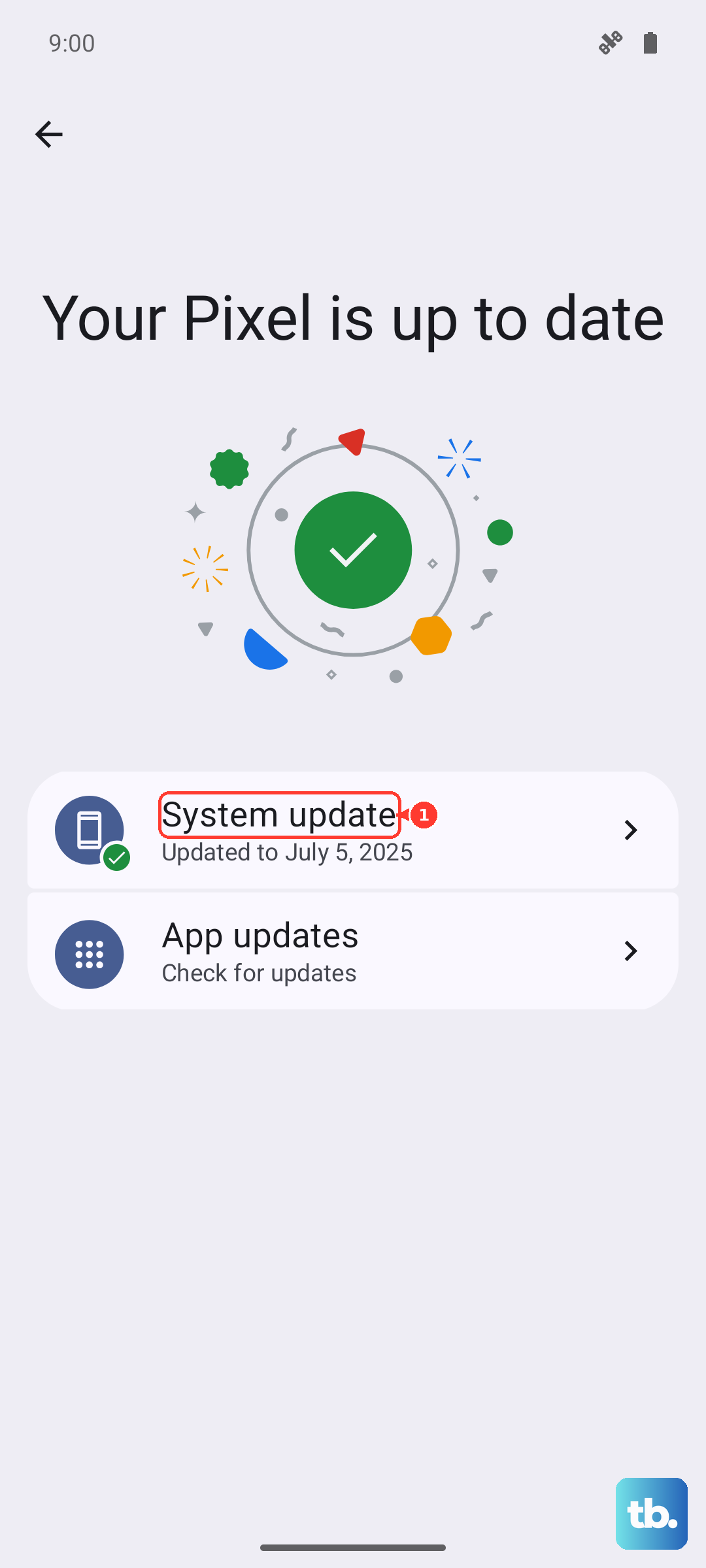
Outdated software can contain bugs that affect touchscreen drivers. Connect to Wi-Fi and go to Settings > About device > OxygenOS version to check for an update. Since the OnePlus Open runs OxygenOS 14 on Android 14, OnePlus regularly releases patches for performance and stability.
Make sure your phone has at least a 50% charge or is plugged into the included 67W SUPERVOOC charger before updating. A software update can address known touchscreen issues that might be affecting your specific device build.
After the update completes, the phone will reboot. Give it a minute to settle, then test the touchscreen again. System updates often include crucial driver fixes.
Calibrate the Touchscreen
While Android doesn't have a built-in calibration menu for touchscreens like some older phones, you can use a hidden diagnostic test. Open the Phone dialer and enter *#808# to access the engineering mode menu. Navigate to "TouchPanel Test" or a similar option.
This test will draw lines or grids on the screen. Follow the on-screen instructions to trace patterns; it will help identify if there are specific dead zones or if the entire digitizer is faulty. This is a useful way to confirm a hardware problem.
If the test shows consistent failures across the screen, the issue is likely hardware-related. If it passes, the problem is almost certainly software-based.
Perform a Factory Reset
This erases all data, so it's a last resort. First, ensure you have a recent backup. If the touchscreen is partially working, you can initiate the reset from Settings > Additional settings > Back up and reset > Erase all data (factory reset).
If the screen is completely dead, you can use the hardware keys. Power off the phone completely. Then, press and hold the volume down button and the power button together until the OnePlus logo appears, then release.
Use the volume buttons to navigate to "Wipe data and cache" and select it with the power button. Confirm your selection to reset the phone. This will eliminate any deep-seated software corruption.
Consider Physical Damage
The OnePlus Open's inner screen is particularly vulnerable. Even slight pressure from a fingernail or a sharp object can damage the flexible OLED layer underneath. Inspect the inner screen closely under good light for any punctures, cracks, or unusual bubbling along the crease.
Hinge issues can also manifest as touch problems. If the hinge feels gritty, makes noise, or doesn't open fully, internal ribbon cables that run through it could be damaged. These cables carry signals for the display and touch functions.
Dropping the phone, even in a case, can cause internal connections to loosen. If you've had any physical trauma to the device, this likely points to a hardware repair being necessary.