You open Word, Excel, or Outlook expecting to get to work, and instead the title bar reads "Unlicensed Product" or "Non-commercial use / Unlicensed Product." Most of your features are greyed out, and a yellow or red bar wants you to renew, sign in, or activate before some deadline.
This almost always comes down to one of a few things: the wrong Microsoft account, an expired subscription, a duplicate install, a clock that drifted, or a cached credential that went stale. None of them mean your apps are broken.
Work through the fixes below in order. They are arranged quickest and most common first, so the early steps clear the majority of cases before you ever touch a registry key or Keychain entry.
Read the Exact Message First
The wording in your title bar and warning bar tells you which fix you need, so note it before doing anything. Microsoft 365 surfaces several distinct notices.
Look for "Unlicensed Product" or "Non-commercial use / Unlicensed Product" in the title bar, with most features disabled.
You may see a yellow bar reading "RENEW YOUR SUBSCRIPTION" or "SUBSCRIPTION EXPIRED."
Another possibility is a "PRODUCT NOTICE" bar saying the app "hasn't been activated," sometimes with a "Let's get started" screen.
If the yellow bar says "Product deactivated," you need to sign back in.
When the yellow bar says "Couldn't Verify Subscription," the issue is usually a connection issue.
You may also see "ACCOUNT NOTICE" or "UPDATE REQUIRED" stating your subscription "has a pending change."
One caution: the message "We couldn't find any Office products" appears both when you signed in with the wrong email and when a subscription has expired. The wording does not tell the two apart, so the next two fixes both apply.
Sign In With the Correct Microsoft Account
Office activates against the specific account tied to your purchase, and signing in with a different address is the single most common cause of this error. Try every personal email you own; for a work or school install, use that organization account instead.
To confirm which account actually holds the license, go to account.microsoft.com/services and sign in. Your Office product or Microsoft 365 subscription should be listed there. If it is not listed, that email address will not work for signing in to Office.
One important caveat: every Microsoft account includes free access to Office for the web. Seeing the web apps work does not prove you own a paid subscription or perpetual license, so verify the product is listed rather than assuming.
Once you confirm the right account, close all Microsoft 365 apps, reopen them, and sign in with that email.
Check Whether Your Subscription Expired or Was Cancelled
If the account is correct but activation still fails, the subscription itself may have lapsed. On the same account page, look under the "Subscriptions" or "Cancelled subscriptions" heading.
If it appears as cancelled or expired, follow the renewal prompt, for example, "Renew Microsoft 365 Family." You can also renew from inside the app.
In the yellow "RENEW YOUR SUBSCRIPTION" bar, select Buy and follow the online renewal steps. For "SUBSCRIPTION EXPIRED," select Reactivate then Buy.
If you bought a new, unused Microsoft 365 product key from a retailer, select Enter Key in the "SUBSCRIPTION EXPIRED" bar instead.
For "Product deactivated," select Sign in and enter your account credentials.
For "Couldn't Verify Subscription," reconnect to the internet and choose Retry.
For an ACCOUNT NOTICE or UPDATE REQUIRED pending change, follow the linked instructions to reinstall or update Office.
After renewing or buying, close every Office app and reopen it. The new license state only takes effect on a fresh launch.
Run the Activation Troubleshooter
Use the Microsoft 365 activation troubleshooter on a Windows PC to help identify and fix Microsoft 365 activation issues. Open the link aka.ms/SARA-OfficeActivation-OF. If you are prompted about "Get Help," select Open, then follow the on-screen steps.
Two requirements apply: you need Windows 10 or higher, and you must run it on the same PC where Office is installed. It cannot fix a remote machine.
Correct the Date, Time, and Time Zone
An incorrect clock can cause activation to fail, and it is a fast thing to rule out. Close all Office apps, then click the date and time at the bottom-right corner of the screen.
On Windows 11 or 10, open Date and time settings, then toggle on "Set time automatically" and, if shown, "Set time zone automatically." If the automatic time zone option is unavailable, make sure your local time zone is selected in "Time zone."
On Windows 8.1 or 8, choose Change date and time settings, then adjust the date and time or the time zone.
On Windows 7, choose Change date and time settings, then adjust the values or use the Internet Time tab to synchronize.
Reopen Office and try activating again.
Remove Duplicate Office Installations
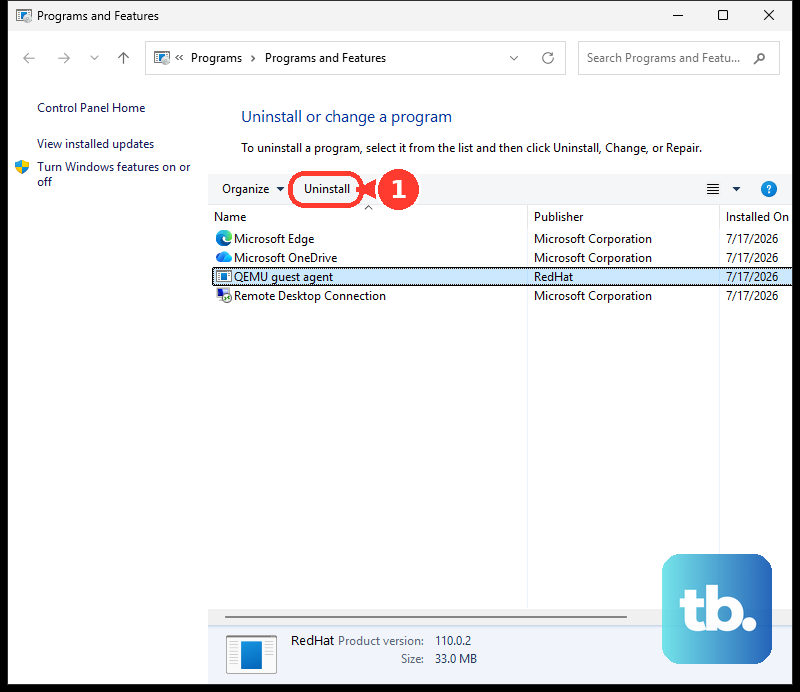
Having more than one copy of Office on the same PC can cause them to conflict, and you may not realize a second version is even installed. Clear this out through Control Panel.
- 1.Open Control Panel and go to Programs and Features.
- 2.Type "office" in the search box.
- 3.If more than one version appears, right-click the one you do not use and select Uninstall.
- 4.Restart the computer.
- 5.Open an Office app and sign in.
If it still shows Unlicensed after this, run an online repair on the version you kept.
Clear Firewall, Antivirus, and Proxy Interference
Activation needs to reach Microsoft's servers, and a firewall, antivirus tool, or proxy can quietly block that connection. Test each as a temporary measure, then restore it.
For the firewall, temporarily turn off Windows Firewall, or your third-party firewall per its manufacturer's instructions, then try activating.
For antivirus, find it under Start > Control Panel > System and Security > Security and Maintenance, expand the Security section (your tool is listed under "Virus protection"), and follow the maker's steps to disable it briefly.
For the proxy, open Start > Settings > Network & Internet > Proxy. Confirm "Manual proxy setup" is Off unless you genuinely need it, and adjust "Automatic proxy setup" as required.
These are diagnostic steps only. Turn the firewall and antivirus back on (reinstalling antivirus if you removed it) once activation succeeds. On a work or school install, ask your IT department about proxy bypass requirements.
Clear Cached Credentials and the Identity Value (Work or School Accounts)
If your license came from an organization and the steps above did not help, stale cached credentials or a corrupt Identity value are likely. These steps need Microsoft 365 admin rights; if you are not an admin, find the person who is. If your license is a personal one, skip this fix and stay with the earlier consumer steps.
Start with cached credentials and any mismatched account.
From Start, type "credential manager" and open Credential Manager, then select Windows credentials.
If you see any MicrosoftOffice16 entries, expand each and select Remove, then close the window.
Open Settings > Accounts > Access work or school. If the account you use for office.com is listed but is not the one you use to sign in to Windows, select it and choose Disconnect.
Restart the device and try to activate again.
If it still fails, edit the Identity value in the registry.
From Start, type "regedit" and open Registry Editor.
Navigate to HKEY_CURRENT_USER\Software\Microsoft\Office\16.0\Common\Identity.
Right-click the Identities folder, select Delete, restart, and try activating.
If the error persists, return to the same location, right-click Identity > New > DWORD, name it NoDomainUser, and set its Value to 1. Restart and try again.
As a further work-or-school step, you can temporarily set User Account Control to "Never notify" (type "uac" at Start to open the setting), restart, activate, then return UAC to its previous level.
Fix Activation on a Mac
On a Mac the same Unlicensed or activation symptoms have their own set of fixes. Start by confirming the license, then clear the cached entries Office keeps in Keychain.
First verify the license: sign in at account.microsoft.com/services and select "Install Microsoft 365 or Office" to confirm your license appears. Remember that the free Office for the web on every account does not mean you hold a paid subscription.
To clear cached license and identity files in Keychain, open Keychain Access by searching for "Keychain" in Spotlight.
Remove these entries: "Microsoft Office Identities Cache 3," "Microsoft Office Identities Settings 3," and "Microsoft Office Ticket Cache." This requires local admin privileges.
Reopen an Office app and sign in to reactivate.
If the PrivilegedHelperTools folder is inaccessible, its permissions can block activation. In Finder, choose Go > Computer, then open Macintosh HD > Library and look for the PrivilegedHelperTools folder; a red stop icon means it is inaccessible. To correct it, right-click the folder, choose Get Info, click the lock under "Sharing & Permissions," enter your admin password, and change "Everyone" to Read & Write.
If activation returns error 0xD000001c, the cause is invalid or special characters in your computer name. Go to the Apple icon > System Preferences > Sharing, remove those characters from the "Computer Name" box, close the window, then restart the Mac and reactivate.
When the cached entries are stubborn, Microsoft also provides a downloadable license removal tool for Mac that clears the license files for you; have your Office account email and password ready before running it.
Frequently Asked Questions
I can use Office in my browser, so why does the desktop app say Unlicensed?
Every Microsoft account gets free Office for the web automatically. That access does not mean you hold a paid Microsoft 365 subscription or a perpetual license. Check account.microsoft.com/services and confirm an actual product is listed under your subscriptions.
Why do I keep seeing "We couldn't find any Office products"?
That exact message appears for two different reasons: you signed in with an email that has no Office attached, or the subscription on that account has expired. The wording does not distinguish them, so verify the correct account first, then check for an expired or cancelled subscription.
I renewed my subscription but the apps still say Unlicensed. What now?
Close every Office application completely, then reopen it. The renewed license state only applies on a fresh launch, so apps left running will keep showing the old status.
How do I fix activation on a Mac?
Confirm your license at account.microsoft.com/services, then clear cached entries in Keychain Access by removing "Microsoft Office Identities Cache 3," "Microsoft Office Identities Settings 3," and "Microsoft Office Ticket Cache" (this needs local admin rights). Reopen an app and sign in. If activation still fails, Microsoft also provides a downloadable Office license removal tool for Mac.
I get Mac activation error 0xD000001c. What causes it?
That specific error comes from invalid or special characters in your computer name. Go to the Apple icon > System Preferences > Sharing, remove the special characters from the "Computer Name" box, close the window, then restart the Mac and reactivate.
Should I just keep my firewall and antivirus turned off?
No. Disabling them is only a diagnostic test. Turn the firewall and antivirus back on (reinstalling the antivirus if you uninstalled it) as soon as activation works, and restore UAC to its previous level if you changed it.