
A Motorola Razr Plus that's completely unresponsive, with a frozen cover screen or main display, can be a real panic moment. The phone might be stuck on an app, the lock screen, or just showing a black screen. In my experience, this is almost always a temporary software hiccup that you can fix yourself without losing any photos or messages.
Perform a Force Restart
This is the go-to fix for a completely frozen Razr Plus. Just press and hold the Power button for a solid 10 to 15 seconds. Keep holding it even if nothing happens on the screen right away. You'll eventually feel a vibration or see the Motorola logo as the phone reboots. This doesn't delete any of your data, it just gives the system a fresh start.
Plug It Into a Charger
If the battery has drained completely, the phone might appear dead or frozen. Connect it to a wall outlet using a USB-C cable and a powerful charger, ideally a 45W TurboPower one. Let it charge for at least 20 minutes before trying to turn it on again. A deeply discharged battery needs a little time to wake up.
Let It Cool Down
The compact design of the Razr Plus can make it prone to overheating, especially if you've been using it while charging or running intensive apps on the cover screen. If the phone feels warm or hot to the touch, it may have frozen to protect its components. Move it to a cool spot, unfold it completely for better airflow, and give it 15 minutes to cool down before trying to restart.
Check for a Crimped Charging Cable
This is a unique issue with foldables. If you charged the phone while it was closed, the USB-C cable can get pinched in the hinge. This might not only damage the cable but could also cause connection issues that affect the phone's performance. Unfold the phone, inspect the cable where it plugs in, and try a different, undamaged cable if you see any kinks or cuts.
Close Apps on the Cover Screen
Sometimes, an app running on the smaller outer display can hang and cause a system-wide freeze. If the cover screen is on but unresponsive, try swiping down from the top of it to access the quick settings and tap the power icon to restart. To prevent this, get in the habit of closing cover screen apps before you put the phone away by swiping them off the screen.
Free Up Storage Space
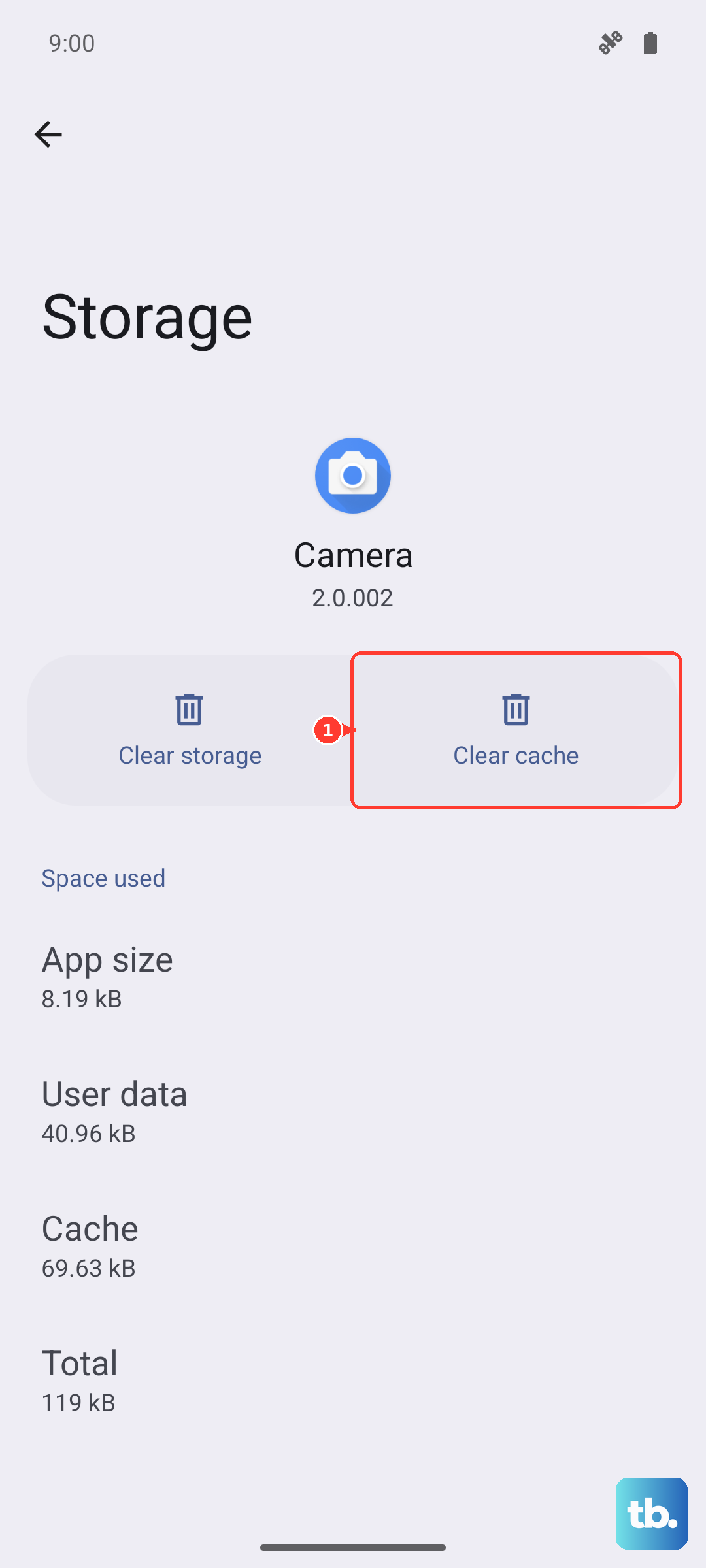
Android needs free space to operate smoothly. If your internal storage is completely full, the system can lock up. When you get the phone running again, go to Settings > Storage to see how much space is left. Clear cached data from apps or offload some photos to free up at least 5GB. I've seen this resolve recurring sluggishness and freezes.
Update Your Software
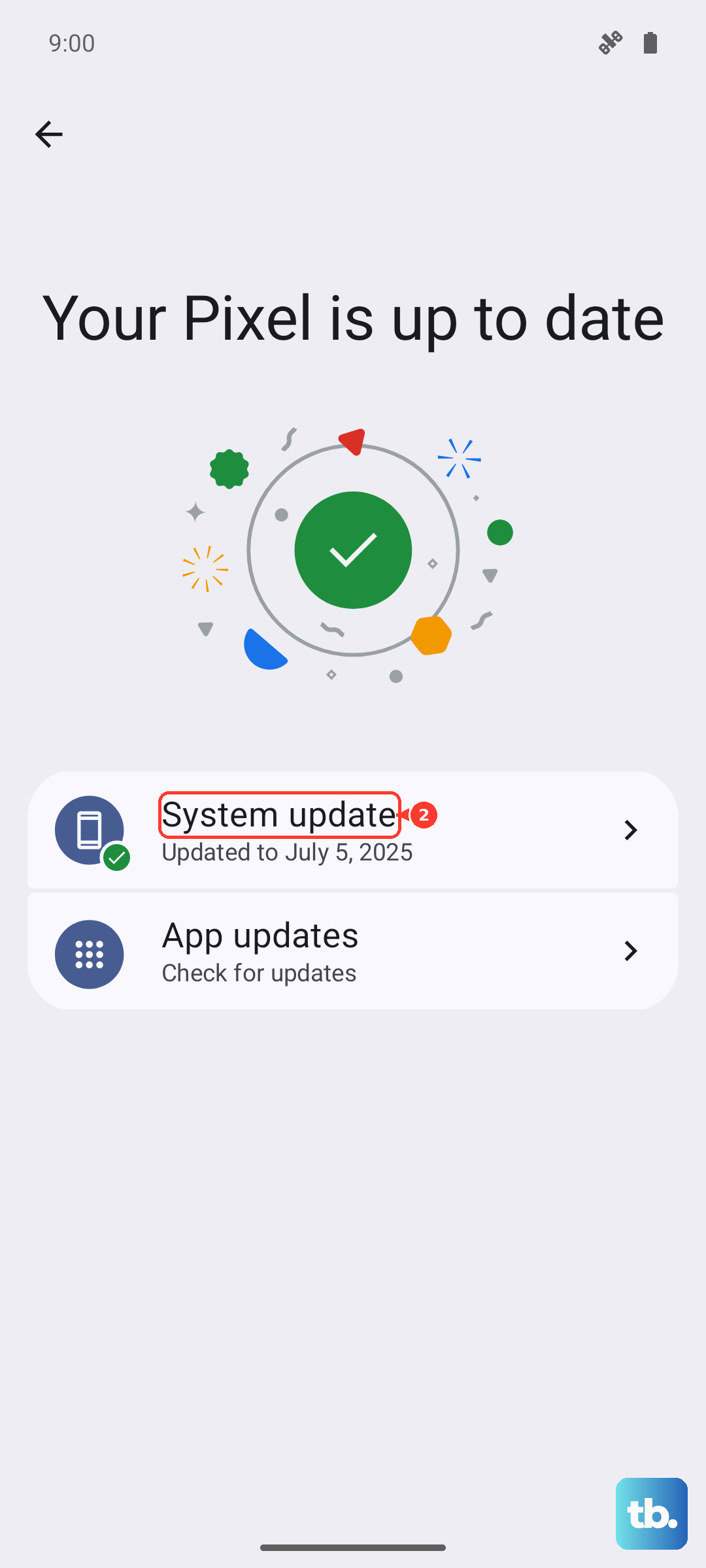
Motorola regularly releases updates to fix bugs. After restarting, connect to Wi-Fi and go to Settings > System > System updates to check for and install any available updates. If the phone freezes during the update process itself, a force restart will usually get it back on track to finish the installation.
Reset All Settings
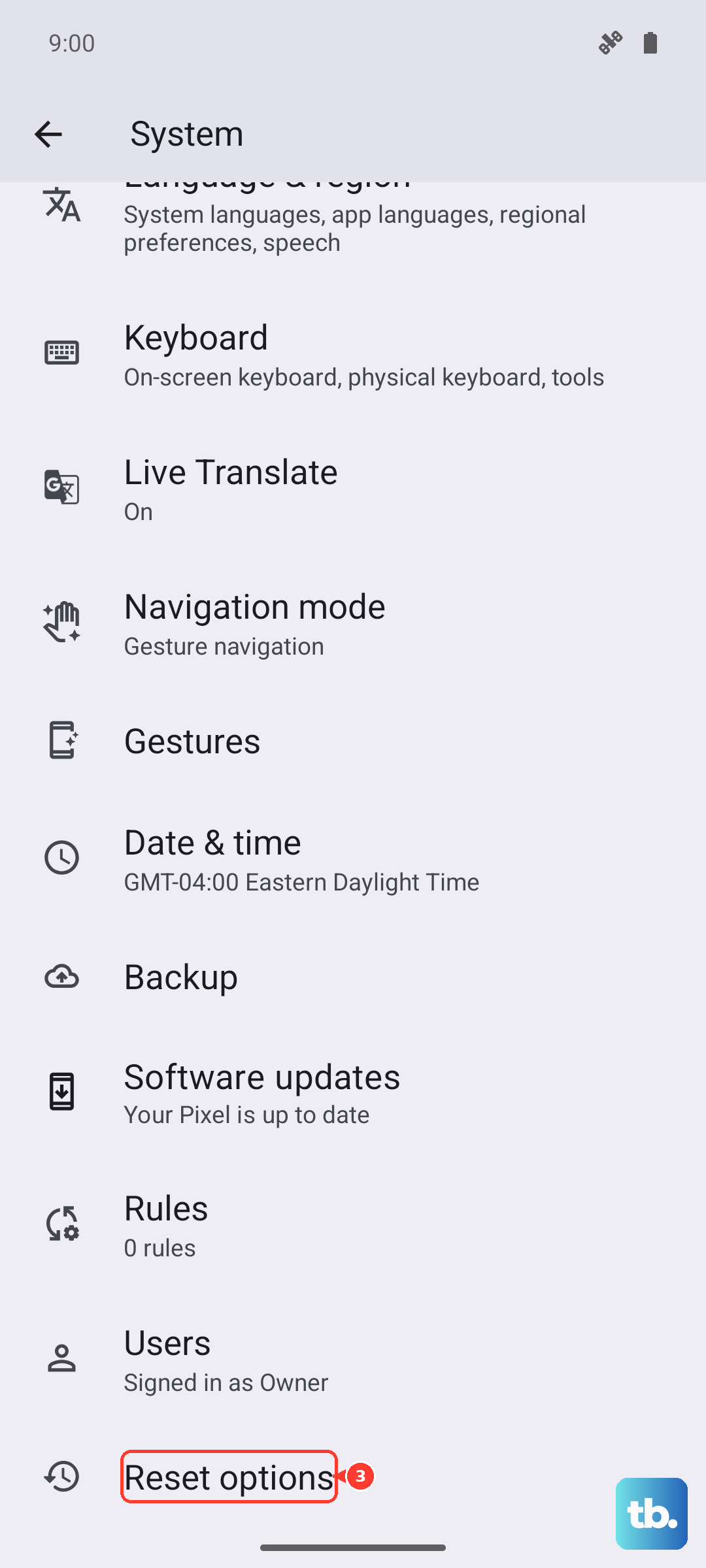
If freezes keep happening after reboots, a system setting might be corrupted. You can reset them without touching your personal files. Navigate to Settings > System > Reset options > Reset all settings. This will revert your Wi-Fi passwords, wallpaper, and app permissions back to default, which often clears up persistent software glitches.
Perform a Factory Reset (Last Resort)
If nothing else works and the phone is constantly unusable, a factory reset is the final step. First, try to back up your data if possible. Then, with the phone powered off, press and hold the Volume Down and Power buttons together to boot into recovery mode. Use the volume keys to highlight "Wipe data/factory reset" and press the power button to select it. This will erase everything and return the phone to its out-of-box state.