
If your Motorola Razr Plus (2024) is plugged in but taking forever to charge, you're likely missing out on its 45W TurboPower fast charging. This can be frustrating when you're expecting a quick top-up. The issue usually comes down to the gear you're using, the phone's settings, or its unique foldable design.
Use the Official 45W TurboPower Charger
To hit the fastest speeds, you need a compatible high-wattage charger. The Razr Plus supports up to 45W wired charging with Motorola's TurboPower technology. While many USB-C chargers will work, using the official 45W TurboPower brick or another USB-C PD (Power Delivery) adapter rated for 45W or higher is key for peak performance. A standard 15W or 18W charger will work, but it will be much slower.
Ensure You Have a High-Quality USB-C Cable
The cable matters just as much as the charger. You need a robust USB-C to USB-C cable that can handle the higher power throughput. The cable that came with your phone is designed for this. Aftermarket cables can work, but they must support USB Power Delivery. Thin, cheap, or damaged cables will bottleneck the charging speed, so it's worth trying the original one first.
Keep the Phone Unfolded While Charging
This is a specific tip for the Razr Plus due to its hinge. When the phone is closed, the charging cable can get pinched or crimped near the port, which can disrupt the connection and limit power flow. For the most reliable and fastest charge, I'd recommend keeping the phone open on a flat surface. This also helps with heat dissipation.
Close Apps on the Cover Screen
The external cover screen is a great feature, but running apps on it while the phone charges uses extra power and generates additional heat. If the phone detects it's getting too warm, it will automatically throttle the charging speed to protect the battery. Before you plug in, swipe away any apps running on the cover screen to minimize activity.
Remove the Phone Case During Charging
Thick or insulating cases can trap heat, especially during a fast charging session. If your Razr Plus feels warm to the touch while plugged in, try taking the case off. This allows for better airflow and cooling, which helps the phone maintain its maximum charging rate without thermal throttling kicking in.
Perform a Force Restart
A simple software glitch can sometimes mess with the power management system. To rule this out, press and hold the Power button for 10 to 15 seconds until you feel a vibration and see the Motorola logo appear on the screen. This force restart doesn't erase any data and can clear up temporary bugs affecting charging.
Check and Clean the USB-C Port
Pocket lint and dust love to compact into the charging port. Even a small amount can prevent the cable from seating fully, leading to a slow or intermittent connection. Power the phone off, then use a wooden toothpick or a soft-bristled brush to gently clean out the port. Avoid using metal objects that could damage the contacts.
Check for Software Updates
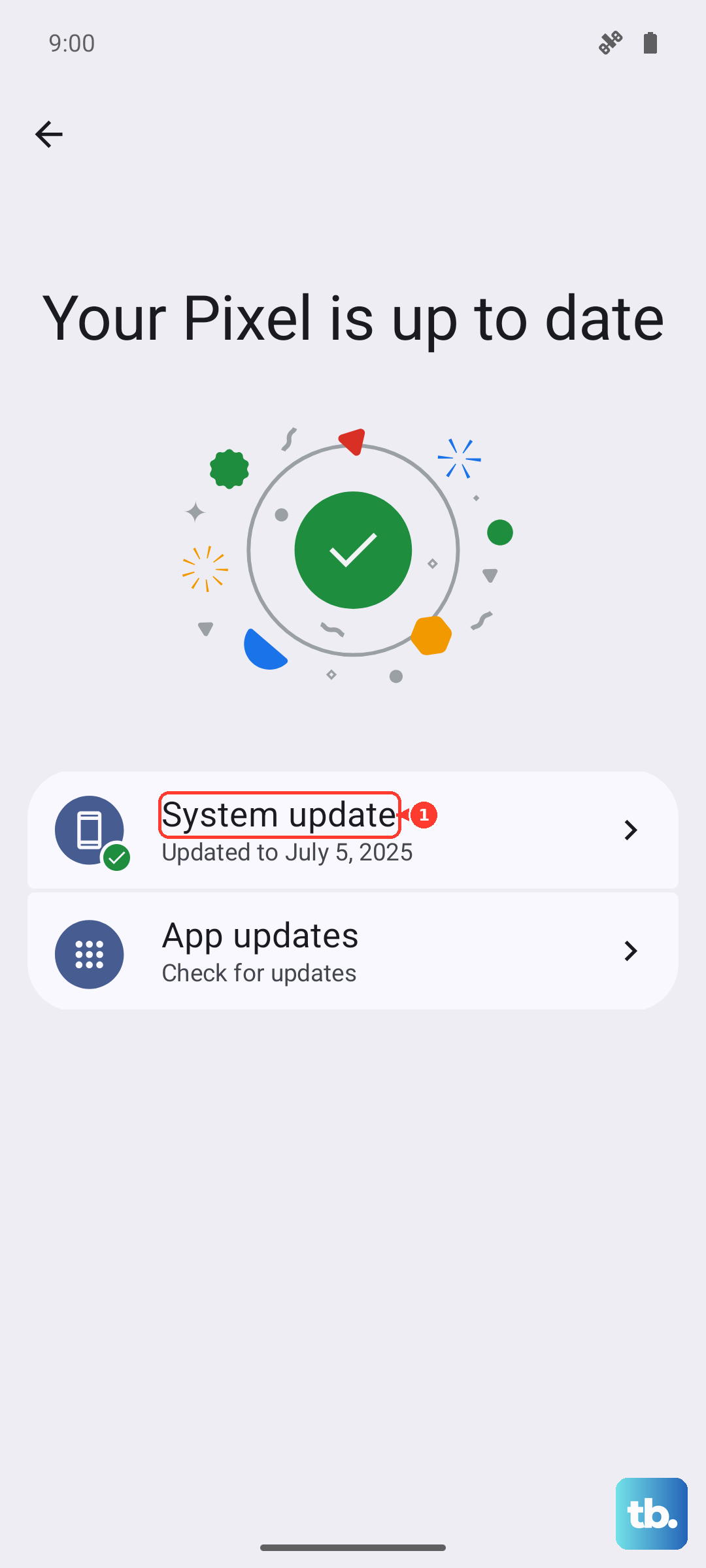
Motorola releases updates that can improve system performance, including battery and charging management. Go to Settings > System > System updates to check for an available update. Installing the latest software ensures your phone has the most optimized charging algorithms.
Try a Different Outlet and Power Source
It sounds simple, but the wall outlet or power strip you're using might be the issue. Some outlets are wired poorly or can't deliver consistent power. Try plugging your charger into a different wall outlet. Also, avoid charging from low-power sources like older laptops, car chargers, or bedside clock USB ports if you're trying to achieve fast charging speeds.
Inspect and Replace Your Charging Gear
Cables and adapters wear out over time. Inspect your cable for any fraying, kinks, or bent connectors. Try a different, known-good 45W USB-C PD charger and a high-quality cable. If fast charging resumes with the new set, you've found the culprit. It's a good idea to keep a spare, certified set of charging gear for situations like this.