
Seeing "No Service" on your Motorola Moto G Stylus 5G (2025) is a real roadblock. It means your phone can't find a cellular signal for calls, texts, or mobile data. This usually isn't a permanent problem, and you can often fix it yourself in a few minutes.
Let's start with the quickest fix, which solves a surprising number of issues. Just press and hold the Power button for about 10 seconds until you feel a vibration and the Motorola logo appears. This force restart clears out temporary software glitches that can mess with the cellular radio.
Check Your Physical Location and SIM
Sometimes the issue is simply where you're standing. Thick walls, basements, or remote areas can block signal. Try moving near a window or stepping outside. If you're in a building with a known poor signal, this is almost certainly the cause.
While you're at it, pop open the SIM tray on the side of your phone. Gently remove the SIM card, give the gold contacts a quick wipe with a soft, dry cloth, and carefully reinsert it. A loose or dusty SIM is a common culprit for the "No Service" message.
Toggle Airplane Mode and Mobile Data
This is the digital equivalent of taking a deep breath for your phone. Swipe down from the top of your screen twice to open the full Quick Settings panel. Tap the Airplane Mode icon to turn it on, wait about 15 seconds, then tap it again to turn it off.
Right next to it, you'll see the Mobile Data icon. Tap that off and on as well. This forces your phone's modem to disconnect and search for the network again from scratch, which can re-establish a lost connection.
Verify Your Network Selection is Set to Automatic
Your phone might be trying to latch onto a network it can't actually use. Go into Settings > Network & internet > Mobile network. Tap on "Advanced" and then look for "Automatically select network." Make sure this switch is turned on.
With it on, your Moto G Stylus will continuously search for and connect to the strongest available signal from your carrier. If it's off, it might be stuck on a weak or unavailable tower.
Update Your Access Point Name (APN) Settings
The APN is like the phone number your device uses to connect to your carrier's internet. If these settings are wrong, you'll get "No Service" or have data issues. In the same Settings > Network & internet > Mobile network menu, tap on "Access Point Names."
You should see a list, likely with one for your carrier selected. If it's blank or looks wrong, tap the three-dot menu in the top right and select "Reset to default." If that doesn't pop up the right one, you'll need to get the exact APN settings from your carrier's website or customer service and enter them manually here.
Reset Your Phone's Network Settings
This is a more thorough step that clears all network-related configurations without touching your personal files. You'll lose saved Wi-Fi passwords and paired Bluetooth devices, so be ready to re-enter those. Go to Settings > System > Reset options.
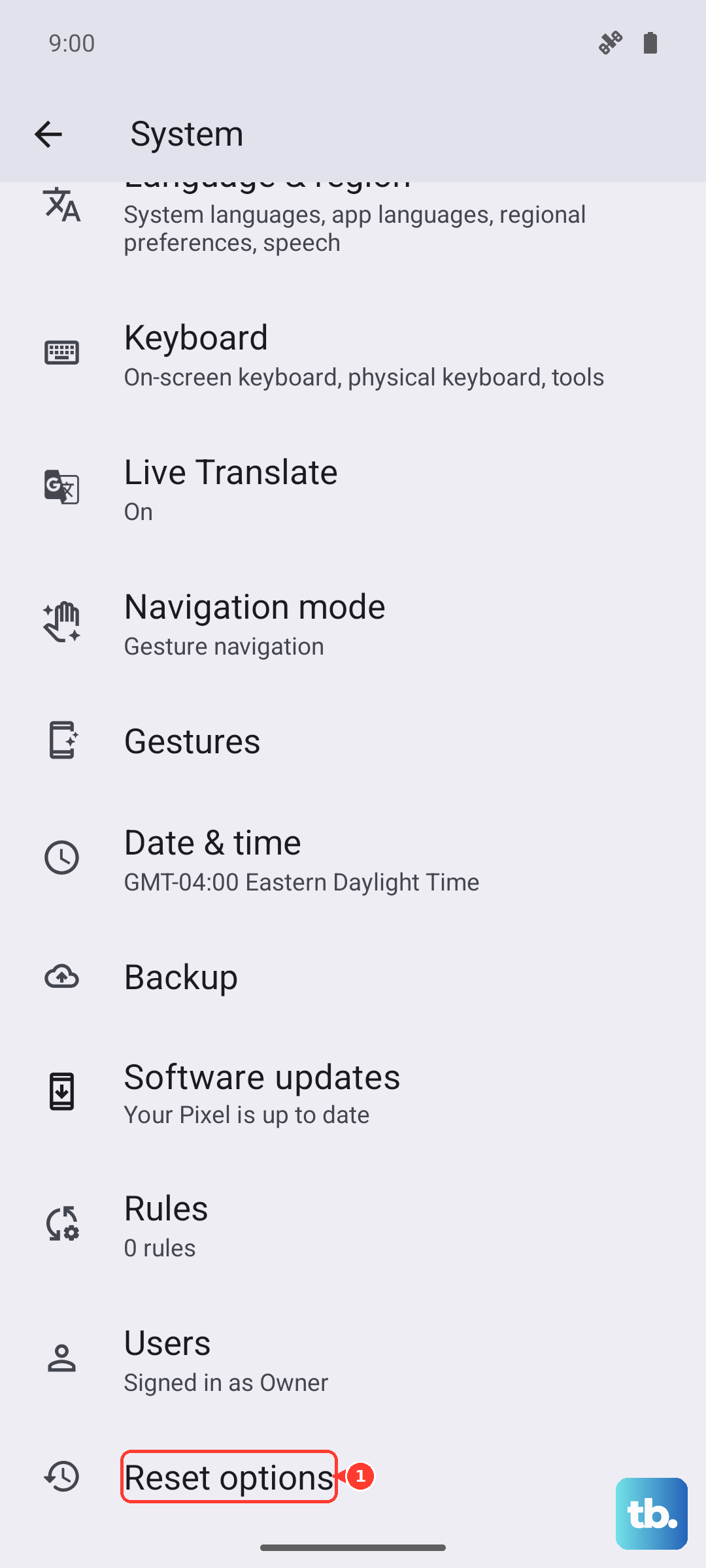
Tap on "Reset Wi-Fi, mobile & Bluetooth." Confirm the reset and let your phone reboot. Once it's back on, it will rebuild its network connections from a clean slate, which can resolve deeper software conflicts.
Check for a Software Update
Motorola and your carrier regularly release updates that fix bugs, including ones related to network connectivity. Since you're on Android 15, make sure you have the latest security patch. Go to Settings > System > System updates and tap "Check for update."
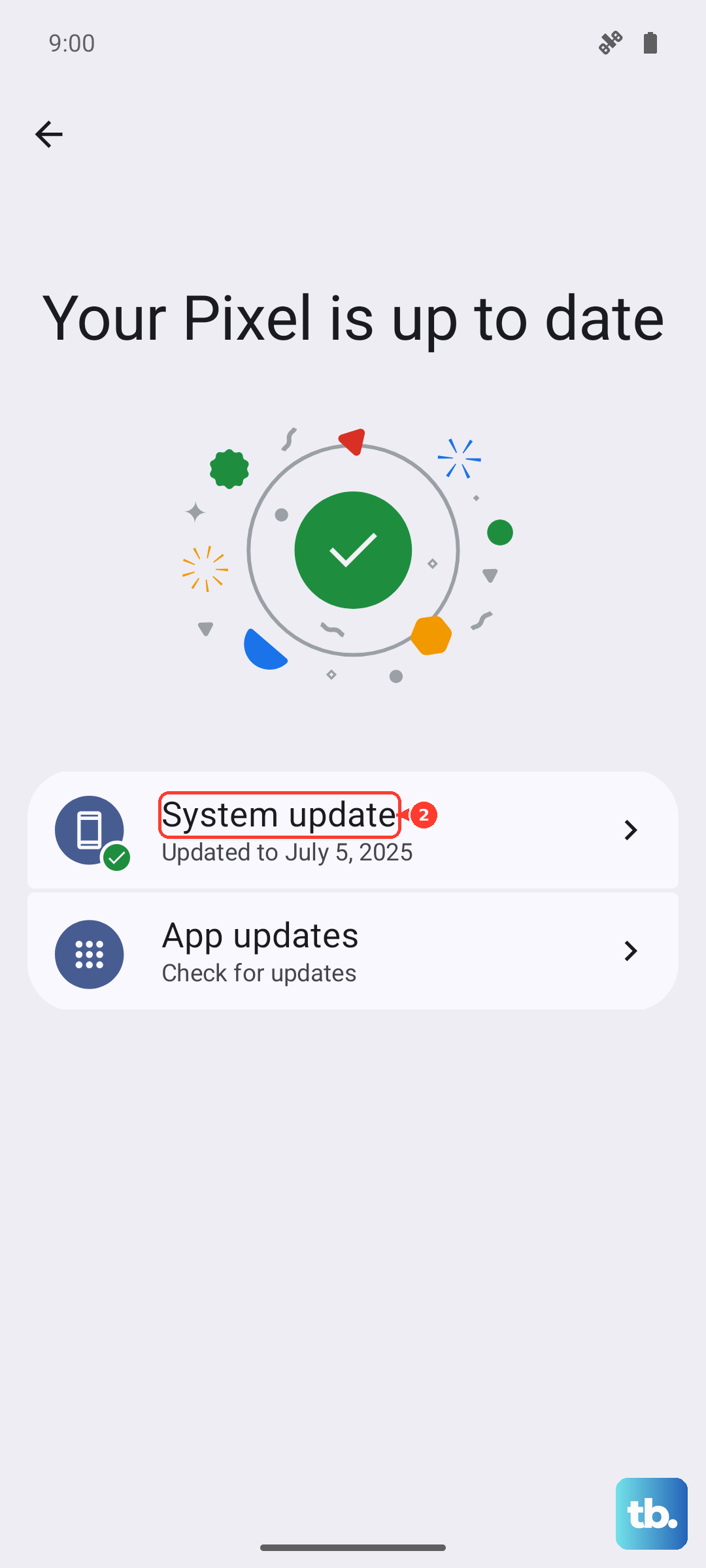
If an update is available, download and install it. It's best to do this over Wi-Fi if you can. I've seen updates specifically target modem firmware issues that cause persistent "No Service" problems.
Use the Built-in Diagnostic Tool
Your Moto G Stylus has a hidden menu for checking hardware status. Open your Phone app and dial *#*#4636#*#*. This will open the Testing menu. Tap on "Phone information."
Here, you can see detailed info about your signal strength and network. Look for a "Run Ping Test" button to check data connectivity. You can also try tapping the three-dot menu and selecting "Select radio band" to make sure it's set to a broad setting like "USA Band" or your region.
Rule Out a VPN or Security App Conflict
Third-party apps that manage your connection, like VPNs or certain aggressive security apps, can sometimes block cellular access. Try temporarily disabling any VPN apps you have running. For other security software, you might check its settings for any features that could control network permissions.
As a test, you can also reboot your phone into Safe Mode. This temporarily disables all third-party apps. If you have service in Safe Mode, you know an app you installed is causing the conflict, and you can start uninstalling recent ones to find the culprit.
Contact Your Carrier for Support
If you've tried everything here, the problem might be on your carrier's end or with your specific account. There could be a local tower outage, maintenance work, or an issue with your line provisioning. Give them a call or use their online chat support.
They can check for outages, reprovision your line on their network, and confirm your SIM card is active. They might also suggest getting a new SIM card, as older or physically damaged SIMs can fail and cause this exact issue. It's a free fix they can usually handle in a store or by mailing you a new one.