You start a call on your Motorola Moto G Power (2025) and the person on the other end keeps asking if you are still there, or your voice recording plays back as silence. A microphone that suddenly stops capturing audio is frustrating, but on this phone it is usually a software hiccup, a blocked mic opening, or a routing setting rather than a broken part. The Moto G Power (2025) ships with two microphones, runs Android 15, and includes Motorola's own diagnostics, so you can work through the likely causes in order before assuming the hardware has failed.
A fast way to narrow this down is a browser based microphone test. If the meter responds when you talk, the mic itself is fine and the problem sits in software or settings.
The fixes below move from the quickest and safest checks to the official reset and repair paths. Try them in sequence and test your mic after each one, on a real call or a quick voice recording, so you know the moment the problem clears.
First confirm the call is not muted
It sounds obvious, but an accidental tap on the mute control is the most common reason a caller cannot hear you while you can still hear them. On the in-call screen, Motorola's guidance is simple: "To mute your microphone, touch the mute button." When the mic is muted you will hear the other person clearly even though no sound reaches them, which mimics a dead microphone.
Touch the mute button again to unmute, then ask the caller whether you are audible. If your voice comes through, the mic was never broken, just silenced.
Clear anything covering the microphone openings
The Moto G Power (2025) has microphone openings on the body of the phone, and even a small obstruction can muffle or kill your audio. Motorola's diagnostic instructions specifically tell you to "ensure that you are not covering the microphone or speaker on the device during the test," which is good advice for everyday use too.
Before retesting, take off a thick case, lift any screen protector edge that overhangs an opening, move your fingers off the microphone openings, and gently clear lint or debris from them. Then make a short voice recording to confirm the sound is clean.
Restart the phone, then force a reboot if it has frozen
A normal restart clears temporary glitches that can tie up the microphone. Power the phone off and back on first, then test the mic again.
If the phone is unresponsive and a standard restart will not work, you can force a reboot. Press and hold the Power key for 10 to 20 seconds until the phone restarts. Motorola notes that "Data on your phone will not be deleted," that the battery should be at least 5% (charge for 15 minutes with the provided charger if it is fully drained), and that you should not try to remove the battery.
Stop the call from routing through Bluetooth or speaker
If a Bluetooth headset is connected, your phone may be listening through that accessory's microphone instead of its own, so a headset that is out of range or low on battery can make it seem like the phone mic is dead. On the call screen, Motorola explains that "To use a paired Bluetooth device, touch to use or stop using the device."
Touch that control to stop routing audio to the Bluetooth device, then test again on the built-in mic. You can also tap the speaker control, since Motorola notes "To use speaker, touch the speaker button," which is a quick way to check whether your voice is captured when audio is handled by the phone itself.
Run Motorola's built-in microphone diagnostic
The Moto G Power (2025) comes with the Motorola Device Help app, which can test the microphone hardware directly and tell you whether the part is working. This is the single most useful step for deciding if you are dealing with software or a true fault.
- 1.Open the Device Help app on your phone.
- 2.Go to Device Help > Device diagnosis > Hardware test > Microphone.
- 3.Follow the on-screen instructions.
During the test, keep your fingers, case, and any covering off the mic and speaker openings as Motorola advises. If the diagnostic reports the microphone is fine, the cause is almost certainly an app or setting, which the next steps address.
Give the affected app permission to use the microphone
If only one app, such as a voice recorder, video camera, or chat tool, has no sound while calls are fine, the app most likely lacks microphone access. You can check this two ways on Android 15.
To check a single app, go to Settings > Apps > All apps > [app name] > Permissions and make sure the microphone permission is turned on. To review microphone access across your apps at once, go to Settings > Security & privacy > Privacy controls > Permission manager, tap the microphone feature, and turn the permission on for the app that needs it.
Use Safe mode to catch a misbehaving app
A downloaded app can grab the microphone in the background or block it from other apps, and Safe mode disables every app you have installed so you can test the mic with only the built-in software running. Motorola's instructions are: "Press and hold the Power and Volume up buttons at the same time, then touch OK to restart in safe mode."
You will see "Safe mode" at the bottom of the screen once it loads. Test your microphone there; if it works in Safe mode, restart the phone normally to exit, then uninstall recently added apps one at a time, restarting after each removal until the culprit is gone.
Install any pending software update
If the microphone problem started after an update or appeared across the whole phone, a newer build may already contain the fix. Motorola pushes patches through the system update menu on the Moto G Power (2025).
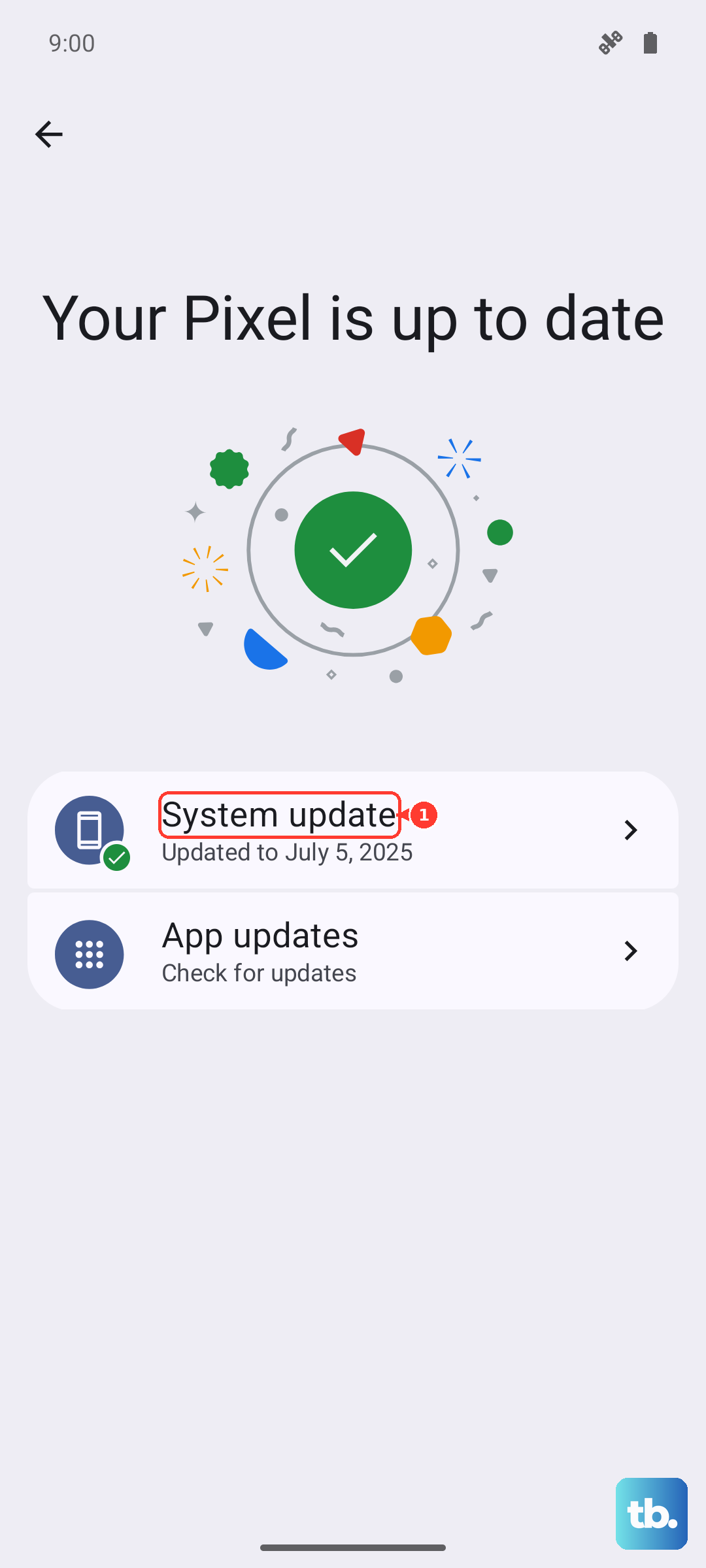
Go to Settings > System updates > Check for updates, and if an update is available, follow the on-screen instructions to install it. Motorola recommends downloading over Wi-Fi, so connect to a network before you start.
Factory reset when nothing else restores the mic
A factory reset is the last software step and should only come after the checks above, because it wipes your phone. Back up your photos, messages, and files first, and have your Google account credentials ready so you can sign back in afterward.
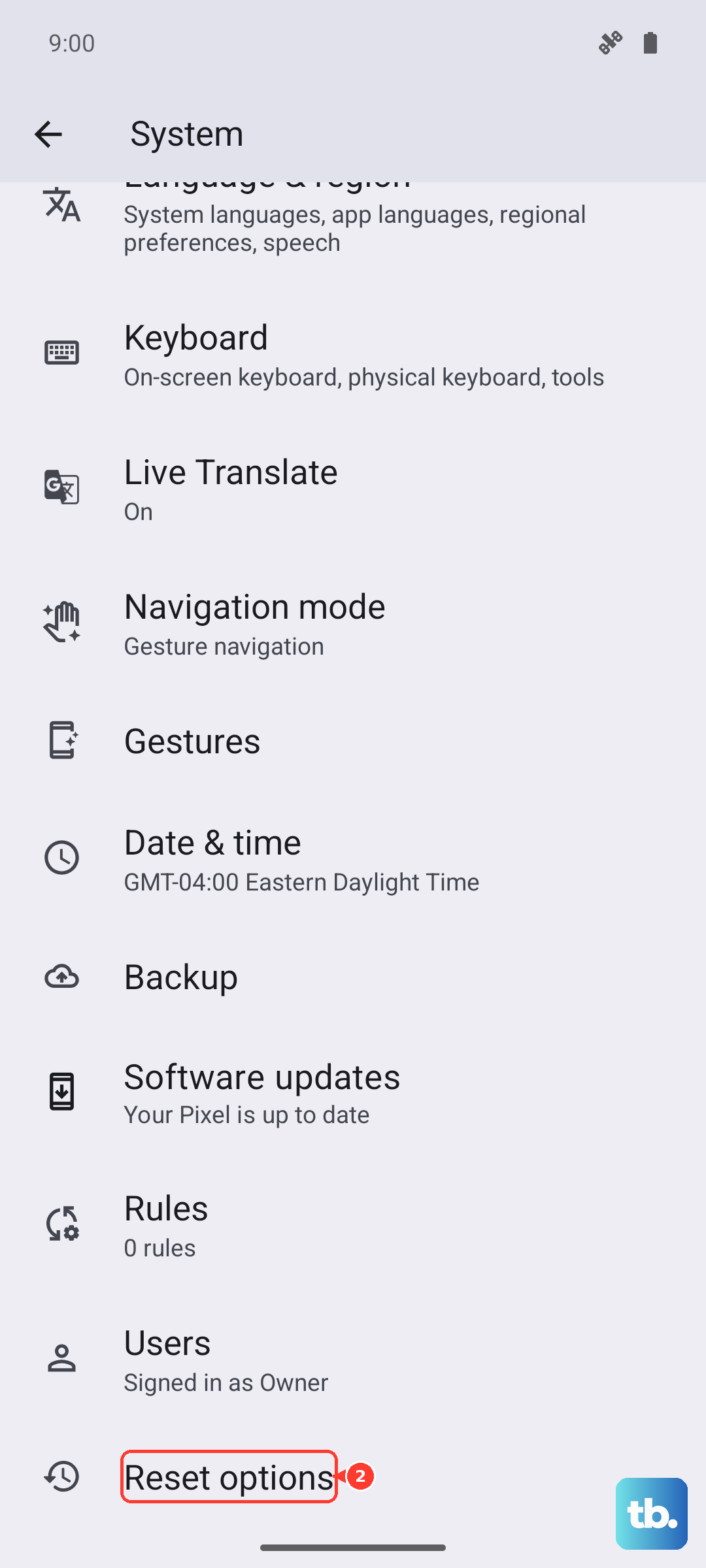
From the Settings menu, tap Reset options > Erase all data (factory reset). Motorola warns that "Resetting your phone erases all data and brings it back to out-of-the-box condition," so do not skip the backup.
If you cannot reach Settings at all, you can reset from recovery mode, which also erases everything, so make sure your backup is done first. Charge the phone to at least 30%, power it off, then press and hold Volume Down and Power until it turns on. Use Volume Down to highlight Recovery mode and Power to select it, scroll to Wipe data/factory reset and confirm with the Volume and Power keys, then choose Reboot system now.
Reach Motorola support or send the phone in for repair
If the microphone still fails after a reset, and the Device Help diagnostic also flagged it, you are likely looking at a hardware fault that needs Motorola. Contact Motorola's official support to describe the issue and arrange service if it is needed.
Before you send the phone in for any repair, back up your photos, messages, and files, since service can involve resetting the device. That way you keep your data even if the phone comes back wiped.
Frequently Asked Questions
Why can callers not hear me even though I can hear them on my Moto G Power (2025)?
That pattern almost always means the call is muted or your audio is being routed to another device. Check the in-call mute button first, then make sure a Bluetooth headset is not capturing the audio by touching the paired-device control to stop using it, and test again on the phone's own mic.
How do I know if my microphone is actually broken?
Use the Motorola Device Help app and go to Device Help > Device diagnosis > Hardware test > Microphone, then follow the on-screen instructions while keeping the openings uncovered. If the test fails after a restart and a reset, the microphone hardware is the likely cause and it is time to contact Motorola.
Will force restarting the phone erase my data?
No. Motorola states that when you press and hold the Power key for 10 to 20 seconds to force a restart, "Data on your phone will not be deleted." Make sure the battery is at least 5% first, and charge it for about 15 minutes with the provided charger if it is fully drained.
One app has no microphone access but calls work. What do I check?
Confirm that single app has permission. Go to Settings > Apps > All apps > [app name] > Permissions, or open Settings > Security & privacy > Privacy controls > Permission manager and tap the microphone feature, then turn the permission on for that app.
How do I get my Moto G Power (2025) repaired if the microphone is faulty?
If the Device Help diagnostic flags the microphone and a factory reset does not fix it, contact Motorola's official support to arrange a repair. Back up your photos, messages, and files first, because a repair can involve resetting the phone.