
If your Moto G Power (2025) is suddenly ignoring your fingerprint, you're locked out of your own phone. It's a common hiccup, but usually one you can fix yourself without too much fuss. Let's get that side-mounted fingerprint reader working again.
Clean the Fingerprint Sensor
That little sensor on the right edge of your phone picks up every bit of oil and grime from your fingers. Take a soft, dry microfiber cloth and give it a good wipe. Don't use any liquids or cleaners, as they can seep into the button mechanism and cause more problems.
Also, check your own finger. If your hands are wet, sweaty, or have lotion on them, the sensor will struggle. Dry them off completely and try again.
Restart Your Phone
Before you try anything more complicated, just restart the phone. A quick reboot clears out temporary software glitches that can confuse the sensor.
Press and hold the power button, then tap "Restart" on the screen. If the screen is unresponsive, you can force a restart by holding the power button down for a solid 10 seconds or more until you feel it vibrate and see the Motorola logo.
Re-register Your Fingerprint
This is the fix that works most often. Your stored fingerprint data can get corrupted, so deleting it and adding it back is a fresh start.
Go to Settings > Security & privacy > Device unlock > Fingerprint. You'll need to enter your PIN, pattern, or password to proceed. Tap on the fingerprint you're having trouble with and select "Remove."
Now, tap "Add fingerprint" and follow the prompts. Press your finger against the side sensor, lift slightly, and press again. Move your finger around slightly each time to capture the edges of your print. I'd recommend registering the same finger twice for better accuracy.
Check for a Software Update
Motorola releases updates that can fix bugs, including ones related to biometric sensors. It's always worth checking.
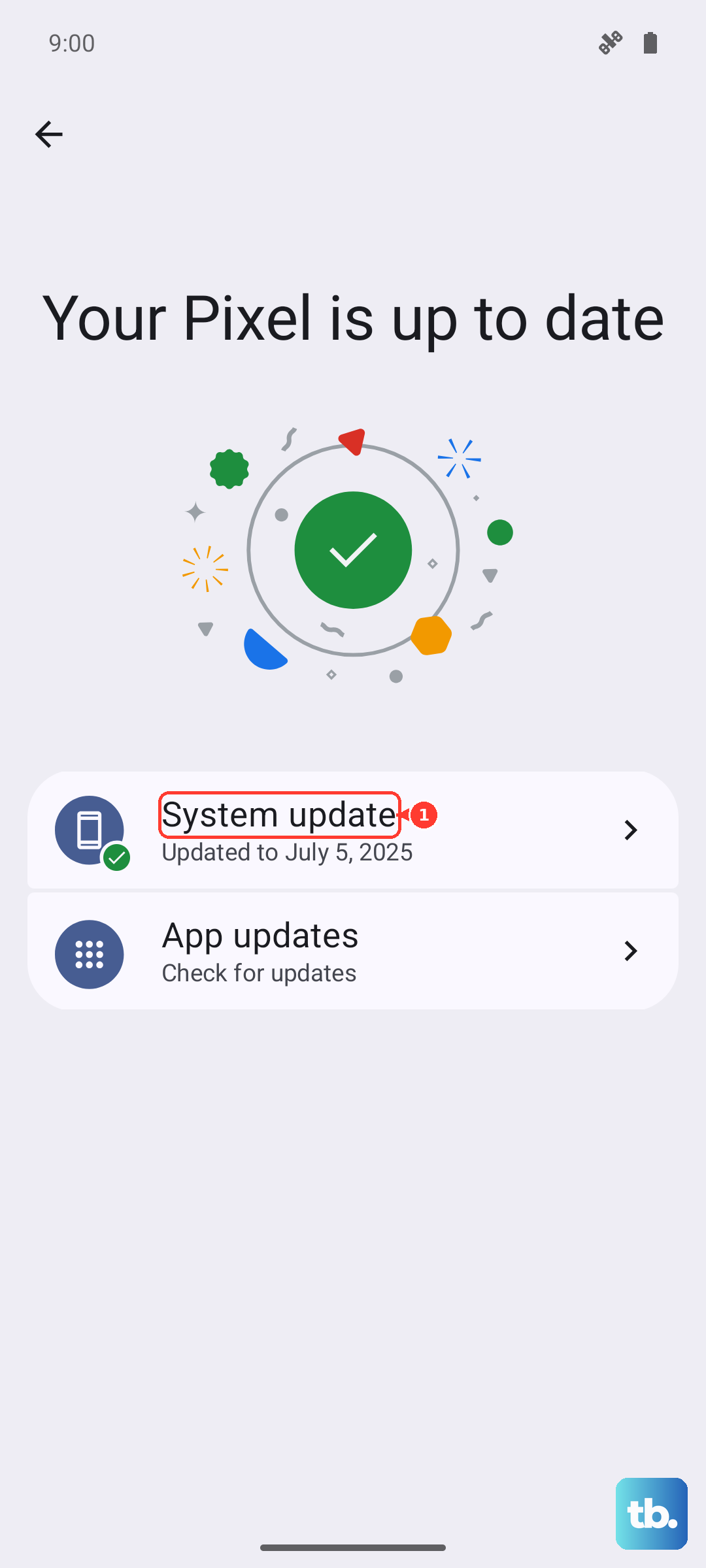
Head to Settings > System > System updates. Tap "Check for update." If one is available, download and install it. Make sure your phone is connected to Wi-Fi and has at least a 50% charge before you start.
Inspect Your Case or Screen Protector
Take a close look at your phone case. Is it covering the fingerprint sensor on the power button even a little bit? Some thicker cases have a raised lip that can prevent your finger from making full contact.
Try removing the case and testing the sensor. Also, while the Moto G Power uses a physical sensor (not an in-display one), a poorly applied screen protector that wraps around the edges could potentially interfere. If you have one, see if peeling it back from the right side makes a difference.
Try a Different Finger
Sometimes the issue is with your specific finger, not the phone. If you've been doing work with your hands, you might have small cuts, dry skin, or calluses that change your fingerprint just enough.
Register a different finger in the security settings and see if it reads consistently. It's a good idea to have at least two fingers registered anyway, just in case.
Clear the System Cache Partition
This clears out temporary system files that can sometimes cause odd behavior, without touching your personal data. The steps are a bit different on the Moto G Power (2025).
First, power the phone off completely. Press and hold the Volume Down button and the Power button at the same time. When you see the Motorola logo, let go of both buttons.
You'll see a screen with "Android Recovery" at the top. Use the volume buttons to scroll to "Recovery mode" and press the power button to select it. You'll see an Android robot with "No command." Press and hold the power button, then tap the volume up button once and release the power button.
Now use the volume buttons to highlight "Wipe cache partition" and press the power button. Confirm "Yes" on the next screen. When it's done, select "Reboot system now."
Check Your Security Settings
There are a couple of settings that can affect fingerprint access. Go to Settings > Security & privacy > Device unlock.
Make sure "Fingerprint" is toggled on. Also, look for an option called "Fingerprint unlock when device is locked" or similar, and ensure it's enabled. Some phones have a setting that requires you to wake the screen first before using the fingerprint sensor.
Boot Into Safe Mode
This will tell you if a third-party app you installed is causing a conflict. To boot into Safe Mode, press and hold the power button until the "Power off" option appears on screen.
Then, press and hold the "Power off" text on the screen. A prompt will ask if you want to reboot to Safe Mode. Tap "OK." If the fingerprint sensor works perfectly in Safe Mode, you know a downloaded app is the culprit.
You'll need to restart normally to get out of Safe Mode. Then, think about any recent app installs and try uninstalling them one by one to find the offender.
Consider a Factory Reset
This is your last resort before thinking about hardware, and it will erase all your data. Make absolutely sure everything is backed up to your Google account or transferred to a computer first.
To do it, go to Settings > System > Reset options > Erase all data (factory reset). Follow the prompts. After the phone resets and you go through setup, test the fingerprint sensor before you restore your apps and data. If it works then, you had a deep software issue.