
You're staring at your Motorola Edge 50 Pro, watching the Wi-Fi icon spin endlessly or just show "Saved" without ever connecting. It's a frustrating roadblock, especially on a 2024 phone that should just work. The good news is that this is almost always a software or settings issue you can fix yourself in a few minutes.
Toggle Wi-Fi and Restart Your Phone
Start with the simplest fix. Swipe down from the top of your screen to open the Quick Settings panel and tap the Wi-Fi icon to turn it off. Wait five seconds, then tap it again to turn it back on. This forces the phone's radio to reset and re-scan for networks, which often solves a temporary glitch.
If that doesn't work, give the phone itself a fresh start. Press and hold the power button until the power menu appears, then tap "Restart." A reboot clears out minor software bugs that can interfere with connectivity, and it's a reliable first step for any Android 14 issue.
Use Airplane Mode to Reset All Radios
This trick works because it resets every wireless component at once. Pull down the Quick Settings shade again and tap the airplane icon to enable Airplane Mode. Wait for about 15 seconds, you'll see the cellular and Wi-Fi icons disappear, then tap the airplane icon again to disable it.
Your Edge 50 Pro will then re-establish all connections from scratch. I've found this resolves more stubborn connection hangs than just toggling Wi-Fi alone.
Forget the Problem Network and Rejoin
Your phone might be holding onto outdated information for that network. To clear it, go to Settings > Network & internet > Internet (Wi-Fi). Tap the gear icon next to your network's name and select Forget.
Now, tap on the network name from the list again and enter the password fresh. This is crucial if you've recently changed your Wi-Fi password or gotten a new router, as the phone will keep trying the old credentials.
Check for Simple Oversights
It sounds basic, but double-check you're selecting the correct network, especially if you have both a 2.4GHz and a 5GHz band with similar names. Also, ensure Caps Lock isn't on when typing your password, as it's case-sensitive.
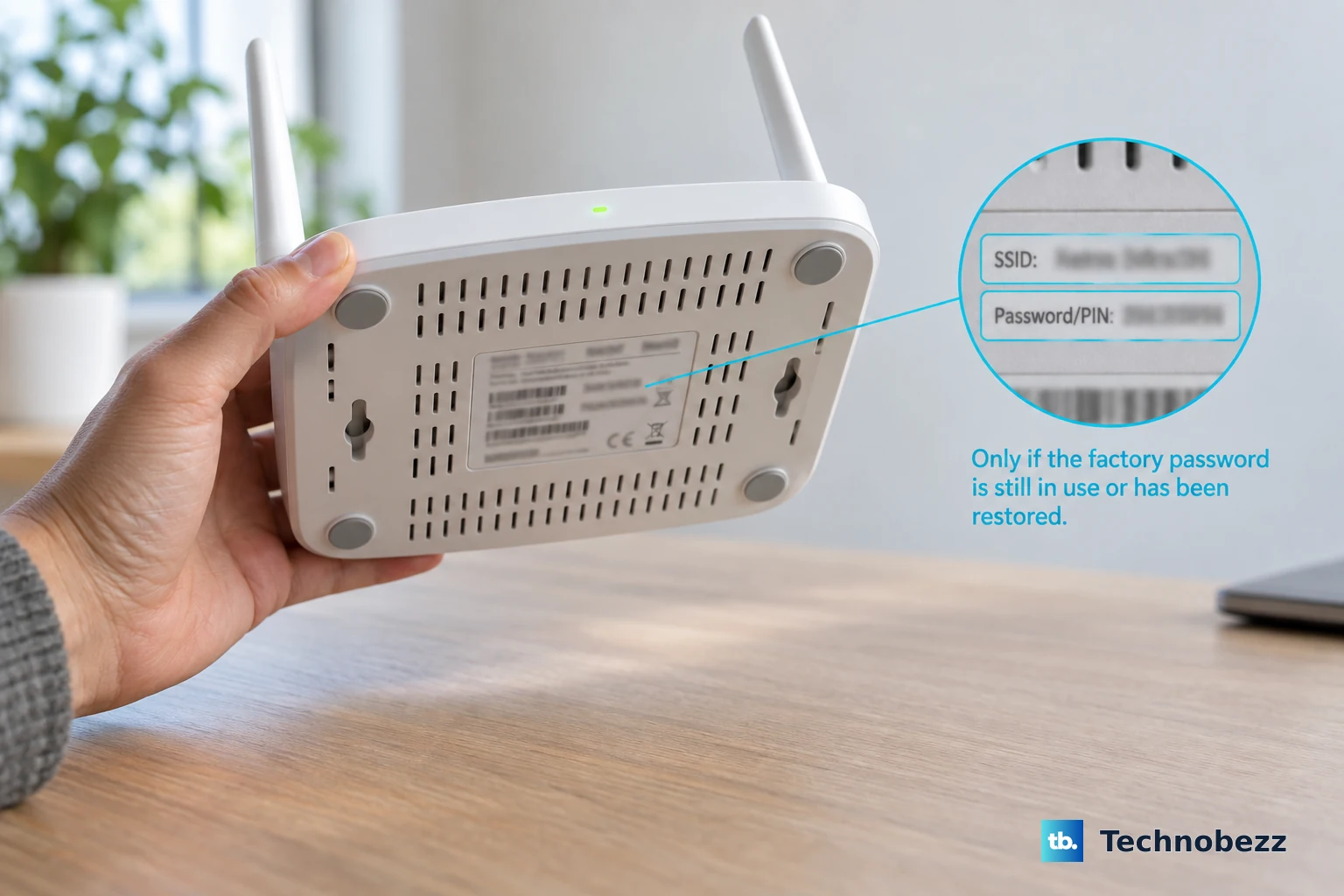
While you're thinking about it, see if other devices in your home can connect to the same Wi-Fi. If they can't, the issue is definitely with your router, not the phone.
Disable Bluetooth to Check for Interference
Bluetooth and Wi-Fi can sometimes interfere with each other on the 2.4GHz band. Swipe down your Quick Settings and turn Bluetooth off completely. Try connecting to Wi-Fi again.
If your connection stabilizes, you've found the culprit. You can usually turn Bluetooth back on afterward; the interference is often just during the initial connection handshake.
Turn Off Adaptive Connectivity
Motorola's software includes features designed to save battery by managing your connections. One, called Adaptive Connectivity, can sometimes be too aggressive. Go to Settings > Network & internet > Adaptive connectivity and toggle it off.
This stops the phone from automatically switching between Wi-Fi and mobile data based on signal quality, which can sometimes prevent a solid Wi-Fi connection from being established.
Check Battery Saver and Performance Modes
The Edge 50 Pro's battery protection and performance settings can limit background network activity. Open Settings > Battery and make sure any Battery Saver mode is turned off.
Also, check your performance mode. Go to Settings > Performance. If it's set to a power-saving mode, try switching it to "Standard" or "Performance" to ensure Wi-Fi isn't being throttled.
Install Any Available System Updates
Motorola releases updates that fix bugs, including connectivity issues. While updates for the Edge 50 Pro can be slower than some brands, it's always worth checking. Go to Settings > System > System update and tap "Check for update."
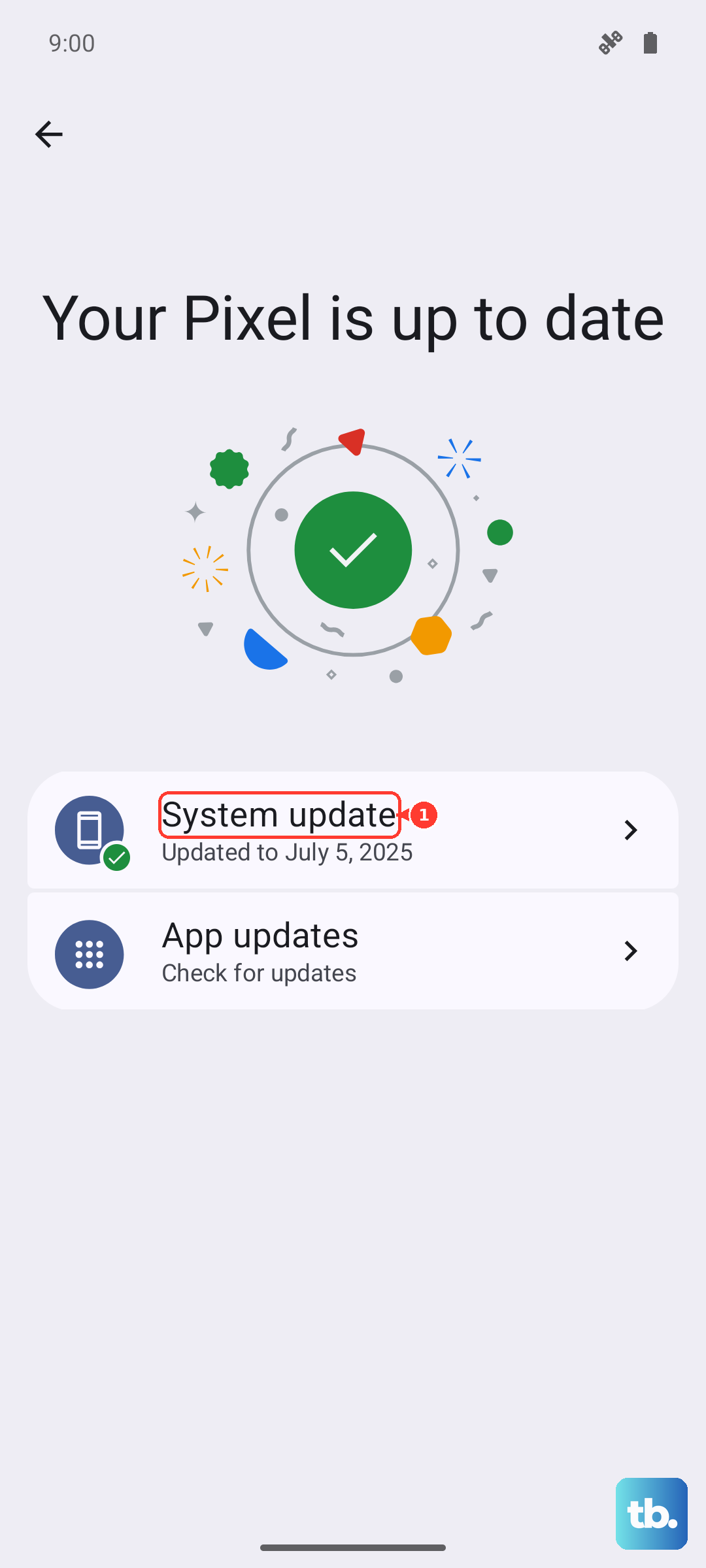
Install any available update, as it may contain crucial patches for the Wi-Fi stack in Android 14 that directly address your problem.
Verify Your Date and Time Are Correct
An incorrect system time can break Wi-Fi authentication because security certificates won't validate. This is a common but overlooked cause. Navigate to Settings > System > Date & time.
Make sure "Use network-provided time" is enabled. If it's already on, try turning it off and back on to refresh the time sync.
Reset Your Phone's Network Settings
This is a more thorough step that clears all network-related data. It will erase saved Wi-Fi networks, Bluetooth pairings, and mobile network settings. Go to Settings > System > Reset options.
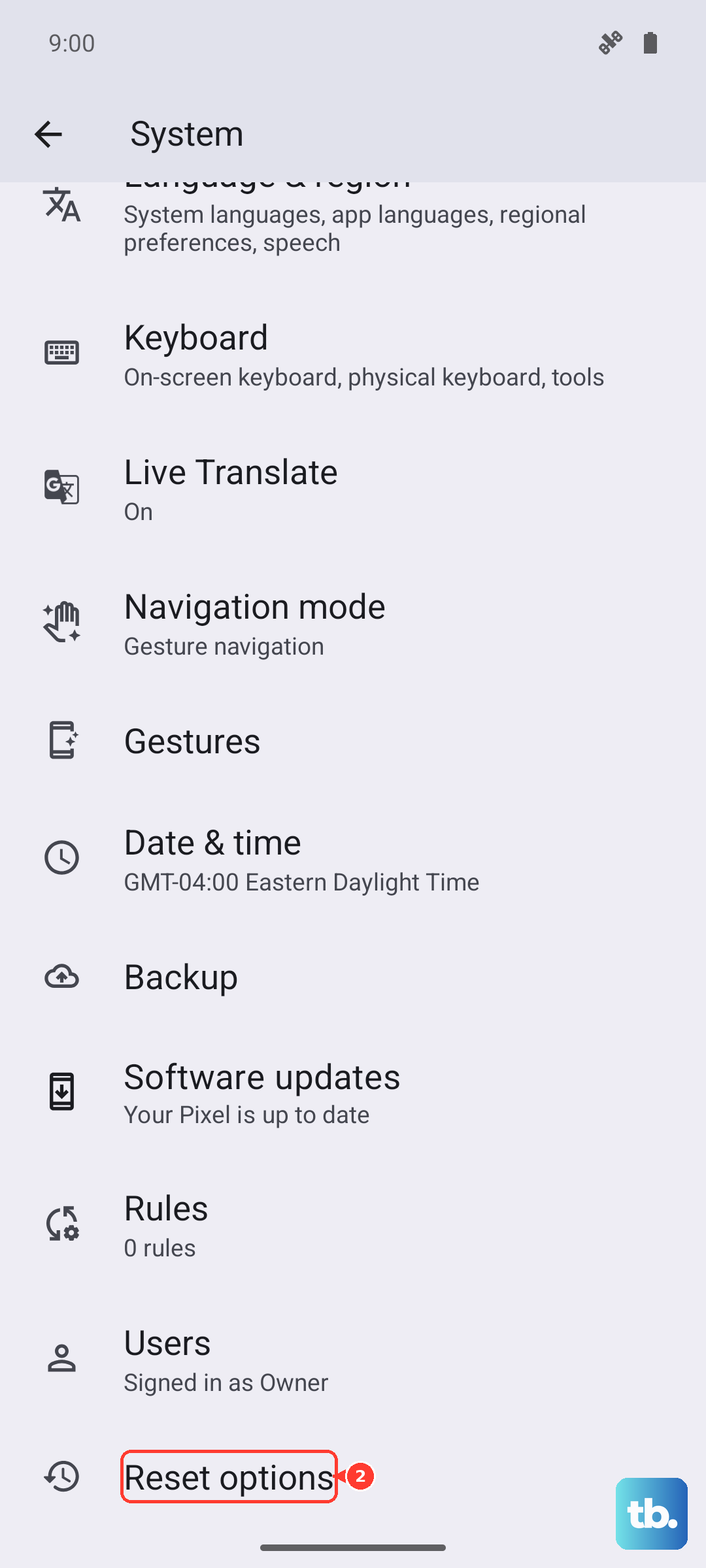
Tap Reset Wi-Fi, mobile & Bluetooth and confirm. After the phone reboots, you'll need to reconnect to your Wi-Fi and re-pair Bluetooth devices, but it often resolves deep-seated configuration errors.
Restart Your Wi-Fi Router
The issue might not be your Edge 50 Pro at all. Unplug your router and modem from power for a full minute. This gives them time to fully clear their memory. Plug the modem back in first, wait for it to fully boot, then plug the router back in.
Once all the lights are stable, try connecting your phone again. If other devices were also struggling, this router restart was likely the solution.
Boot Into Safe Mode to Check for App Conflicts
A third-party app you installed could be causing the problem. To test this, press and hold the power button until the power menu appears. Then, tap and hold the "Power off" option on your screen until you see a prompt to reboot into Safe Mode. Tap "OK."
In Safe Mode, all downloaded apps are disabled. If Wi-Fi works perfectly here, a recently installed app is the culprit. Restart your phone normally and try uninstalling apps one by one, starting with VPNs, ad blockers, or network tools.
Perform a Factory Reset
Consider this your absolute last resort. A factory reset will wipe your phone back to its original out-of-the-box state. Before you begin, ensure everything is backed up to your Google account or an external drive.
To proceed, go to Settings > System > Reset options > Erase all data (factory reset). If Wi-Fi still doesn't function after a complete factory reset, the problem may be hardware-related.