
When your Motorola Edge 40 refuses to send a picture message, it's usually a quick fix. The most common culprit is a simple setting or a temporary network hiccup. I'd start by checking your mobile data connection first, as MMS requires it even if you're on Wi-Fi.
Check Your Mobile Data Connection
MMS messages don't send over Wi-Fi on Android. They require a mobile data connection, even if it's just a sliver of signal. Pull down your notification shade and make sure the mobile data icon is active.
If it's off, tap it to turn it on. You can also go into Settings > Network & internet > Mobile network to ensure data is enabled. Try sending the picture again with data on.
Verify Your APN Settings
Incorrect Access Point Name (APN) settings will block MMS. These are provided by your carrier and tell your phone how to connect to their multimedia service. To check them, go to Settings > Network & internet > Mobile network > Access Point Names.
You should see a list, with one selected (usually your carrier's name). If the list is empty or looks wrong, you'll need to enter them manually. Your carrier's website or support team can give you the exact APN details for the Motorola Edge 40.
Toggle Airplane Mode
A quick network refresh can clear up temporary glitches. Swipe down from the top of your screen twice to open the full Quick Settings panel. Tap the Airplane Mode icon to turn it on, wait about 10 seconds, then tap it again to turn it off.
This forces your phone to re-register on the cellular network. After it reconnects, try sending the MMS again. It's a simple trick that works more often than you'd think.
Force Stop and Clear Cache for Your Messages App
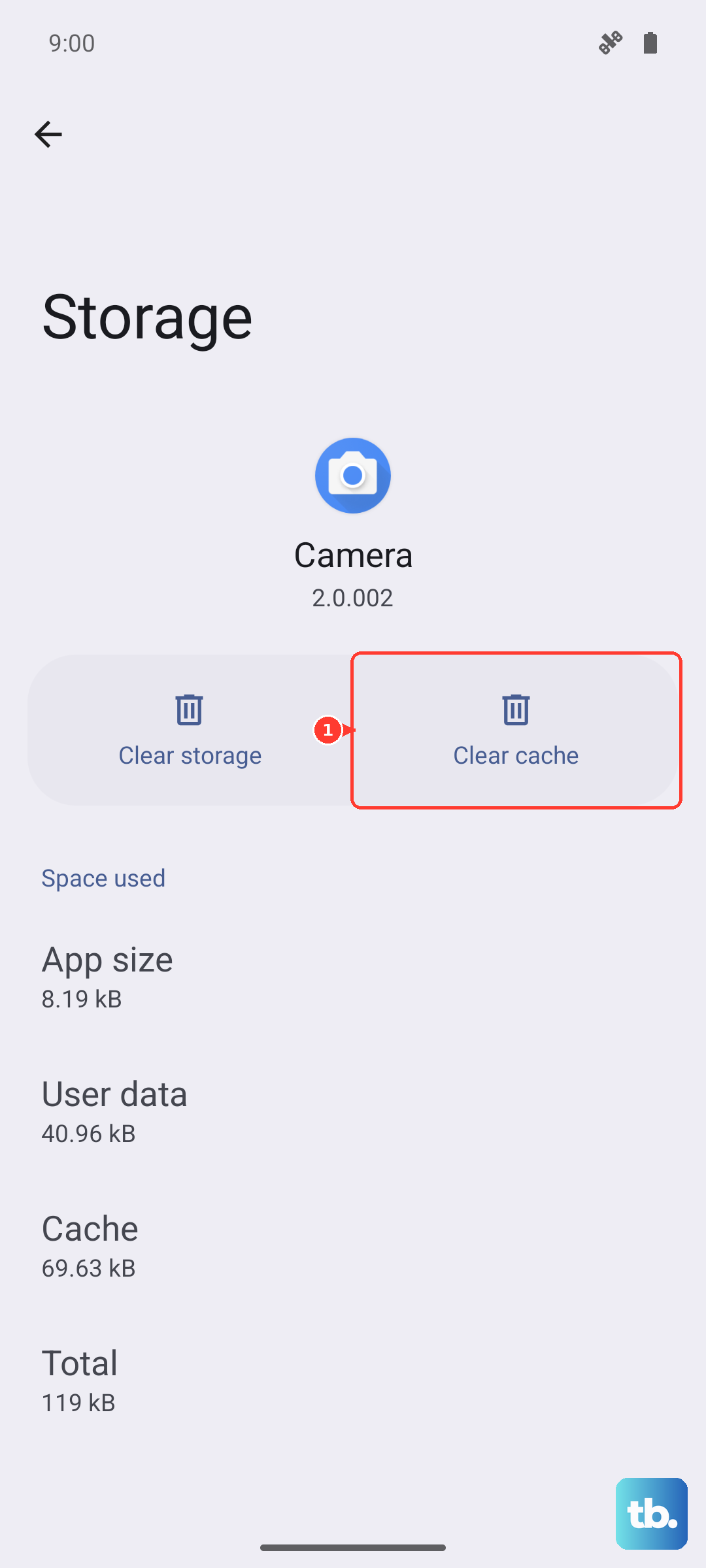
The app itself might be having a momentary issue. Go to Settings > Apps > See all apps and find your messaging app (like Google Messages or the Motorola one). Tap on it, then tap Force Stop.
After that, tap Storage & cache and then Clear cache. This clears temporary files without deleting your messages. Open the app again and attempt to send the picture.
Ensure MMS Messaging is Enabled in Your App
Some messaging apps have a toggle specifically for MMS. Open your messaging app and go into its settings. Look for an option labeled "MMS messages," "Group messaging," or "Auto-download MMS."
Make sure this setting is turned on. If you see a size limit for MMS, you might need to increase it or compress the image if your photo is particularly large.
Check for a Software Update
Software bugs can interfere with messaging. Motorola and Google regularly release updates that fix these kinds of issues. Connect to Wi-Fi and go to Settings > System > System update.
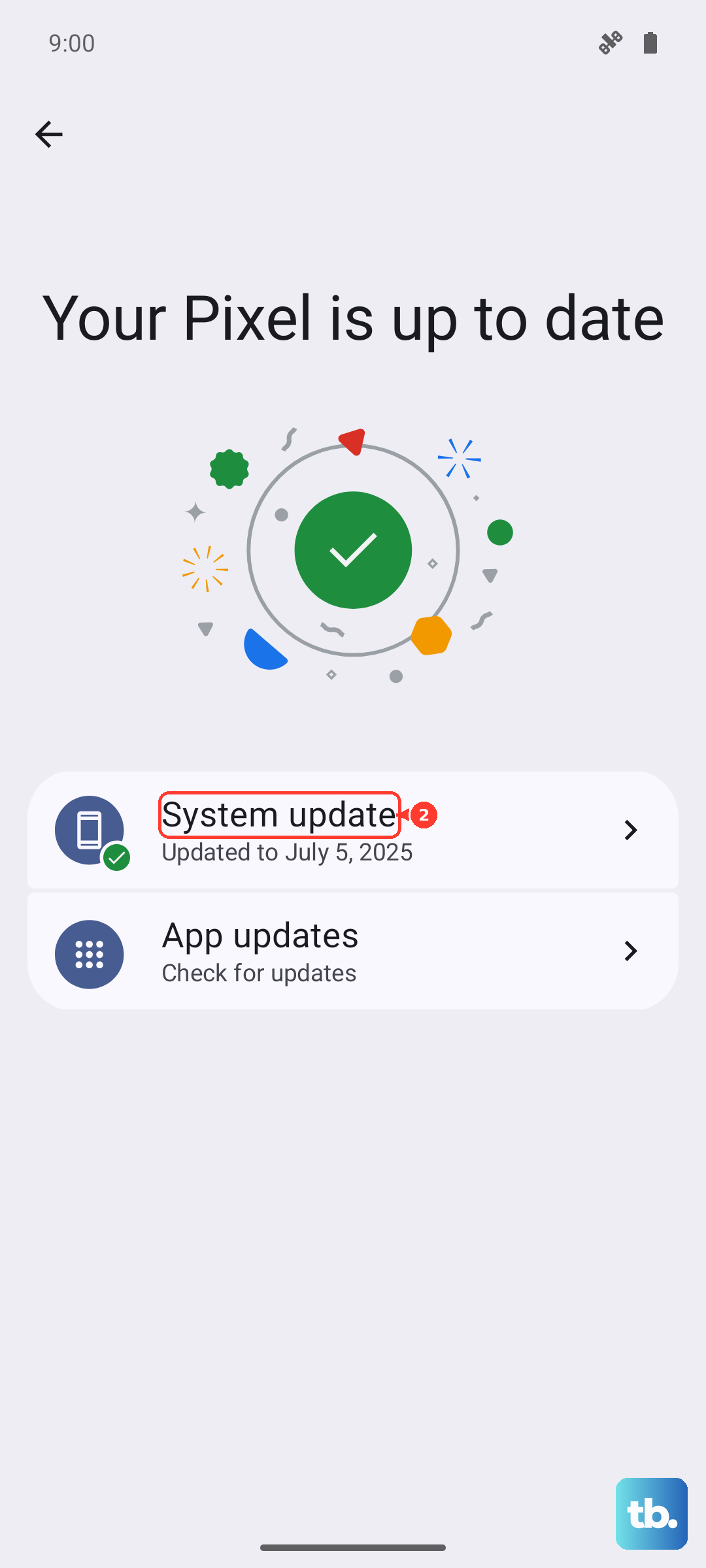
Tap "Check for update." If one is available, install it. A software update might contain a fix specifically for network or messaging problems.
Restart Your Motorola Edge 40
A full restart clears the phone's memory and stops any background processes that could be causing trouble. Press and hold the power button until the power menu appears, then tap "Restart."
If the phone is unresponsive, you can perform a force restart. Press and hold the Volume Down button and the Power button simultaneously for about 10-15 seconds until you see the Motorola logo.
Try a Different Messaging App
This helps you figure out if the problem is with the app or the phone's system. Download a free alternative like Google Messages from the Play Store. Set it as your default app when prompted.
Then, try sending an MMS from the new app. If it sends successfully, the issue is likely with your previous messaging app's settings or data.
Reset Your Network Settings
This will reset all Wi-Fi, mobile data, and Bluetooth connections to their default state. Go to Settings > System > Reset options. Tap on Reset Wi-Fi, mobile & Bluetooth.
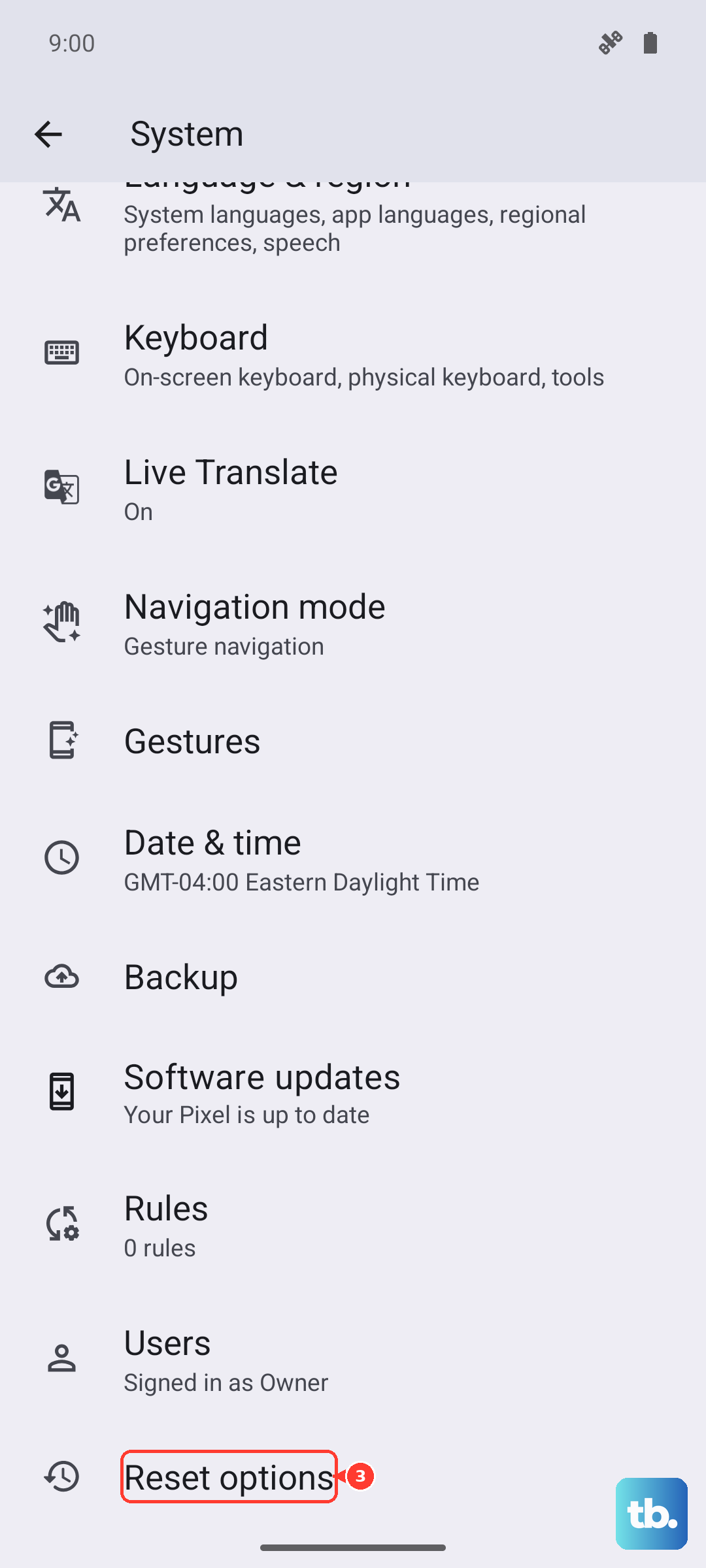
You'll need to enter your PIN or password. Remember, this will erase all saved Wi-Fi networks and paired Bluetooth devices, so you'll have to reconnect to them afterward.
Contact Your Mobile Carrier
If you've tried everything else, the issue might be on your carrier's end. They can check if there's an outage in your area or if your line has any MMS blocks or feature restrictions.
Ask them to verify your APN settings and ensure MMS is fully provisioned on your account. Sometimes they can reprovision your service remotely, which can solve stubborn sending problems.