
When your Motorola Edge 40 shows a "Download" button for a picture or video that just won't budge, it's a common snag. MMS messages rely on your mobile data connection and a specific set of phone settings to work, and a small hiccup in either can stop downloads in their tracks.
Let's walk through the most effective ways to get your multimedia messages flowing again, starting with the simplest things you can do right now.
The very first thing I'd try is a quick restart of your phone. It sounds basic, but it clears out temporary software glitches that can block the MMS service. Just press and hold the power button, tap Restart, and give it a minute to reboot.
While it's restarting, take a quick glance at your mobile data. MMS won't download over Wi-Fi alone; it needs an active cellular data connection. Swipe down from the top of your screen twice to open the quick settings panel and make sure the mobile data icon is lit up. If you're in a low-signal area, moving to a different spot can sometimes kickstart the download.
Check Your Messaging App Settings
Often, the fix is just a single toggle inside your messaging app. Open the Messages app, tap the three-dot menu in the top right, and go to Settings > Advanced.
Look for an option called Auto-download MMS or Auto-retrieve and make sure it's switched on. If it's off, your phone is waiting for you to manually tap "Download" every single time, which can fail. There's usually a separate toggle for Auto-download when roaming; if you're traveling, flip that one on too.
Your phone's storage can also play a role. If your internal storage is critically full, the system may block new downloads. Head to Settings > Storage to check your available space. Clearing out some old photos or apps can free up the room the MMS service needs.
Clear the App's Cache and Data
If the settings look right, the next step is to clear out the messaging app's temporary files. This doesn't delete your texts, but it can resolve corruption that's preventing downloads.
Go to Settings > Apps > See all apps. Find and tap on Messages. Select Storage & cache, then tap Clear cache. Try downloading the MMS again. If it still fails, you can go back and tap Clear storage or Clear data.
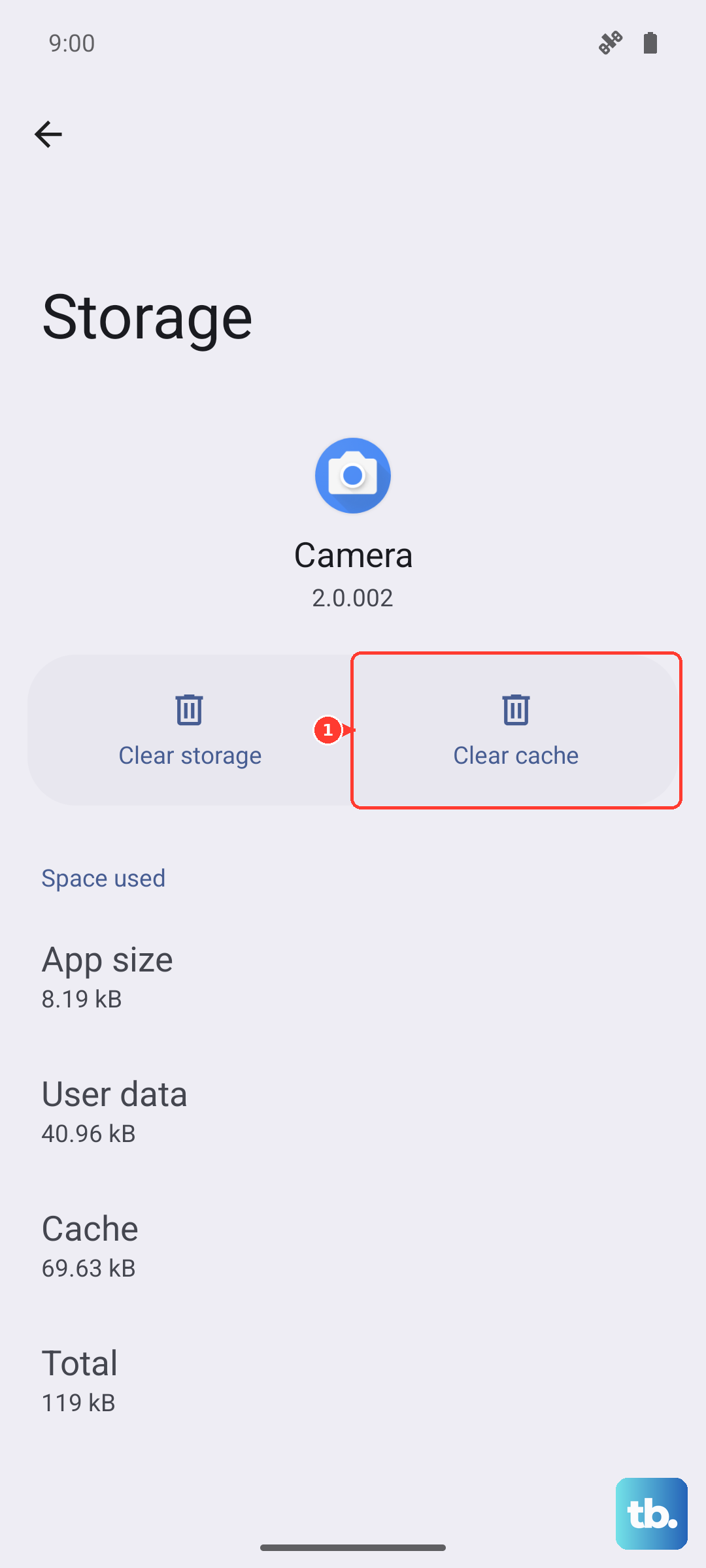
Important warning: clearing the app's data will erase your entire message history within that app. Make sure you're okay with that before proceeding, or use your carrier's backup service if available.
Review Your Network and APN Settings
Since MMS travels over mobile data, incorrect network settings are a prime suspect. A network settings reset is a strong fix that won't touch your personal files. On your Edge 40, navigate to Settings > System > Reset options.
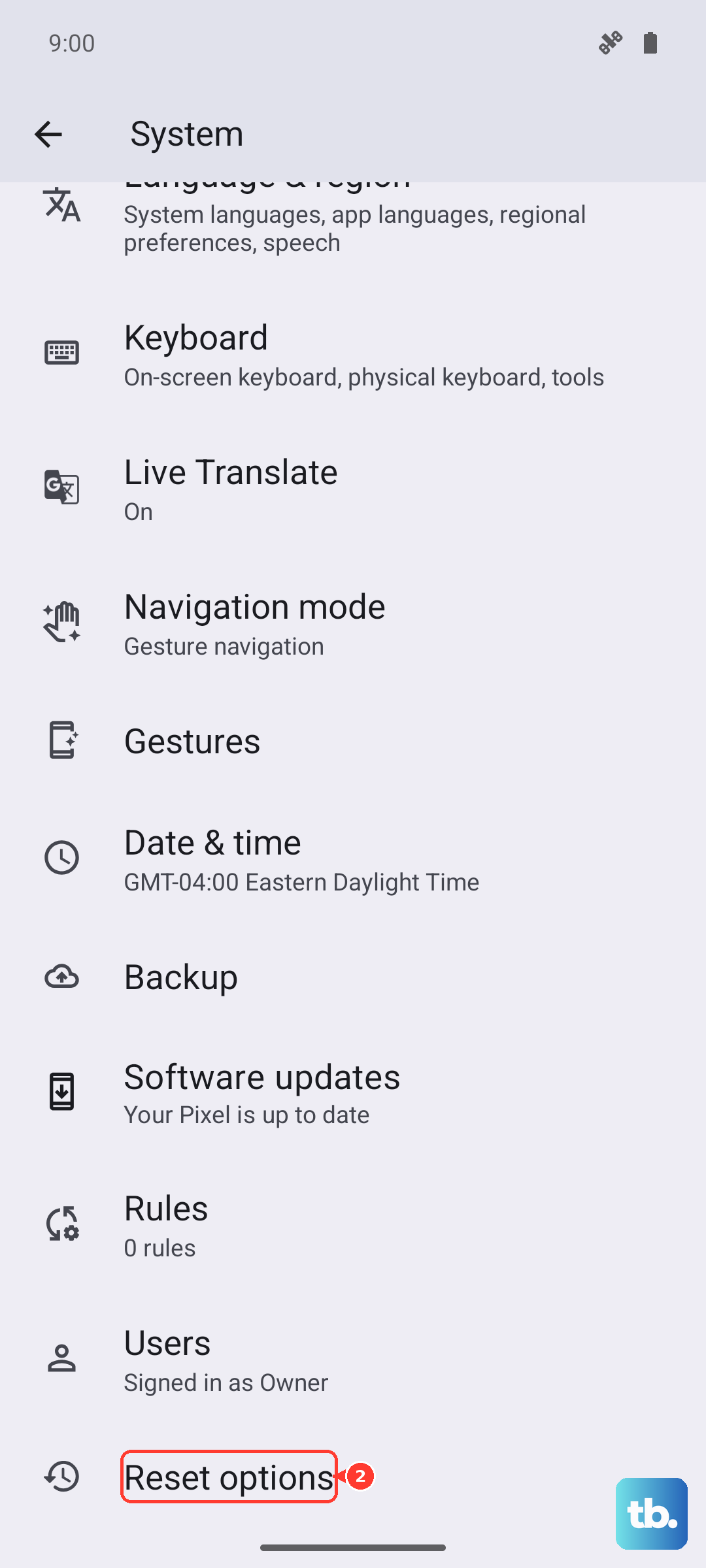
Tap Reset Wi-Fi, mobile & Bluetooth and confirm. Your phone will reboot and you'll need to reconnect to Wi-Fi networks and re-pair Bluetooth devices, but this often clears up MMS issues.
For persistent problems, your APN (Access Point Name) settings might be the culprit. These tell your phone how to connect to your carrier's multimedia service. Go to Settings > Network & internet > Mobile network > Advanced > Access Point Names.
You should see a list, with one option selected (usually your carrier's name). Do not delete these. The best course is to contact your carrier's support, they can text you a link with the correct, updated APN settings for your Edge 40, or walk you through verifying them.
Update Your Software and Try Safe Mode
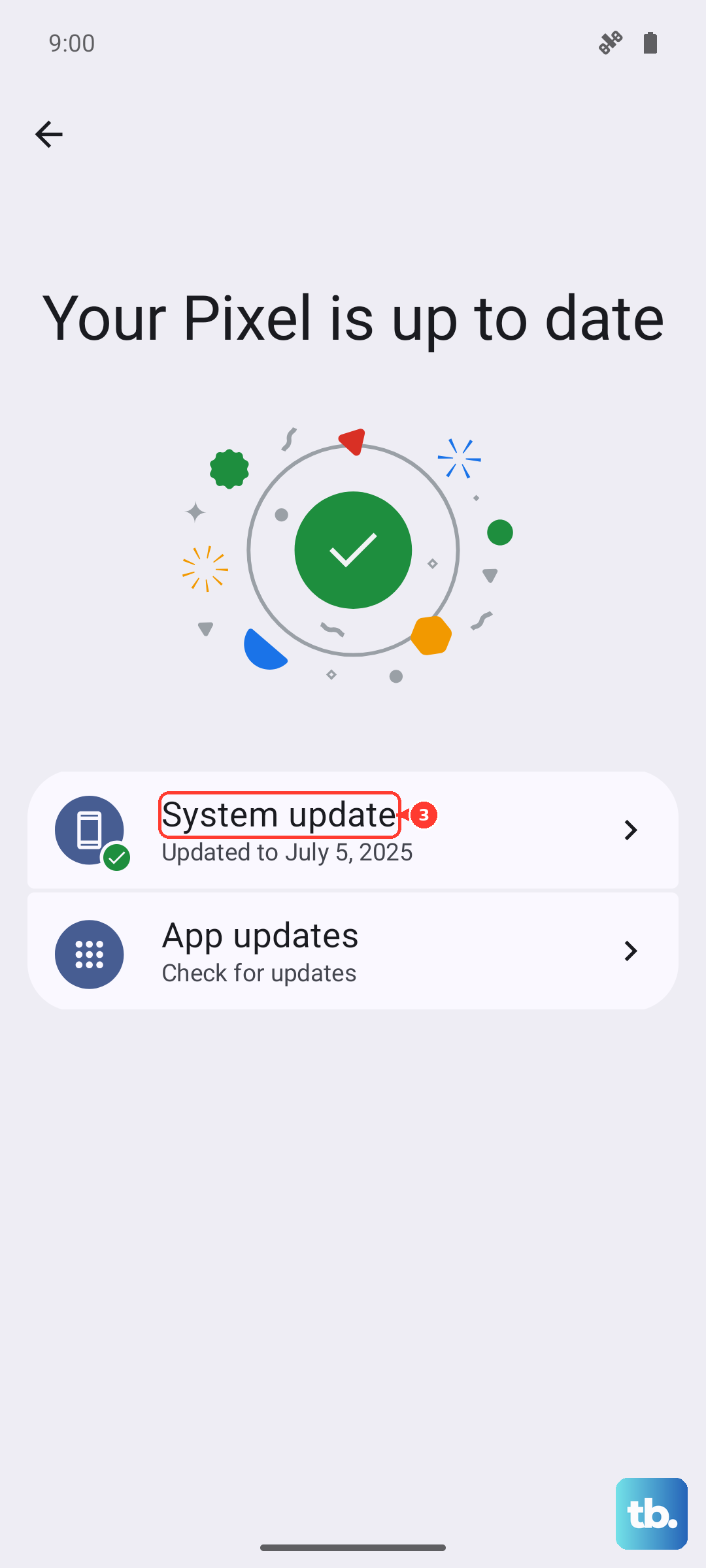
Running outdated software can cause conflicts with messaging services. Check for an update by going to Settings > System > System update. Download and install any available updates. These often include bug fixes for connectivity issues.
If you're still stuck, booting into Safe Mode can tell you if a third-party app is interfering. Press and hold the power button until the power off menu appears. Then, press and hold the Power off text on the screen until you see a prompt to reboot to Safe Mode. Tap it.
In Safe Mode, try downloading the MMS again. If it works, an app you installed is likely causing the problem. You'll need to restart your phone to exit Safe Mode, then uninstall recent apps one by one to find the culprit.
For most people, one of these steps, usually the network reset or checking the auto-download setting, gets things working. The process is about isolating the cause, whether it's a simple toggle, a full cache, or a network configuration that needs a refresh.