
If your Motorola Edge 40's camera app won't open, freezes, or takes blurry photos, start with a simple restart. Press and hold the Volume Down button and the Power button together for about 10-15 seconds until you see the Motorola logo. I've found this force restart clears up most temporary software glitches that can cause the camera to fail.
To know whether you are fixing hardware or software, try a camera test in the browser. A working preview narrows the problem down to the app you were using.
Key Points
- Restart and Update Your Phone: A force restart is the fastest way to fix a frozen camera app.
- Clear the Camera App's Data: This resets the app to its default settings, fixing crashes and black screens.
- Check for App Permissions: The camera needs permission to access your phone's storage and camera hardware.
- Clean the Camera Lenses: Smudges on the lenses are a common cause of blurry or hazy photos.
- Scan for Conflicting Apps: Other camera or flashlight apps can interfere with the main camera.
- Test in Safe Mode: This disables third-party apps to see if one is causing the problem.
- Inspect for Physical Damage: Look for cracks over the lenses or signs of water exposure.
- Check Storage Space: A full phone can prevent the camera from saving new photos or videos.
- Perform a Factory Reset: A last resort to eliminate deep-seated software corruption.
Give the phone a full minute to reboot completely before trying the camera again. This simple step resolves more camera issues than you might think.
If the problem started after a recent system update, check for another one. Motorola often releases follow-up patches to fix bugs introduced in larger updates. Go to Settings > System > Software update and tap "Check for updates." Install any available updates and restart your phone afterward.
Clear the Camera App's Data
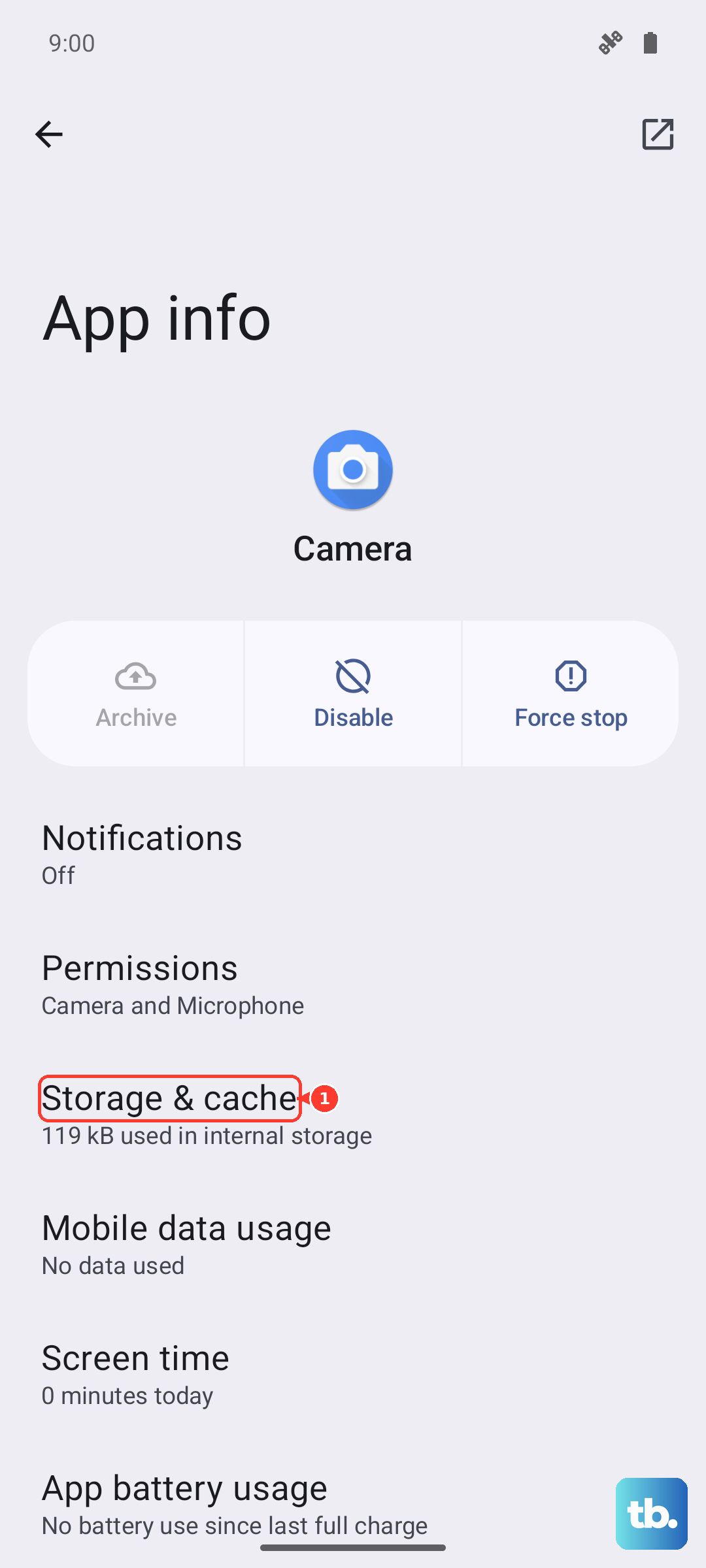
When the camera app crashes on launch or shows a black screen, corrupted cache or data is a likely culprit. Clearing this doesn't delete your photos, it just resets the app's settings. Head to Settings > Apps > See all apps.
Find and tap on "Camera" in your app list. Then, go to Storage & cache. Tap "Clear storage" (or "Clear data") and confirm. This will reset all camera settings to default. Open the camera app again, it should work fresh.
Check for App Permissions
The camera app needs specific permissions to function. If you denied them accidentally, the app might not work at all. Go to Settings > Apps > Camera > Permissions.
Make sure "Camera" and "Microphone" are set to "Allow." Also, check that "Files and media" permission is granted, otherwise the app can't save your photos and videos. Toggle any off permissions back on and try the camera again.
Clean the Camera Lenses
It sounds obvious, but fingerprints and smudges on the lenses are a top reason for blurry, foggy, or low-light photos. The Edge 40 has multiple lenses, so check them all. Use a soft, dry microfiber cloth, like the kind for cleaning glasses.
Gently wipe each lens in a circular motion. Avoid using harsh chemicals or abrasive materials that could scratch the protective coating. After cleaning, take a test photo to see if clarity improves.
Scan for Conflicting Apps
Other apps that use the camera hardware can sometimes cause conflicts. This includes third-party camera apps, social media apps with camera features, or even flashlight apps that control the LED. Think about any apps you installed just before the camera stopped working.
Try uninstalling recent camera-related apps to see if the problem resolves. You can also try using the camera directly from within your phone's default app, not through another app like Instagram or Snapchat, to isolate the issue.
Test in Safe Mode
Booting into Safe Mode temporarily disables all third-party apps. This tells you if a downloaded app is causing the camera to crash. To enter Safe Mode, press and hold the Power button until the power menu appears.
Then, press and hold the "Power off" option on your screen. A prompt will ask if you want to reboot to Safe Mode, tap "OK." If the camera works perfectly in Safe Mode, you know a third-party app is to blame. Start by removing recently updated or installed apps one by one.
Inspect for Physical Damage
Take a close look at the camera module on the back of your phone. Look for any cracks over the lenses or deep scratches. Even a small crack can distort images. Also, check for any signs of water damage or moisture inside the lens covers.
If you see physical damage, the camera module itself may need repair. Software fixes won't help a broken lens or water-logged sensor. This is a common issue if the phone has been dropped.
Check Storage Space
If your phone's internal storage is completely full, the camera app may fail to save new photos or videos, causing it to freeze or crash. Go to Settings > Storage to see how much space you have left.
If you're critically low, try deleting old files, moving photos to cloud storage, or clearing app caches. Aim to have at least 1GB of free space. After freeing up room, restart your phone and test the camera again.
Perform a Factory Reset
If you've tried everything else and the camera is still broken, a factory reset is the final software step. This will erase all data on your phone, so it's crucial to back up your photos, contacts, and important files first. You can back up to your Google account or transfer files to a computer.
Once backed up, go to Settings > System > Reset options > Erase all data (factory reset). Follow the prompts to reset your phone. After it restarts, set it up as new and test the camera immediately before restoring your apps, to see if the core issue is fixed.