
When your Lenovo Yoga 9i 14 goes silent, it can be frustrating, especially with its premium soundbar hinge. The issue is often a simple setting, but sometimes it's a driver conflict or a system glitch. Let's walk through the steps to get your audio back.
A browser based online speaker test helps narrow this down fast. If test tones play clearly, the speakers work and the problem lives in an app or setting.
Check the Volume and Output
First, click the speaker icon in your taskbar. Make sure the master volume slider isn't all the way down or muted. Right above the slider, you'll see the current output device. If you recently unplugged headphones, Windows might still be sending audio to that disconnected device. Click the name and select your laptop's speakers from the list.
Run the Windows Audio Troubleshooter
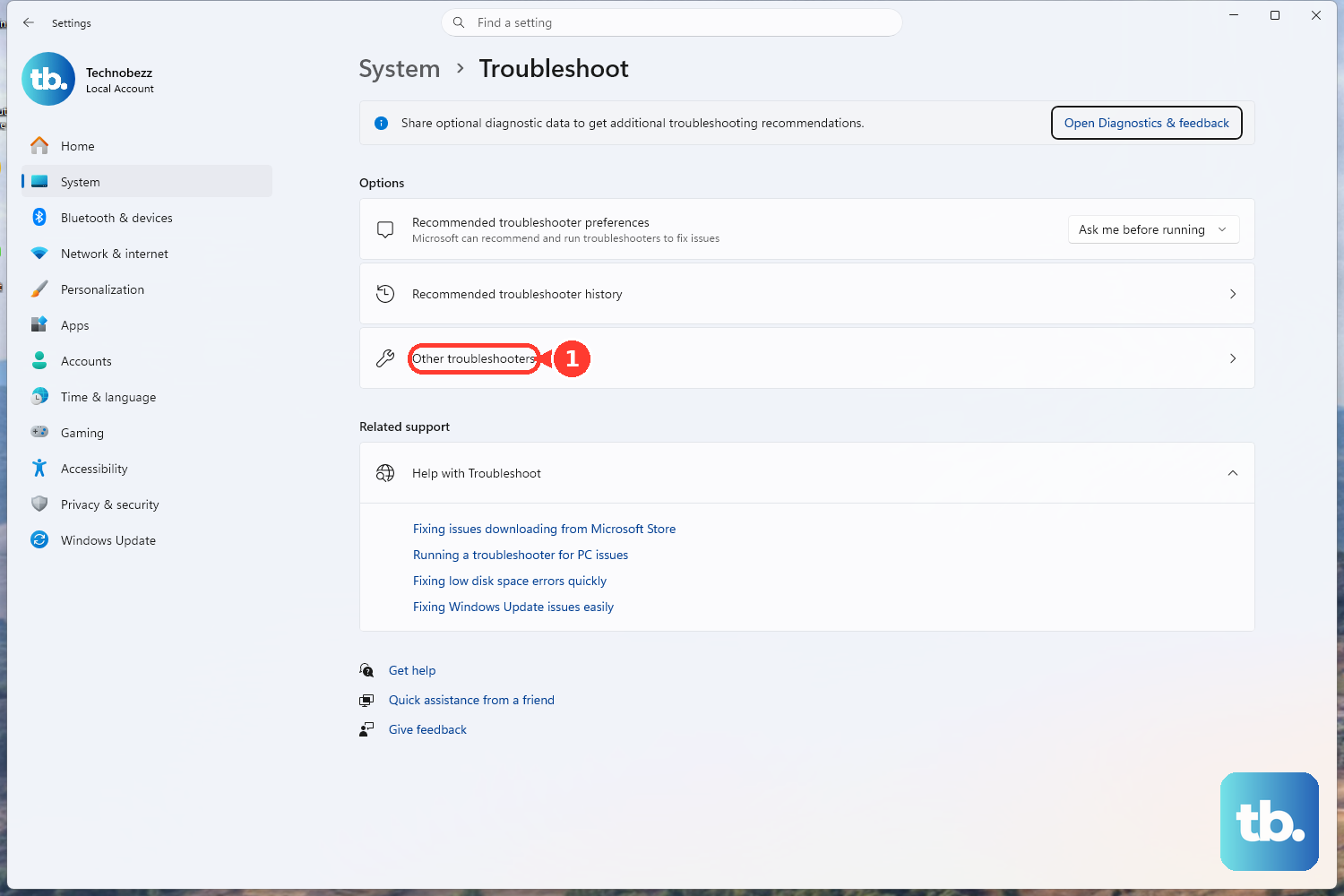
Windows has a built-in tool that can automatically find and fix common audio problems. Go to Settings > System > Troubleshoot > Other troubleshooters. Find Playing Audio and click the Run button. This tool checks for disabled services, incorrect default devices, and other configuration errors.
Restart Your Yoga 9i
This is the classic fix for a reason. A full restart clears out any stuck audio processes and reloads all your drivers. Click the Start menu, select the power icon, and choose Restart. I've found this works about half the time, especially if the sound cut out after the laptop woke from sleep or hibernation.
Verify the Sound Settings
Head to Settings > System > Sound. Under the Output section, ensure "Speakers (Realtek Audio)" or a similar Yoga 9i-specific device is selected. Click on it, then check that the volume is up and the device isn't muted. The Yoga's soundbar audio quality can sometimes be affected by these settings.
Update or Reinstall Audio Drivers
Press the Windows key + X and select Device Manager. Expand the section labeled Sound, video and game controllers. Right-click on your audio device (it's often Realtek) and choose Update driver > Search automatically for drivers. If that doesn't help, right-click again and select Uninstall device. Restart your laptop, and Windows will install a fresh driver automatically.
Use Lenovo Vantage for System Updates
For Yoga 9i-specific driver updates, open the Lenovo Vantage app. Go to the System Update section and check for any available updates, especially for audio, chipset, or BIOS. Installing updates through Vantage can resolve compatibility issues that generic Windows updates might miss.
Restart the Core Audio Services
Press Windows + R, type services.msc, and hit Enter. In the long list, find Windows Audio. Right-click on it and select Restart. Do the same for the Windows Audio Endpoint Builder service. If either service was hung, this will get sound working again right away.
Check Per-App Volume Mixer
Sometimes, the system volume is fine, but a specific app is muted. Right-click the speaker icon in the taskbar and select Open Volume mixer. You'll see a slider for each open application. Make sure the app you're using, like your web browser or media player, isn't set to zero.
Disable Audio Enhancements
Audio enhancements can sometimes conflict with the Yoga's hardware. Go to Settings > System > Sound, click on your output device, and scroll down to find Audio enhancements. Change the dropdown menu to Off. Test your sound immediately after.
Test with Different Audio Sources
Try playing audio from different sources. Test a YouTube video, a local MP3 file, and a system sound. If sound works in one app but not another, the problem is app-specific. If there's no sound at all, even through the 3.5mm headphone jack or Bluetooth, the issue is likely system-wide.
Roll Back a Problematic Driver Update
If the audio stopped working right after a Windows Update, you can revert to the older driver. Open Device Manager, double-click your audio device, and go to the Driver tab. If the Roll Back Driver button is clickable, use it. This will uninstall the recent update and revert to the previous version that was working.
Check for Physical Obstructions
The Yoga 9i's speakers are built into the hinge soundbar. Gently inspect the grille for any visible debris or dust that could be muffling sound. Also, if you're using the 360-degree hinge in tent or tablet mode, try adjusting the angle, as some users have reported audio glitches related to the auto-rotation feature.
Perform a System Restore
If all else fails and the problem started recently, you can use System Restore. Type "create a restore point" into the Windows search bar, open the System Properties window, and click on System Restore. Follow the prompts to choose a restore point from a date when your audio was definitely working. This will revert system files and settings without touching your personal documents.