
When your iPhone SE 4 keeps restarting on its own, it pulls you out of whatever you're doing. This can happen for a few reasons, often tied to a software hiccup in iOS 18 or a misbehaving app. I'd start with a force restart, as it's the quickest way to clear out a temporary glitch.
Before you dive into the fixes, it's a good idea to make sure your data is backed up. You can do this through iCloud or by connecting to your computer. This protects your photos and messages just in case.
Perform a Force Restart
The force restart sequence for the iPhone SE 4 is straightforward. Press and quickly release the Volume Up button, then press and quickly release the Volume Down button. Finally, press and hold the Side button until you see the Apple logo appear on the screen.
This doesn't erase any data. It simply forces the phone to shut down and reboot, which can resolve many minor software issues causing the random restarts.
Update iOS and Your Apps
Running outdated software is a common trigger for instability. Head to Settings > General > Software Update to check for and install any available iOS updates. Apple frequently releases patches that fix bugs which could be causing your phone to crash.
Next, update your apps. Open the App Store, tap your profile icon in the top corner, and scroll down to see pending updates. Tap "Update All" to get everything current. An old app that hasn't been optimized for iOS 18 might be the culprit.
Check for a Problematic App
If the restarts started after you installed a specific app, that app might be to blame. Try closing all your open apps first by swiping up from the bottom of the screen and swiping away each app card.
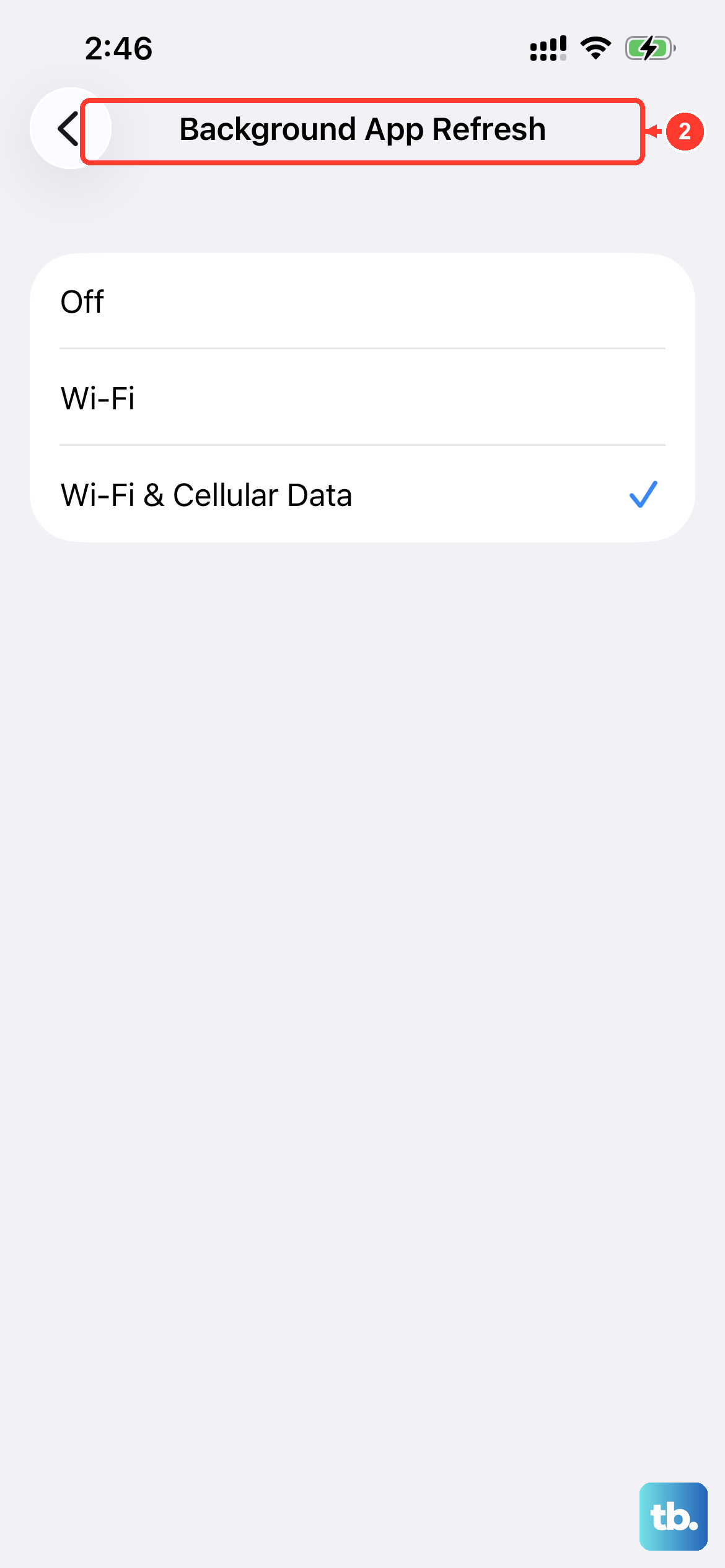
You can also temporarily disable Background App Refresh to see if that helps. Go to Settings > General > Background App Refresh. You can turn it off entirely or just for suspicious apps.
For a more targeted approach, check the crash logs. Go to Settings > Privacy & Security > Analytics & Improvements > Analytics Data. Look for entries with "panic-full" or the name of a specific app followed by ".ips". These logs can point you to the software causing the trouble.
Free Up Storage Space on Your iPhone SE 4
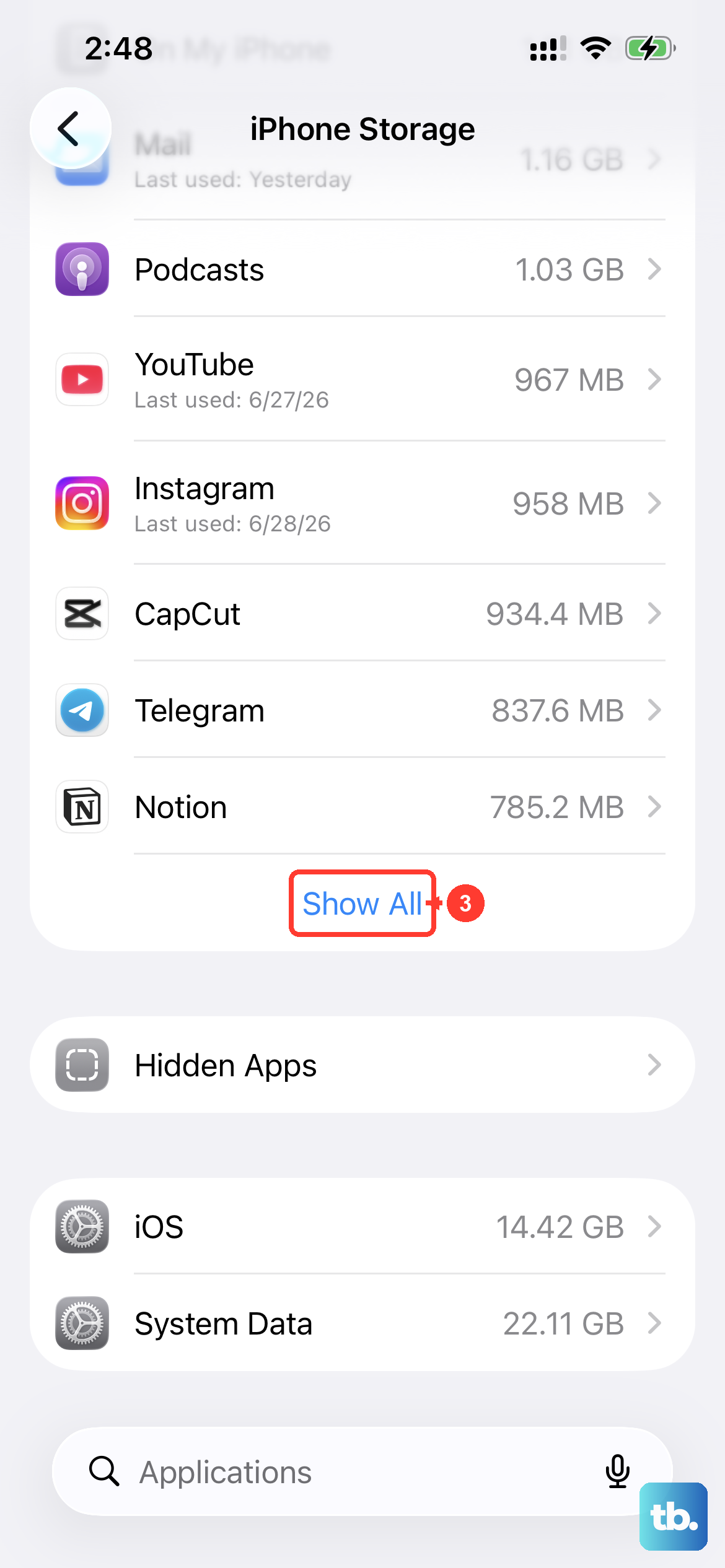
The iPhone SE 4 has a smaller form factor, which sometimes means managing storage a bit more actively. If your storage is completely full, the system can become unstable. Go to Settings > General > iPhone Storage to see what's using space.
The system will offer recommendations, like offloading unused apps or reviewing large attachments. Clearing out some space can often stop the random reboots. I've seen this fix the issue when a phone is hovering at 99% capacity.
Reset All Settings
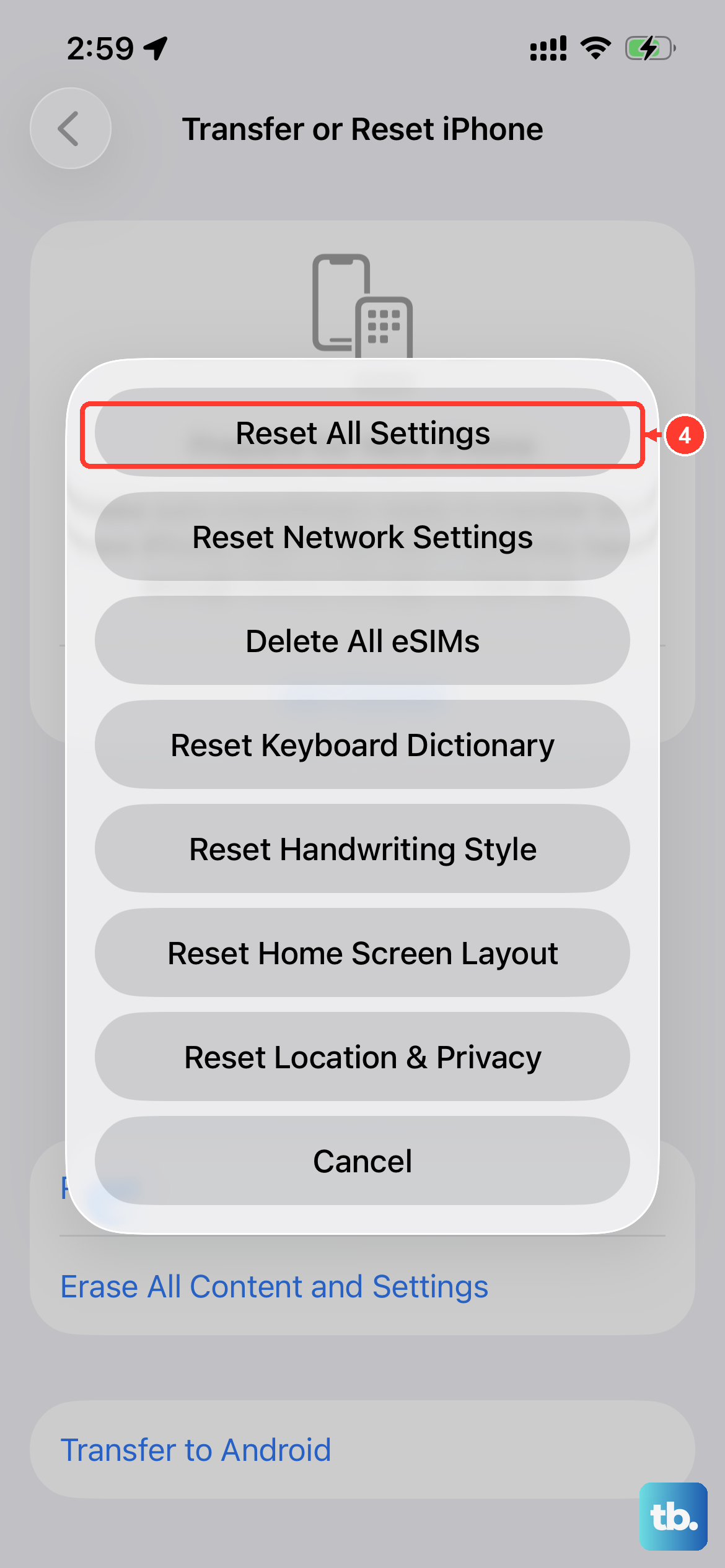
This is a more significant step, but it won't delete your personal data like photos or messages. It will reset all your preferences, like Wi-Fi passwords, wallpaper, and notification settings, back to their defaults.
To do this, navigate to Settings > General > Transfer or Reset iPhone > Reset. Then, choose "Reset All Settings." This can resolve conflicts caused by a corrupted settings file.
Check Your Charger and Battery Health
While less common, power-related issues can cause restarts. The iPhone SE 4 uses a USB-C port and supports 20W wired charging. Try using a different, Apple-certified 20W USB-C PD charger and cable to rule out a faulty power source.
It's also worth checking your battery health. Go to Settings > Battery > Battery Health & Charging. If the maximum capacity is significantly degraded (well below 80%), the battery may be struggling to provide stable power. Enabling "Optimized Battery Charging" here can help preserve its long-term health.
Restore via Recovery Mode
If your iPhone SE 4 is stuck in a continuous restart loop, restoring it via Recovery Mode is the next step. You'll need a computer with a USB-C cable and either Finder (on Mac) or iTunes (on Windows).
Connect your phone to the computer. Quickly press and release the Volume Up button, then the Volume Down button. Immediately press and hold the Side button. Keep holding it even after the Apple logo appears, until you see the Recovery Mode screen on your iPhone.
Your computer will then give you the option to Update or Restore. Choose "Restore" to download and install a fresh copy of iOS. This will erase all data on the phone, so it's a last resort before you set it up again from your backup.
Inspect the SIM Card
A loose or damaged SIM card can sometimes cause system instability. Use the SIM eject tool that came with your iPhone SE 4 (or a paperclip) to gently pop open the SIM tray on the side of the phone.
Remove the SIM card and check for any visible damage or dirt on the gold contacts. Give it a gentle wipe with a soft, dry cloth and reinsert it firmly. Securely close the tray and see if the restarting issue persists.
Perform a Factory Reset
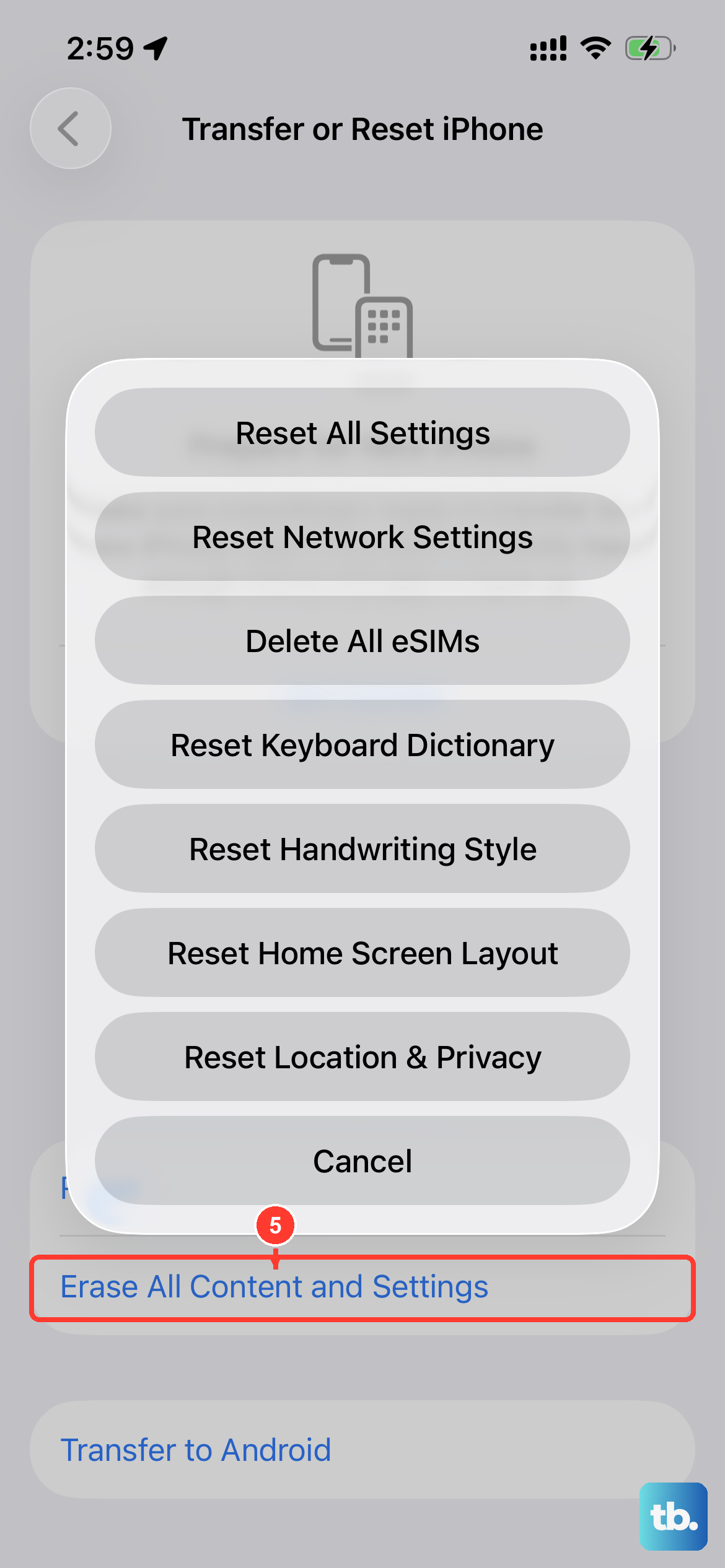
If all else fails, a full factory reset will wipe the phone and reinstall iOS. This is the most thorough software fix. Ensure you have a recent backup, then go to Settings > General > Transfer or Reset iPhone > Erase All Content and Settings.
After the phone erases itself and reboots, you can set it up as new to test for restarts. If the problem is gone, you can then restore from your backup. If the restarts continue even on a fresh setup, it may indicate a hardware issue.