
When your iPhone 16 Pro won't connect to your computer, it stops you from transferring photos, syncing music, or making a quick backup. The issue is usually a simple one, even with the new USB-C port, and you can almost always fix it yourself.
I'd start with the cable and port. A surprising number of connection problems are solved right there.
Check Your USB-C Cable and Port
Grab a different USB-C cable, preferably one you know works for data transfer (not just charging). The cable that came with your iPhone 16 Pro is a good one to test with. Plug it firmly into both the phone and your computer, making sure there's no wiggle.
Also, take a close look at the USB-C port on your iPhone. Shine a light in there and see if you spot any lint or debris. If you do, power off your phone and use a dry, soft-bristled brush or a can of compressed air to gently clean it out. Avoid using anything metal.
Restart Your iPhone and Computer
A quick restart clears out temporary software glitches that can block the connection. Restart your Mac or PC first, then restart your iPhone 16 Pro.
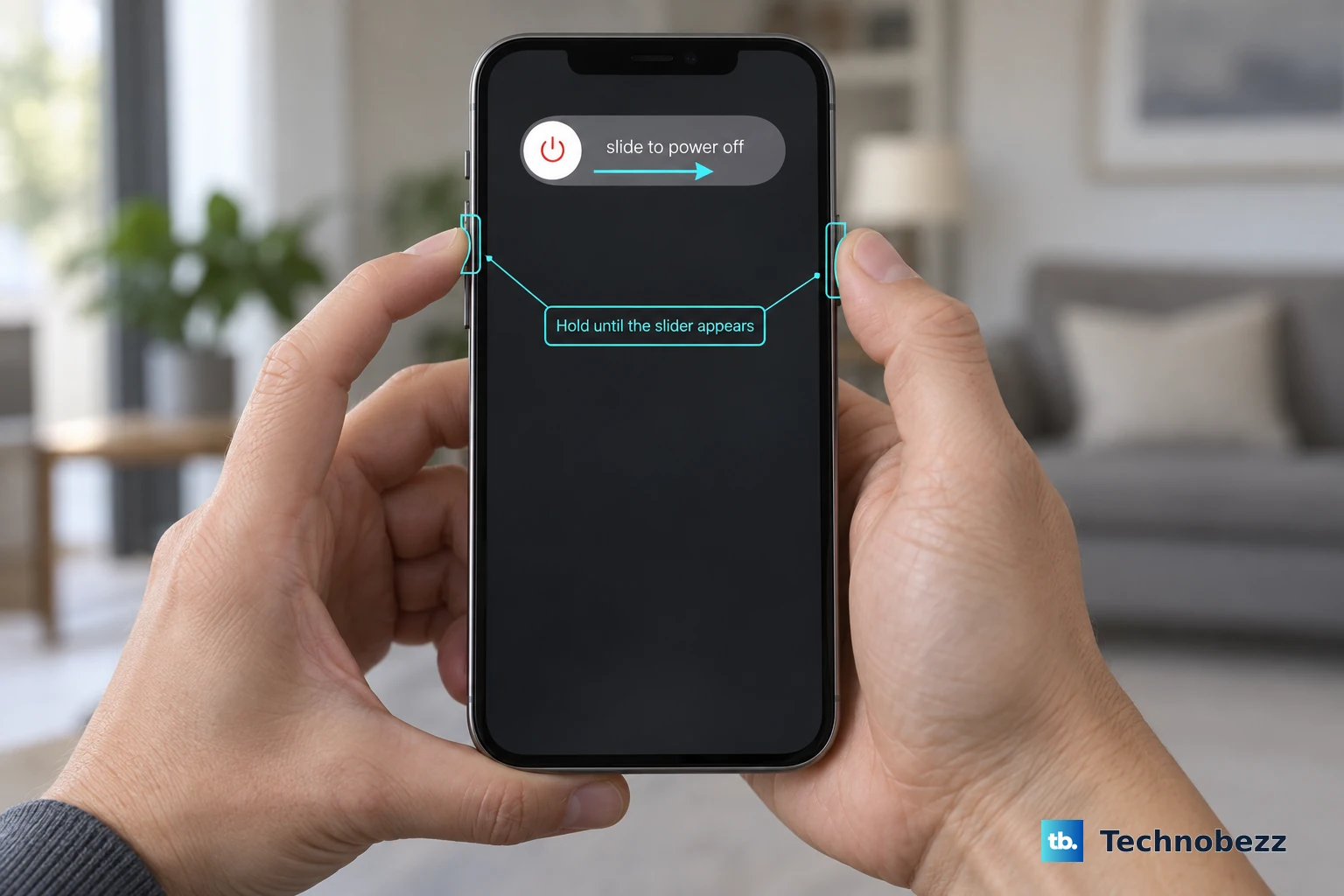
If a normal restart doesn't help, try a force restart. On the iPhone 16 Pro, you press and quickly release the Volume Up button, then press and quickly release the Volume Down button. Finally, press and hold the Side button until you see the Apple logo appear.
Trust This Computer on Your iPhone
This is a classic step that's easy to miss. When you connect your iPhone 16 Pro to a computer for the first time (or after an update), you need to grant permission. Unlock your iPhone and look for a pop-up alert that says "Trust This Computer?" Tap Trust and enter your passcode if prompted.
If the alert doesn't appear, disconnect the cable, unlock your phone, and then reconnect it. Keep the screen on and unlocked while you do this.
Update Your Software
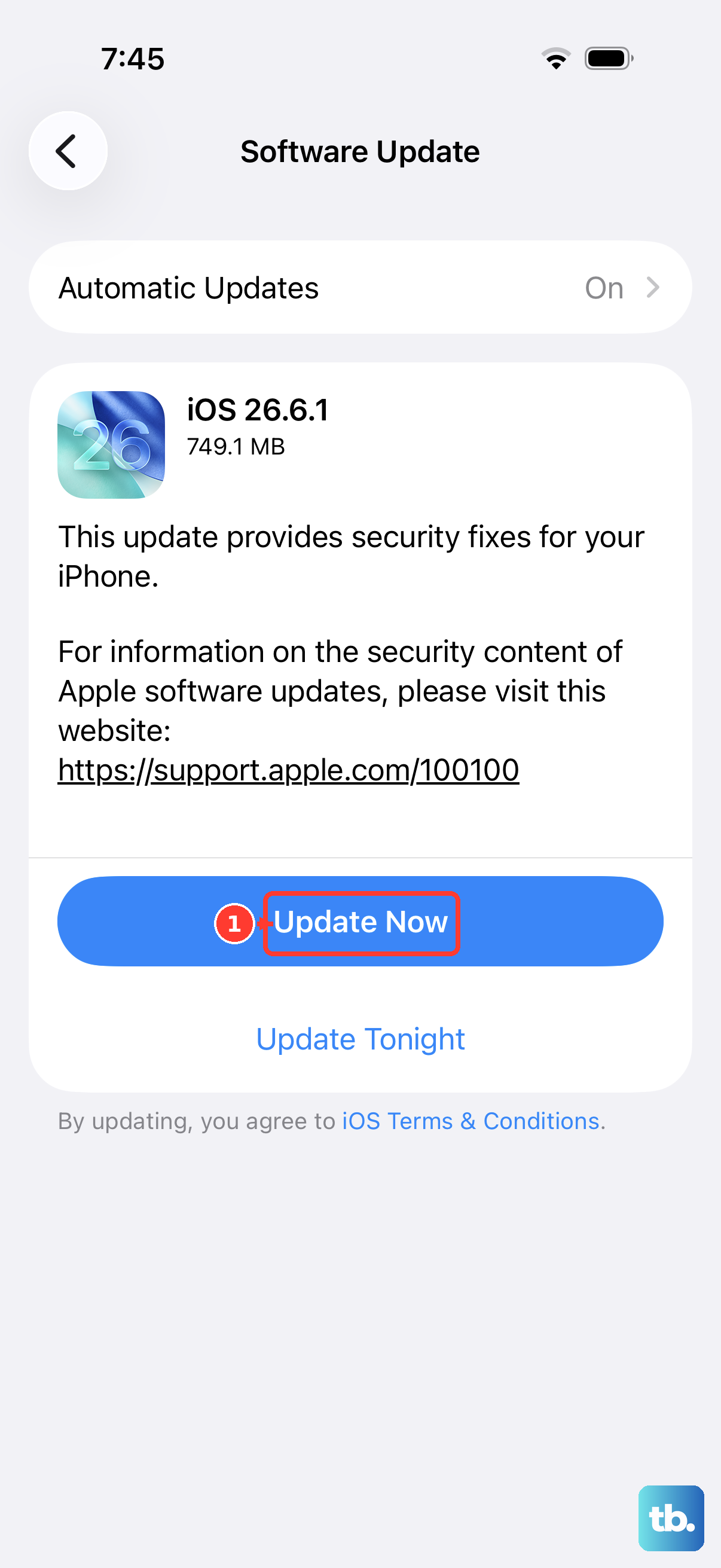
Outdated software is a common culprit. First, check for an iOS update on your iPhone 16 Pro. Go to Settings > General > Software Update. If an update is available, install it.
Next, make sure your computer's operating system is current. On a Mac, go to System Settings > General > Software Update. On a Windows PC, check for updates through Windows Update. Also, if you're using a Mac, ensure you have the latest version of macOS that supports the iPhone 16 Pro.
Check Finder or iTunes
On a Mac running macOS Catalina or later, your iPhone should appear in the Finder sidebar under "Locations." If you don't see it, open a new Finder window and check the sidebar again. You might need to select your iPhone manually.
On a Windows PC or an older Mac, you'll be using iTunes. Make sure you have the latest version installed from Apple's website. Open iTunes after connecting your phone to see if it's recognized there.
Try a Different USB Port or Computer
Sometimes the issue is with the computer's USB port itself. Try plugging the cable into a different USB port, preferably one directly on the computer rather than a hub or dock. If you have access to another computer, try connecting your iPhone 16 Pro to it.
This test helps you figure out if the problem is with the phone or the original computer. If it works on a second machine, the issue is likely with the first computer's software, drivers, or hardware.
Reset Location & Privacy Settings
This reset can clear up permissions that might have gotten confused, including the "Trust This Computer" setting. Go to Settings > General > Transfer or Reset iPhone > Reset. Then tap Reset Location & Privacy.
You'll need to re-grant location and privacy permissions to your apps afterward, but it's a clean slate for connection permissions. The next time you connect to your computer, you should see the "Trust" alert again.