
When your iPhone 14 starts restarting on its own, it can be incredibly disruptive. You might be in the middle of a call, typing a message, or watching a video when the screen suddenly goes black and the Apple logo appears. This issue can be tied to software, but it can also point to a hardware concern.
Before you try anything, make sure you have a recent backup. You can do this through iCloud or by connecting to your computer. It's a safety net that protects your photos, messages, and app data in case you need to take more serious steps later.
Perform a Force Restart
If your phone becomes unresponsive during a restart loop, try a force restart. It doesn't erase your personal data. For the iPhone 14, the process is straightforward, but you may need to hold the side button for longer than 10 seconds.
Quickly press and release the volume up button. Then, quickly press and release the volume down button. Finally, press and hold the side button (on the right). Keep holding until you see the Apple logo appear, then you can let go.
Update iOS and Your Apps
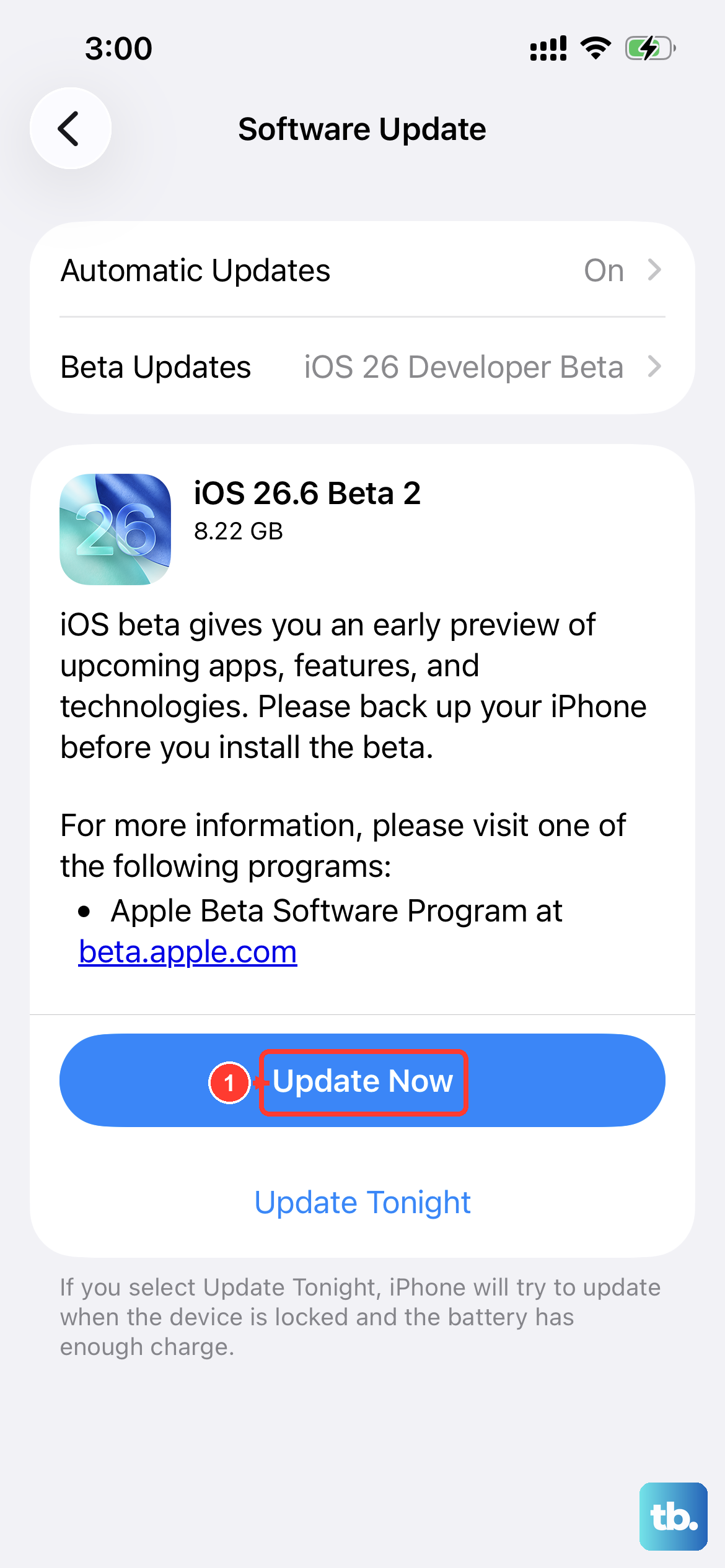
Since the iPhone 14 launched in 2022, it's received several major iOS updates. Software updates can include bug fixes, so check whether an update is available. If an update won't install, make sure you have enough available storage and an internet connection.
Go to Settings > General > Software Update. If an update is available, download and install it. Do this while connected to Wi-Fi and a power source. Check for app updates too: open the App Store, tap your profile icon, tap App Updates, then tap Update All.
Check for a Problematic App
If the restarts happen while you're using a particular app, check whether that app also freezes or closes unexpectedly. Force the app to close, then reopen it to see whether it works normally. Restart your iPhone 14 and try the app again.
Open the App Store, tap your profile icon, then tap App Updates to check for an update. If the app still doesn't work properly, delete it and redownload it, keeping in mind that deleting it may remove data stored in the app. Contact the app developer if the problem continues.
Review Crash Reports
Your iPhone 14 has analytics data that may help when troubleshooting repeated crashes. You can review it before contacting support. Go to Settings > Privacy & Security > Analytics & Improvements > Analytics Data.
Scroll through this list and look for log names that start with "panic-full", which may relate to a system crash. You might also see logs named after specific apps. If the same app name appears repeatedly and that app also freezes or closes unexpectedly, try the app troubleshooting steps above.
Free Up Storage Space
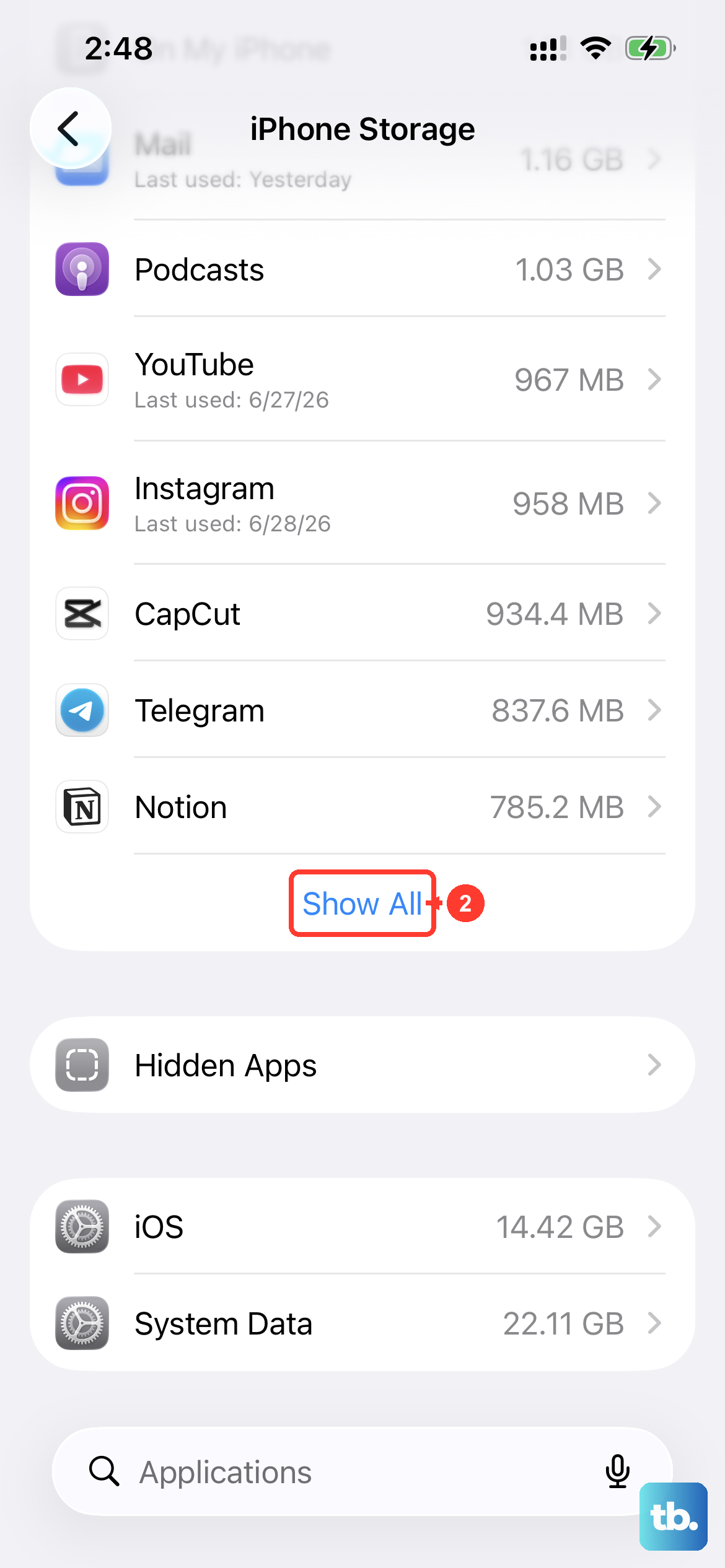
Low available storage can prevent an iOS update from downloading or installing. If you're trying to update your phone as part of troubleshooting, check how much space is available and free some up if needed.
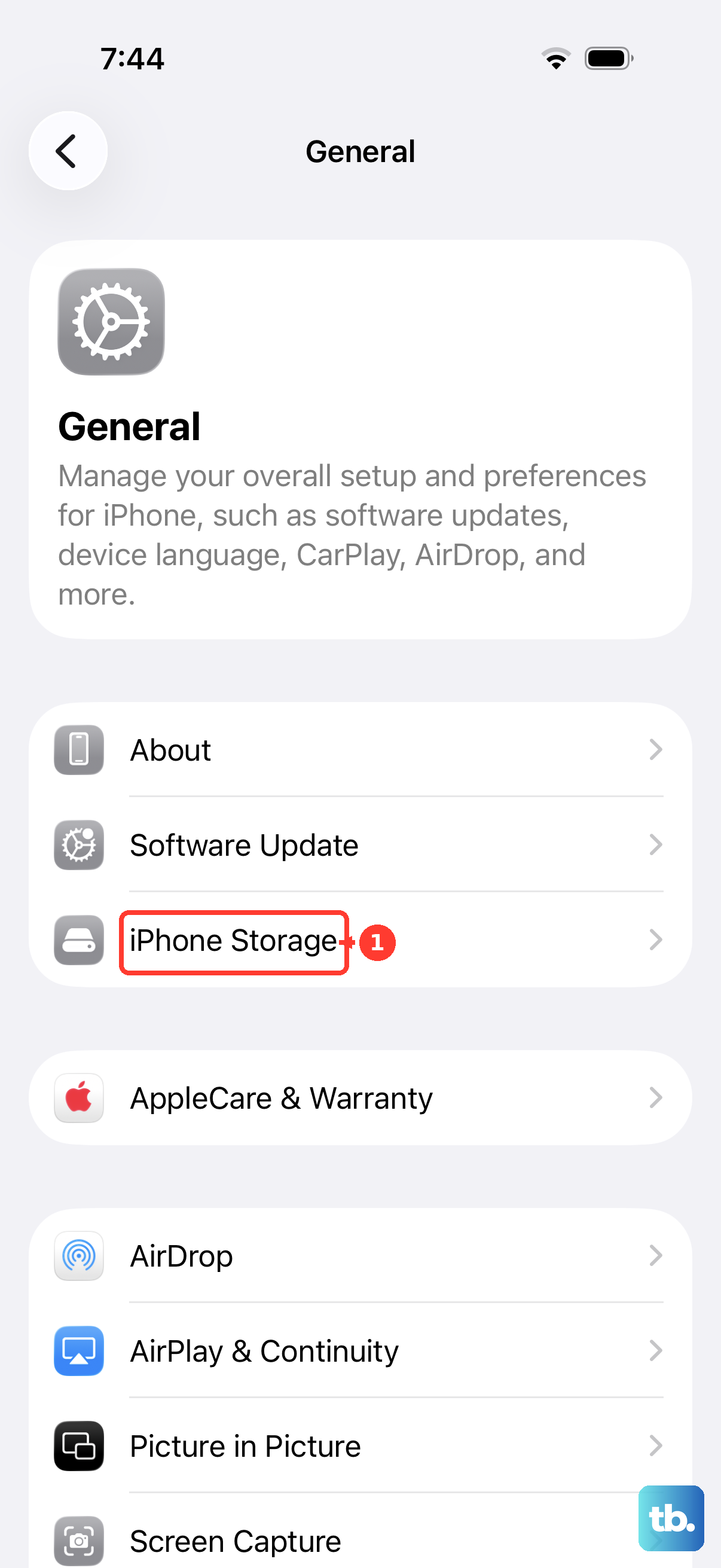
Head to Settings > General > iPhone Storage. The system will show you a breakdown and usually offer recommendations. If space is running low, start by offloading unused apps (which removes the app but keeps its documents and data) or clearing out old message threads and photos.
Reset All Settings
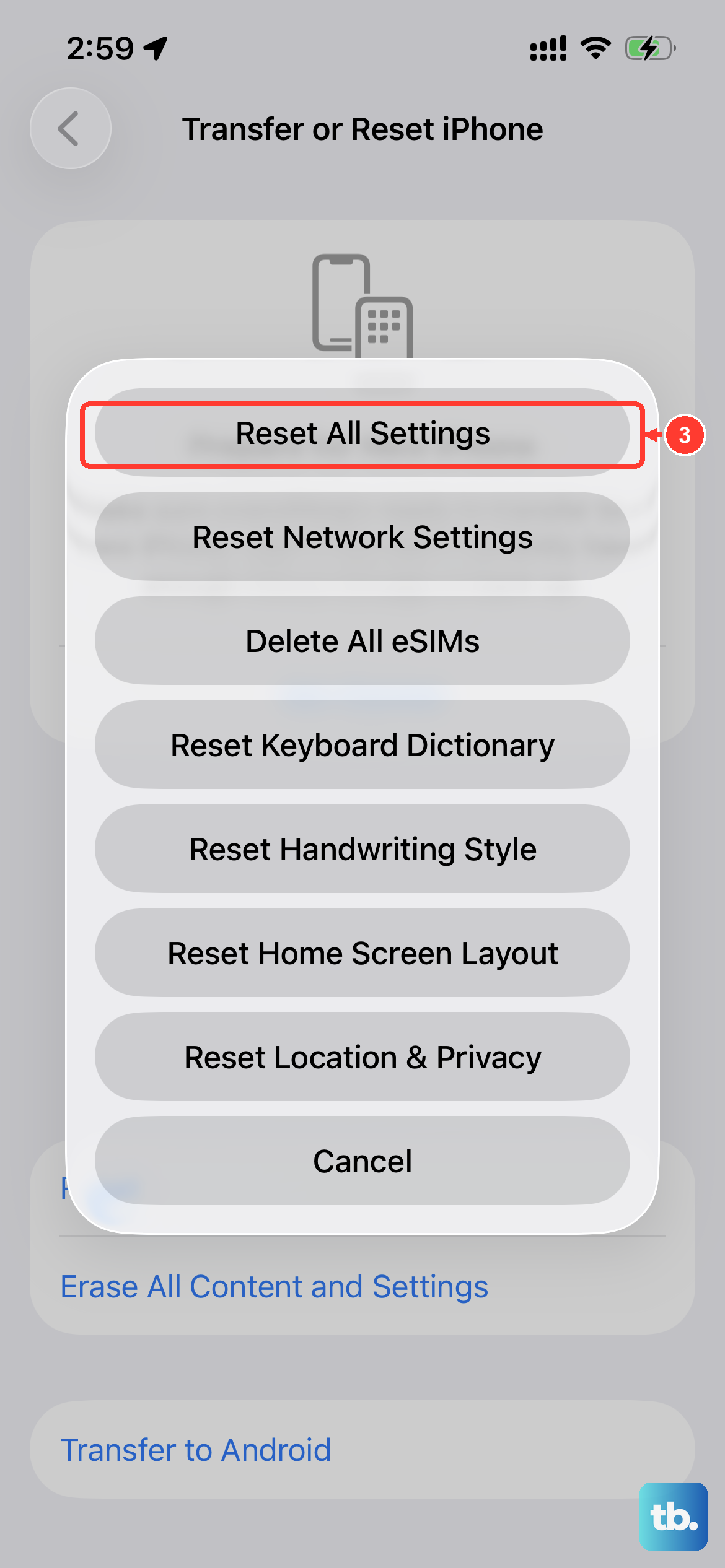
This is a more significant step, but it won't erase your personal data like photos or messages. It will, however, remove or reset settings including Wi-Fi networks, Bluetooth pairings, Face ID, and Apple Pay cards.
That means your Wi-Fi passwords, wallpaper, privacy settings, and keyboard dictionary will be wiped. Afterward, you'll need to rejoin Wi-Fi, re-pair Bluetooth devices and any Apple Watch, and set up Face ID again. Go to Settings > General > Transfer or Reset iPhone > Reset, and then choose "Reset All Settings."
Check Your Charging Cable and Port
If your phone also has trouble charging, check the cable and port. The iPhone 14 uses a Lightning port, and debris can interfere with the connection. If the phone won't turn on, charge it for one hour and then try the force restart again.
First, make sure you're using a genuine Apple cable or a high-quality MFi-certified one. Cheap cables can cause problems. Then, with the phone off, gently remove visible lint with a soft, dry brush. Avoid getting moisture in the opening, and don't use compressed air. Also, inspect the cable's connector for any debris or corrosion, especially if the phone has been exposed to moisture.
Restore via Recovery Mode
If your iPhone 14 stays on the Apple logo for several minutes without a progress bar, try Recovery Mode. Try Update first if you haven't already; Restore completely erases the device and reinstalls iOS. You will need a computer (Mac or PC) and a USB cable.
Update your Mac or get the latest Apple Devices app on your PC, then connect your iPhone to the computer. Open the Finder on a Mac or the Apple Devices app on a PC. Quickly press and release the volume up button, then quickly press and release the volume down button. Immediately press and hold the side button. Keep holding it even after you see the Apple logo, until you see the recovery mode screen (a cable pointing to a computer icon).
On your computer, you'll get the option to Update or Restore. Choose Update first if you haven't tried it; if that fails, choose Restore to reinstall iOS and erase the phone. If the download takes more than 15 minutes and the phone leaves the recovery screen, let it finish, then repeat the button steps. After a restore, you can set it up as new or from your backup.
Consider a Hardware Issue
If you've tried every software fix here and the phone still restarts randomly, it's time to consider the hardware. A failing battery or another internal fault may be the cause. If the restarts happen while charging, note which charger you're using and whether the phone feels unusually hot.
Try using a cable instead of MagSafe or another wireless charger and note whether the restarts continue. Beyond that, hardware diagnosis requires professional tools. You'll need to contact Apple Support or visit an Apple Store or Authorized Service Provider. They can run diagnostics to check the battery health and look for other internal faults.