
When your iPhone 17e apps keep closing unexpectedly or freezing up, it pulls you right out of whatever you were doing. Since this is a brand new model running iOS 26, some early software bugs are possible as developers catch up. I'd start with the quick fix that works most of the time.
Force close the problematic app and restart your phone. Swipe up from the bottom of the screen and pause in the middle to enter the app switcher. Find the app that's crashing, swipe it up and off the top of the screen to close it completely. Then, give your iPhone 17e a quick restart by going to Settings > General > Shut Down.
Update Your Apps and iOS
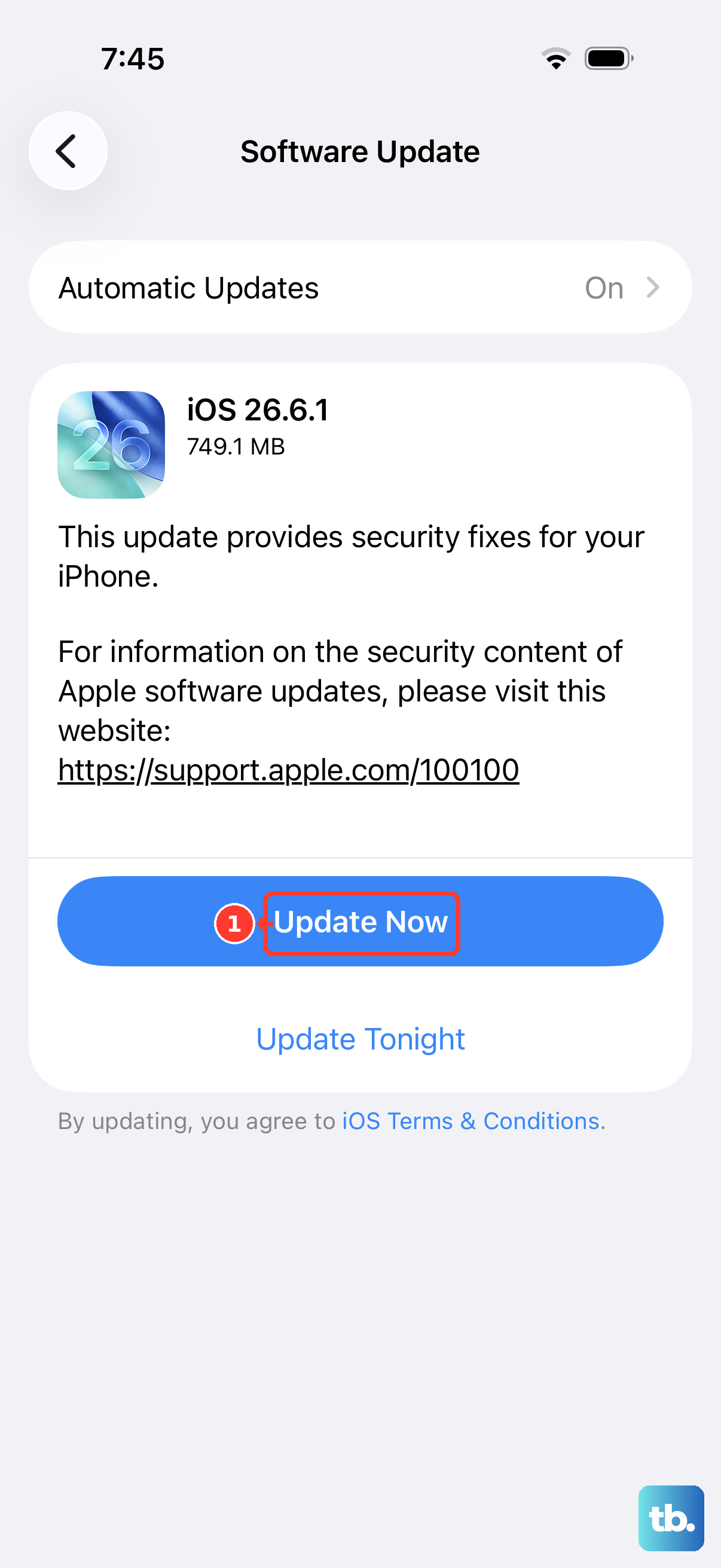
App developers are constantly pushing updates to fix bugs, especially for a new device like the 17e. Open the App Store and tap your profile icon in the top right corner. Scroll down to see if any updates are pending for your apps, particularly the ones that are crashing.
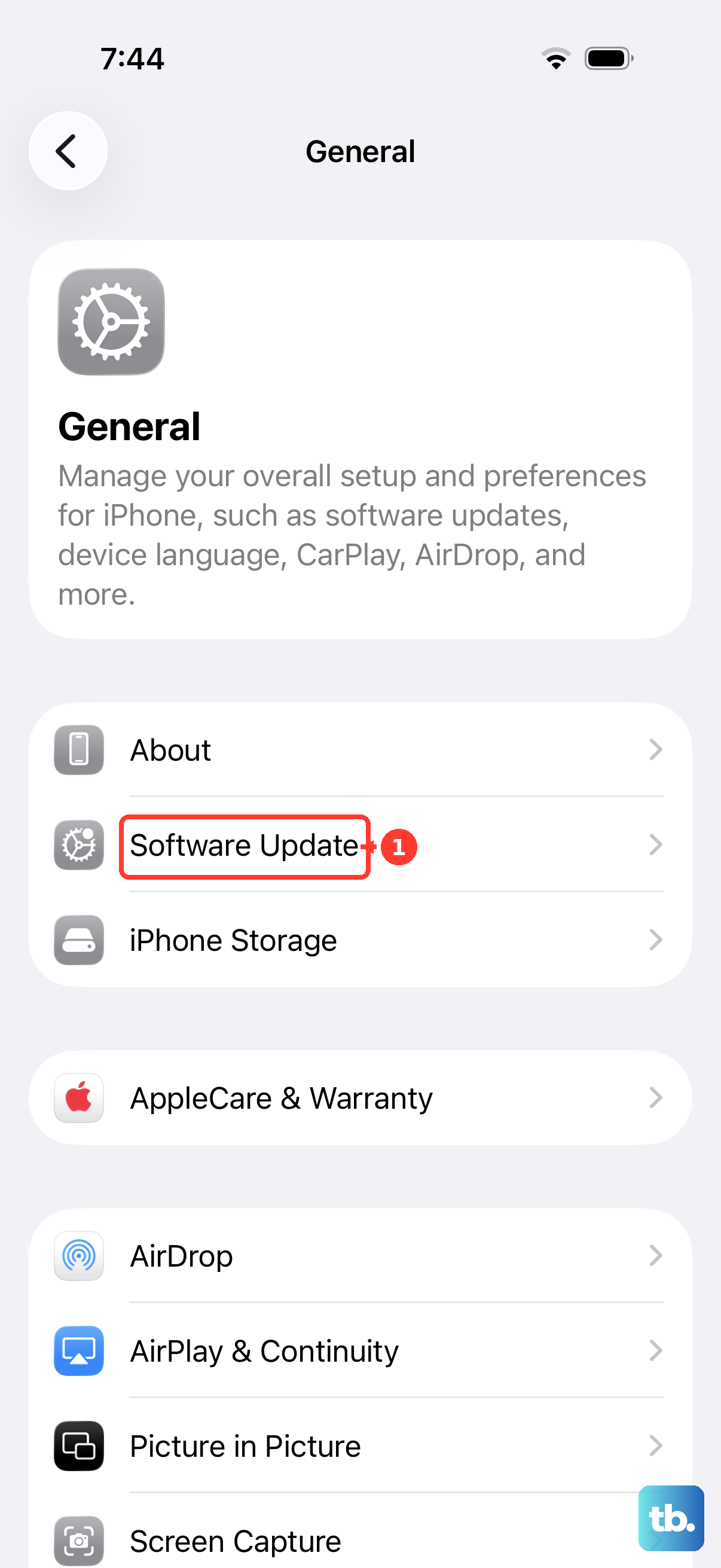
It's just as important to make sure iOS 26 itself is up to date. Apple releases point updates that often include stability patches. Go to Settings > General > Software Update and install any available update. Do this over Wi-Fi and make sure your phone is plugged into a 20W USB-C charger or on a MagSafe puck, as the A19 chip can run warm during intensive tasks like updating.
Check Your iPhone 17e's Storage
If your phone's storage is completely full, apps have no room to create temporary files or cache data, which can lead to crashes. Go to Settings > General > iPhone Storage to see a breakdown.
You'll get a color-coded bar showing what's using space. If you're critically low, iOS might even suggest offloading unused apps, which removes the app but keeps its documents and data. This is a great first step to free up space without losing your information.
Offload and Reinstall the App
If a single app is the consistent problem, offloading it is a smarter move than a full delete. This removes the app but keeps all its data and settings on your phone. Find the app in your iPhone Storage list and tap on it. Select "Offload App" and confirm.
Then, head back to the App Store to reinstall it. This gives you a fresh copy of the app's core files while preserving your login info and saved data. It's one of the most effective fixes for a persistently crashing application.
Reset All Settings
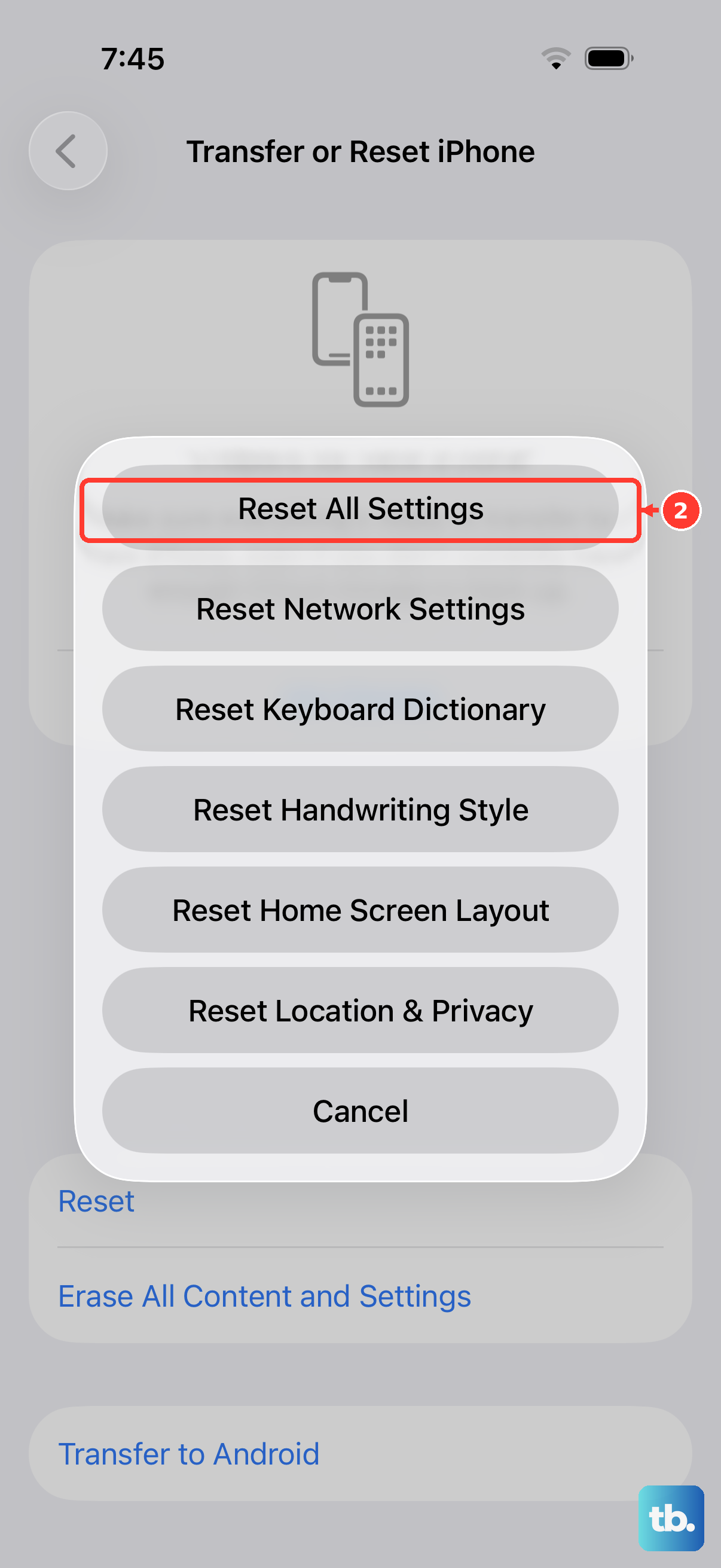
This is a more involved step, but it won't delete your personal data like photos or messages. It will, however, reset all your system settings back to default, things like Wi-Fi passwords, wallpaper, and privacy permissions.
To do this, navigate to Settings > General > Transfer or Reset iPhone. Tap "Reset" and then choose "Reset All Settings." You'll need to enter your passcode. After the phone reboots, you'll have to reconnect to Wi-Fi and re-customize some preferences, but it can clear out deep-seated software conflicts causing crashes.
Check for Overheating
The iPhone 17e's A19 chip is powerful, but it can get warm during heavy use, especially if you're gaming or using AR apps while charging. iOS is designed to throttle performance or even close apps if the device gets too hot to protect its components.
If your apps are crashing during intensive tasks, feel the back of the phone. If it's very warm, take a break, remove it from its case, and let it cool down on a flat, hard surface. Avoid charging it with a fast charger during these sessions, as the combined heat from the processor and charging can trigger thermal management.
Perform a Force Restart
A standard restart is good, but a force restart can clear more stubborn glitches. On the iPhone 17e, you quickly press and release the Volume Up button, then quickly press and release the Volume Down button. Finally, press and hold the Side button.
Keep holding the Side button even after you see the power off slider. Eventually, you'll see the Apple logo appear, and you can let go. This forces the phone to reboot from a deeper level and can resolve temporary memory or processor hiccups affecting multiple apps.