


If your iPhone 17 Pro Max is getting uncomfortably warm, check what you're doing on it and the temperature around you. Warmth during demanding activities does not necessarily mean it's overheating. A little warmth during fast charging or intense gaming is normal, but if it's getting hot during everyday tasks, there are a few things you can do to cool it down.
Start with the simplest fix first. Take your phone out of its case, especially if it's a thick, insulating one. Cases can trap heat, preventing your phone from dissipating it properly. Just set the phone on a cool, flat surface for a few minutes and see if the temperature drops noticeably.
Check What's Running and Close Apps
If the phone gets warm while you're gaming, using the camera, or streaming high-quality video, pause that activity and let it cool. These activities can normally make the phone warmer. Avoid prolonged gaming, camera use, or navigation in hot conditions or direct sunlight, as this can affect the phone's performance.
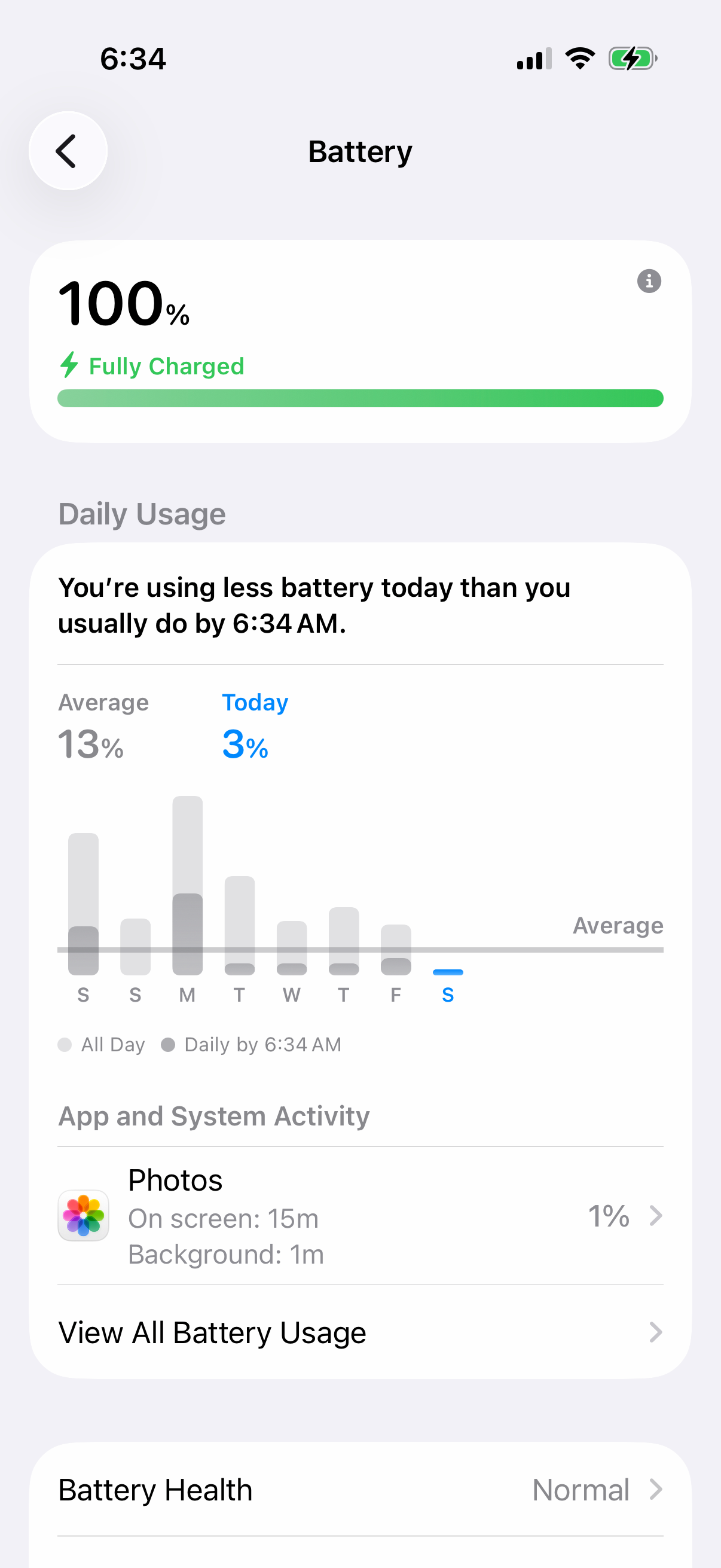
Next, head to Settings > Battery. Check the Daily Usage chart and App and System Activity to see which apps used the most battery today. Tap View All Battery Usage to see the last eight days. If one app shows unusually high battery use, close it and see whether the phone cools down.
Update to the Latest iOS
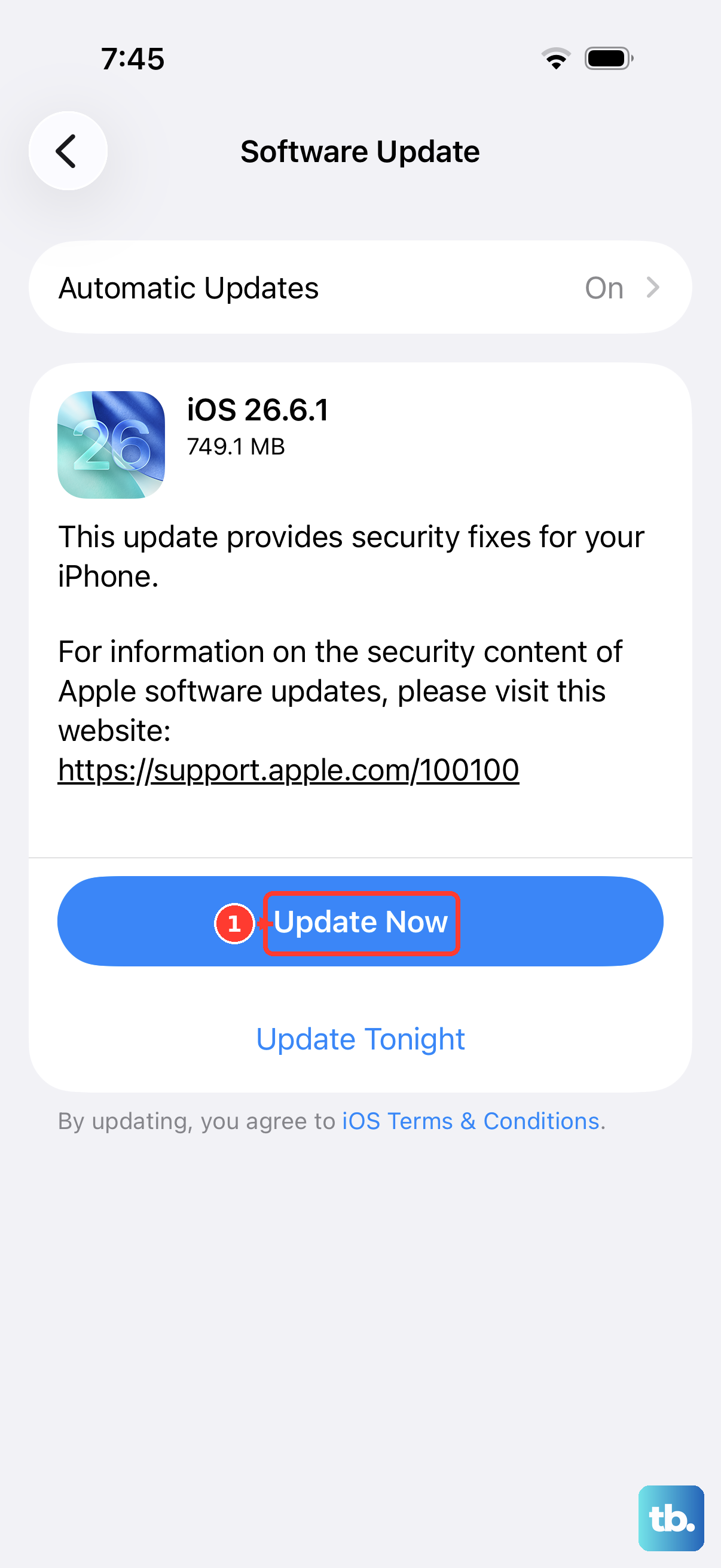
Apple releases iOS updates that include performance improvements and bug fixes. Go to Settings > General > Software Update. If an update is available, install it. It's best to do this while your phone is cooler and connected to power and Wi-Fi.
Sometimes, a background process gets stuck and causes the processor to work overtime. A simple restart can clear this. Press and hold the Side button and Volume Down button until the power off slider appears, then drag the slider. Once the phone has turned off and cooled down, press and hold the Side button to turn it back on.
Manage Your Charging Setup
The iPhone 17 Pro Max can charge up to 50% in 20 minutes with a 40W adapter or higher and a USB-C charging cable. Apple tested this with its 40W Dynamic Power Adapter with 60W Max. If charging pauses because the phone is too hot, move it somewhere cooler.
If you're using MagSafe, it can charge at up to 25W with a compatible charger and a 30W power adapter or higher. Wireless charging can normally make the phone feel warmer. If your phone is overheating, try switching to a wired connection for a while. Also, avoid using the phone intensively while it's fast charging, as this combines two major heat sources.
Check Settings > Battery > Charging. Optimized Battery Charging is available when the charge limit is 100% and reduces the time your phone spends fully charged. If it delays charging past 80% and you need a full battery sooner, touch and hold its Lock Screen notification, then tap Charge Now. If Charging On Hold appears, charging resumes only once the phone returns to a normal temperature.
Adjust Display and Connectivity Settings
Screen brightness affects battery use. Try reducing the screen brightness manually. You can also enable Auto-Brightness in Settings > Accessibility > Display & Text Size.
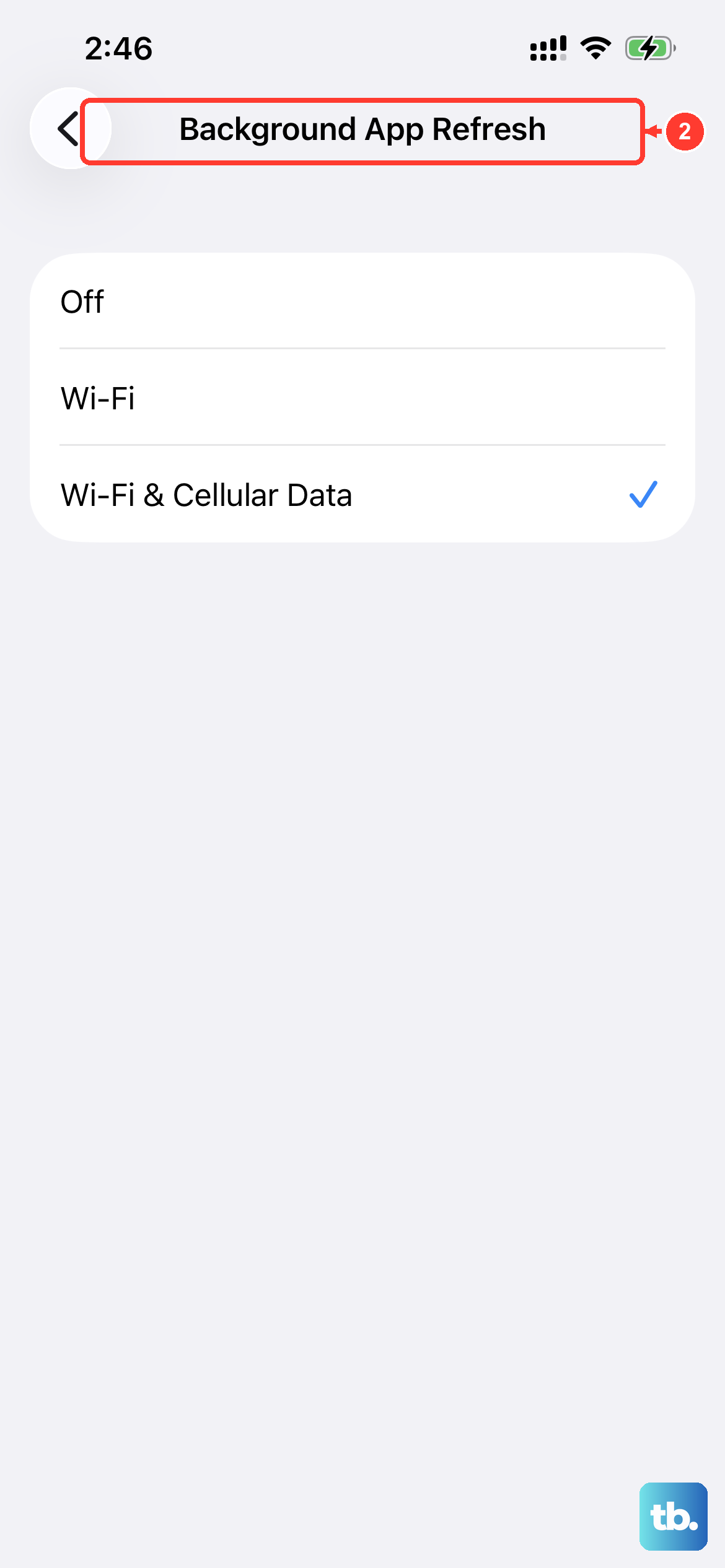
When you don't need them, turn off battery-intensive radios. Go to Settings > Bluetooth or Settings > Wi-Fi to turn them off. If you're in an area with poor cellular signal, your phone works harder to maintain a connection, which generates heat. Try enabling Airplane Mode for a short time to see if the phone cools down.
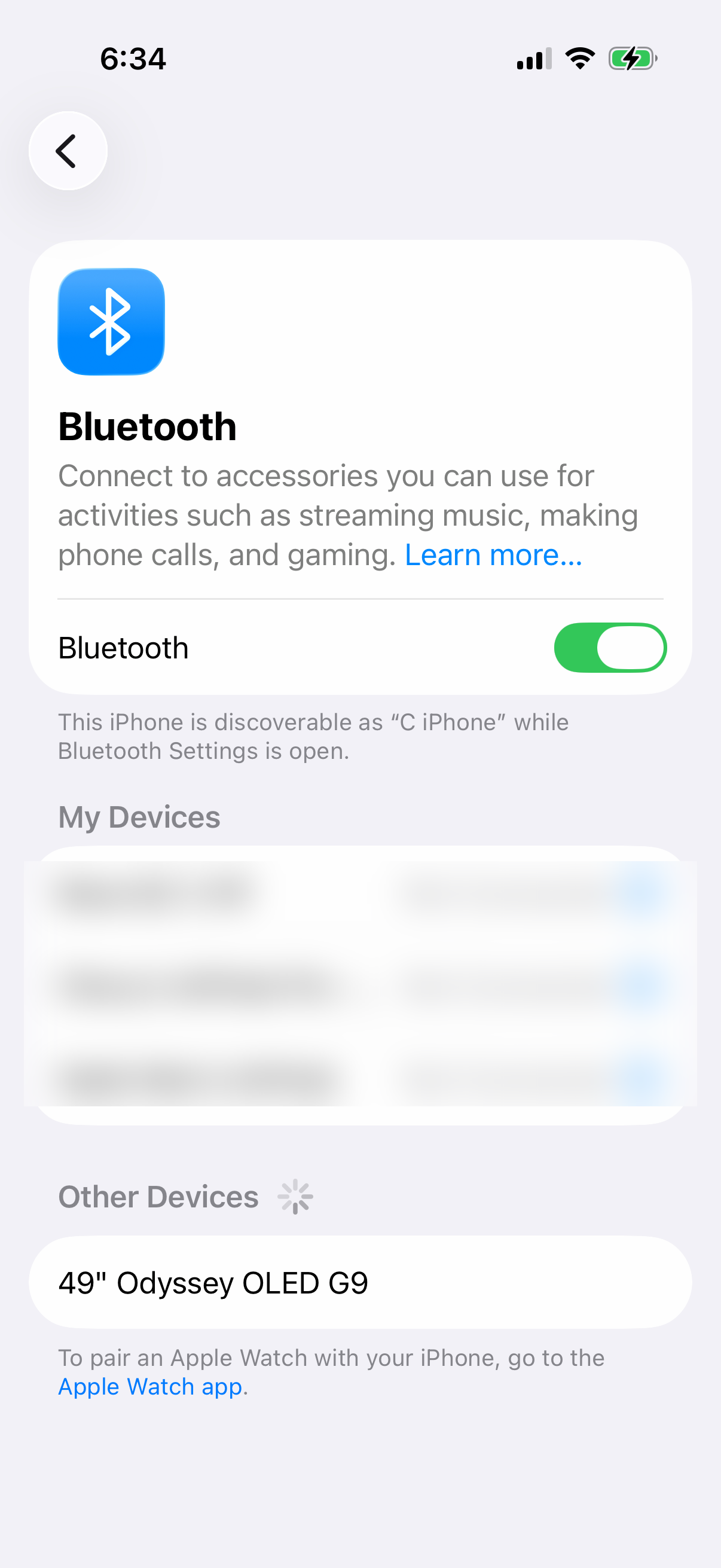
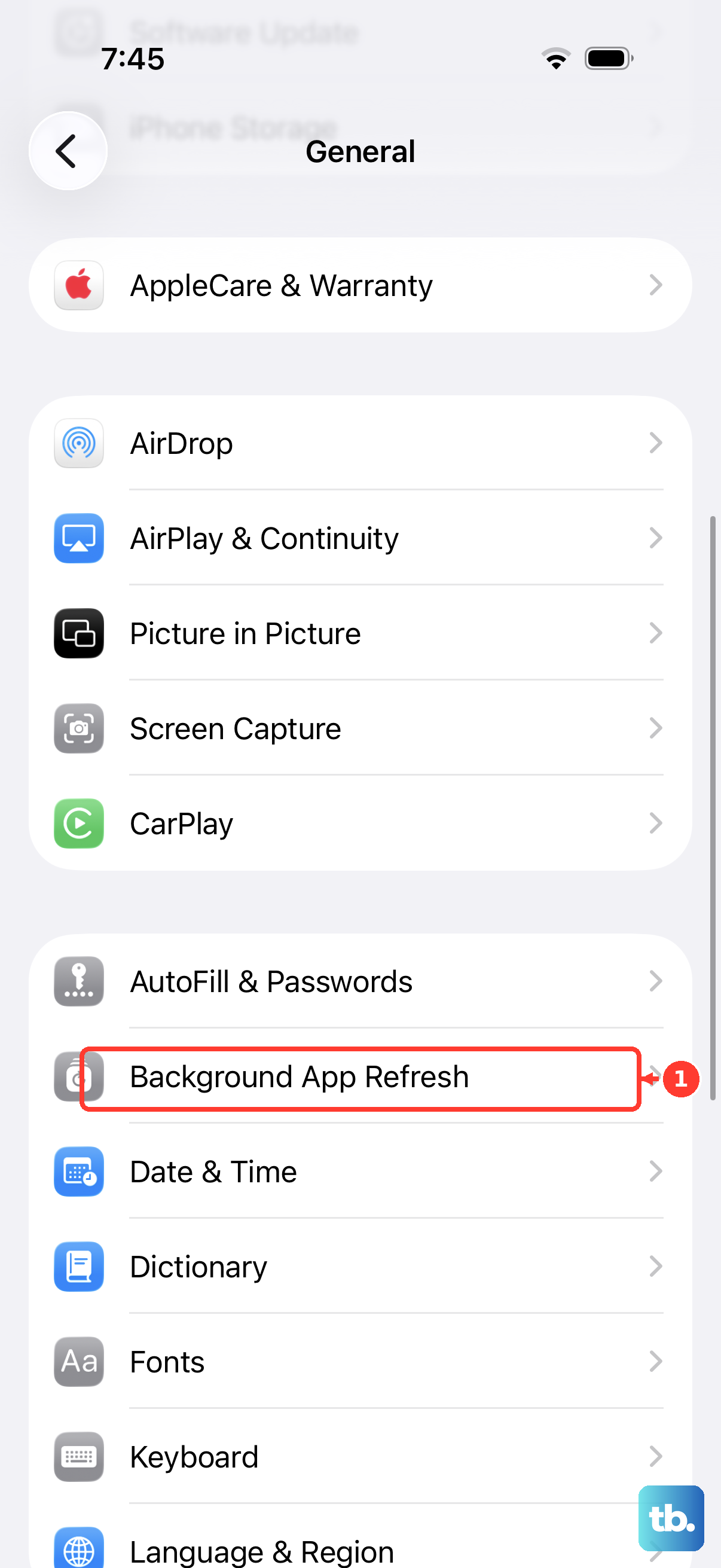
Background App Refresh allows apps to update content when you're not using them. Go to Settings > General > Background App Refresh, then tap Background App Refresh again. Choose Off or Wi-Fi instead of Wi-Fi & Cellular Data.
Perform a Force Restart
If a temperature warning appears, turn the phone off, move it away from sunlight to a cooler place, and let it cool. If it remains unresponsive after cooling, try a force restart. This doesn't erase any data. Quickly press and release the Volume Up button, then quickly press and release the Volume Down button. Immediately press and hold the Side button. Keep holding it until you see the Apple logo appear, then release.
Reset All Settings
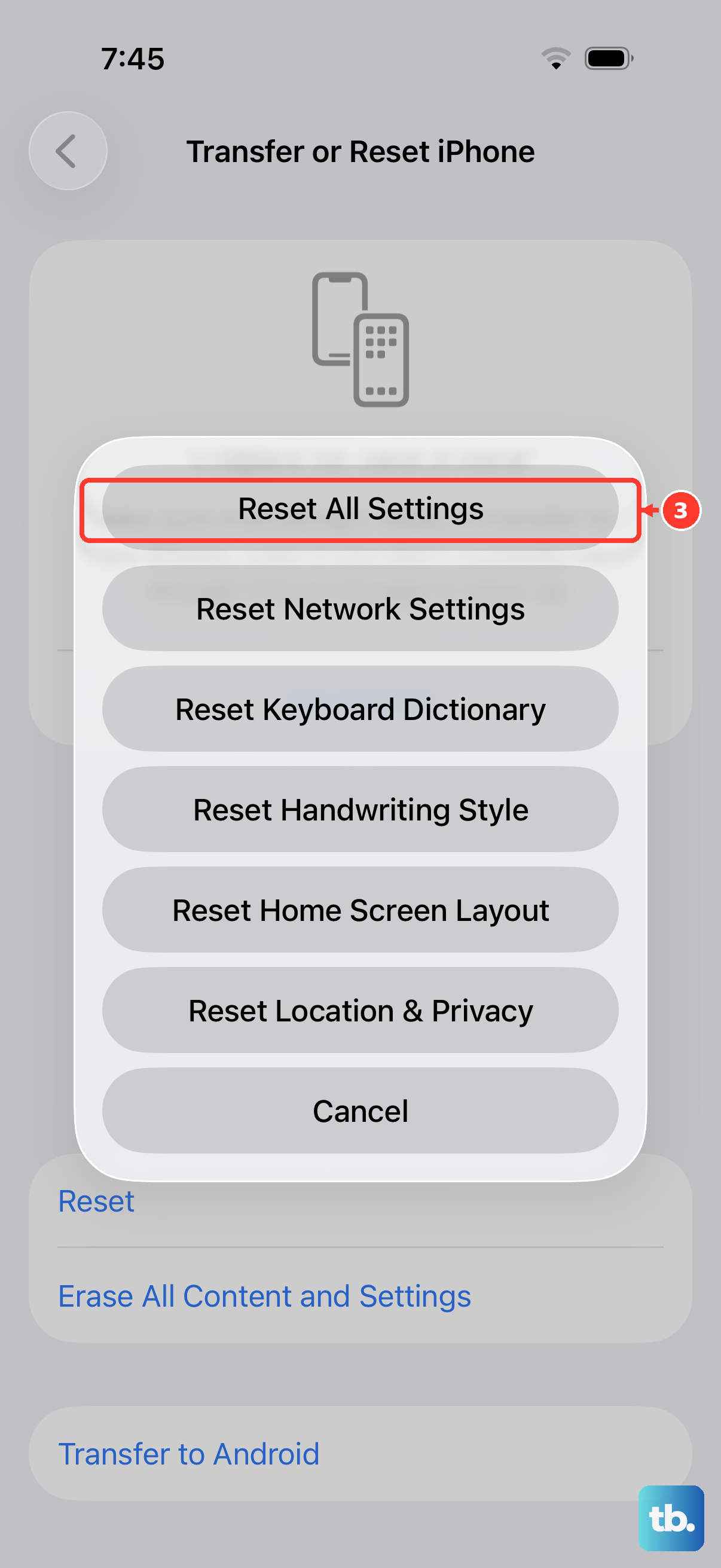
This is a more significant step that returns settings to their defaults, so try it only after the steps above. It resets network settings, wallpaper, display brightness, and privacy permissions back to default, but it won't delete your apps or personal data. It also removes Apple Pay cards and resets Apple Watch and Bluetooth pairings and Face ID, so you'll need to set those up again. Go to Settings > General > Transfer or Reset iPhone > Reset > Reset All Settings.
If Charging On Hold appears because the phone is too hot, move it to a cooler place away from direct sunlight and lock the screen or put it to sleep. Charging will resume when it returns to a normal temperature. If a temperature warning screen appears, turn the phone off, move it to a cooler environment, and allow it to cool before using it again.