
If your iPhone 17 Pro is completely black and unresponsive, the first thing to try is a force restart. This is different from a normal restart and can clear out temporary software glitches that cause a black screen.
Press and quickly release the Volume Up button, then quickly press and release the Volume Down button. Immediately after, press and hold the Side button. Keep holding it until you see the Apple logo appear, which can take up to 15 seconds, then let go.
Check Your Charger and Cable
Your phone might just have a completely drained battery. Plug it into a power source using your USB-C cable and a known-good wall adapter. Let it charge for at least 30 minutes without touching it.
For the fastest charge on the iPhone 17 Pro, you need Apple's 40W Dynamic Power Adapter (Model A3351) to hit the full 40W speed. A standard USB-C Power Delivery charger will work, but it will be limited to around 30W, so charging a dead battery will take longer.
Try a different cable and a different power outlet if you don't see a charging symbol after a few minutes. I've seen more issues come from a faulty cable or a worn-out wall adapter than from the phone itself.
Inspect the Charging Port
Take a close look at the USB-C port on the bottom of your iPhone. Use a flashlight and check for any packed-in lint, dust, or debris. This is a common culprit that prevents the cable from making a proper connection.
You can gently clean it out with a dry, soft-bristled brush, like a new, clean toothbrush. Avoid using anything metallic, like a paperclip, as you could damage the sensitive pins inside the port.
Try MagSafe or Qi2 Wireless Charging
The iPhone 17 Pro supports both MagSafe and the newer Qi2 standard for wireless charging. If you have a compatible wireless charger, place your phone on it to see if it powers on.
Remove any thick or metal cases first, as they can interfere with the connection. The phone can get noticeably warm during a 40W wired fast charge, but it shouldn't be excessively hot during standard wireless charging. If it is, that's a sign of a different problem.
Check for a Software Update via Recovery Mode
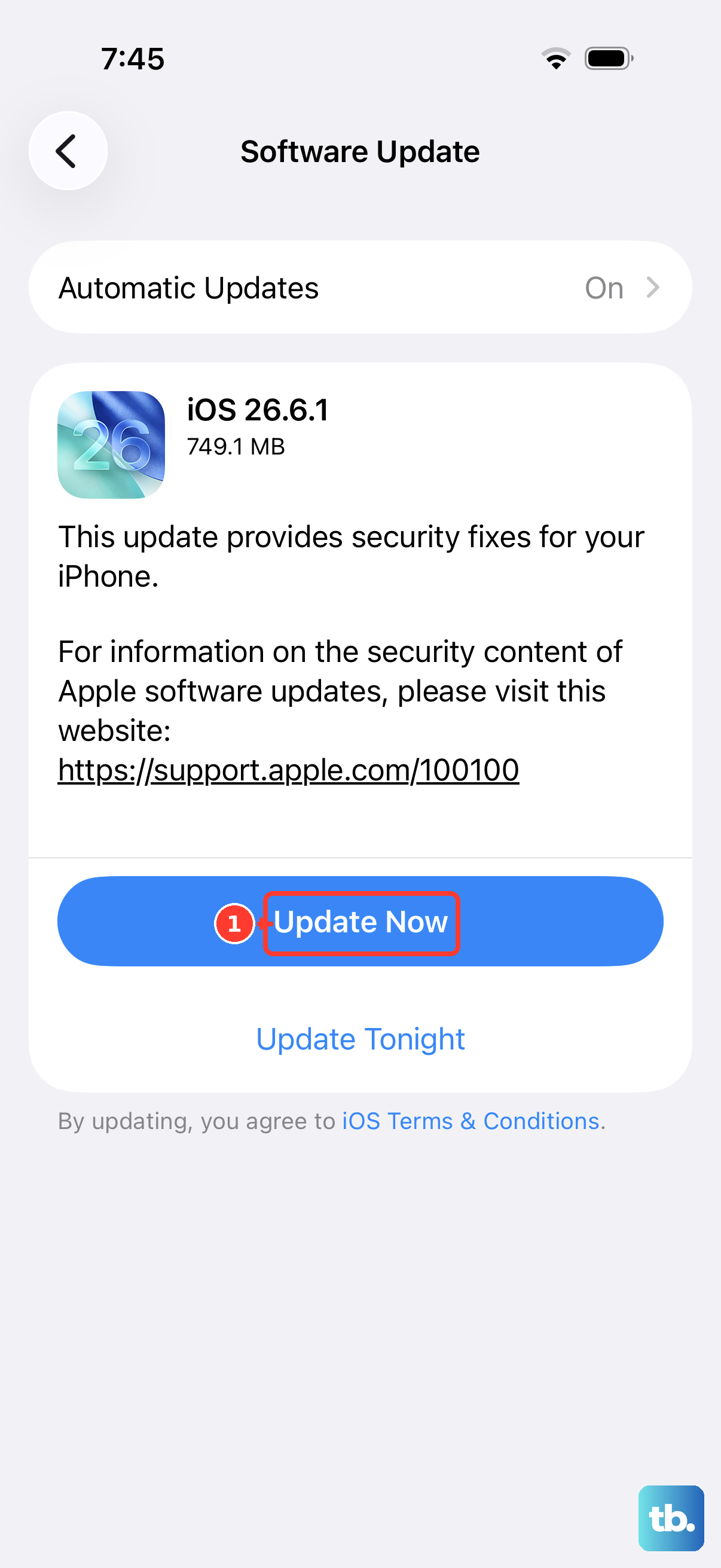
If a force restart didn't work, your phone might be stuck during a failed iOS update. You can try to reinstall iOS without erasing your data using a computer.
Connect your iPhone 17 Pro to a Mac or PC with a USB-C cable. Perform the force restart sequence again, but this time, keep holding the Side button even after the Apple logo appears until you see the recovery mode screen.
On your computer, you should get an option to "Update" or "Restore." Always choose "Update" first. This will try to reinstall the iOS 26 software while keeping your personal files intact. The process takes some time and requires a stable internet connection.
Perform a DFU Restore
A Device Firmware Update (DFU) mode restore is the deepest software reset you can do. It completely reinstalls the device's firmware and iOS. This will erase all data on your iPhone, so it's a last resort.
To enter DFU mode on an iPhone 17 Pro, connect it to a computer and open Finder (on Mac) or iTunes (on PC). Quickly press and release the Volume Up button, then quickly press and release the Volume Down button. Now, press and hold the Side button for 10 seconds.
After 10 seconds, while still holding the Side button, also press and hold the Volume Down button for 5 seconds. Then, release the Side button but keep holding the Volume Down button for another 10 seconds. If done correctly, the screen will stay black, but the computer will detect a device in recovery mode.
You will then be prompted to restore the device. Since this erases everything, only proceed if you have a recent iCloud or computer backup.
Look for Physical or Liquid Damage
Think back to whether the phone has been dropped recently or exposed to moisture. Even small amounts of liquid can cause corrosion over time that leads to a sudden failure.
Check the edges of the device for any cracks or separations, especially around the screen. If you see any signs of physical or liquid damage, the issue is likely hardware-related and will need professional inspection.
Apple's own diagnostic tools can sometimes be run remotely by support to check for hardware failures, which is a good step before considering third-party repair.
Manage Battery Charging Settings
Once you get your iPhone 17 Pro running again, it's worth checking a specific setting. Go to Settings > Battery > Charging.
Look for "Optimized Battery Charging" and "80% Limit." These features are designed to extend your battery's lifespan by limiting the maximum charge. With 80% Limit enabled, your phone will stop charging at 80%, which might make you think it's not fully powering on if you glance at it quickly.
You can toggle these off temporarily to see if it changes the behavior, though for long-term battery health, keeping them on is usually recommended.