
Unlock your iPhone 17 Pro from carrier restrictions and use any network provider you want.
What You Need to Know First
Getting your iPhone 17 Pro unlocked is usually straightforward. The process is handled through software, not a physical code you enter. Your carrier is almost always the best and only free place to start.
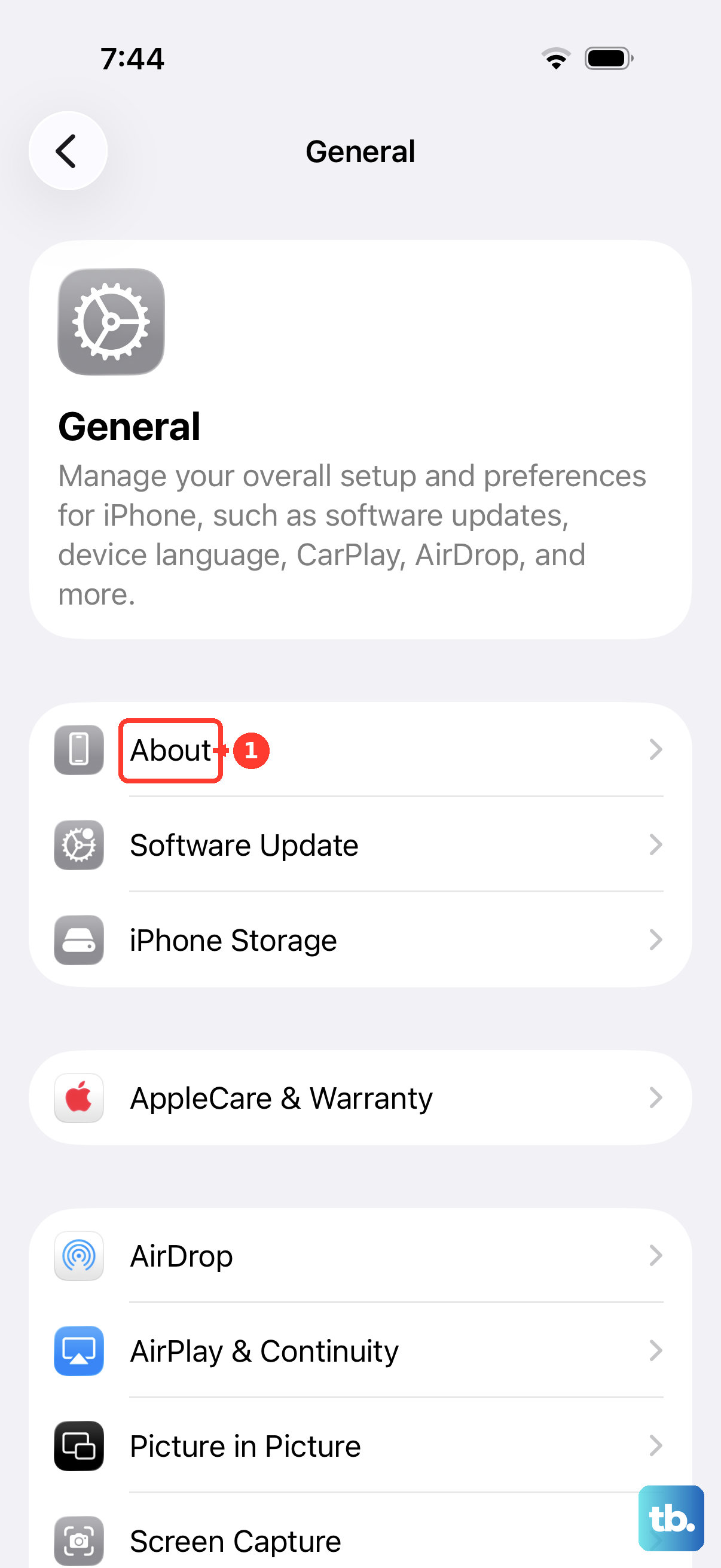
You'll need to know your device's IMEI number. You can find this by going to Settings > General > About and scrolling down. It's a 15-digit number unique to your phone.
Most major US carriers will unlock your iPhone 17 Pro for free once it's paid off and your account is in good standing. There's no need to insert a different SIM card first on modern iPhones, the unlock is applied remotely by the carrier.
Request the Unlock from Your Carrier
This is the official, guaranteed method. Carriers have specific policies, but the general flow is the same. I'd start here, as it costs nothing and is fully supported by Apple.
First, make sure your iPhone 17 Pro is eligible. It must be paid off in full, not reported lost or stolen, and any service contract must be completed. If you bought it directly from Apple as an unlocked model, it's already good to go.
Contact your carrier's customer support. You can usually do this through their website, app, or by calling. Be clear that you want to "unlock your iPhone 17 Pro for use on other networks." They will ask for your IMEI number and will verify your account ownership.
After you submit the request, the carrier processes it. This can take a few hours to a couple of business days. You won't get a code to enter. Instead, they send the unlock instruction directly to Apple's servers.
Complete the Unlock on Your iPhone 17 Pro
Once your carrier approves the unlock, you need to finalize it on the device itself. The exact trigger can vary. Sometimes, simply connecting to iTunes or a Mac via Finder while your phone is connected to Wi-Fi will do it.
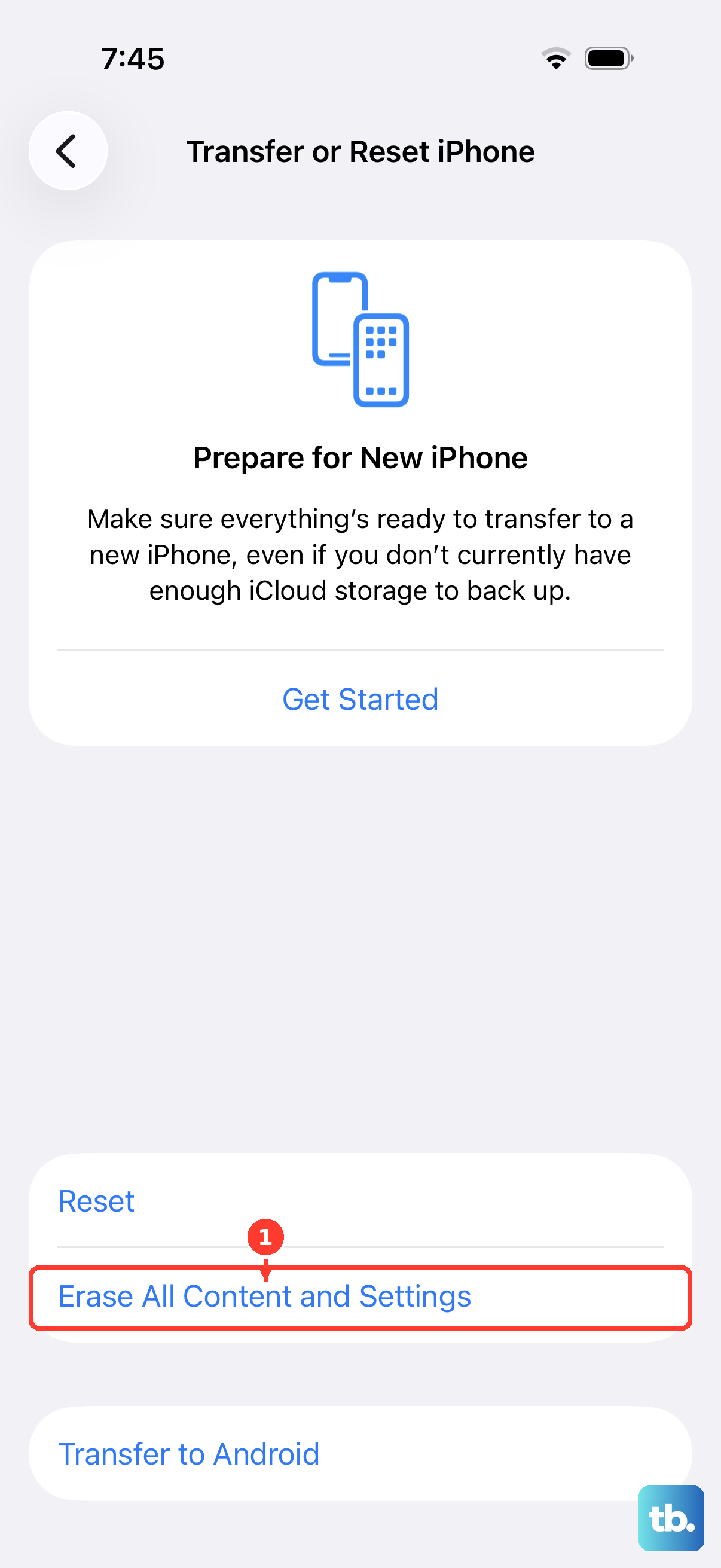
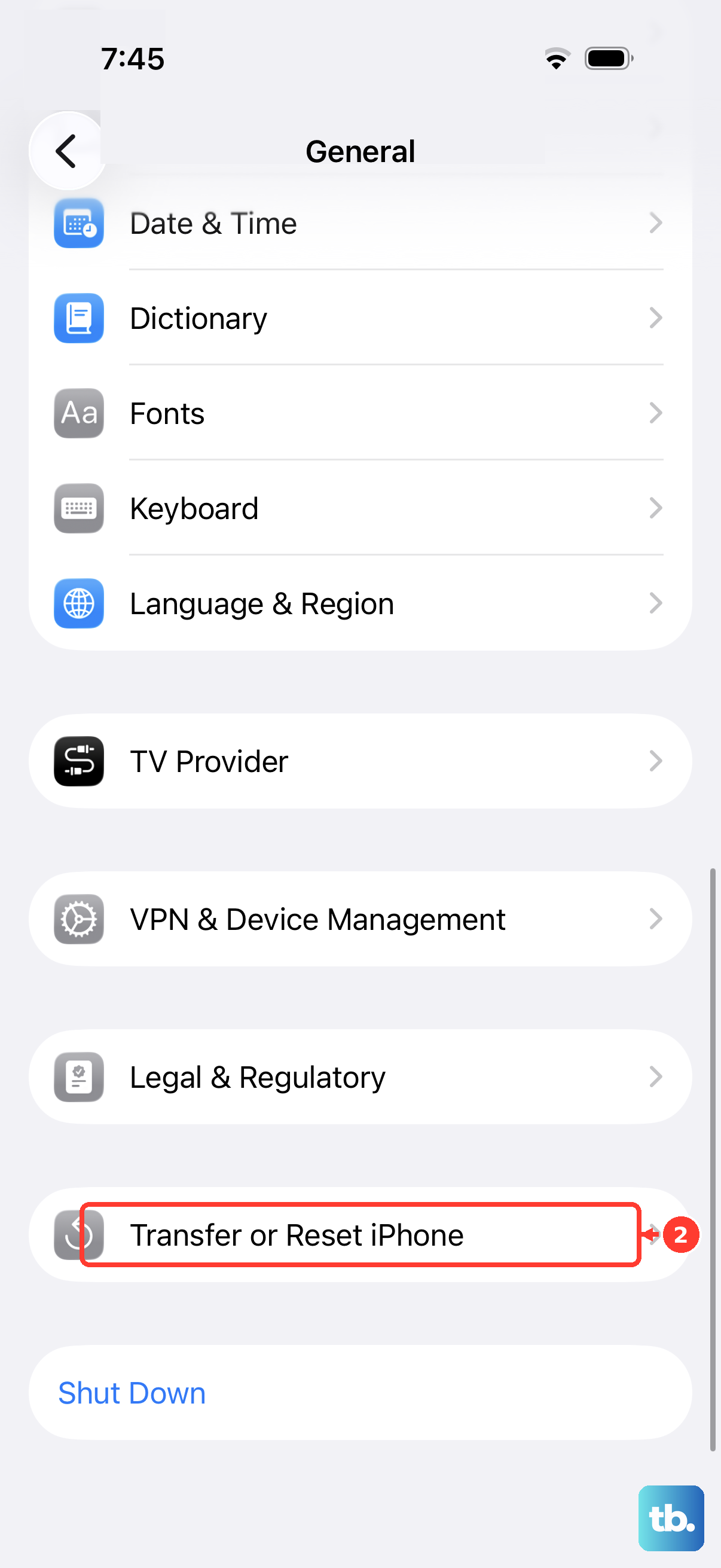
A more reliable method is to back up your iPhone 17 Pro, then perform a full erase and restore. Go to Settings > General > Transfer or Reset iPhone > Erase All Content and Settings. After the erase, restore from your backup during the setup process.
You can also try inserting a SIM card from a different carrier. If the unlock was successful, it will just work. You might see a "Carrier Settings Updated" message, which is a good sign. If it still says "SIM Not Supported," the carrier hasn't completed the unlock yet.
Using Apple's Self-Service Unlock Portal
For iPhones originally purchased from Apple but connected to a carrier installment plan, you might use Apple's own unlock portal. This isn't for every situation, but it's worth checking if your carrier directs you there.
You'll need your Apple ID and password, and the serial number or IMEI of your iPhone 17 Pro. The portal will guide you through the steps if your device is eligible. It essentially acts as a middleman to verify your phone's status with the carrier.
This process also concludes with a remote unlock signal being sent to your device. A subsequent sync, restore, or new SIM insertion will activate it.
What to Do If Your Carrier Says No
If your carrier refuses to unlock your iPhone 17 Pro and you believe it's eligible (fully paid, not stolen), you can file a complaint. In the US, the FCC has rules requiring carriers to unlock devices under certain conditions.
You can submit an FCC complaint online. This often prompts the carrier's executive support team to review your case. Be prepared to provide proof of purchase and payment.
Be very wary of third-party websites that claim to generate unlock codes for iPhones. Since the iPhone 17 Pro uses a remote server-based unlock system, these services are often scams. They might try to use fraudulent methods that could blacklist your device.
Verifying the Unlock Was Successful
There's a simple way to check. On your iPhone 17 Pro, go to Settings > General > About. Scroll down and look for the "Carrier Lock" field.
If it says "No SIM restrictions," your iPhone 17 Pro is unlocked. If it says "SIM locked," the process is not yet complete. This is the most definitive way to know for sure without needing another carrier's SIM card handy.
Remember that unlocking your iPhone 17 Pro doesn't erase your data. The erase and restore step is just one method to trigger the unlock signal; your backup keeps everything safe. It also doesn't affect your warranty or your ability to use future iOS 26 updates.











