
That "Invalid SIM" or "No SIM Card Installed" message on your iPhone 17 Pro can stop you in your tracks. It's almost always a simple glitch you can fix yourself, so let's start with the most common solution.
First, try a force restart. This clears temporary software bugs that can confuse the SIM reader. Press and quickly release the Volume Up button, then quickly press and release the Volume Down button. Finally, press and hold the Side button until you see the Apple logo appear on the screen.
If that doesn't do it, toggle Airplane Mode. Swipe down from the top-right corner to open Control Center and tap the airplane icon. Wait about ten seconds, then tap it again to turn Airplane Mode off. This forces your phone's cellular modem to reconnect to the network from scratch.
Check Your SIM Card and Tray
Grab the SIM ejector tool that came with your iPhone 17 Pro. If you can't find it, a small, unwound paperclip works in a pinch. Power your phone off completely before you start.
Gently insert the tool into the small hole on the left side of the phone to eject the SIM tray. Carefully pull the tray out and remove the SIM card. Take a close look at the gold contacts on the card for any scratches, dirt, or corrosion.
Use a clean, dry microfiber cloth to gently wipe the contacts on the SIM card. Blow a quick puff of air into the SIM tray slot on the phone to dislodge any dust. Reinsert the SIM card, making sure it's seated correctly in the tray, and slide the whole thing back into the phone until it clicks.
To rule out a faulty SIM, test it in another compatible phone if you have one available. If the other phone also says the SIM is invalid, the card itself is likely the problem and you'll need to contact your carrier for a replacement.
Update Your Carrier Settings and iOS
Sometimes, the software that lets your phone talk to your carrier's network gets out of date. Carrier updates happen automatically, but you can check manually.
Go to Settings > General > About. If a carrier settings update is available, a prompt will appear on this screen. Just follow the instructions to install it.
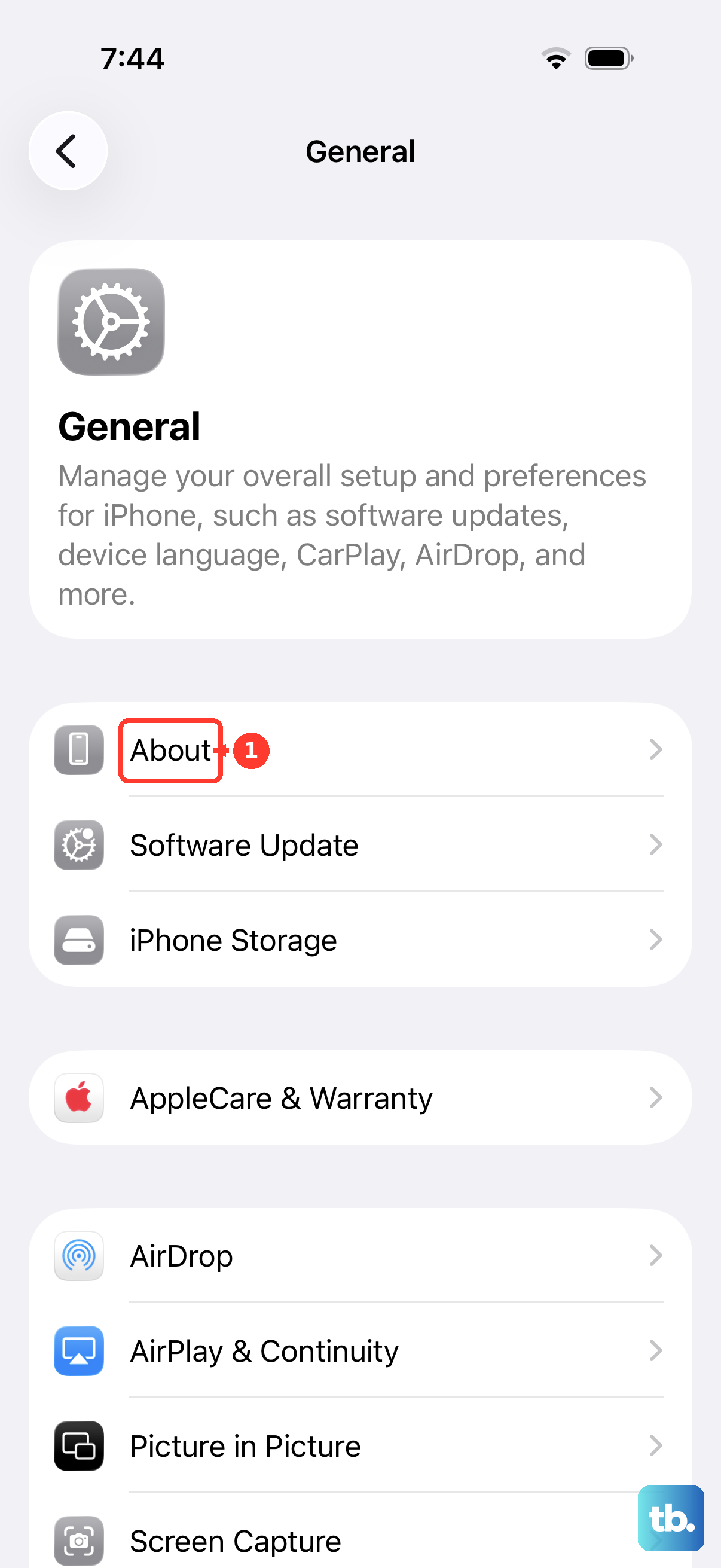
Next, make sure your iPhone 17 Pro is running the latest version of iOS 26. Head to Settings > General > Software Update. Download and install any available update, as these often include bug fixes for cellular connectivity issues.
Reset Your Network Settings
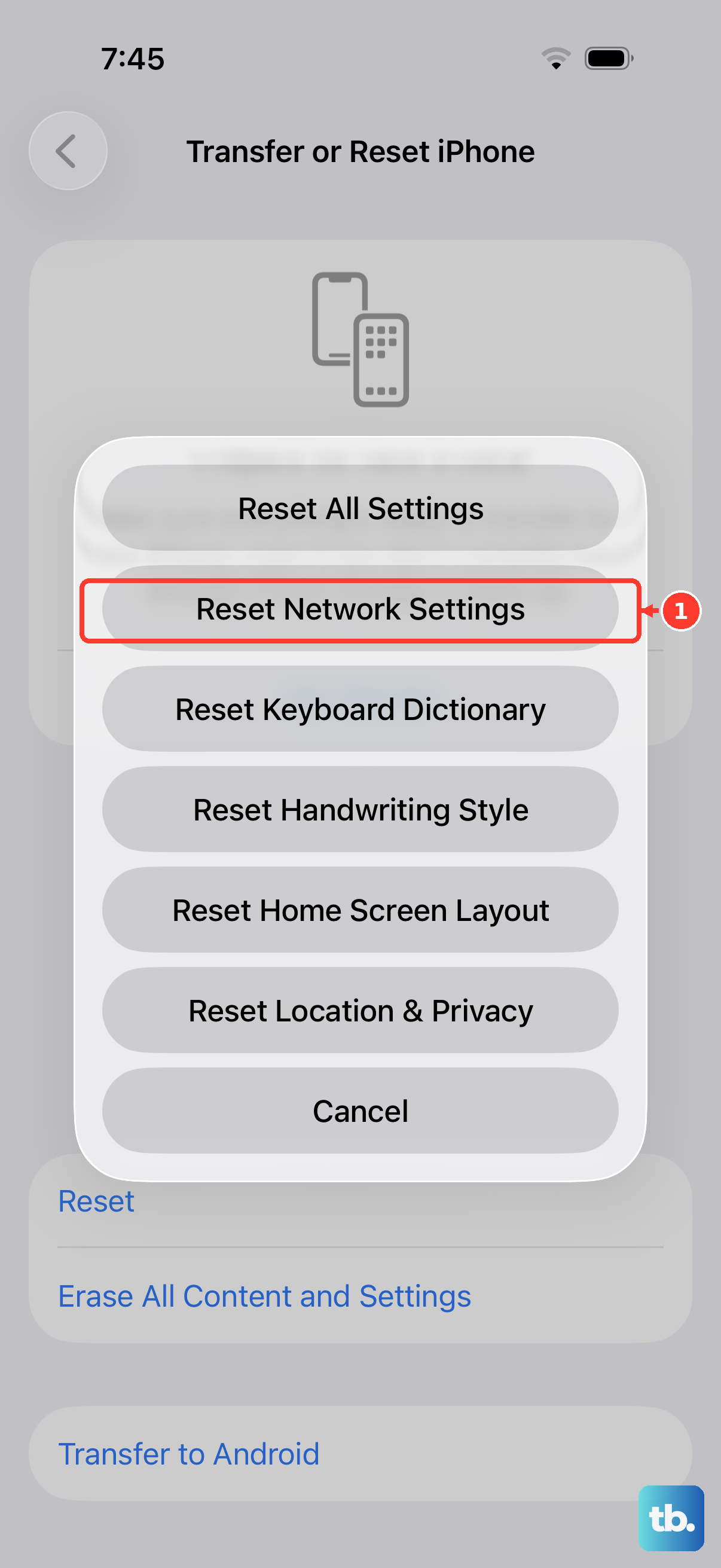
This is a more thorough step that clears out all your saved network information. It will erase your Wi-Fi passwords, Bluetooth pairings, and cellular network preferences, so you'll have to reconnect to Wi-Fi networks afterward.
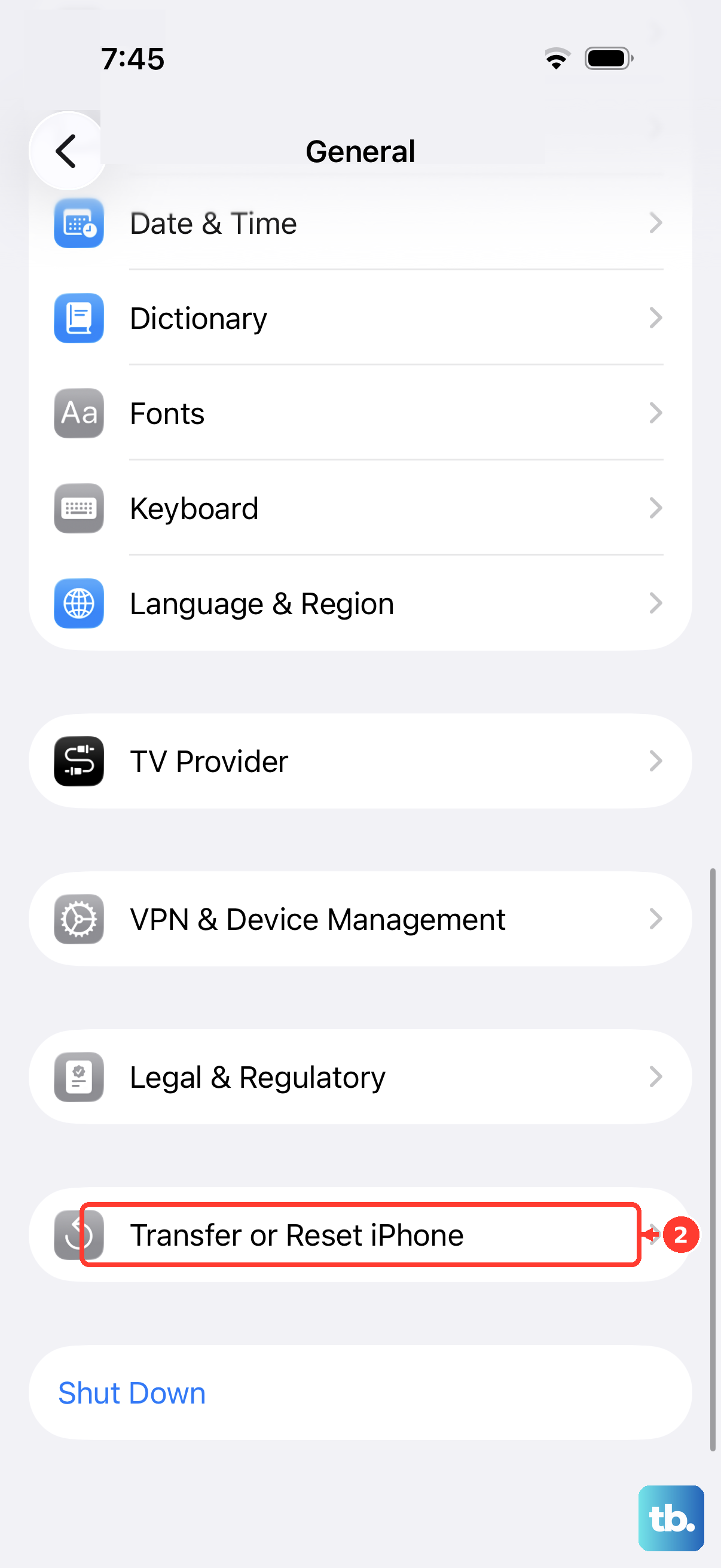
To do this, open Settings, tap General, scroll down and select Transfer or Reset iPhone. Then, tap Reset and choose Reset Network Settings. Enter your passcode when prompted and confirm the reset. Your phone will restart.
Try a Manual Network Selection
Your iPhone usually picks the best network automatically, but sometimes forcing it to choose can help. Go to Settings > Cellular. Tap Network Selection and turn off the Automatic switch.
Your phone will search for available networks. After a moment, a list will appear. Select your carrier's name from the list. Wait a minute, then go back and turn Automatic selection back on.
Check for a Physical or Case Issue
The iPhone 17 Pro's SIM tray needs to sit perfectly flush. If your phone has been dropped, even slightly, the tray or the internal reader could be misaligned. Inspect the SIM tray itself for any bends or damage.
Also, remove your phone case. In rare instances, a poorly fitting or very thick case can put pressure on the frame of the phone, potentially affecting how the SIM tray sits. Try the SIM card with the case off to see if that makes a difference.
Switch to an eSIM
If you keep having trouble with the physical SIM card, switching to an eSIM is a great permanent solution. The iPhone 17 Pro fully supports eSIM technology. You'll need to contact your wireless carrier to initiate the transfer from your physical SIM to a digital eSIM.
They can usually do this over the phone or via their website. Once activated, you can add the eSIM by going to Settings > Cellular and tapping Add Cellular Plan. This eliminates the physical connection point that can fail.
Restore Your iPhone via Computer
If you suspect a deeper software corruption, restoring your iPhone using a computer is the most comprehensive fix. Make sure you have a recent backup in iCloud or on your computer before you start.
Connect your iPhone 17 Pro to your Mac or PC using a USB-C cable. On a Mac with macOS or a PC with iTunes, find your device and choose the option to Restore iPhone. This will install a clean, fresh copy of iOS 26. After it's done, you can set it up as new or restore from your backup.











