
That flickering, flashing, or strobing effect on your iPhone 17 Pro screen is incredibly distracting. It can make reading text or watching videos a real strain. The issue often pops up from a software hiccup, a display setting conflict, or, less commonly, a hardware problem. Let's get it sorted.
Before adjusting cables and settings, run a quick screen test in your browser. Its fullscreen patterns make problems like flicker, banding, and uniformity issues much easier to spot and describe.
Force Restart Your iPhone 17 Pro
This is the go-to first step for any weird glitch. It clears the phone's temporary memory without touching your data. On the iPhone 17 Pro, you press and quickly release the Volume Up button, then quickly press and release the Volume Down button. Finally, press and hold the Side button until you see the Apple logo appear. This often stops flickering that just started.
Turn Off Auto-Brightness and True Tone
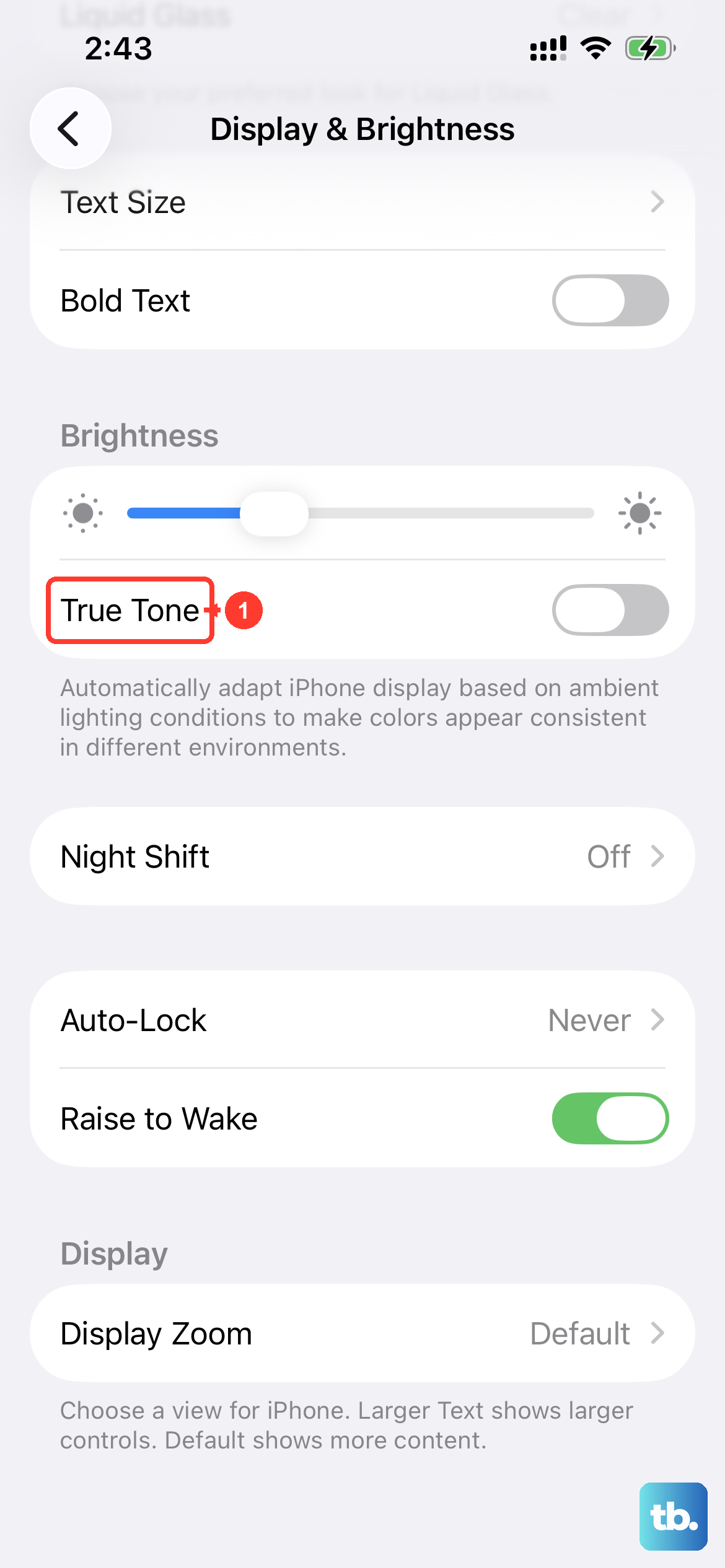
Your phone uses sensors to adjust the screen's brightness and color temperature. If one of those sensors gets confused, it can cause the display to flicker as it tries to constantly readjust. Head to Settings > Accessibility > Display & Text Size and toggle off Auto-Brightness. Then, go to Settings > Display & Brightness and turn off True Tone. Test your screen after each change.
Check for a Rogue App
Sometimes a specific app, especially one that's graphics-intensive or hasn't been updated for iOS 26, can cause display problems. Swipe up from the bottom of the screen and pause in the middle to see all your open apps. Swipe up on each app's preview to close it. If the flickering stops, reopen your apps one at a time to find which one triggers it.
Update to the Latest iOS 26 Version
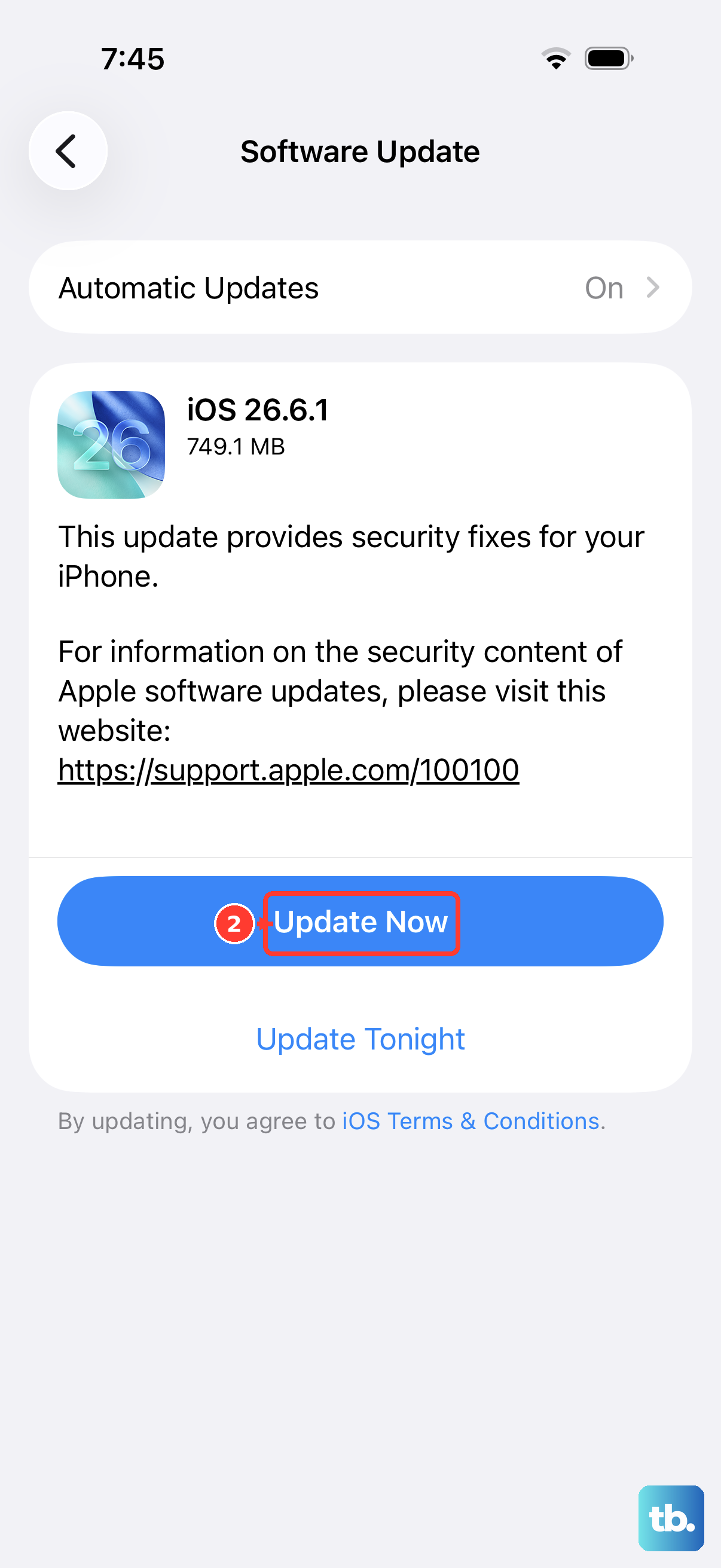
Apple frequently releases software updates that include fixes for display bugs and performance issues. To check, open Settings > General > Software Update. If an update is available, install it. I've seen updates specifically target flickering on the ProMotion displays used in recent Pro models.
Disable Reduce White Point
This accessibility feature dims bright colors and can sometimes interact poorly with other display settings, leading to a flicker. Navigate to Settings > Accessibility > Display & Text Size and make sure Reduce White Point is switched off. It's worth checking even if you never turned it on manually.
Reset All Settings
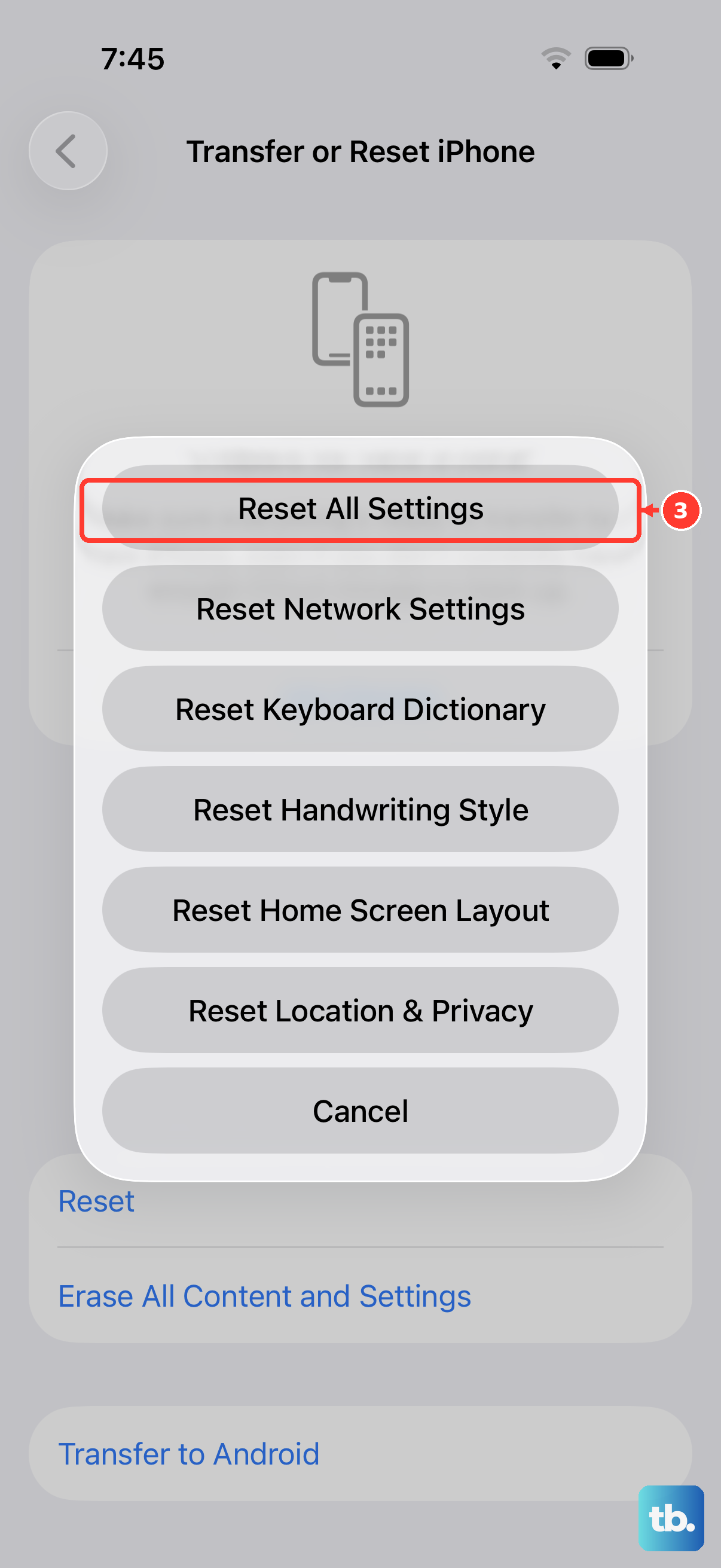
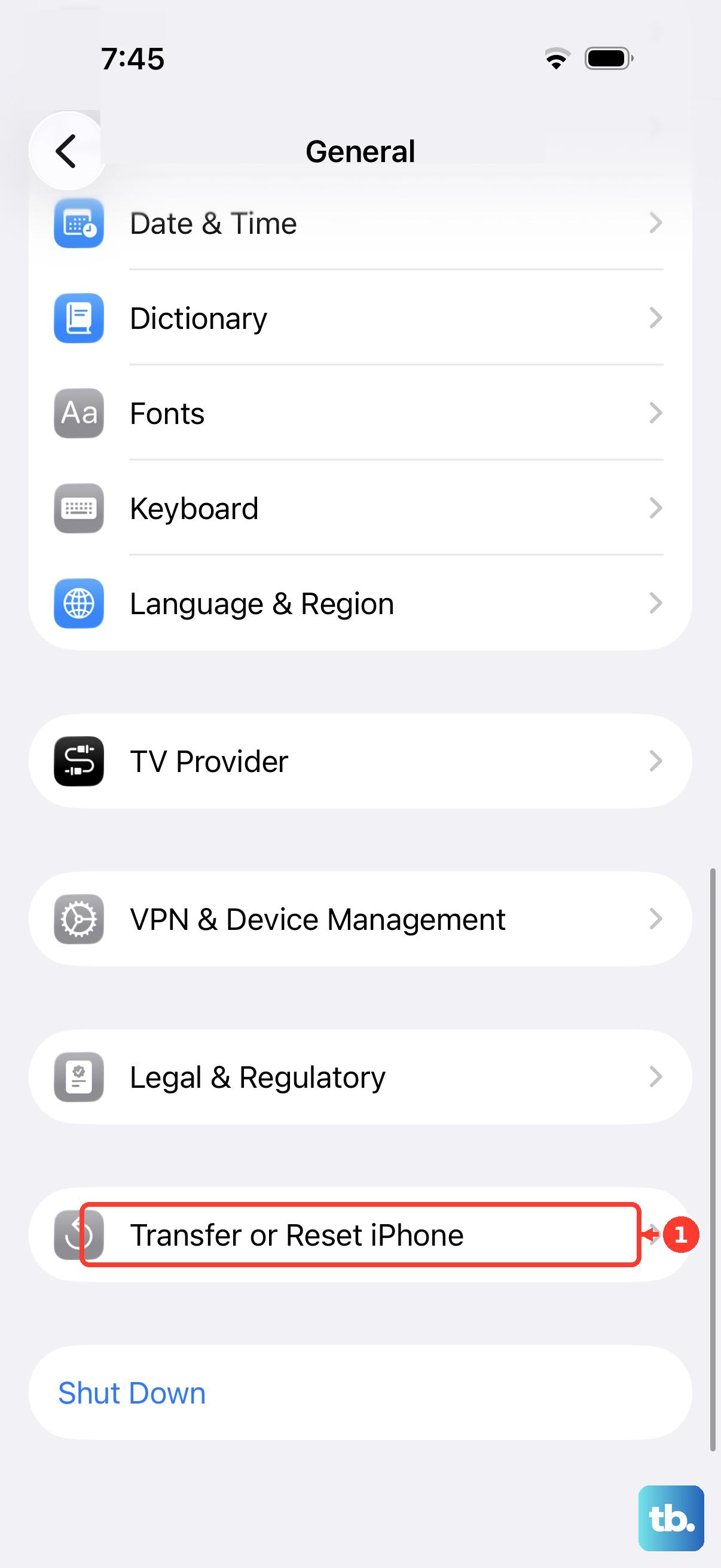
This is a deeper fix than a restart. It resets every system setting on your iPhone 17 Pro, like your wallpaper, Wi-Fi passwords, and display preferences, back to factory defaults, but it leaves your photos, messages, and apps untouched. Go to Settings > General > Transfer or Reset iPhone > Reset > Reset All Settings. You'll need to re-enter passwords, but it can resolve stubborn software conflicts.
Inspect for Physical Damage
If the flickering began after you dropped the phone or it was exposed to moisture, there could be internal damage. Look closely at the screen for any new cracks, spots where the display doesn't respond to touch, or areas with abnormal color. Even a small impact can loosen the delicate internal display cable on the iPhone 17 Pro.
Restore Your iPhone via a Computer
If the flickering persists through all the software steps, a full restore is the final software test. First, make sure you have a recent backup in iCloud or on your computer. Connect your iPhone 17 Pro to a Mac or PC, open Finder or iTunes, and select Restore iPhone. This wipes the device and installs a clean copy of iOS 26. If the screen is fine after the restore, it was a software glitch. If the flickering remains on the fresh setup screen, it's almost certainly a hardware issue.