You went to snap a photo or install an app on your iPhone 17 Pro Max and got the dreaded "Storage Almost Full" warning instead. It stings a little, especially on a phone that ships in capacities as large as 256GB, 512GB, 1TB, and even a first-ever 2TB option, but a full drive is almost always fixable without losing anything important. iOS 26, the version your iPhone 17 Pro Max shipped with, includes a built-in storage manager and several space-saving tools that handle most of the work for you. Below are the fixes in order, starting with the safest and easiest and ending with the official factory-erase and support routes you should only reach for as a last resort.
See Exactly What Is Eating Your Space Before You Delete Anything
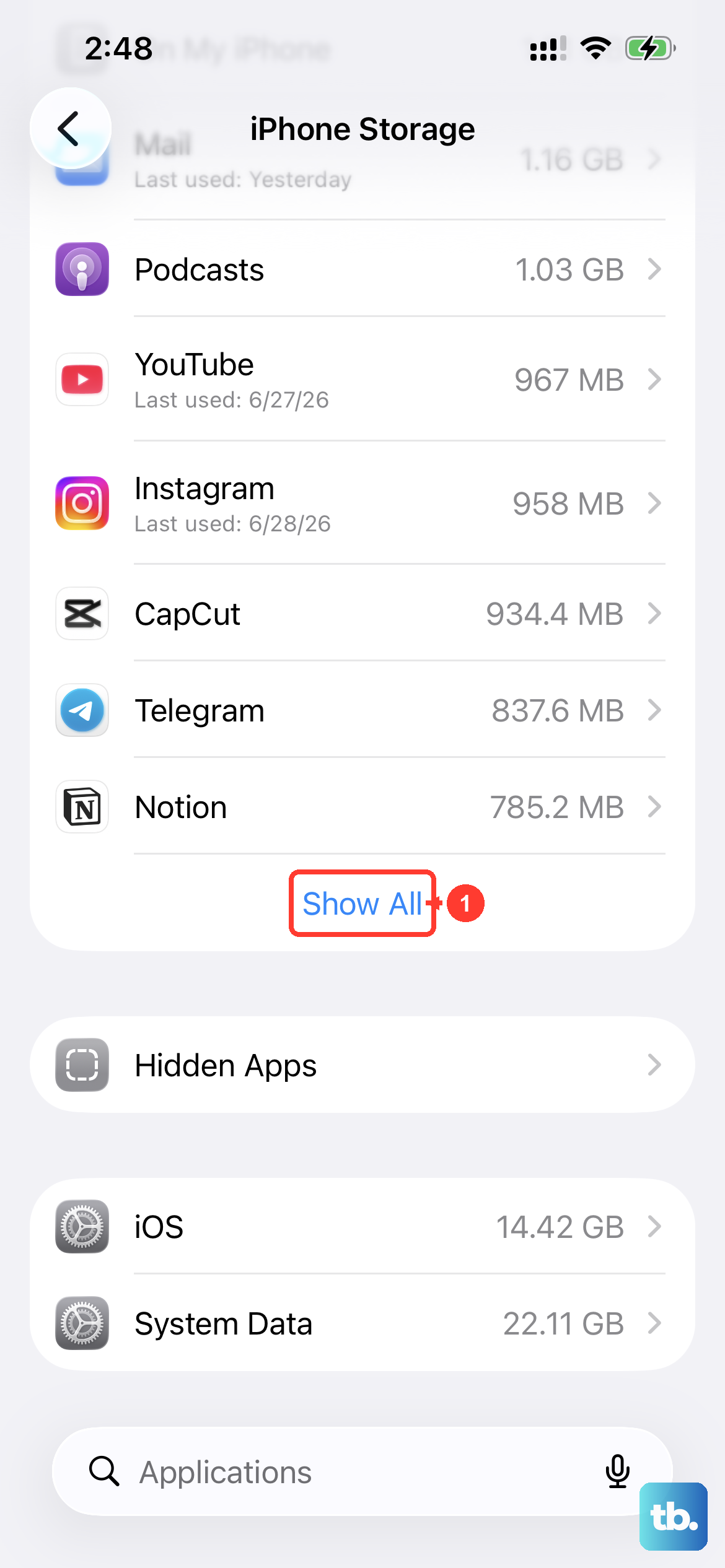
Guessing at what to clear wastes time and risks removing something you actually want. Your iPhone 17 Pro Max keeps a detailed breakdown ready to read so you can target the biggest offenders first.
Go to Settings > General > iPhone Storage. The available storage appears at the top, followed by a color-coded bar and a list of apps ranked by how much space each one uses, with categories such as Apps, Photos, Media, Mail, Messages, and System.
Apple may also surface a Recommendations area near the top. Tap Show All to view the suggested storage-saving actions, then tap Enable on any you want to turn on. Reading this screen first tells you exactly what to attack, so the rest of these fixes go faster.
Offload or Remove Apps You No Longer Open
Apps, plus their caches and downloaded content, can quietly balloon over time. iOS 26 lets you reclaim that space while deciding how much app data to keep.
In Settings > General > iPhone Storage, tap an app from the list, then choose one of two options:
- 1.Tap Offload App to free up the storage the app uses while keeping its documents and data. Reinstalling the app later restores that data.
- 2.Tap Delete App to remove the app and all of its related data entirely.
To put this on autopilot, go to Settings > Apps > App Store and turn on Offload Unused Apps. When your iPhone is low on storage, iOS automatically offloads apps you have not been using while keeping their documents and data. The icon stays on your Home Screen with a small cloud symbol, and tapping it reinstalls the app.
Push Your Photo Library to iCloud and Keep Lightweight Copies On Device
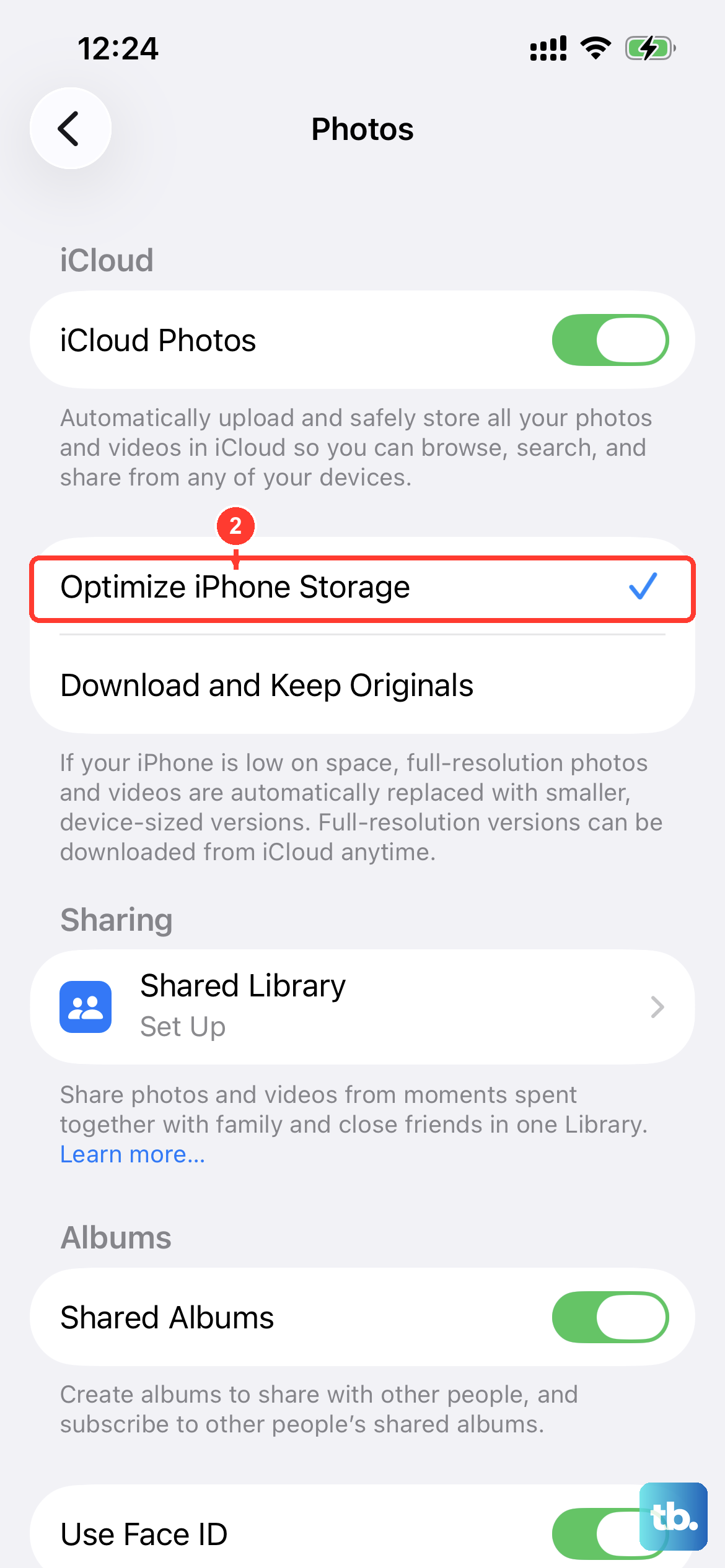
On most iPhones, photos and videos are the single largest space user, and a 17 Pro Max camera roll fills fast. The fix is to keep full-resolution originals in iCloud and slimmer versions on the phone.
Go to Settings > [your name] > iCloud > Photos, turn on Sync this iPhone, then select Optimize iPhone Storage. Full-resolution originals are stored in iCloud while smaller, space-saving versions stay on the device, ready to download whenever you need them.
For even more room, open Settings > [your name] > iCloud > Recommended for You and act on the suggestions there, such as deleting photos and large files you may no longer need. Acting on these can recover space you did not realize was being used.
Clear Safari Website Data and Trim Your Messages Attachments
Browsing caches and years of chat attachments add up to surprisingly large amounts of storage. Both are easy to clean in iOS 26.
For Safari, go to Settings > Apps > Safari > Clear History and Website Data, choose the timeframe you want, then tap Clear History. This does not change your AutoFill information. If you would rather remove stored site data only, go to Settings > Apps > Safari > Advanced > Website Data > Remove All Website Data.
For Messages, delete large attachments you no longer need, such as videos and image bursts shared in busy threads. Then, in Messages settings, tap Keep Messages (below Message History) and choose 30 Days or 1 Year so older conversations and their attachments delete themselves automatically. Forever is also available if you prefer to keep everything.
Lean On iCloud Recommendations and Manage Your Account Storage
Your iPhone storage and your iCloud storage are separate but related. iCloud Photos, iCloud Drive files, Messages in iCloud, and backups all count toward your iCloud space, so a crowded iCloud can stop syncing and offloading from working smoothly.
On iOS 17 and later, including iOS 26, go to Settings > [your name] > iCloud > Recommended for You to delete photos, large files, or old backups you may no longer need. To clean up backups specifically, go to Settings > [your name] > iCloud > Manage Account Storage > Backups, where you can turn off apps in a backup or delete old device backups.
If you still need more room after clearing what you can, you can upgrade to iCloud+ for additional storage that frees your device to offload more aggressively.
Keep iOS Updated
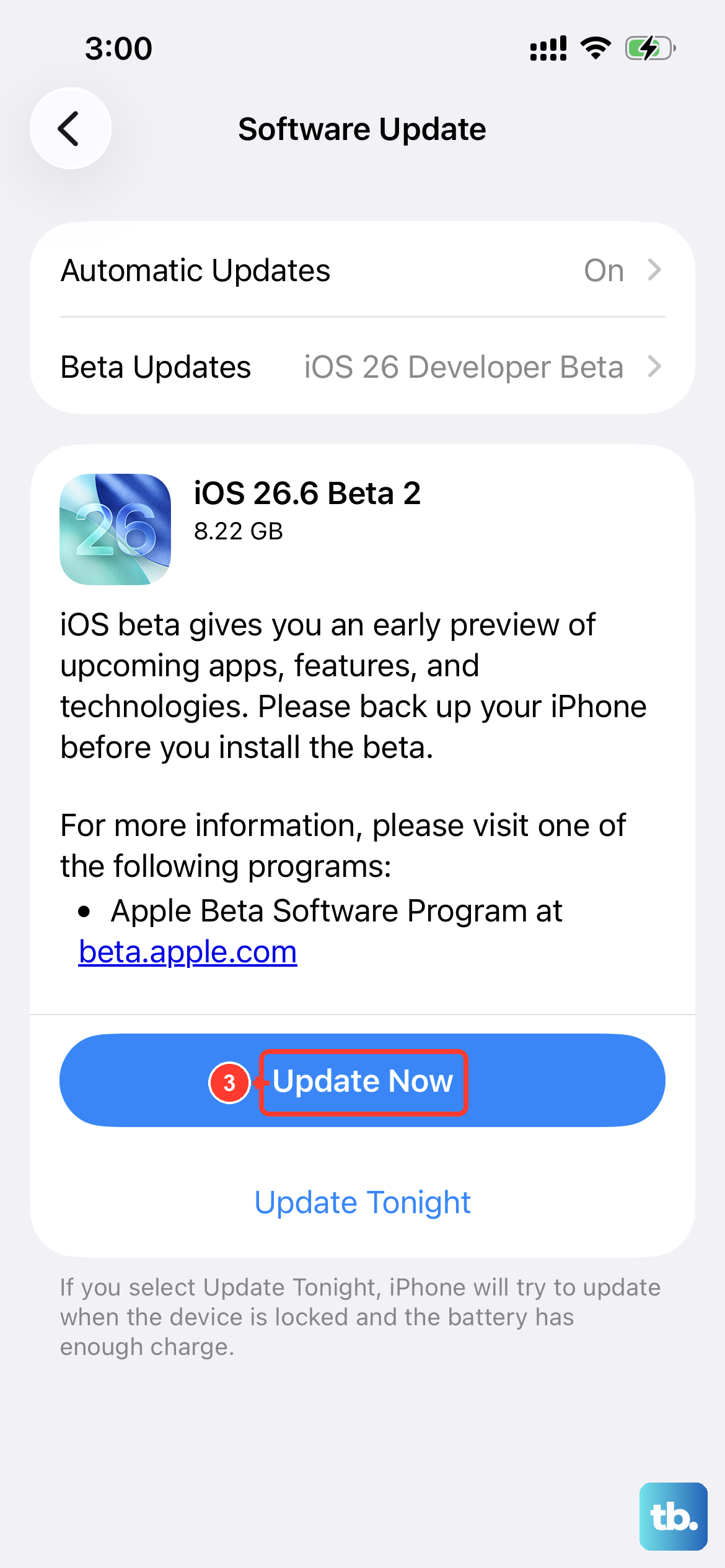
Software updates can include storage and performance improvements, so an outdated iPhone 17 Pro Max may be missing fixes that help with space management.
Go to Settings > General > Software Update. If an update is available, tap Download and Install and follow the onscreen instructions.
Apple recommends backing up your device using iCloud or your computer before updating, which is good practice any time you are about to make a big change to the phone.
Force Restart If the Phone Freezes Mid Cleanup
Deleting large apps or clearing big caches occasionally causes the screen to lock up. If your iPhone 17 Pro Max becomes unresponsive while you are managing storage, a force restart gets it moving again without erasing anything.
Because this model uses Face ID and has no Home button, the sequence is specific. Press and quickly release Volume Up, press and quickly release Volume Down, then press and hold the Side button until the Apple logo appears. This can take longer than 10 seconds, so keep holding the Side button until the logo shows.
A force restart does not erase your data; it simply reboots the device so you can return to clearing space.
When Nothing Else Works, Back Up and Erase or Call In Help
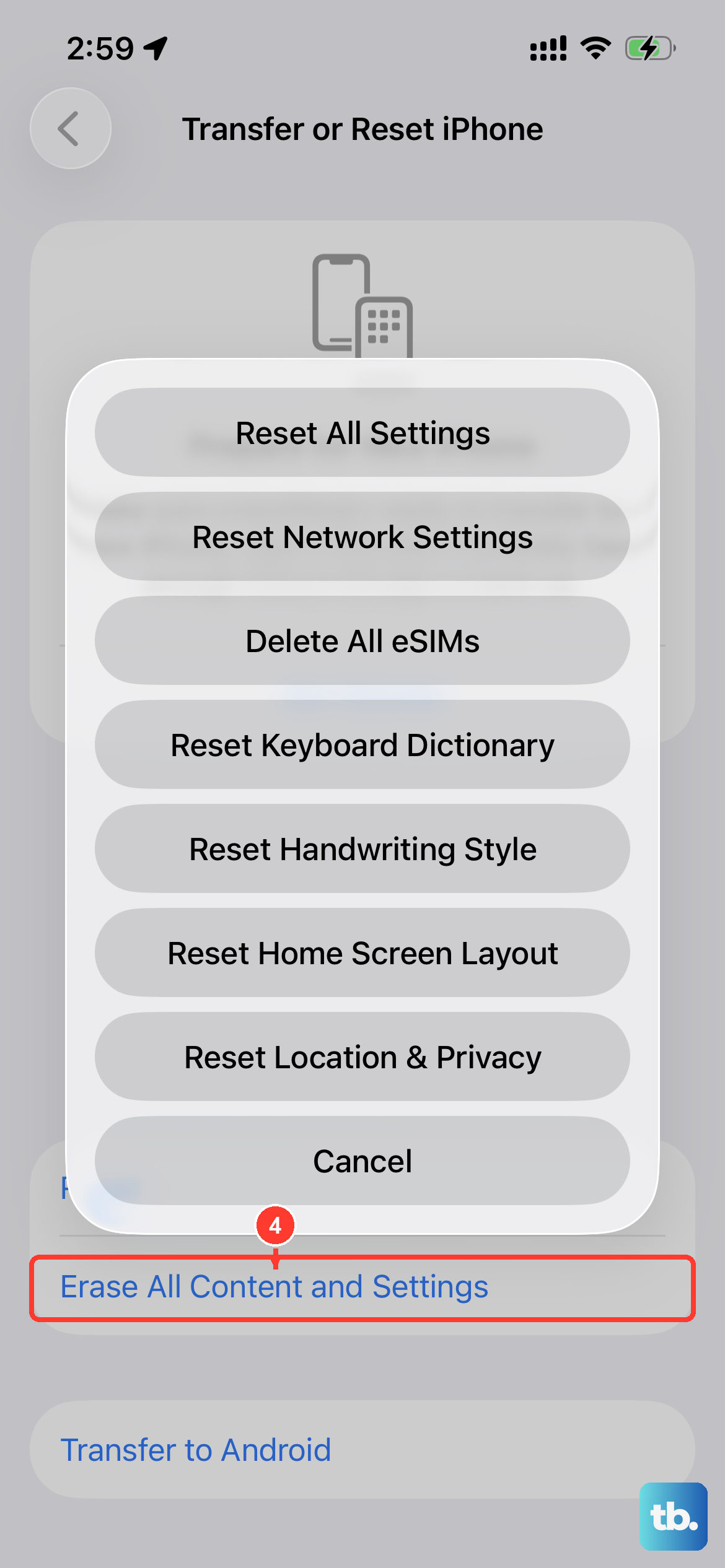
If storage is still full after every step above, a clean factory erase and fresh setup can clear out hidden leftovers, but this is a destructive action and should be your final option.
Back up first, then go to Settings > General > Transfer or Reset iPhone > Erase All Content and Settings and enter your passcode or Apple Account password when prompted. This restores the phone to factory settings and completely removes your data, including Apple Pay cards, photos, contacts, music, and apps, so a current backup is essential before you proceed.
If you are unsure whether erasing is the right move, contact Apple Support before doing anything. The Apple Support app and the official Apple Support website can walk you through your options, and a representative can often spot a less drastic fix.
Frequently Asked Questions
What Is The Difference Between Offloading And Deleting An App
Offloading frees the storage the app uses but keeps its documents and data, so reinstalling restores everything. Deleting removes the app along with its related data entirely. Use Offload App when you want the space back without losing your in-app data, and Delete App when you are done with the app for good.
Will Optimize iPhone Storage Delete My Original Photos
No. With Optimize iPhone Storage turned on under Settings > [your name] > iCloud > Photos, your full-resolution originals are kept safely in iCloud while smaller, space-saving versions stay on the device. The originals download again whenever you need them.
Does A Force Restart Erase My Data
No. The force restart sequence (press and quickly release Volume Up, press and quickly release Volume Down, then press and hold the Side button until the Apple logo appears) simply reboots the iPhone 17 Pro Max and leaves your data intact.
Why Does My iCloud Fill Up When I Am Trying To Free Phone Storage
iCloud storage is separate from device storage. iCloud Photos, iCloud Drive files, Messages in iCloud, and backups all count toward your iCloud space, so clearing iCloud through Settings > [your name] > iCloud > Recommended for You or upgrading to iCloud+ helps your phone offload content more effectively.
How Much Storage Does The iPhone 17 Pro Max Come With
It is offered in 256GB, 512GB, 1TB, and 2TB capacities. The 2TB option makes it the first iPhone offered at that size, which gives heavy photo and video users far more headroom before the storage-full warning appears.