
When your iPhone 17 Pro Max isn't showing up on your Mac or Windows PC, it can stop you from syncing photos, transferring files, or doing a local backup. Basic connection checks can help, though some problems may need support.
The issue can come down to a software setting, a tired cable, or a minor glitch that a quick restart can clear up. Start by checking the cable and port.
Check Your USB-C Cable and Port
Grab the USB-C cable you're using and give it a close look. Cables fray, get bent, and stop working properly over time. Try a different cable if you have one, and make sure it supports both data and charging.
Also, check the USB-C port on your iPhone 17 Pro Max. Shine a light in there and look for any lint or debris. You can gently clean it out with a dry, soft-bristled brush. Be careful not to use anything metal that could damage the contacts.
Restart Your iPhone and Computer
A simple restart can clear out temporary software conflicts that are blocking the connection. First, restart your iPhone 17 Pro Max.
If the standard restart doesn't help, try a force restart. Press and quickly release the Volume Up button, then quickly press and release the Volume Down button. Finally, press and hold the Side button until you see the Apple logo appear.
Don't forget to restart your computer, too. After both devices are back on, unlock your iPhone and try connecting it again.
Trust This Computer on Your iPhone
This is a crucial step that's easy to miss. When you connect your iPhone to a new computer, a "Trust This Computer?" alert should pop up on your phone's screen.
Unlock your iPhone with your passcode first. Select it in the Finder or the Apple Devices app and click "Trust" if asked; in iTunes, click "Continue". Then tap "Trust" on your iPhone. If the alert doesn't appear, try disconnecting and reconnecting the cable.
If you previously tapped "Don't Trust," you'll need to reset that setting. Go to Settings > General > Transfer or Reset iPhone > Reset. Then tap Reset Location & Privacy. The next time you connect, the "Trust" prompt should reappear.
Update Your Software
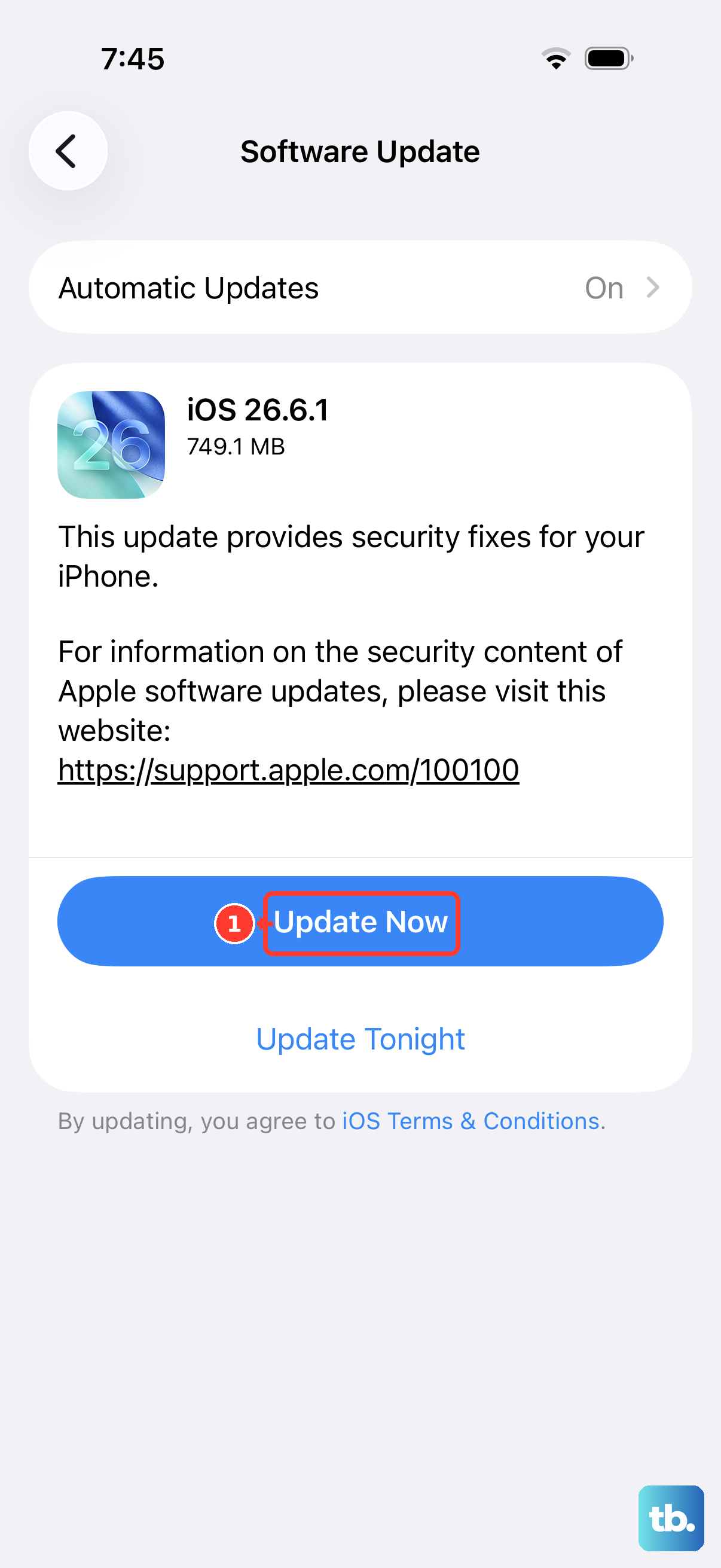
Outdated software on either end can cause handshake issues. First, check for an iOS update on your iPhone 17 Pro Max. Go to Settings > General > Software Update.
On a Mac, make sure you're running the latest version of macOS. On a Windows PC, you'll want to check for updates to Windows itself. On Windows, also update the Apple Devices app or iTunes. If you installed the Apple Devices app from the Microsoft Store, check for updates there.
Check Finder, Apple Devices or iTunes on Your Computer
On a Mac running macOS Catalina or later, your iPhone connects through the Finder. Open a new Finder window and look for your iPhone under "Locations" in the sidebar. If you don't see the sidebar, choose View > Show Sidebar. Keep your iPhone unlocked, and click Allow if your Mac shows "Allow accessory to connect?".
On Windows, open the Apple Devices app and look for your iPhone in its sidebar. If that app isn't installed, use iTunes instead. On older Macs that use iTunes, open it and look for the tiny phone icon near the top left of the window.
Try a Different USB Port or Computer
Sometimes the problem is with the computer's USB port. If you're using a desktop, try a port directly on the back of the tower instead of the front. If you're on a laptop, try the other side.
If you have access to another computer, try connecting your iPhone 17 Pro Max to it. This can help narrow down whether the problem is with your phone or your primary computer. If it works on the second computer, check for software conflicts on Windows or VPN and other third-party security software on your Mac.
Reset Location & Privacy Settings
As mentioned earlier, this resets your computer trust decisions. It won't delete your personal data, but formerly trusted computers will ask for permission again when you reconnect. Use this reset if the trust alert doesn't appear or you accidentally tapped "Don't Trust".
To do this, go to Settings > General > Transfer or Reset iPhone. Tap Reset, and then choose Reset Location & Privacy. Afterward, reconnect your phone to your computer and look for the "Trust" alert.