
When the flashlight on your iPhone 17 Pro suddenly stops responding, it can be a real hassle. You might find the button in Control Center is grayed out, or you tap it and nothing happens at all. Let's get that light working again.
Close the Camera App First
The camera and flashlight share the same LED module on the back of your iPhone 17 Pro. If the Camera app is running, even in the background, the system reserves the flash for it and disables the flashlight. Swipe up from the bottom to see your open apps and swipe the Camera app away to fully close it. The flashlight icon should become active again right away.
Perform a Force Restart
A quick force restart can clear out the temporary software glitch that's locking the flashlight controls. On your iPhone 17 Pro, press and quickly release the Volume Up button, then press and quickly release the Volume Down button. Finally, press and hold the Side button until you see the Apple logo appear on the screen. This takes about 10 seconds and doesn't erase any data.
Check for Overheating
Your iPhone 17 Pro is designed to protect its components, including the flash LED, from heat damage. If the phone has been in direct sun, is running intensive apps, or is fast charging at 60W, it can get warm enough for iOS 26 to disable the flashlight. Let it cool down on a flat surface for 10-15 minutes and try again.
Adjust the Brightness Slider
It's easy to accidentally set the flashlight to its lowest brightness, making it seem broken in a bright room. Don't just tap the flashlight icon in Control Center. Instead, press and hold it. A vertical slider will pop up. Slide your finger all the way to the top to set it to maximum brightness.
Turn Off Low Power Mode
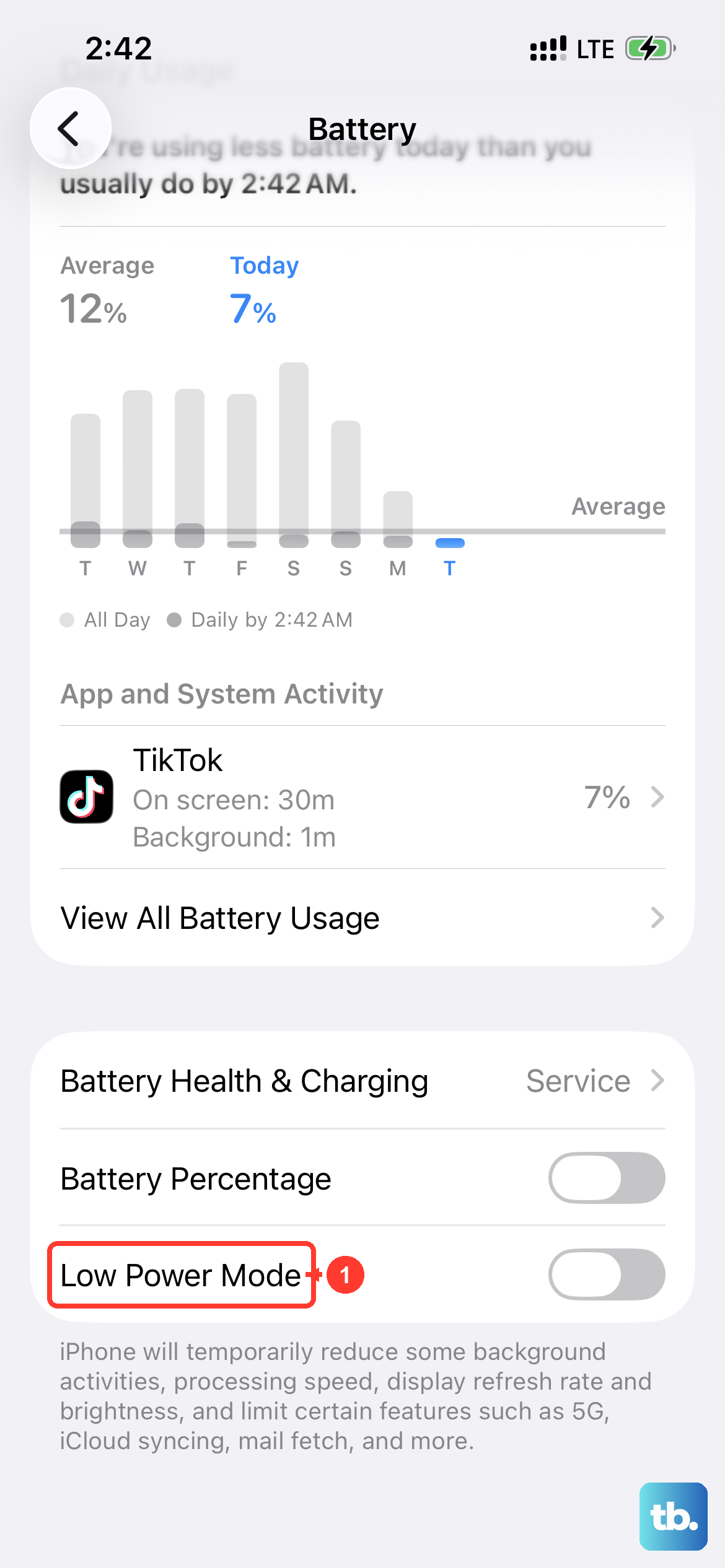
While Low Power Mode on iOS 26 doesn't officially disable the flashlight, it can sometimes interfere with how responsive system controls are. Head to Settings > Battery and make sure Low Power Mode is switched off. I've seen this resolve a few unresponsive flashlight reports.
Use Siri as a Workaround
Try asking Siri to control the light. Say, "Hey Siri, turn on my flashlight." If Siri can activate it but your manual button press still doesn't work, it confirms a software interface bug. You can use Siri to toggle it off and on, which sometimes resets the control state and fixes the button.
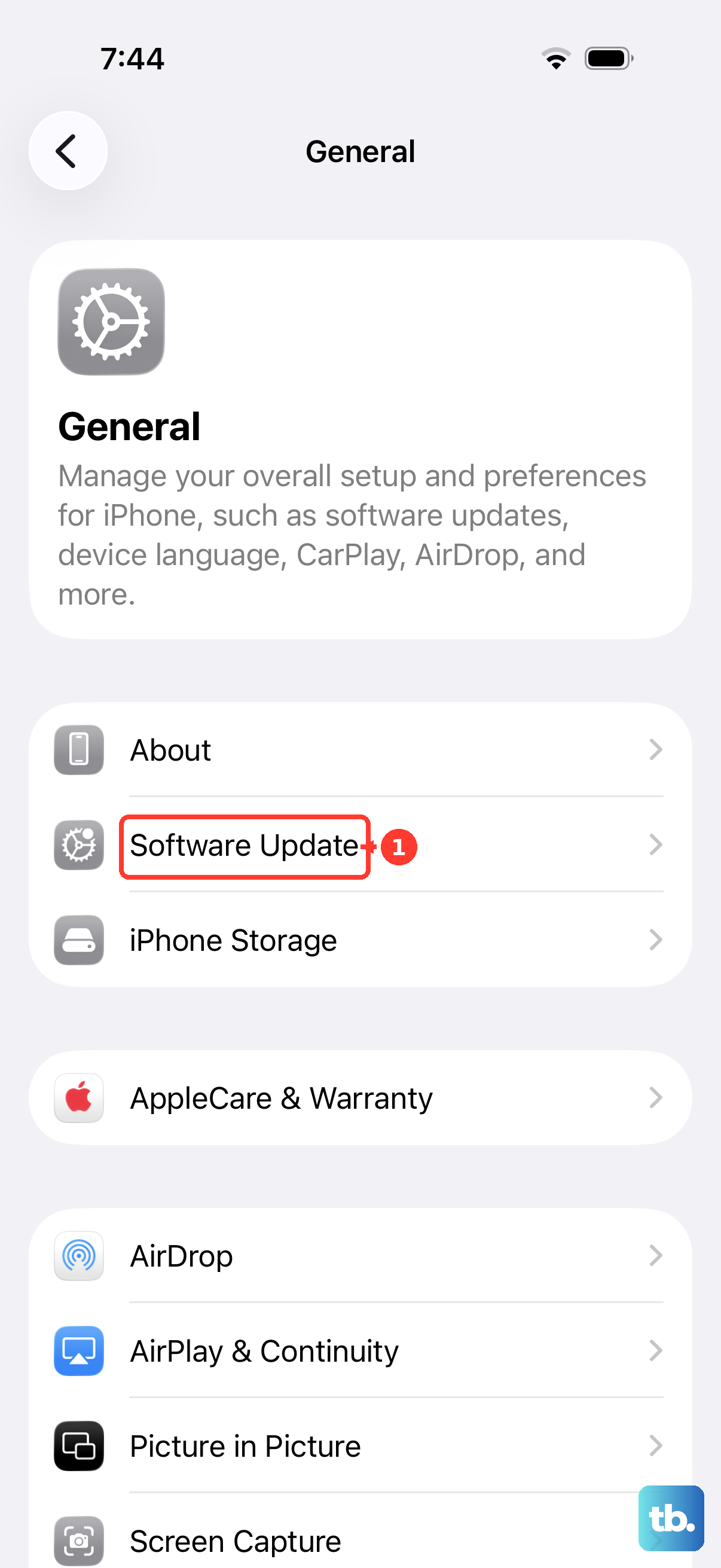
Update to the Latest iOS 26 Version
Apple routinely patches minor system bugs in point updates. Go to Settings > General > Software Update and install any available update. Past iOS versions have had specific fixes for issues where the flashlight button would become permanently unavailable or grayed out.
Reset All Settings
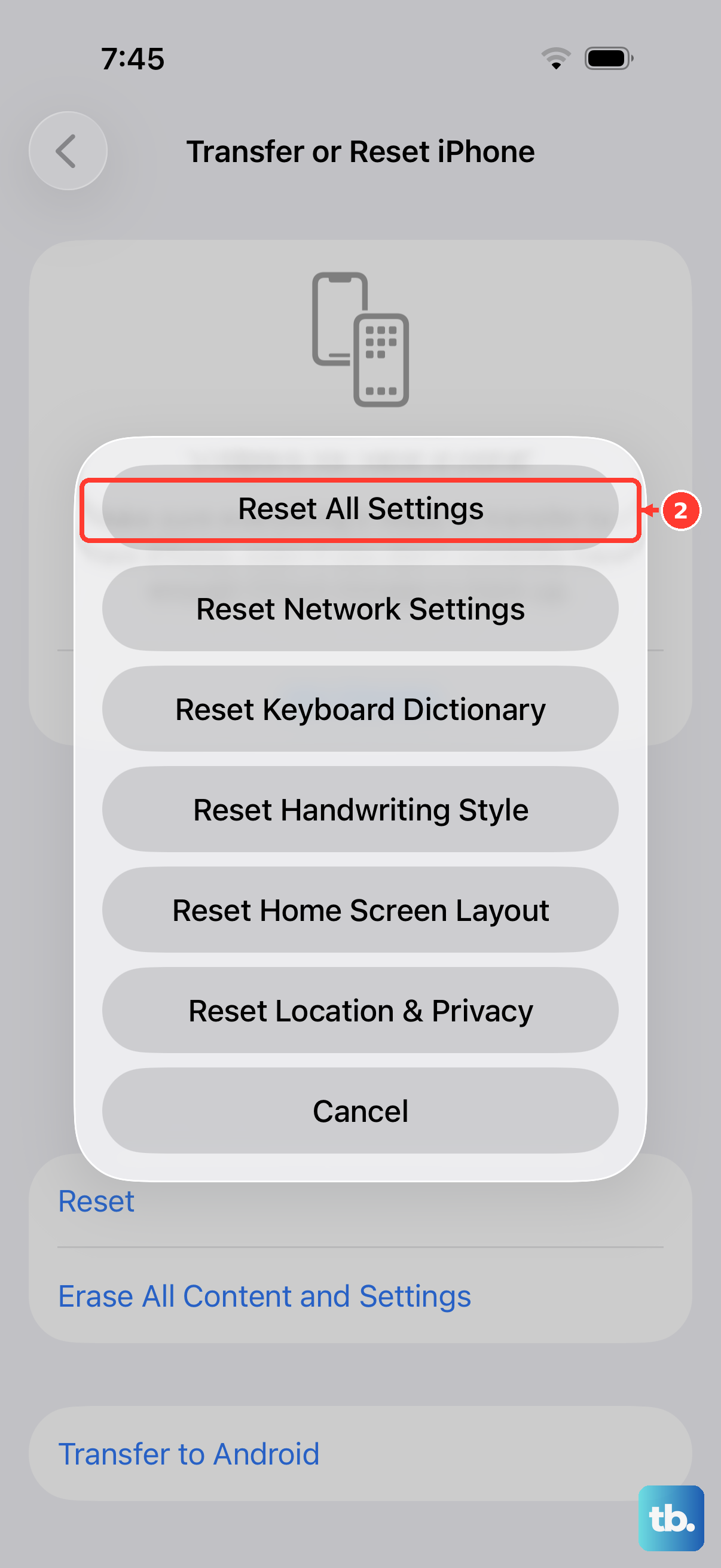
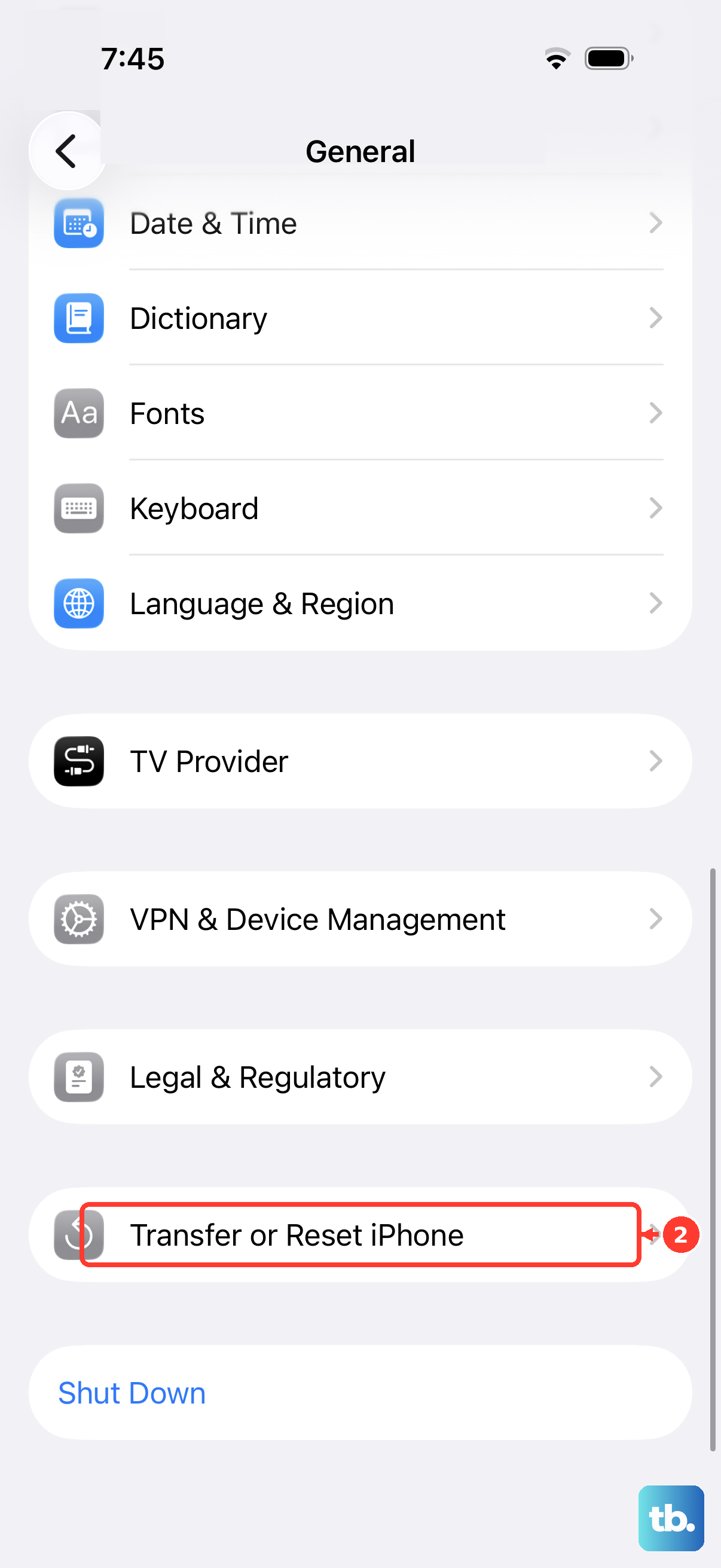
If the problem is a deeper configuration error, this step can help. Navigate to Settings > General > Transfer or Reset iPhone > Reset > Reset All Settings. This will revert all your preferences, like Wi-Fi passwords and wallpaper, back to default, but it won't touch your personal data or apps. It often resolves stubborn Control Center malfunctions.
Test for Hardware Failure
If every software fix fails, the LED hardware itself might be damaged. Open your Camera app and try taking a photo with the flash forced on. If the camera flash also doesn't fire, the LED assembly likely needs service. Since the flash is part of the rear camera system on the iPhone 17 Pro, you'll need to contact Apple Support or visit an authorized service provider for a proper diagnosis.