
Missing calls on your iPhone 17 because it won't ring is a common headache. You might see the notification pop up on your Lock Screen or in the Dynamic Island, but you never hear a sound. The issue may be a setting that got switched, but software or network problems can also affect calls.
Start by checking Silent mode. If your Action button is set to Silent mode, press and hold it to switch modes. You can also go to Settings > Sounds & Haptics and turn Silent mode off. Then have someone call you to check whether your phone rings.
Check Your Focus Modes
Focus modes are powerful for managing distractions, but they can easily silence calls if you forget they're on. Swipe down from the top-right corner to open Control Center and look for a highlighted icon like a moon, a bed, or a work badge.
Tap that icon to turn the active Focus off. For a more thorough check, go to Settings > Focus. Here, you'll see all your configured modes like Do Not Disturb, Sleep, and Personal.
If Do Not Disturb turns back on, go to Settings > Focus > Do Not Disturb, scroll to "Set a Schedule," and check for active schedules to turn off.
Adjust Your Ringer Volume
Your ringer volume is separate from your media volume. Go to Settings > Sounds & Haptics and drag the ringer volume slider to the right until the ringtone is loud enough.
Move the slider back and forth a few times to test the sound. If you don't hear anything, your speaker might need service.
While you're there, turn on "Change with Buttons" if you want the physical volume buttons to adjust ringer volume. During calls or media playback, those buttons adjust the call or media volume instead.
Review Your Ringtone and Haptics
Try switching to a different ringtone. Go to Settings > Sounds & Haptics > Ringtone and pick a different tone. Listen to its preview to check whether you can hear it, then adjust the ringer volume if needed.
Test it immediately by having a friend call you. Also, tap "Haptics" on the Ringtone screen and choose a vibration pattern if you want your phone to vibrate for calls.
You can tap "Create New Vibration" here if you want something more distinct. Choose a pattern that's easy to notice when your phone is in your pocket.
Manage Connected Bluetooth Devices
If your iPhone 17 is connected to a Bluetooth device like AirPods, a car stereo, or a speaker, check whether you're hearing the call alert there. Try a test call with the device disconnected to compare the sound.
To test with Bluetooth fully off, go to Settings > Bluetooth and toggle the main switch off. Tapping the Bluetooth icon in Control Center only disconnects accessories; it doesn't turn Bluetooth off.
Try a test call with Bluetooth disabled. If the ring works now, a connected accessory may be involved. You can go back and manage individual device connections from the Bluetooth settings menu.
Inspect Call Blocking and Filtering Settings
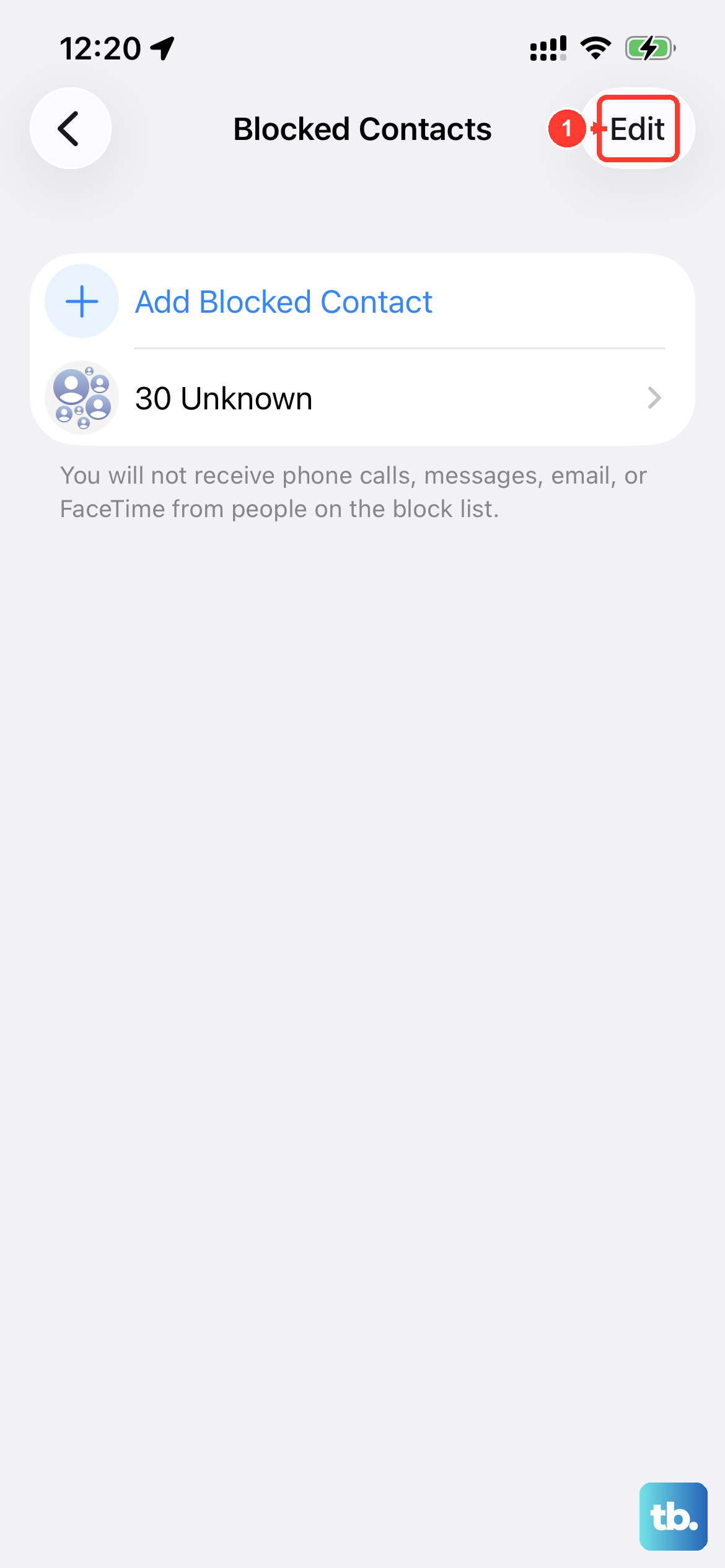
Call filtering settings can silence incoming calls. First, check for blocked numbers. Go to Settings > Apps > Phone > Blocked Contacts and look for the caller's number.
If the number trying to reach you is blocked, unblock it. Then go to Settings > Apps > Phone and find "Screen Unknown Callers."
Choose "Never" to let unsaved numbers ring normally. "Ask Reason for Calling" screens them before your phone rings, while "Silence" sends them to voicemail without ringing. Add important numbers to Contacts so calls from them always come through.
Disable Call Forwarding
Call forwarding is easy to activate by accident, especially if you've been tinkering with settings. When it's on, your iPhone 17 won't ring because calls are being sent to another number.
To check, go to Settings > Apps > Phone > Call Forwarding. Make sure the toggle is in the off position. If it was on, turn it off and have someone call you again.
This setting sometimes gets enabled through carrier codes, so if it keeps turning back on, you might need to contact your mobile provider for support.
Restart and Update Your iPhone 17
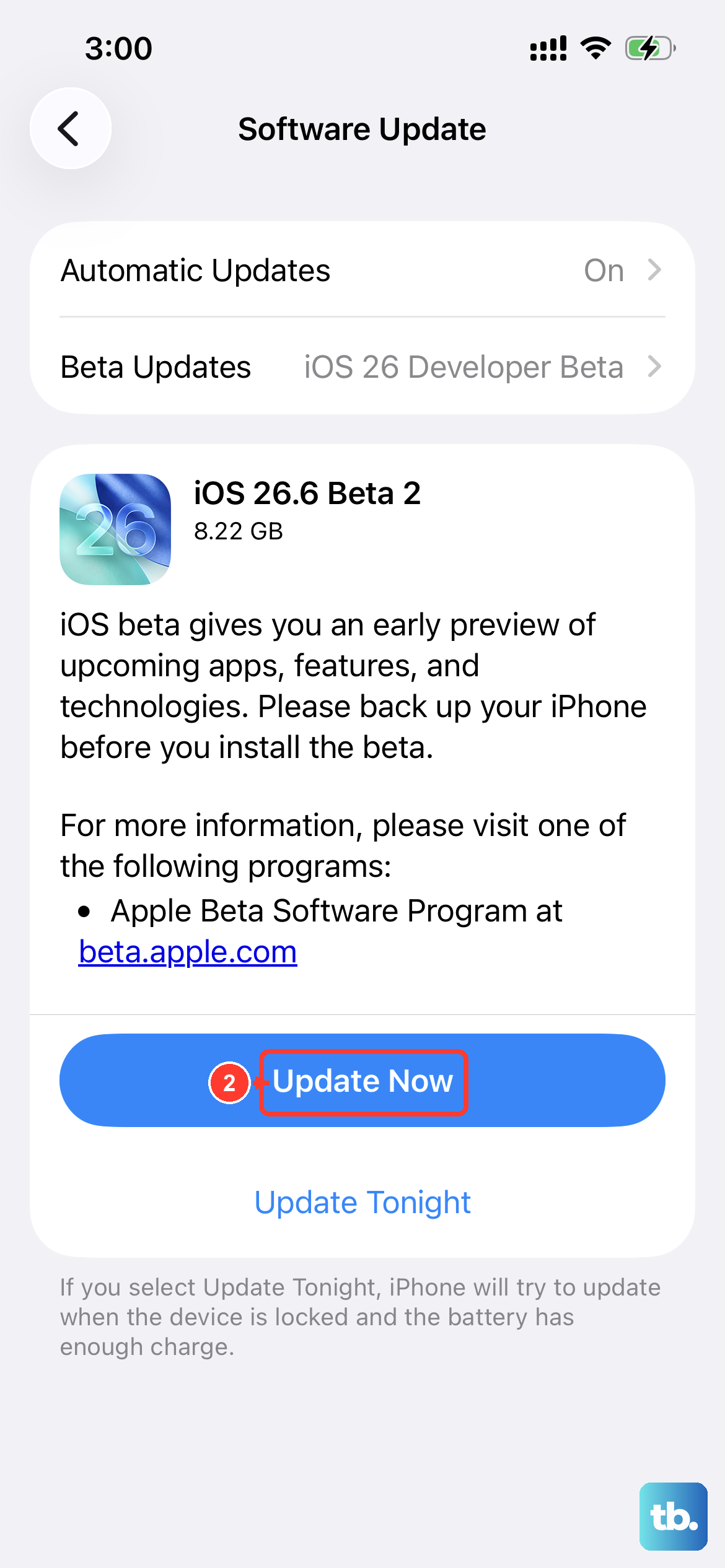
A simple force restart clears out temporary software glitches that can affect the ringer. On the iPhone 17, you press and quickly release the Volume Up button, then press and quickly release the Volume Down button.
Finally, press and hold the Side button until the Apple logo appears, then let go. This might take longer than 10 seconds.
After restarting, check for a software update. Bugs that affect sound and notifications are often patched in updates. Go to Settings > General > Software Update.
If an update is available, tap "Download and Install" to get the latest version of iOS. Back up your phone first, then connect it to power and Wi-Fi for the update.
Reset Relevant Settings
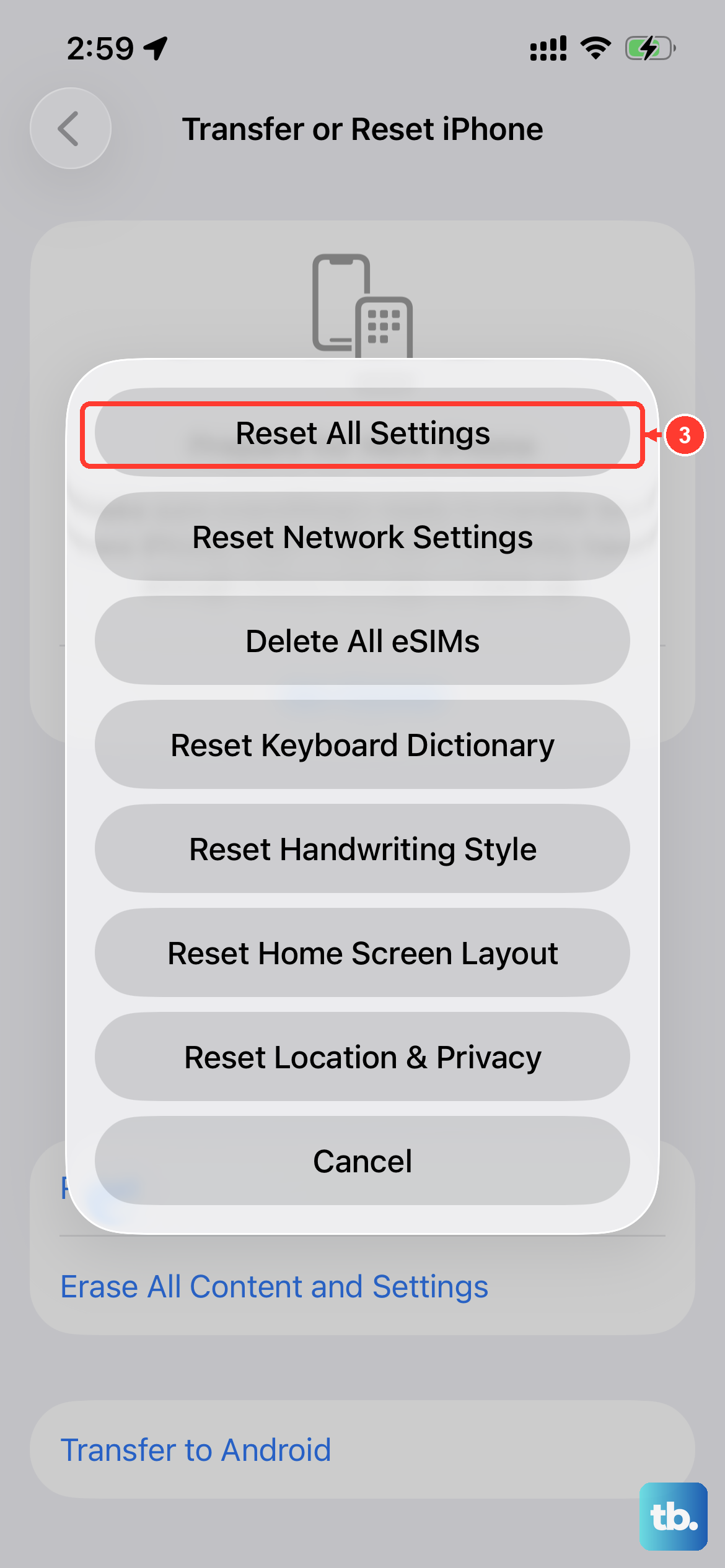
If you're still not hearing rings, a settings reset can help. This won't delete your photos, apps, or messages. Go to Settings > General > Transfer or Reset iPhone.
Tap "Reset" and then choose "Reset All Settings." You'll need to enter your passcode. This resets settings including wallpaper, sounds and haptics, notification settings, and privacy preferences, and removes Apple Pay cards.
Afterward, rejoin Wi-Fi, re-pair Bluetooth devices and your Apple Watch, and set up Face ID again. Check your ringer volume and have someone call you to test the sound.
Check App-Specific Permissions
If you're only missing calls from apps like WhatsApp, Signal, or Facebook Messenger, check those apps and their notification settings. First, open the App Store, tap your profile icon, then tap "App Updates" to see if updates are pending for those communication apps.
Then, check the notification permissions. Go to Settings > Apps and select the app in question (e.g., WhatsApp). Tap "Notifications" to review its permissions.
Make sure "Allow Notifications" is on. For audible alerts, the "Sounds" option should also be enabled. Then have someone call you through the app to check whether you hear the alert.
Reset Network Settings
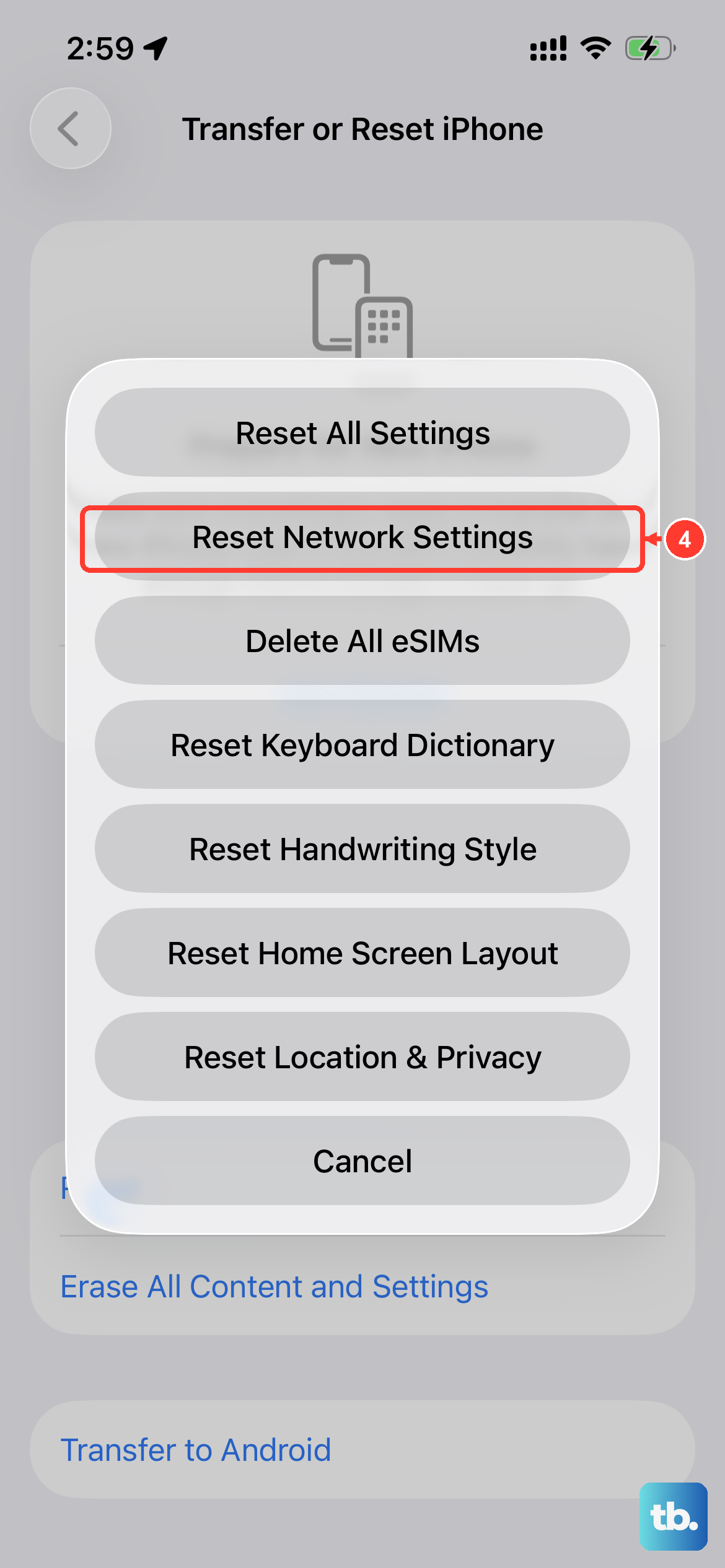
If calls still aren't coming through after other checks, try resetting network settings. Resetting network settings clears Wi-Fi passwords, VPN and APN settings, and cellular settings.
Go to Settings > General > Transfer or Reset iPhone > Reset. This time, select "Reset Network Settings." Confirm and enter your passcode.
Your iPhone 17 will restart. After it boots up, you'll need to reconnect to Wi-Fi networks. Try making or receiving a call again, and test in another location if calls still aren't coming through.
Review Sound Accessibility Features
iOS has robust accessibility options that can modify audio output. Go to Settings > Accessibility > Audio & Visual. Look at the "Headphone Accommodations" and "Background Sounds" settings.
If Background Sounds is on, turn it off temporarily and try another call to compare the sound. Also, check Settings > Accessibility > Touch > Call Audio Routing.
This setting controls where call audio plays. Set it to "Automatic" for normal use, then test an incoming call. If the alert is still silent, return to the Silent mode and ringer volume checks above.
Consider a Full Software Restore
This is a last resort, but if a persistent software bug is causing the silence, a restore via a computer can fix it. First, make sure you have a recent backup in iCloud or on your computer.
Connect your iPhone 17 to a Mac or PC using a USB-C cable. Use Finder on a Mac with macOS Catalina or later, or the Apple Devices app or iTunes on a Windows PC. Find your device and select "Restore iPhone." This reinstalls iOS and erases the phone's data.
After the restore is complete, you can set up the phone as new to test if the ringer works. To restore an iCloud backup afterward, erase the phone again and choose the backup during setup, or use Restore Backup in Finder or the Apple Devices app for a computer backup. If sound issues continue, your phone might need service.