


If your iPhone 13 is refusing to send picture messages or group chats, it's usually a quick settings or network hiccup. The most common fix is toggling a single switch that often gets turned off by accident.
Head to Settings > Apps > Messages and make sure MMS Messaging is enabled. If it's off, your phone will try to send everything as an iMessage, and photos will fail to deliver to non-iPhone contacts. While you're there, also check that Send as SMS is turned on as a backup.
Check Your Cellular Data Connection
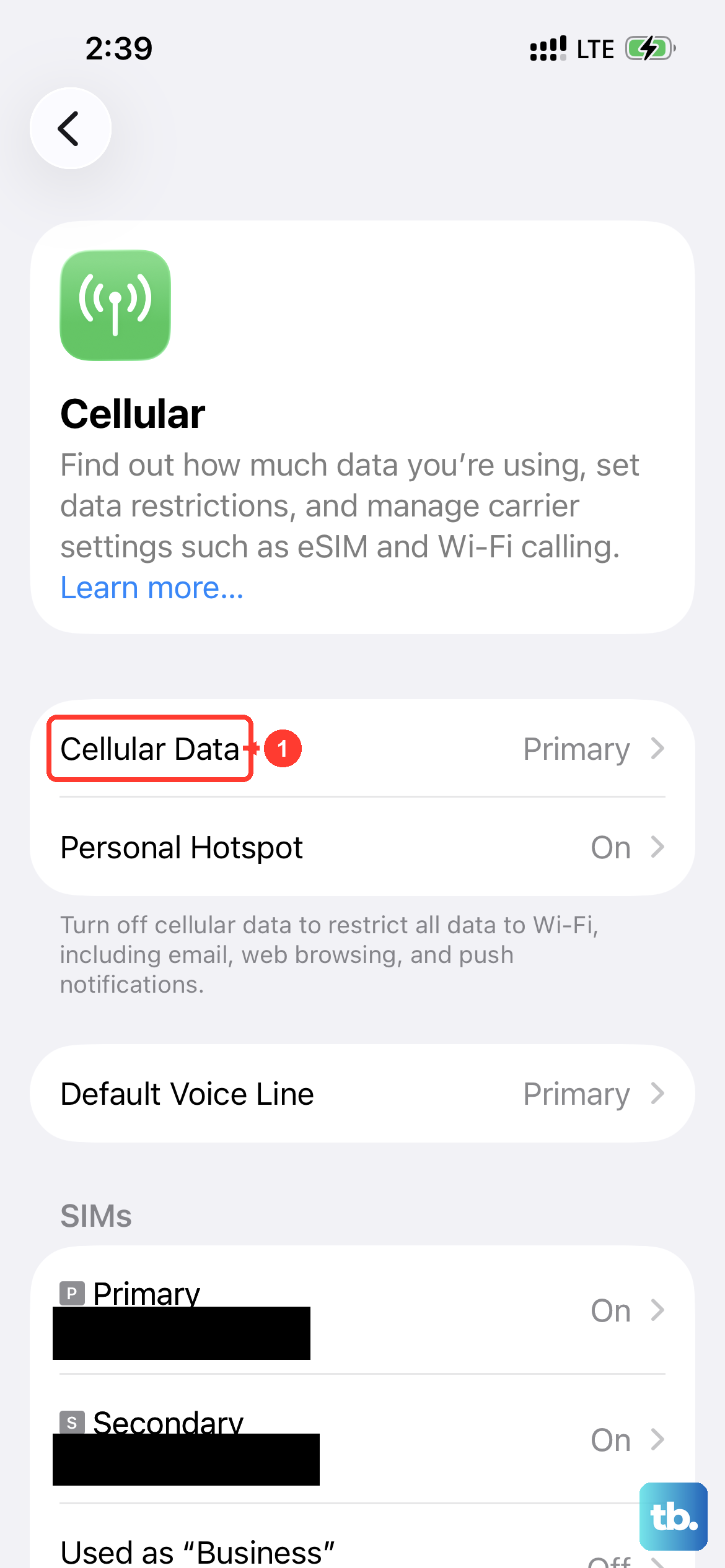
Unlike iMessage, MMS requires an active cellular data connection to send and receive. If you're on Wi-Fi but have a weak cellular signal, your photo might get stuck.
Swipe down from the top-right corner to open Control Center and look at your cellular bars. You can also try temporarily turning off Wi-Fi to force the phone to use the mobile network. Sometimes, a network configuration just needs a refresh.
A simple way to do this is to enable Airplane Mode for about 15 seconds and then turn it off. This forces your iPhone 13 to re-establish its connection to the cell towers, which can clear up the issue.
Update Your Carrier Settings
Carrier updates are small files that help your iPhone 13 communicate properly with your mobile network. If these are out of date, MMS can fail.
To check, go to Settings > General > About. If an update is available, a prompt will appear. Installing it only takes a moment and doesn't affect your personal data. I've seen this resolve messaging problems more often than you'd think.
Restart and Force Restart Your iPhone 13
A standard restart clears out minor software glitches that can block messages. Press and hold the side button and either volume button, then slide to power off.
If the problem is more stubborn, a force restart can help. Quickly press and release the Volume Up button, then quickly press and release the Volume Down button. Finally, press and hold the Side button until you see the Apple logo appear, then release.
Reset Your Network Settings
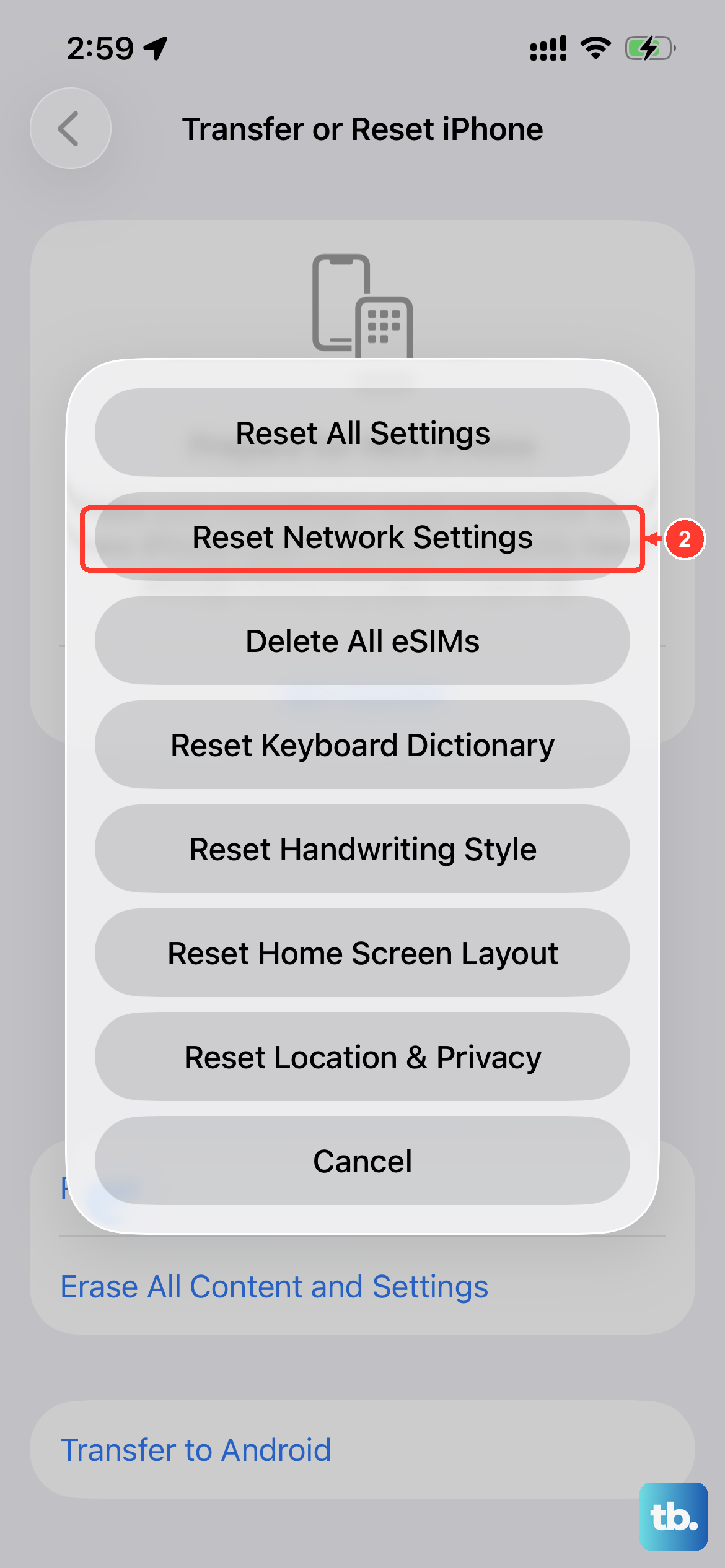
This is a more thorough step that clears all your network-related data, like Wi-Fi passwords and VPN settings. It often fixes persistent MMS and cellular data problems.
Go to Settings > General > Transfer or Reset iPhone > Reset. Tap Reset Network Settings. You'll need to re-enter your Wi-Fi passwords afterward, but it won't touch your photos or messages.
Check for a Software Update
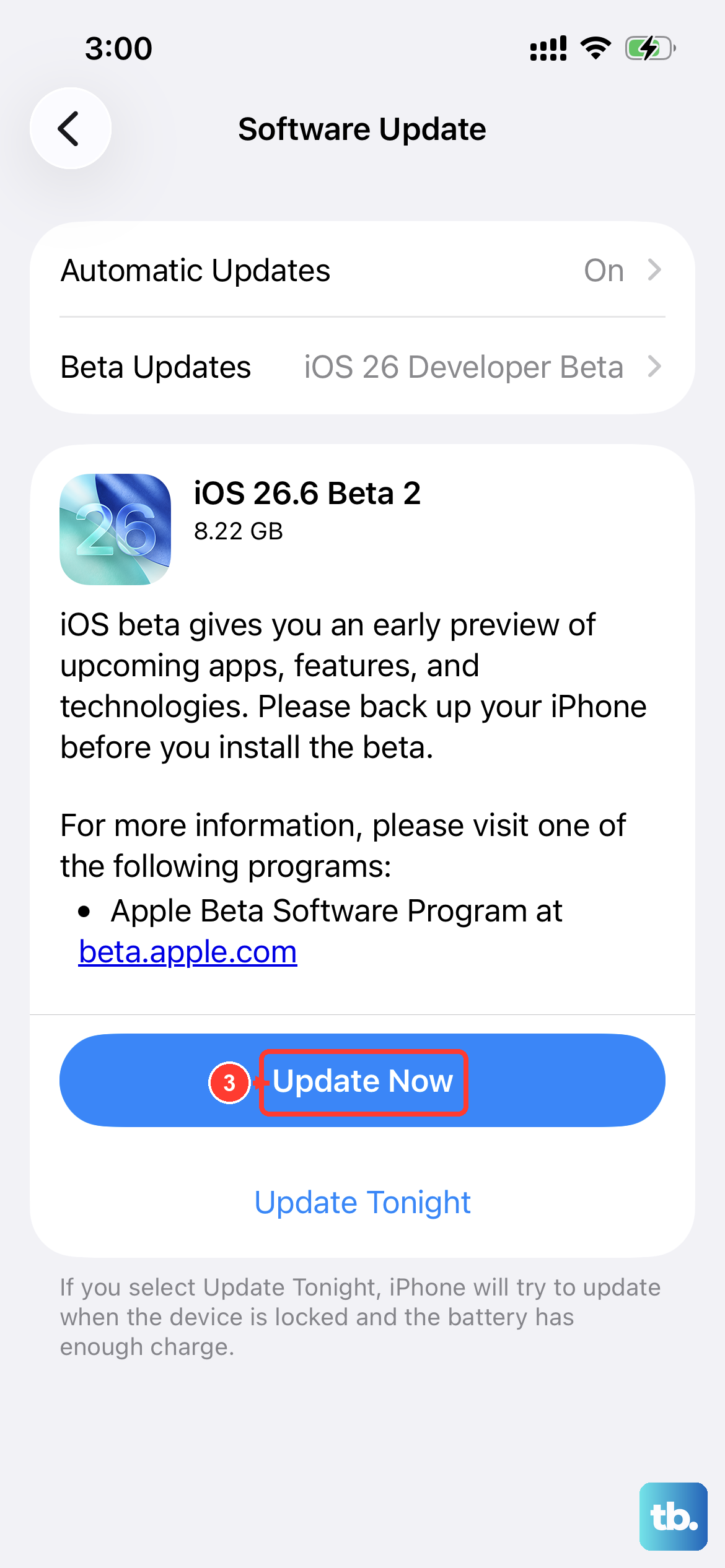
Running an outdated version of iOS can lead to bugs that affect messaging. Since your iPhone 13 can run up to iOS 18, make sure you're on the latest version available.
Open Settings > General > Software Update. If an update is listed, download and install it. It's a good idea to plug your phone into power using a reliable Lightning cable first, as updates can take a few minutes.
Verify Your Message Size and Storage
Carriers have limits on MMS size, usually around 1 MB. If you're trying to send a very high-resolution video, the iPhone might not compress it enough. Try sending a smaller photo first to test.
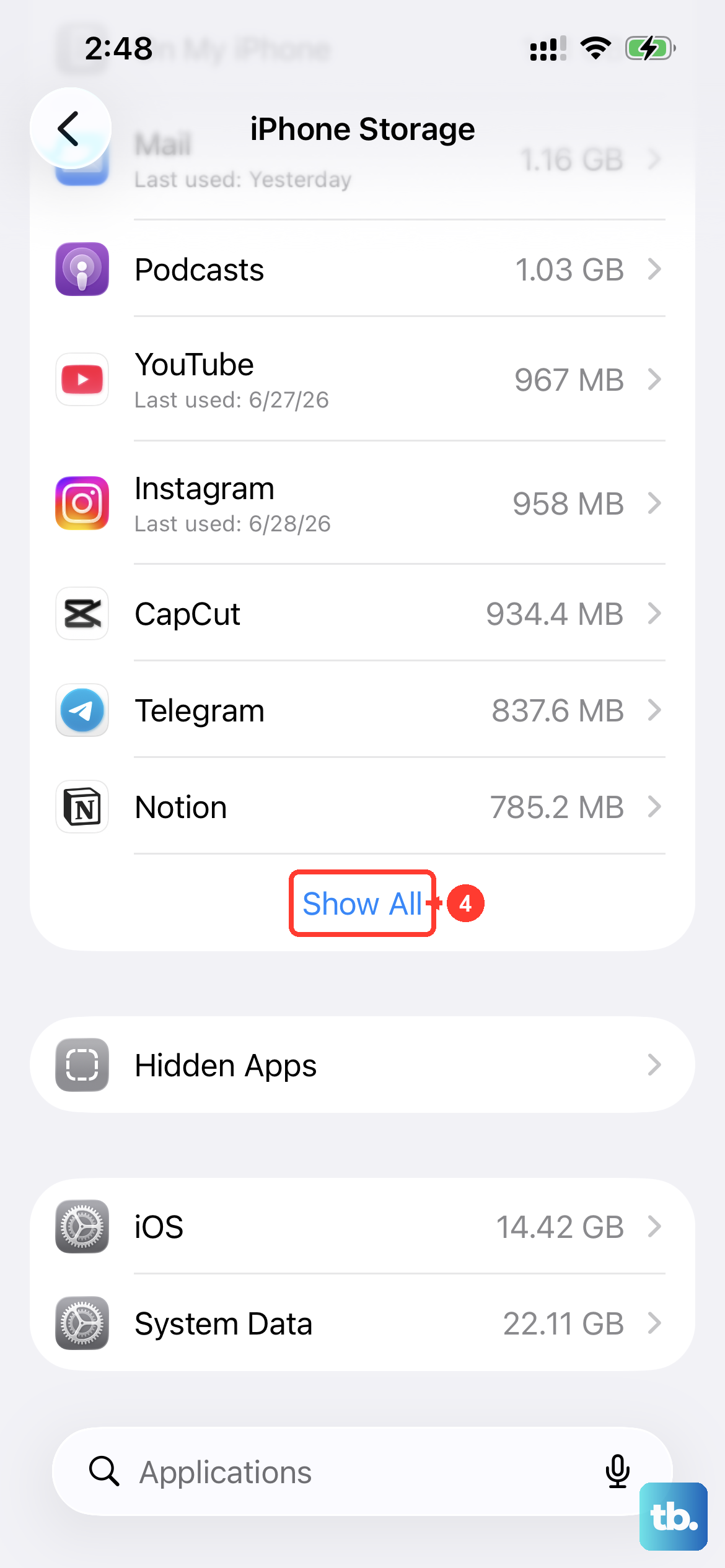
Also, if your iPhone 13's storage is completely full, it may not have room to process the outgoing message. Check your available space in Settings > General > iPhone Storage.
Contact Your Mobile Carrier
If you've tried everything here, the issue might be on your carrier's end. They can check if MMS is properly enabled on your account and if there are any service outages.
You can also ask them to reprovision your account, which is a fancy way of saying they refresh your line on their network. This step has solved the problem for many users when all else fails.