
Picture messages failing to send on your iPhone Air? You tap send, the message sits there with that little red exclamation mark, and nothing happens. It’s annoying, especially when you’re trying to share a quick photo or video. Let’s walk through what’s going on and how to fix it.
MMS (multimedia messaging service) is different from iMessage. iMessage uses Apple’s servers and works over Wi‑Fi or cellular data. MMS relies entirely on your carrier’s cellular network. So when picture messages fail, the problem is almost always related to your data connection, your messaging settings, or a temporary glitch in iOS 26.
Turn On MMS in Settings
This is the most common culprit. If MMS Messaging is turned off in your Settings, your iPhone Air simply won’t send or receive picture messages through the Messages app.
Open Settings > Apps > Messages. Make sure the toggle for MMS Messaging is switched on (green). While you’re there, also check iMessage is on, because sometimes iMessage activation issues can interfere with MMS delivery.
If MMS was already on, try toggling it off, waiting a few seconds, and turning it back on. This refreshes the connection to your carrier’s MMS servers and often fixes the problem without any other steps.
Is Your Mobile Data Working?
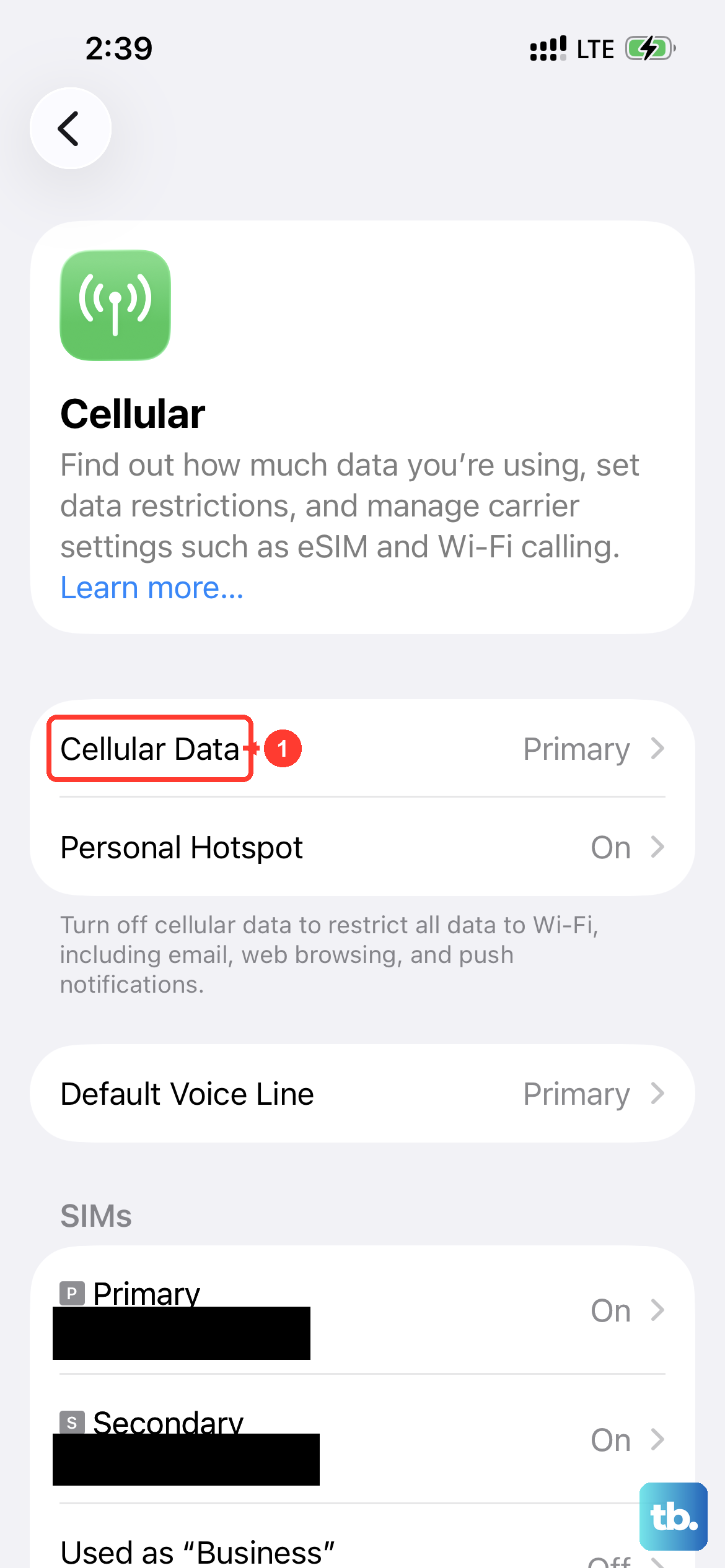
MMS requires an active cellular data connection. Your iPhone Air can’t send a picture message over Wi‑Fi alone, even if you have strong Wi‑Fi at home.
Pull down Control Center and make sure the cellular data icon is white (or green). If it’s gray, tap it to turn mobile data back on. Then try sending a picture message again.
If mobile data is on but the message still fails, check your signal strength. A weak or unstable cellular signal can prevent MMS from going through. Move to a spot with better reception, or try toggling Airplane Mode on and off to force your iPhone to reconnect to the network.
Restart Your iPhone Air
A simple restart clears out minor software glitches that can block MMS. On the iPhone Air, press and hold the Side button and either volume button until you see the power-off slider. Slide to power off, wait about 30 seconds, then press and hold the Side button again until the Apple logo appears.
If your phone feels unresponsive or the screen stays black after draining its battery (a known issue on this model), use the magnetic battery pack trick: attach a MagSafe or Qi2 battery pack to the back to wake it up, then try cable charging. Once it’s charged, perform a force restart: quickly press and release Volume Up, then quickly press and release Volume Down, then press and hold the Side button until the Apple logo shows. This can clear deeper software hiccups affecting MMS or the cellular modem.
Reset Network Settings
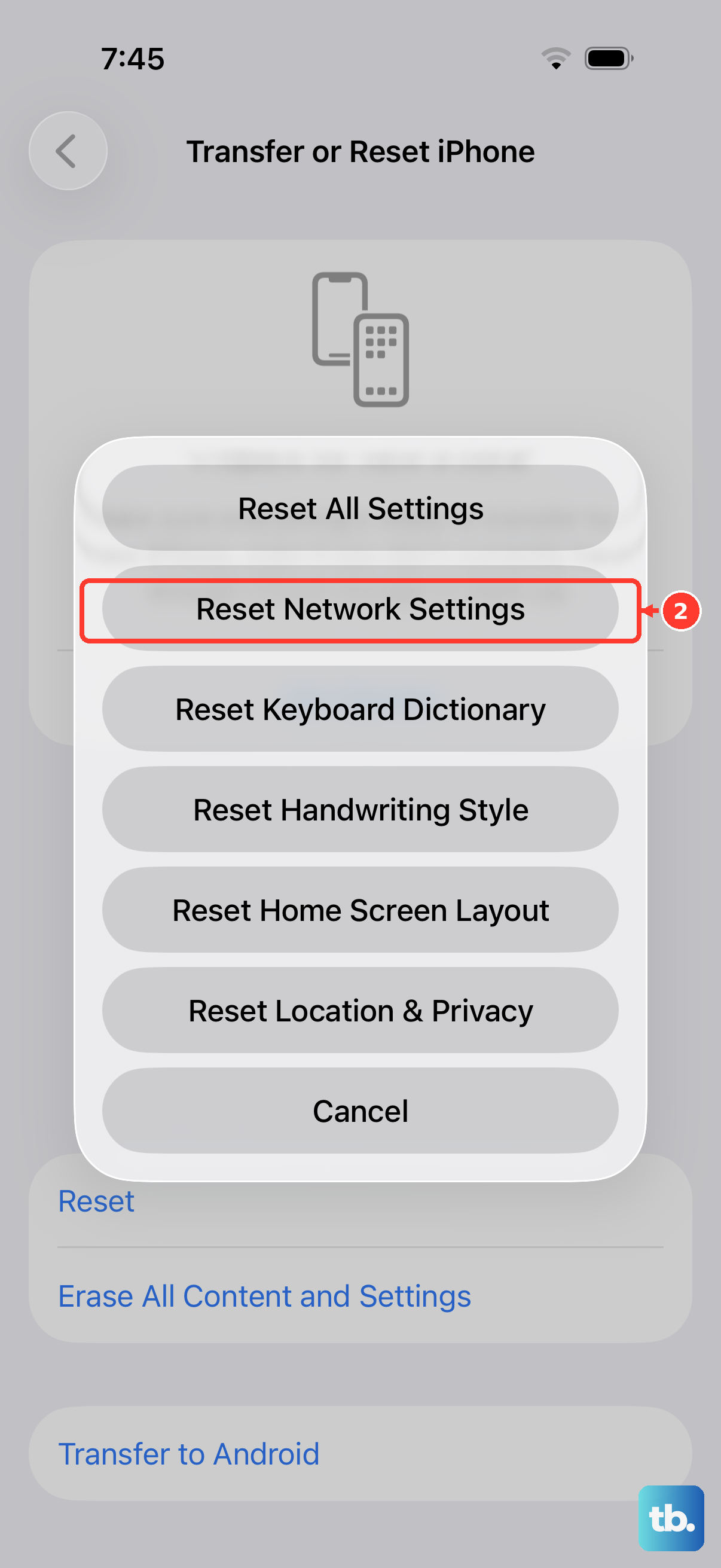
When MMS problems persist after checking data and toggling settings, the next step is to reset your network settings. This wipes saved Wi‑Fi passwords and Bluetooth pairings, but it won’t delete your photos, messages, or other personal data.
Go to Settings > General > Transfer or Reset iPhone > Reset > Reset Network Settings. Your iPhone will restart. After it comes back on, reconnect to Wi‑Fi networks and test MMS again.
I’ve seen this fix work when carrier profile data gets corrupted. It forces your iPhone Air to rebuild its cellular and MMS configuration from scratch.
Update iOS and Carrier Settings
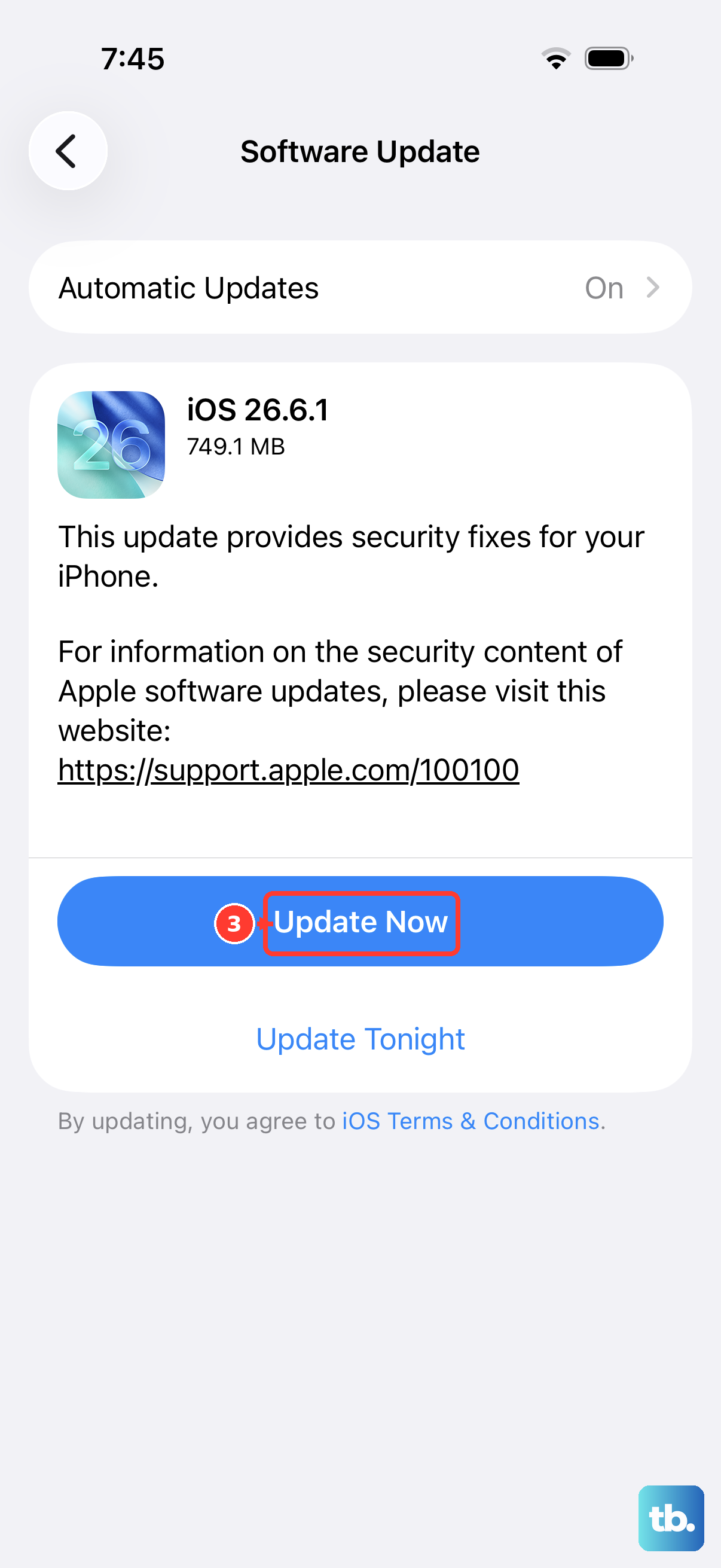
Outdated software can cause MMS compatibility issues. The iPhone Air ships with iOS 26, and Apple has released several updates since launch. A known firmware issue in iOS 26.4.2 was causing intermittent charging failures, but carrier settings updates are also pushed through iOS updates.
Go to Settings > General > Software Update. Install any available iOS update. After the update, open Settings > General > About. If a carrier settings update is available, a pop‑up will appear asking you to install it. Tap Update.
Carrier settings updates often include tweaks to MMS servers and APN configurations. Missing one can silently break picture messaging.
Free Up Storage Space
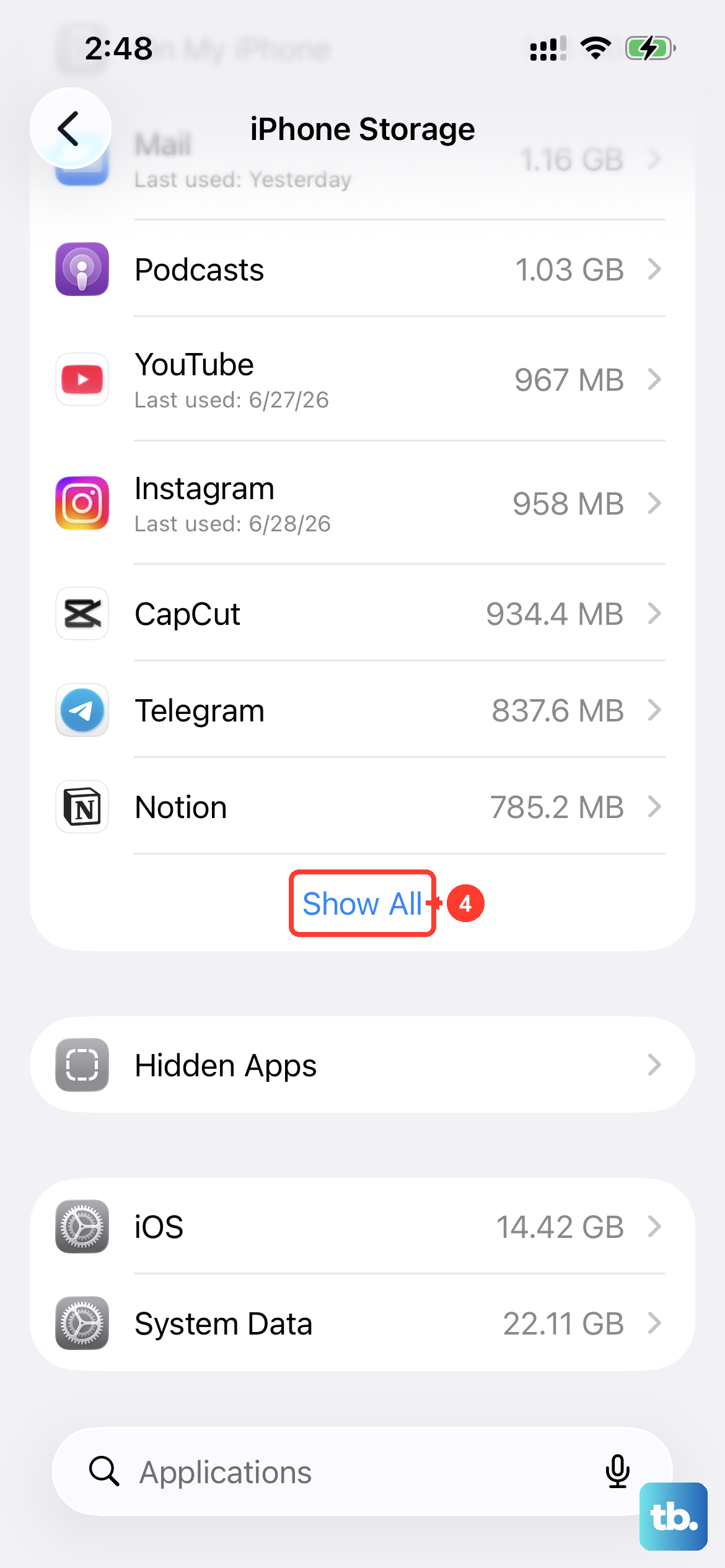
Your iPhone needs a little breathing room to process incoming and outgoing MMS attachments. If your storage is nearly full, messages may fail to send or receive.
Check your storage at Settings > General > iPhone Storage. If you’re below 1GB of free space, delete unused apps, clear old message threads with large photos, or offload photos to iCloud. Aim for at least 500MB free, but having a few gigabytes is better for smooth MMS performance.
Check iMessage Activation
On an iPhone, iMessage and MMS sometimes interfere with each other. If iMessage activation is stuck or pending, it can hang outgoing messages in general.
In Settings > Apps > Messages, turn off iMessage. Wait a minute, then turn it back on. You’ll see “Activating…” if it stays stuck for more than a minute, your cellular data might be the issue. Try sending a regular SMS to see if basic texts go through. If they don’t, contact your carrier to ensure MMS and SMS are provisioned on your account.
Contact Your Carrier
If you’ve tried everything above and picture messages still won’t send, the problem is likely on your carrier’s side. They might need to reset your MMS provisioning or confirm that your iPhone Air is correctly configured on their network.
When you call, have your iPhone’s IMEI handy (you can find it under Settings > General > About). Ask them to verify the MMS and APN settings for your line. Some carriers block MMS if you’re roaming internationally or if your data plan has changed.
Most picture‑message problems on the iPhone Air can be solved without a call to support. Start with the MMS toggle and a quick restart, then move through network reset and software updates as needed. You’ll usually find the fix in one of those first few steps.