
When your iPhone 17 Pro's Personal Hotspot stops sharing your connection, it leaves your other devices stranded. Whether other gadgets can't see the network, fail to connect, or get dropped after a few minutes, the fixes are usually straightforward and quick to try.
I'd start with the simplest step first. Head into Settings > Personal Hotspot and toggle the main switch off. Wait about ten seconds, then turn it back on. Make sure Allow Others to Join is enabled. This quick refresh of the hotspot service clears out minor software hiccups and gets things running again more often than not.
Restart Your iPhone 17 Pro
A full reboot is a classic fix for a reason. On your iPhone 17 Pro, press and quickly release the Volume Up button, then press and quickly release the Volume Down button. Finally, press and hold the Side button until you see the Apple logo appear. This force restart can clear deeper system processes that a simple toggle won't touch.
Verify Your Cellular Data is Active
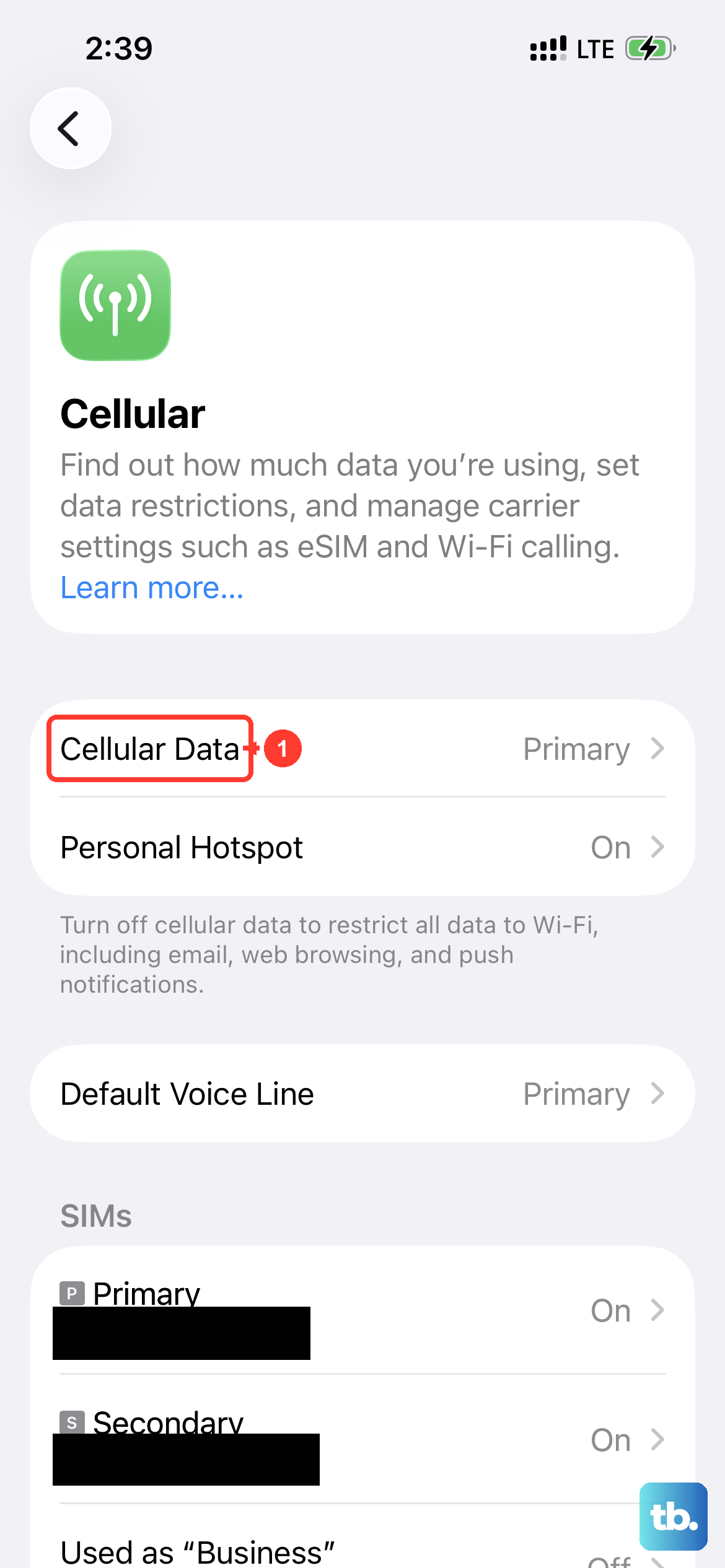
Your hotspot runs on your cellular data, so that connection needs to be solid. Open Settings > Cellular and confirm Cellular Data
Reset the Network Configuration
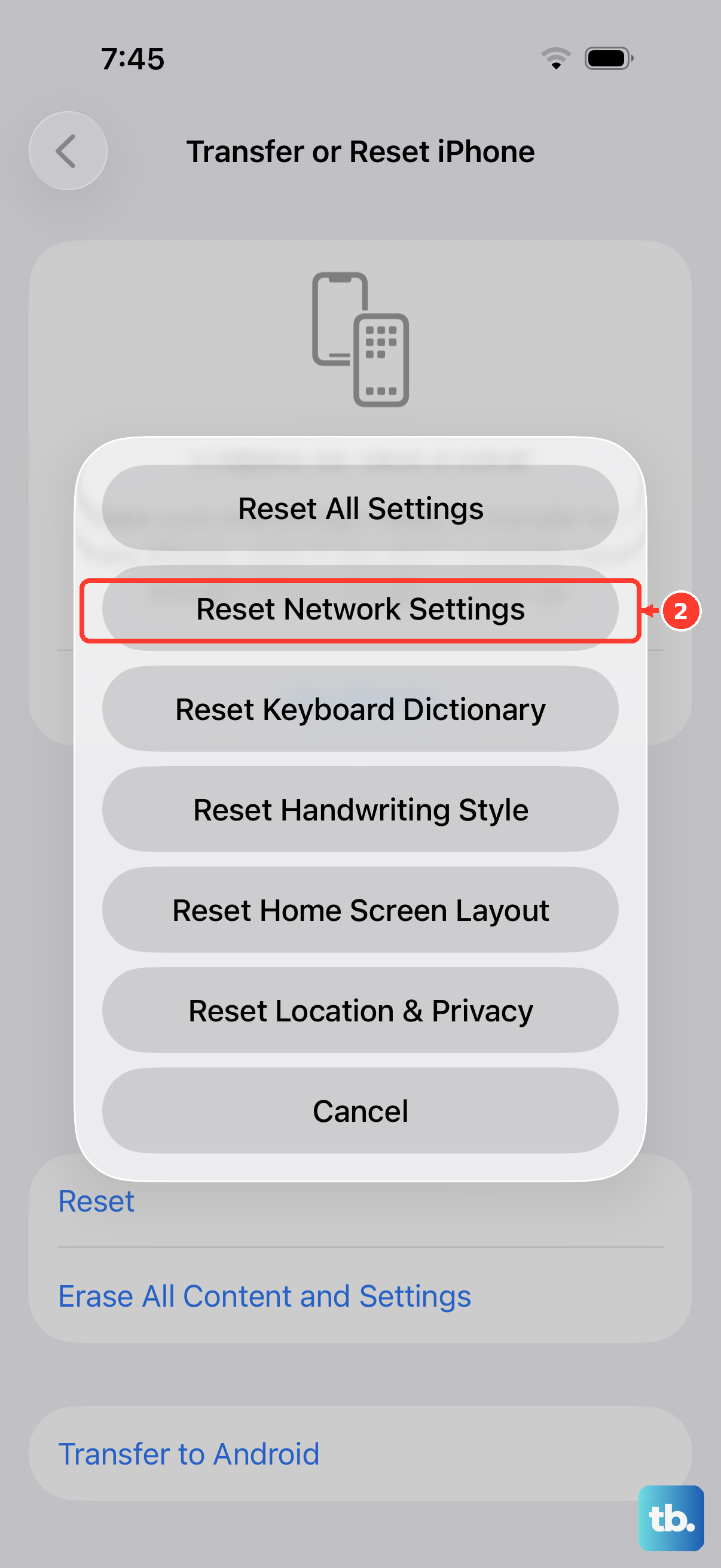
For more persistent issues, a network settings reset is a powerful tool. Navigate to Settings > General > Transfer or Reset iPhone > Reset and tap Reset Network Settings. This will erase all your saved Wi-Fi networks, Bluetooth pairings, and VPN settings, then rebuild them fresh. You'll need to reconnect to your Wi-Fi networks afterward, but it resolves a wide range of connectivity problems.
Install Any Carrier Updates
Small carrier settings updates are pushed out to fix specific network issues, including hotspot functionality. To check for one, go to Settings > General > About. If an update is pending, a notification will pop up on this screen. These install in seconds and don't require a restart.
Reconnect from the Other Device
The problem might be with the device trying to connect, not your iPhone. On your laptop or tablet, go into the Wi-Fi settings and find your iPhone's hotspot network. Choose to "Forget" or remove it from the list of known networks. Then, search for available networks again, select your iPhone, and enter the password from scratch. This creates a brand new connection profile.
Set a New Hotspot Password
Sometimes the authentication handshake between devices gets stuck. Changing the password forces a fresh start. Go to Settings > Personal Hotspot > Wi-Fi Password and enter a new password. Tap Done to save. You'll then need to enter this new password on any device you want to connect.
Use a USB Cable or Bluetooth
If the Wi-Fi hotspot is being stubborn, try a different connection method. Plug your iPhone 17 Pro into your computer using a USB-C cable. On your iPhone, make sure the Personal Hotspot is turned on in Settings. Your computer should recognize it as a new network interface. For Bluetooth tethering, pair the two devices in Bluetooth settings first, then enable the hotspot.
Update to the Latest iOS 26 Version
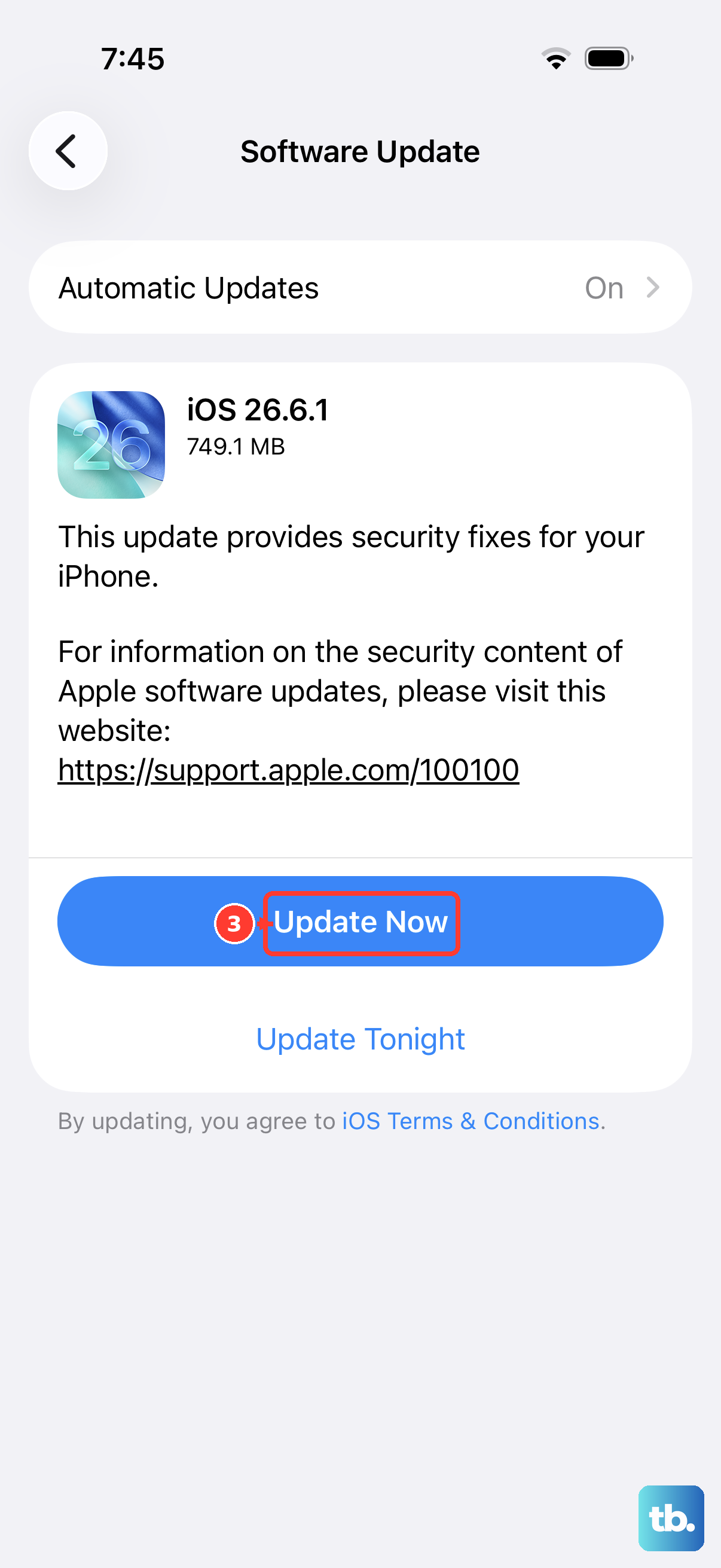
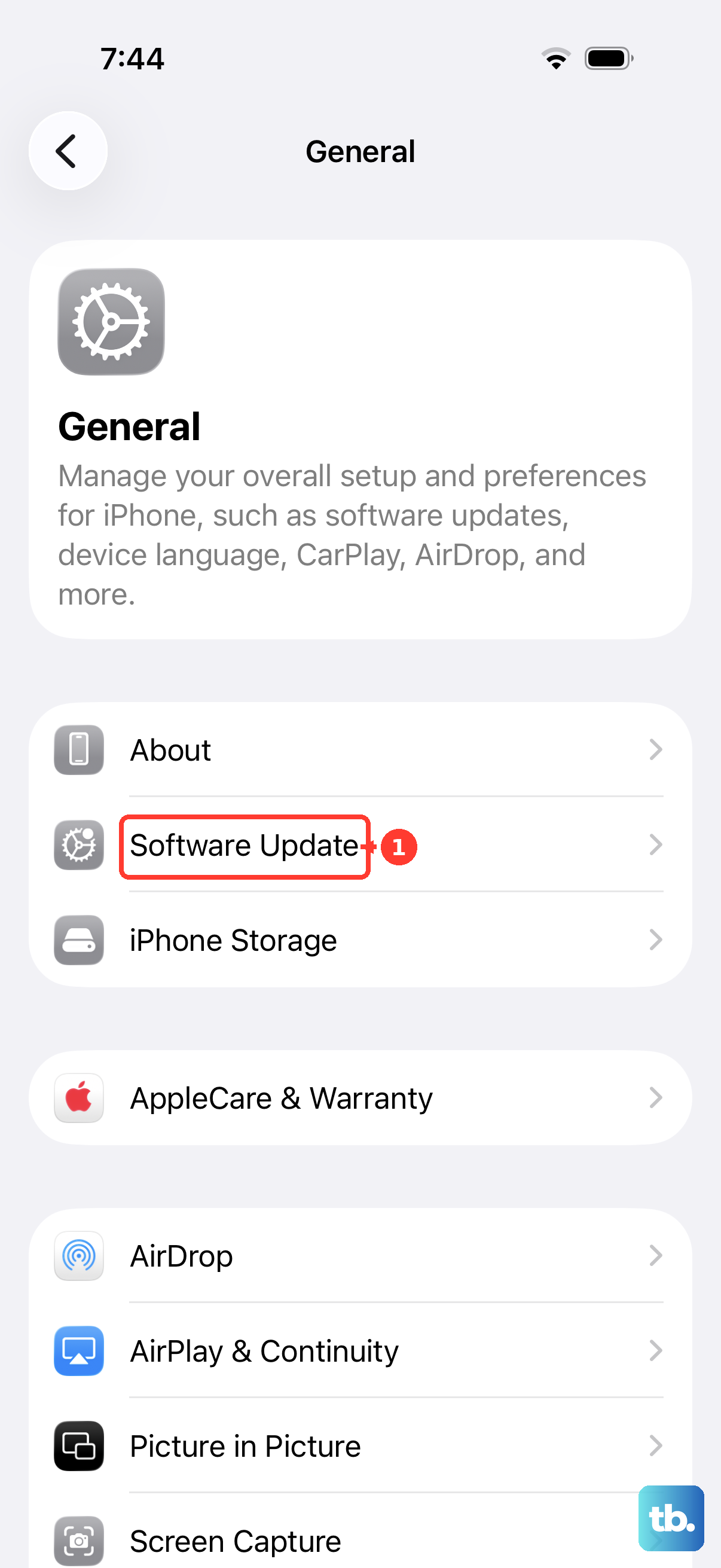
Software bugs that affect hotspot performance are common targets for fixes in iOS updates. Open Settings > General > Software Update to see if a newer version of iOS 26 is available. Downloading and installing it can resolve issues that appeared after a previous update.
If you've worked through all these steps and your hotspot still won't cooperate, it's time to contact your wireless carrier. There could be an account-level restriction or a provisioning issue on their end that's preventing tethering from working, which only they can check and fix.