
Your iPhone Air randomly restarting is usually a software hiccup, but it can also point to a charging or battery issue. Before you panic, try a few of these fixes in order. I see this most often after a full battery drain or a flaky cable.
Force Restart Your iPhone Air
A force restart clears temporary glitches without erasing anything. On the iPhone Air, do this: quickly press and release the Volume Up button, then quickly press and release the Volume Down button, then press and hold the Side button until the Apple logo appears.
This works on iOS 26 the same as it did on older models. If your phone is stuck in a restart loop, this is the first thing to try.
Wake It Up With a Magnetic Battery Pack
A known issue with the iPhone Air is that after the battery drains completely, the screen goes black and it won't respond to a USB-C cable. I've seen this happen a lot. Instead of panicking, grab a MagSafe (or Qi2) battery pack and attach it to the back of the phone.
Give it a minute or two. The magnetic field often wakes the phone up enough that you can then plug in the USB-C cable and charge normally. After it has some juice, try a force restart if it's still acting up.
Use a Certified USB-C Cable and Adapter
The iPhone Air uses USB-C for wired charging, and it supports up to 40W. But not all cables and bricks are created equal. If you're using a cheap, uncertified cable, the phone may not charge properly, which can lead to random restarts or shutdowns.
Stick to Apple-certified USB-C cables and a power adapter that can deliver at least 20W. Also check the USB-C port on your phone for lint or debris. A quick blast of compressed air or a gentle clean with a toothpick can fix a bad connection.
Update iOS (Especially if You're on 26.4.2)
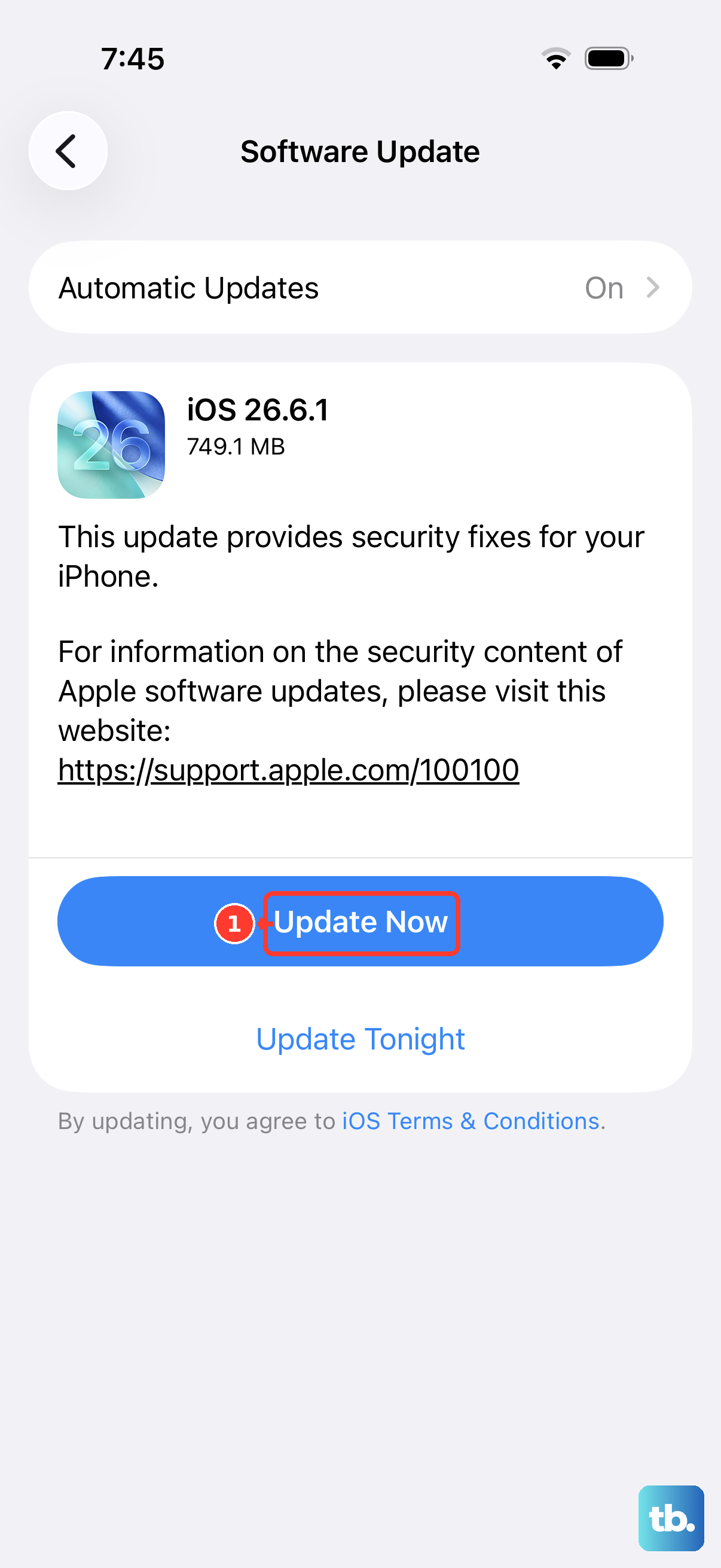
Apple has acknowledged a firmware issue in iOS 26.4.2 that can cause intermittent charging failures and restarts. Go to Settings > General > Software Update. If an update is available, download and install it.
While you're there, update your apps too. Open the App Store, tap your profile icon, and choose Update All. Outdated apps can conflict with iOS 26 and cause instability.
Close Problematic Apps and Disable Background Refresh
Third-party apps are common culprits for restart loops. Swipe up from the bottom of the screen and pause in the middle to open the App Switcher. Swipe up on each app preview to close it.
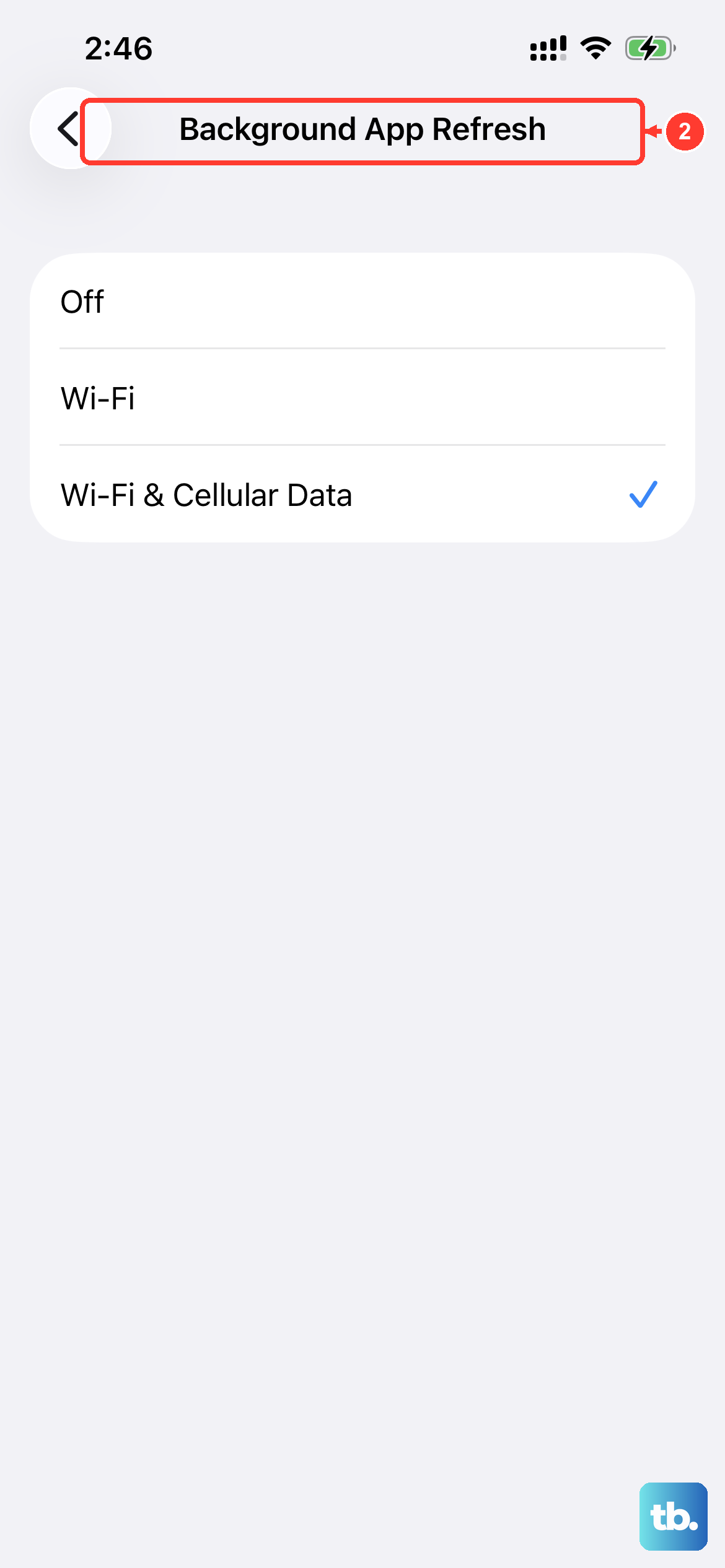
If the restarts stop, it's likely one of those apps. You can also go to Settings > General > Background App Refresh and turn it off entirely, or pick a few apps to disable. This prevents apps from running tasks in the background that could trigger a crash.
Check Crash Logs
Your iPhone keeps detailed logs of crashes. Go to Settings > Privacy & Security > Analytics & Improvements > Analytics Data. Look for files that start with "panic-full", those indicate system-level crashes that cause restarts.
You might also see app-specific crash logs. If a particular app name appears repeatedly, delete and reinstall it. If the panic logs are frequent, a software restore might be needed.
Free Up Storage Space
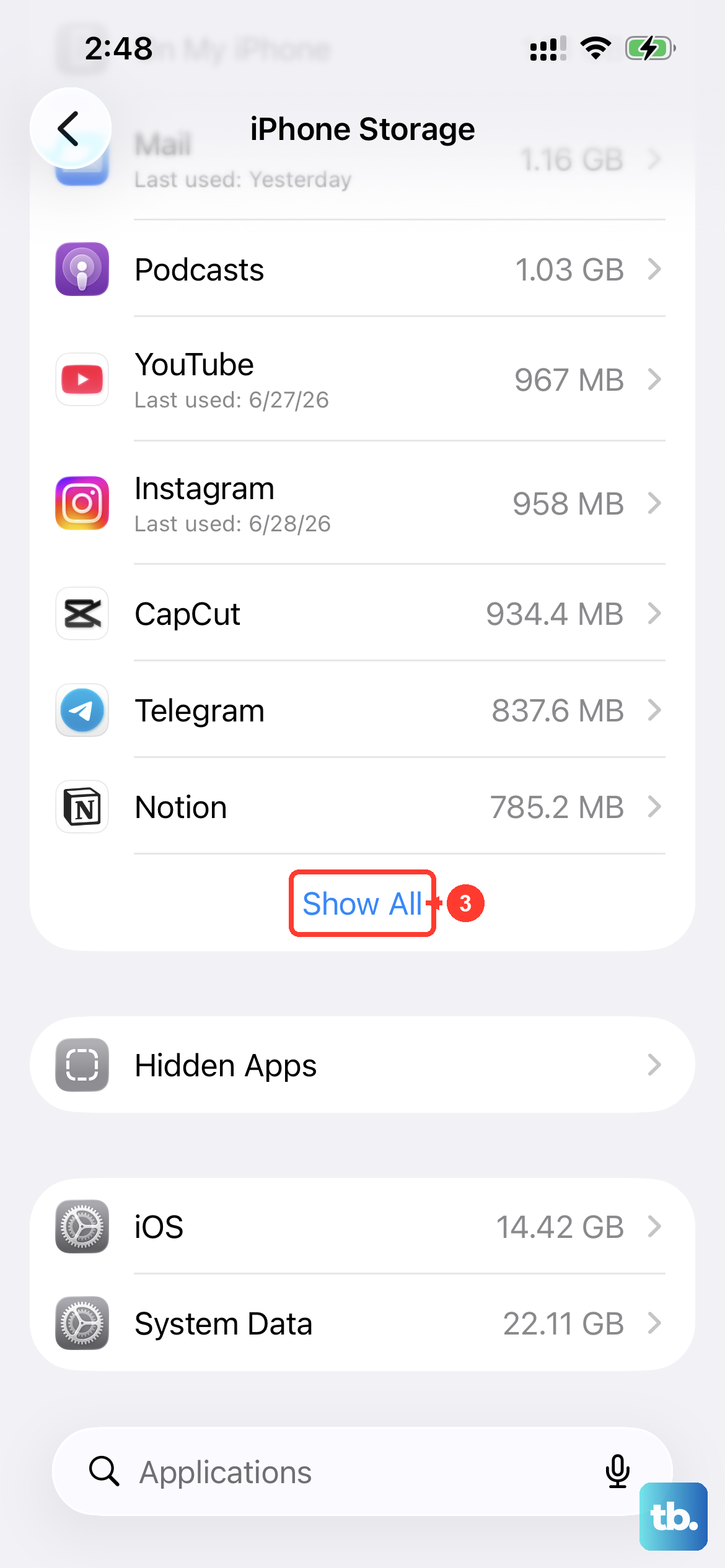
Low storage can make iOS unstable. Go to Settings > General > iPhone Storage. If you're below 5GB free, start offloading unused apps, deleting old messages, or moving photos to iCloud.
Your iPhone Air needs room to breathe. Aim for at least 10% of total storage free.
Reset All Settings
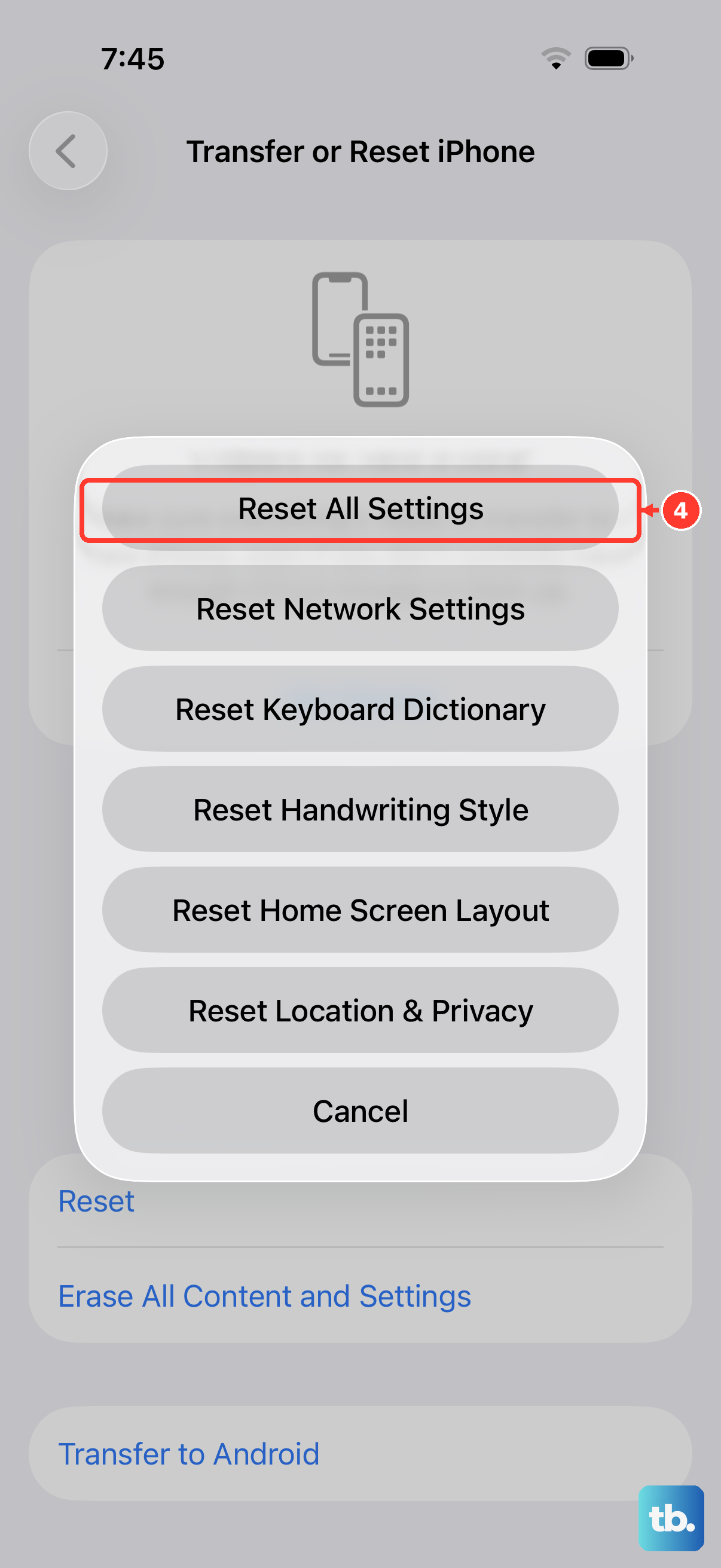
This won't delete your photos, messages, or apps, but it resets Wi-Fi networks, Bluetooth pairings, and other preferences. Go to Settings > General > Transfer or Reset iPhone > Reset > Reset All Settings. Enter your passcode and confirm.
After the phone restarts, you'll need to reconnect to Wi-Fi, but your data is safe. This often clears up strange software behavior that causes restarts.
Factory Reset or Recovery Mode
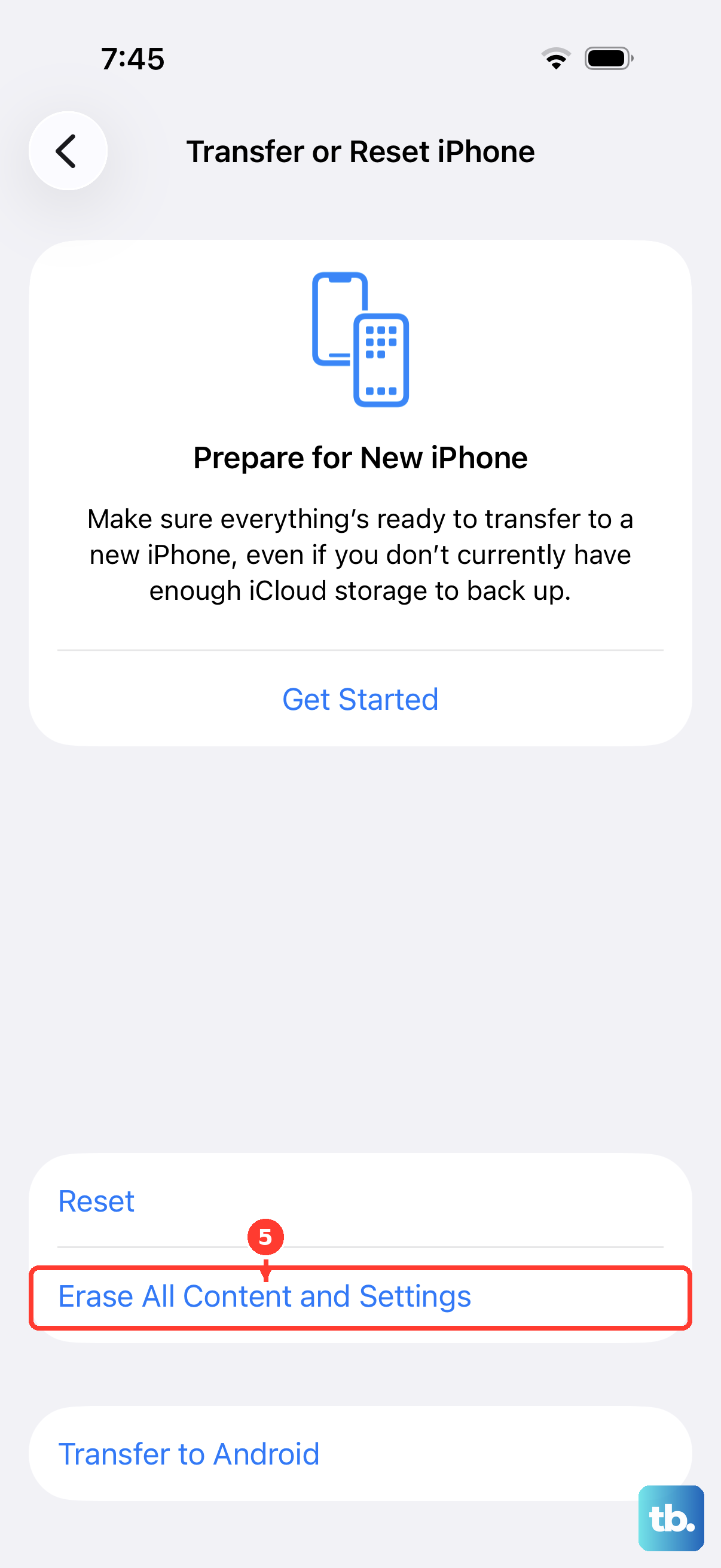
If none of the above works, a full factory reset is the next step. Back up your data first via iCloud or a computer. Then go to Settings > General > Transfer or Reset iPhone > Erase All Content and Settings.
If the phone won't boot normally, put it into recovery mode. Connect the iPhone Air to a computer, open Finder (Mac) or iTunes (Windows), then press and release Volume Up, press and release Volume Down, then press and hold the Side button until you see the recovery mode screen. Choose Restore to reinstall iOS.