
So you've got an iPhone Air running iOS 26 and the update just won't go through. Maybe the download hangs at 0%, or you see "Unable to Check for Update" every time. It's a pain, especially when you know the new version brings fixes you need. Here's what to try, including a few tricks specific to this model.
Give Your iPhone Air a Force Restart
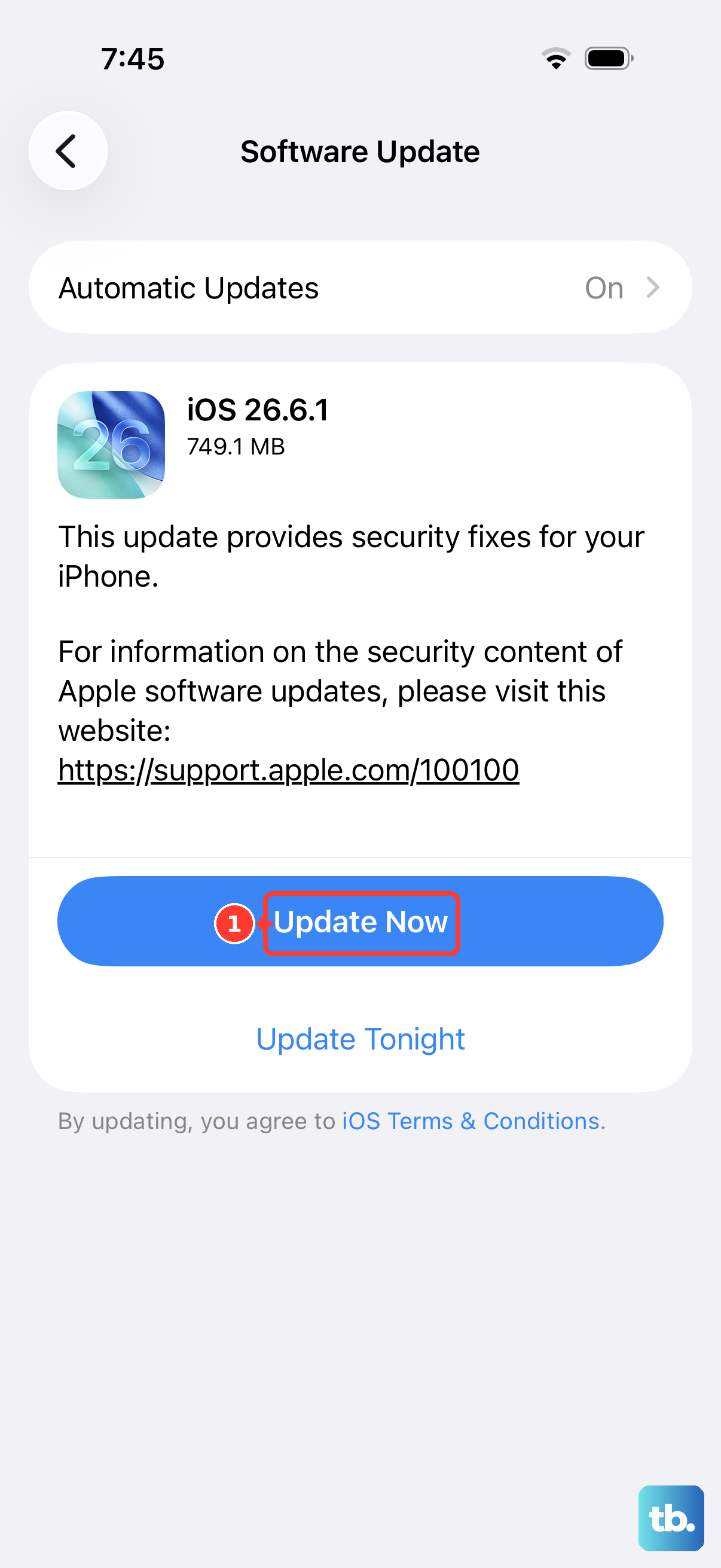
Before digging into Wi‑Fi and storage, a quick force restart clears up minor software hiccups that can block an update. On the iPhone Air, quickly press and release the Volume Up button, then quickly press and release the Volume Down button, then press and hold the Side button until you see the Apple logo. That's it. Once it boots back up, head to Settings > General > Software Update and try again.
If your phone was completely unresponsive after the battery drained, attach a magnetic battery pack to the back first. The Qi2/MagSafe charging can wake the device enough to complete a force restart, and then the normal cable charge should kick in.
Check Your Wi‑Fi Connection and Free Up Space
iOS 26 updates need a stable Wi‑Fi network, cellular data won't work. Make sure you're connected and test it by loading a website in Safari. If pages are slow, restart your router or switch to a different network. Public or hotel Wi‑Fi often blocks large downloads entirely.
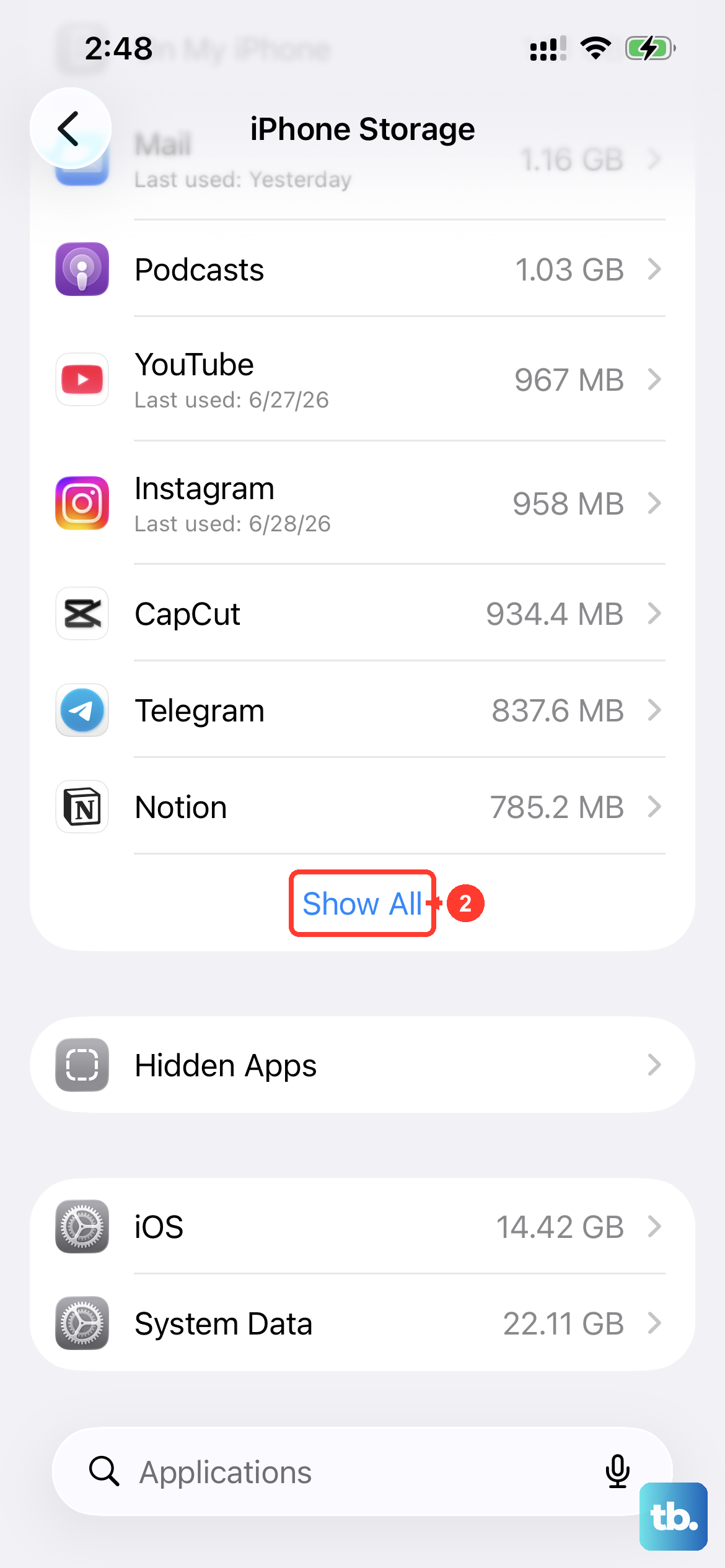
Updates also need room to unpack. Go to Settings > General > iPhone Storage and see how much free space you have. A major iOS 26 update can require 5‑7 GB. Delete old photos, offload unused apps, or clear out your message attachments to free up the space.
Delete a Corrupted Update File
If the update started but glitched partway through, the leftover file can block future attempts. Head to Settings > General > iPhone Storage and scroll down until you see the iOS 26 update file listed. Tap it and choose Delete Update. Then go back to Settings > General > Software Update and download it fresh.
Reset Your Network Settings
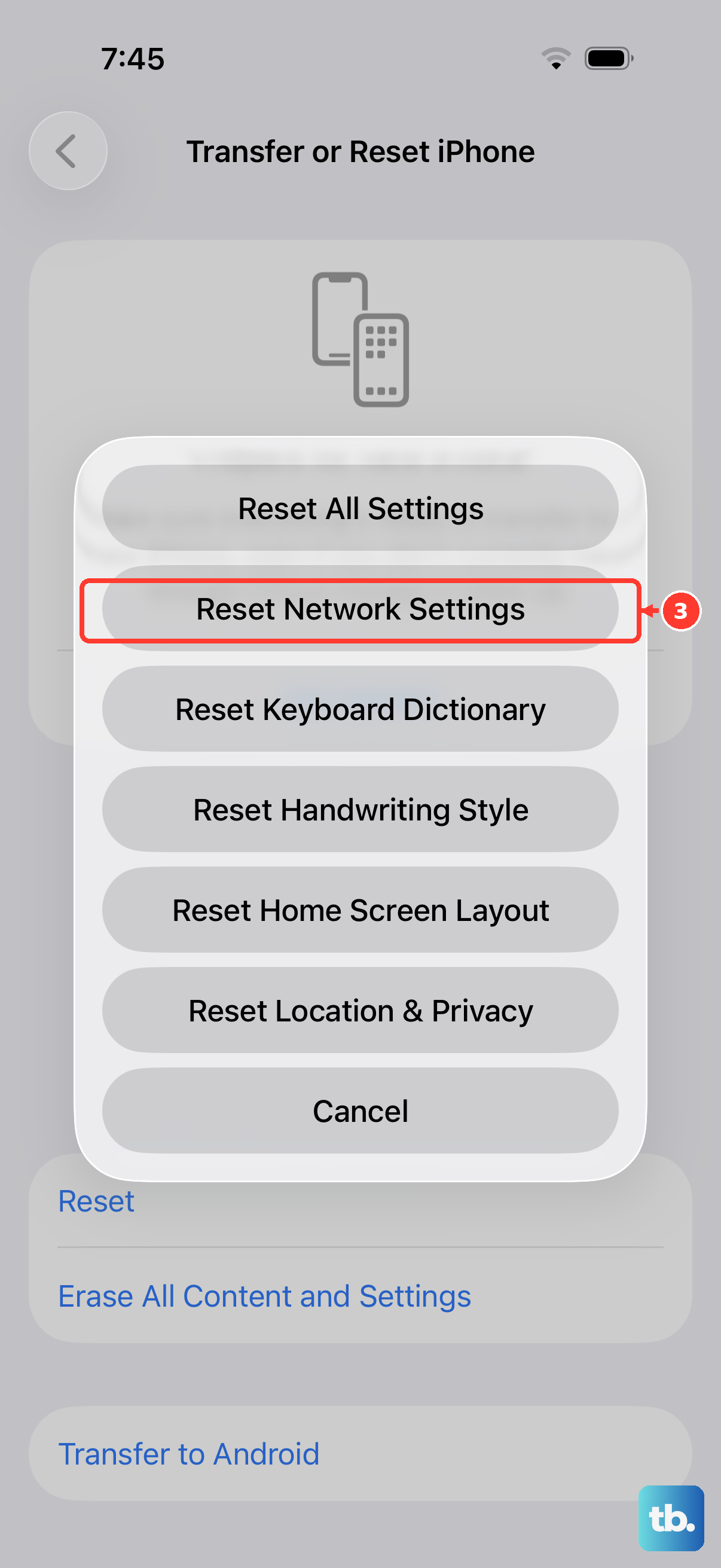
Network configurations sometimes get out of whack, especially if you've switched between multiple Wi‑Fi networks. Go to Settings > General > Transfer or Reset iPhone > Reset > Reset Network Settings. This clears all saved Wi‑Fi passwords and reconnects from scratch. Rejoin your network and try the update again.
Update Through a Computer
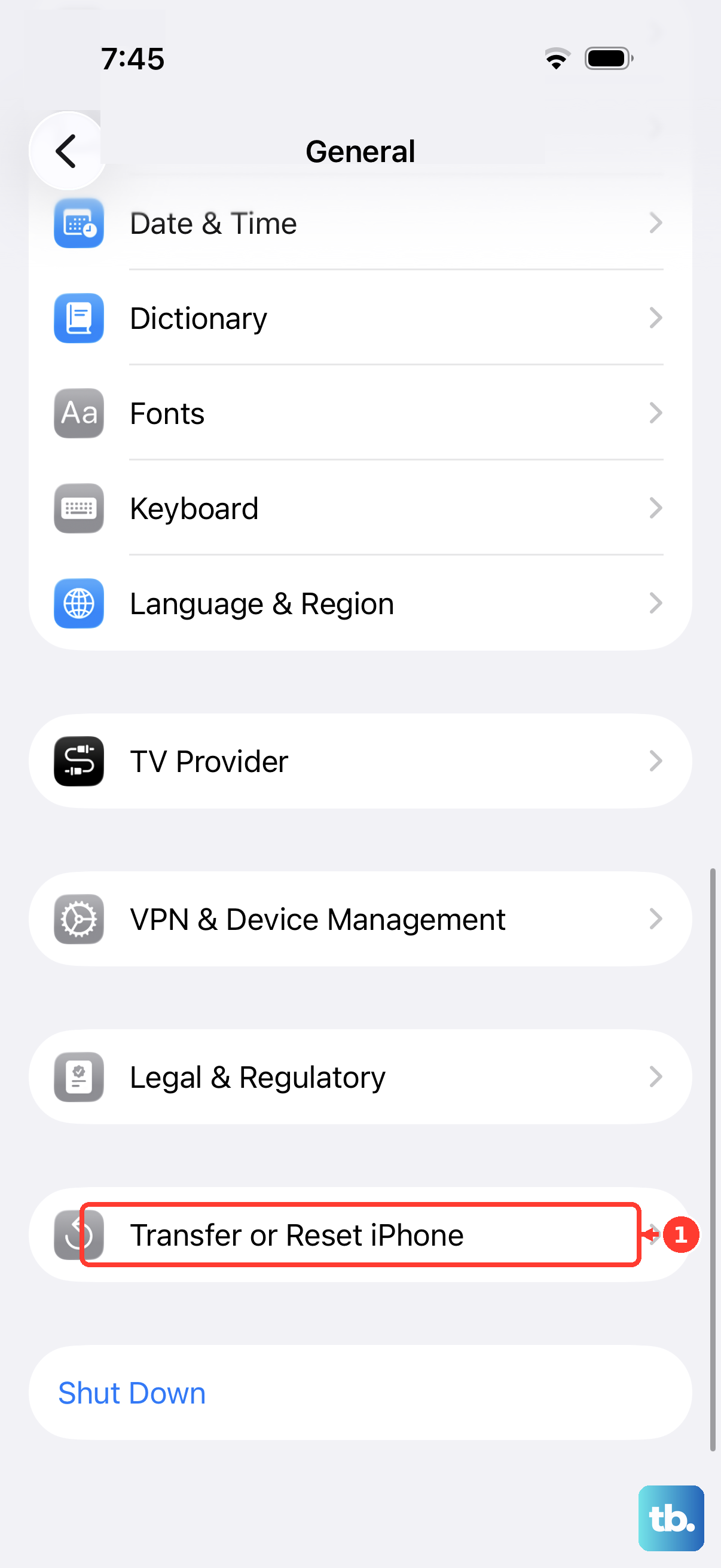
When over‑the‑air updates keep failing, bypassing the iPhone's built‑in downloader often works. Connect your iPhone Air to a Mac or PC using an Apple‑certified USB‑C cable. Open Finder (on a Mac) or iTunes (on Windows), select your device, and click Check for Update, then Download and Update. This streams the update from your computer, avoiding both storage limits and Wi‑Fi issues on the phone itself.
Using a quality, certified USB‑C cable matters here, damaged or uncertified cables can cause the connection to drop mid‑update. Stick with an Apple cable or one from the MFi program.
Check Apple's Servers and Try Different Timing
Sometimes the problem isn't on your end. Open a browser and visit Apple's system status page (you can find it by searching for "Apple System Status"). Look for any red or yellow indicators next to the Software Update service. If it's down or overloaded, there's nothing to do but wait a few hours and try again.
When a new iOS 26 version launches, millions of people hit the update button at once. Server load can cause random failures. Try updating very early in the morning or late at night when traffic is lower.
Make Sure No Apps Are Interfering
Some third‑party apps, especially VPNs, content blockers, or security apps, can mess with the update process. If you use any of them, turn them off or uninstall them temporarily. Then restart your iPhone Air and immediately go to Software Update before opening any apps. A clean environment often lets the download complete smoothly.