
Seeing the "SIM Not Provisioned" message on your iPhone 16 Pro is a real roadblock. It means your phone can't connect to your carrier's network, so calls, texts, and mobile data won't work. The good news is, it's usually something you can fix yourself without a trip to the store.
I'd start with the simplest fix first. A quick restart can clear out a temporary software glitch that's blocking the connection. Just press and hold the side button and either volume button, then slide to power off. Wait a minute, then turn it back on.
Toggle Airplane Mode
This is another fast trick that forces your iPhone 16 Pro to completely re-scan for and connect to the cellular network. Swipe down from the top-right corner to open Control Center and tap the airplane icon to turn it on.
Wait about 15 seconds, then tap it again to turn it off. You should see the signal bars disappear and then hopefully reappear with your carrier's name.
Check Your SIM Card Tray
With the iPhone 16 Pro's USB-C port, you use the same SIM ejector tool or a paperclip as older models. Find the small pinhole on the left side of the frame and gently push in to pop the tray out.
Carefully remove the SIM card and check both sides for any visible scratches, dust, or debris. Give the gold contacts on the card a gentle wipe with a soft, dry cloth and blow any dust out of the tray slot. Reinsert the SIM, making sure it's seated flush and the tray is fully closed.
Verify Your SIM is Activated
If this is a brand new SIM card you just received, it might not be activated on your carrier's system yet. This is the most common reason for the error. The same goes if you've just ported your number from another provider.
You'll need to contact your carrier's customer support to check. They can tell you if the activation is pending, complete, or if there's an issue with your account that needs resolving.
Update Your iPhone's Software
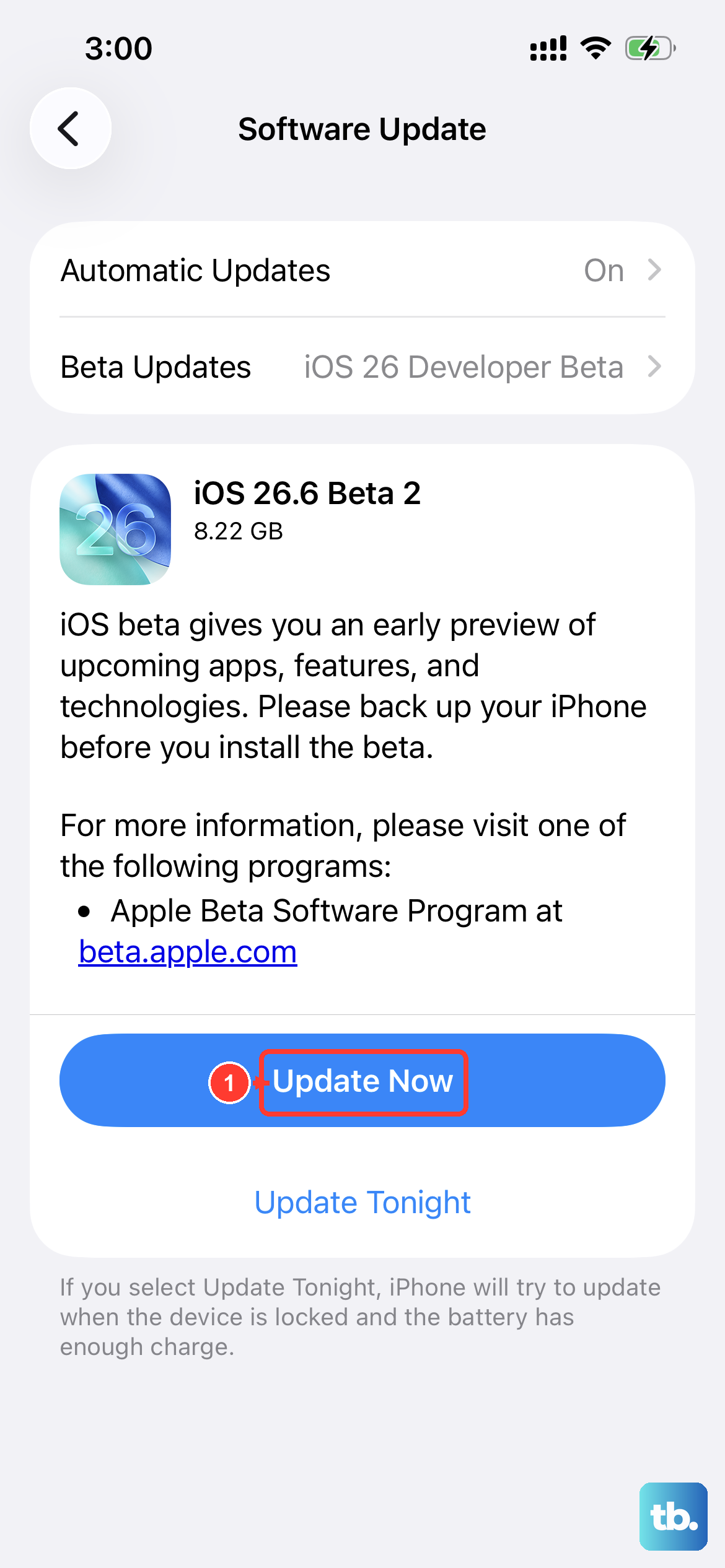
Running an outdated version of iOS 26 can sometimes cause conflicts with carrier settings. Apple and carriers regularly release updates that include important fixes for network connectivity.
Go to Settings > General > Software Update. If an update is available, connect to Wi-Fi and plug in your 30W USB-C charger to install it. This ensures the process doesn't get interrupted.
Update Carrier Settings
Separate from iOS updates, your carrier can push small configuration files to your phone. These carrier settings updates are crucial for proper network provisioning.
To check for one, go to Settings > General > About. If an update is available, a pop-up notification will appear. Just tap "Update" to install it, which only takes a moment and doesn't require a restart.
Manually Select Your Network
Sometimes letting your iPhone automatically choose a network can fail. You can force it to look for your specific carrier. First, make sure you're in an area with coverage for your provider.
Go to Settings > Cellular. Tap Network Selection and turn off "Automatic." After a brief scan, a list of available networks will appear. Select your carrier's name from the list.
Reset Your Network Settings
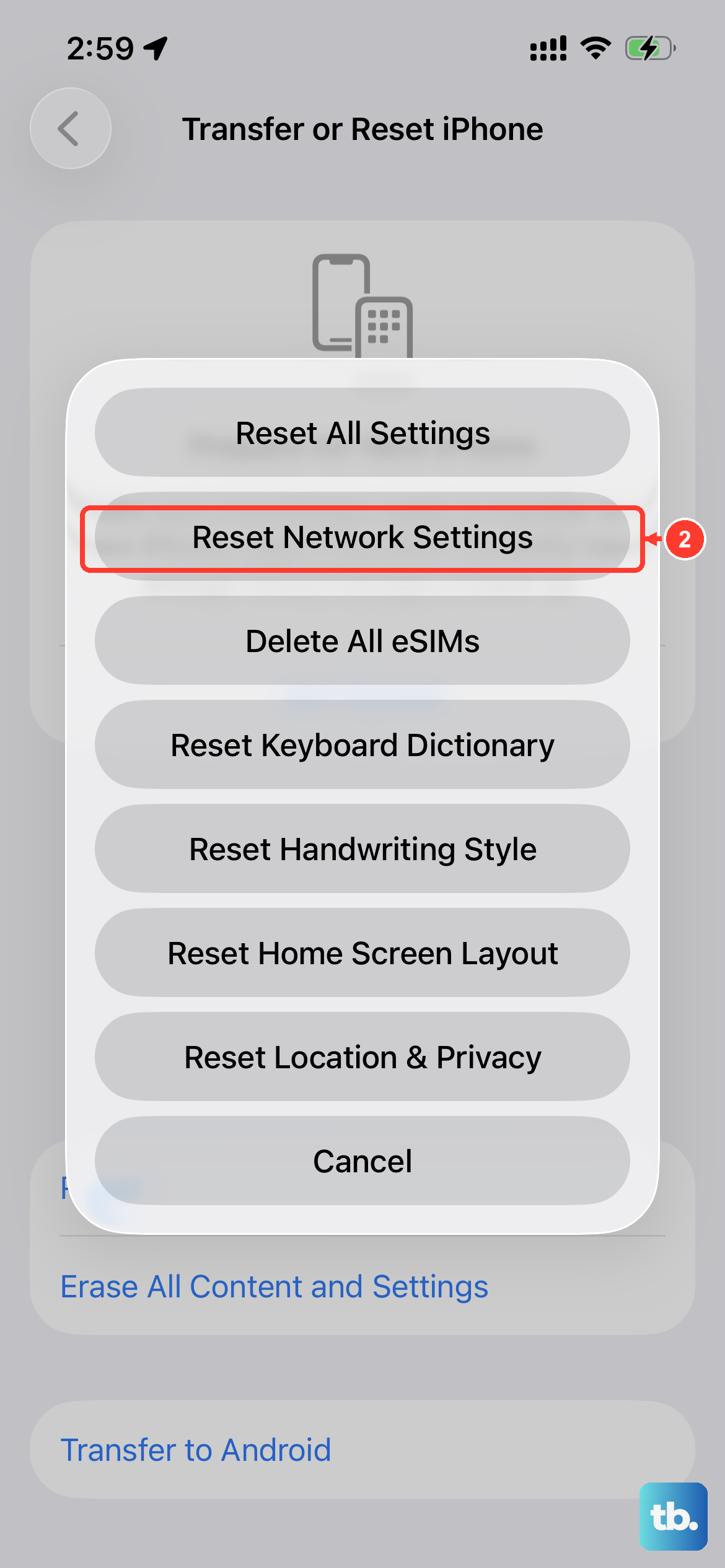
This is a more thorough step that clears all saved Wi-Fi passwords, Bluetooth pairings, and cellular network configurations. It often resolves persistent provisioning errors.
Go to Settings > General > Transfer or Reset iPhone. Tap Reset and then choose Reset Network Settings. You'll need to enter your passcode and confirm. Your iPhone 16 Pro will restart and you'll have to rejoin Wi-Fi networks afterward.
Check for an Account Issue
If you're on a prepaid plan, a lack of funds can cause your service to be suspended, which triggers the "not provisioned" error. For postpaid accounts, a missed bill payment or a flagged suspicious activity can have the same effect.
Log into your carrier's app or website to check your account status and balance. If everything looks fine there, a quick call to customer service can confirm if there's a system-wide issue or a problem only they can fix on their end.
Test the SIM in Another Phone
This is the best way to figure out if the problem is with the SIM card itself or with your iPhone 16 Pro. Find another unlocked phone that uses the same size SIM card (likely a nano-SIM).
Power that phone off, insert your SIM, and turn it back on. If the error appears on the other phone, the SIM card is likely the issue. If the other phone connects to the network just fine, then the problem is isolated to your iPhone.
In that case, your carrier can usually issue a replacement SIM card, which often solves the problem. If the new SIM still doesn't work in your iPhone, you may need to contact Apple Support for further hardware diagnostics.











