
When your iPhone 16's predictive text stops working, it can feel like you've lost a superpower. You might find it's not suggesting words at all, the suggestions are way off, or it's just acting sluggish. This is usually a software hiccup, and there are a few straightforward ways to get it back on track.
Toggle Predictive Text Off and On
This is the quickest fix and often the most effective. It's like giving the feature a quick nap to refresh itself. Open any app where you can type, like Messages or Notes, and bring up the keyboard.
Look for the predictive text bar above the keys. If you see a left or right arrow, tap it to cycle through the suggestions. If the bar is completely missing, you'll need to turn the feature back on in Settings.
Go to Settings > General > Keyboard. Here, make sure the switch next to "Predictive Text" is turned on. If it's already on, try turning it off, closing Settings, then going back and turning it on again.
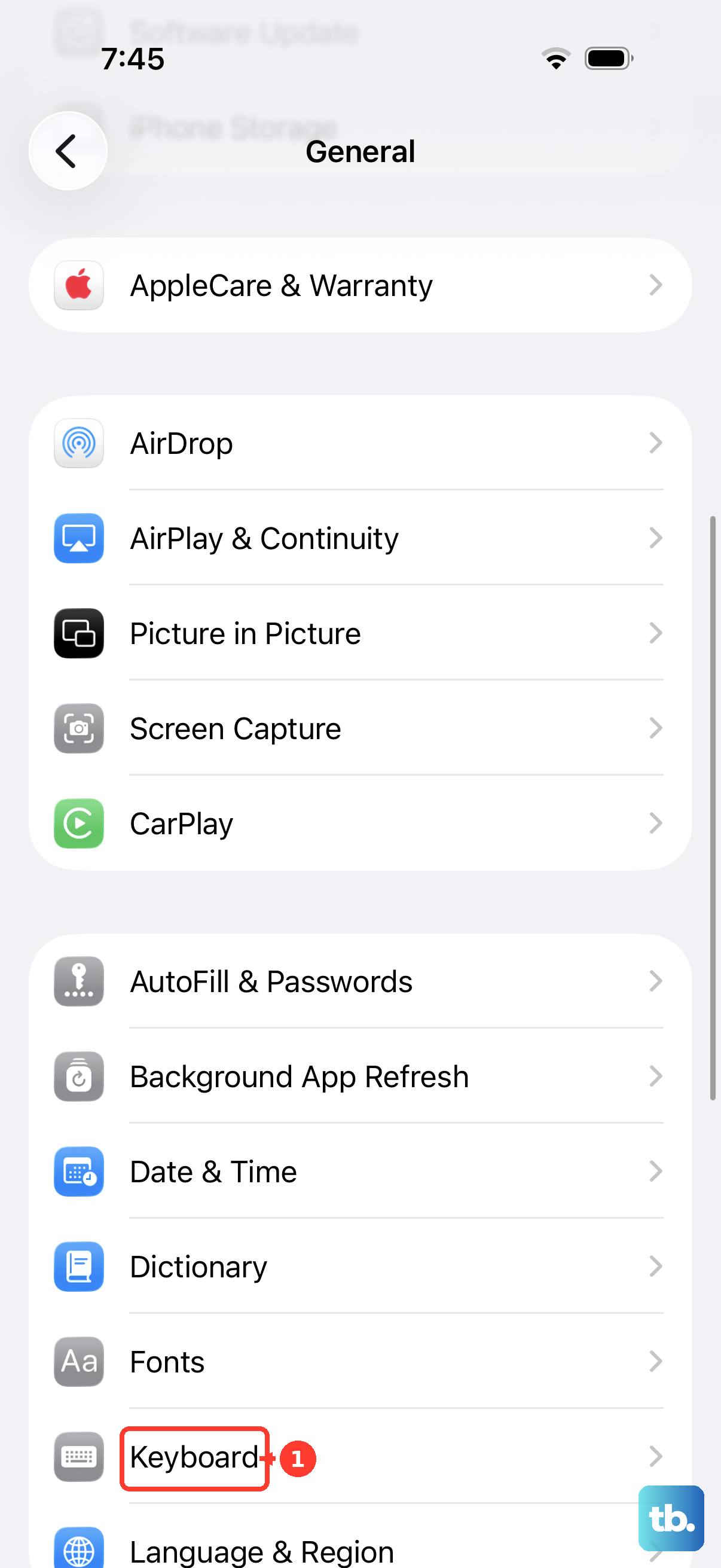
Restart Your iPhone 16
A simple restart clears out temporary glitches in iOS 26 that can affect the keyboard. It only takes a minute and solves a surprising number of issues. Just press and hold the Side button and either volume button until the power slider appears.
Slide to power off, wait about 30 seconds, then press the Side button again to turn it back on. Once your phone boots up, try the keyboard again to see if predictions are working.
Check Your Keyboard and Language Settings
Sometimes the issue is tied to a specific language or keyboard setting. Head back to Settings > General > Keyboard. Tap on "Keyboards" at the top to see your active keyboards.
Make sure you have the correct language keyboard enabled, like English (US). If you have multiple keyboards, you can try removing and re-adding one. Also, tap on "Text Replacement" to see your personal shortcuts; a corrupted entry here can sometimes cause problems.
Reset All Keyboard Dictionary Data
If the suggestions are just wildly wrong or based on old, weird typing habits, resetting the keyboard dictionary can help. This will erase all the words your iPhone has learned, so it starts fresh.
Be aware this will delete any custom words you've added over time. To do it, go to Settings > General > Transfer or Reset iPhone. Tap "Reset" at the bottom.
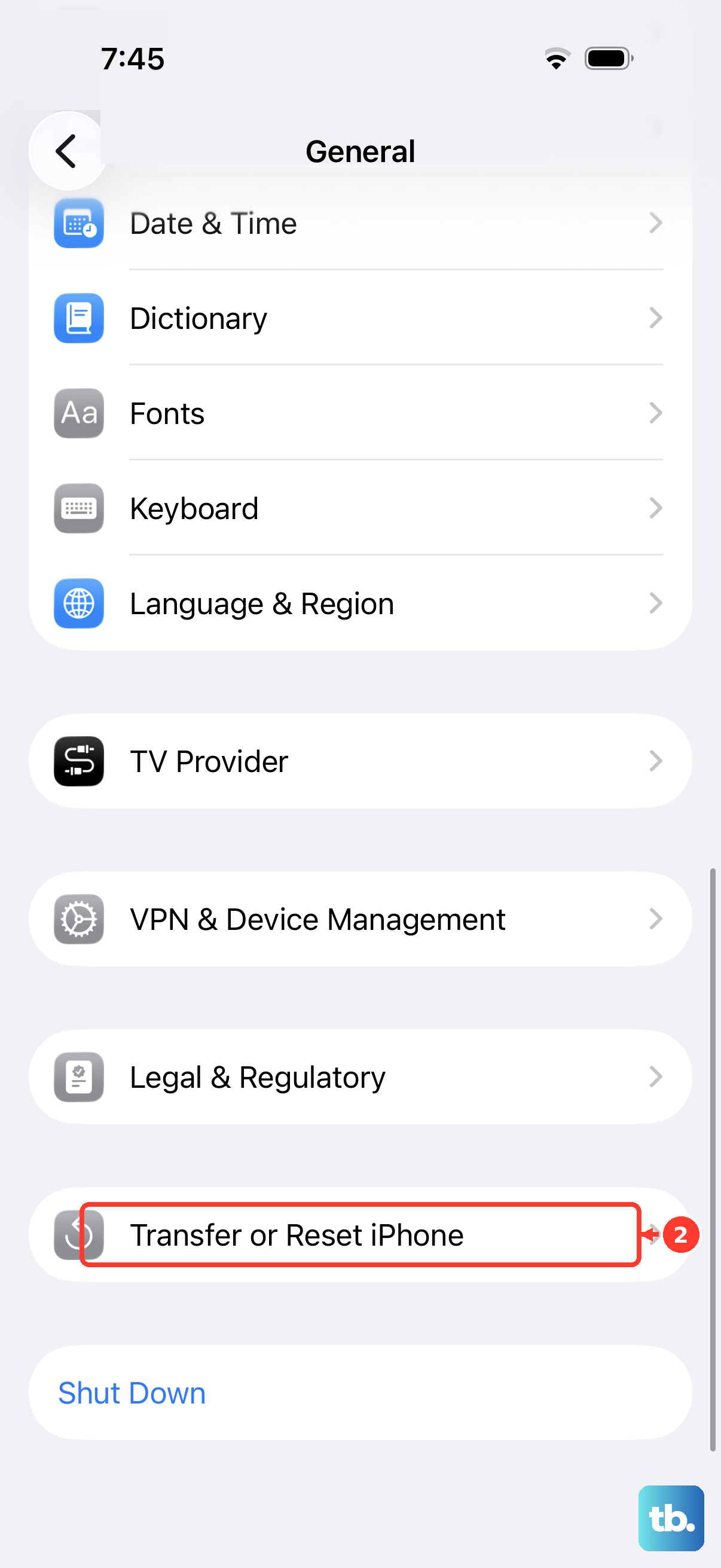
From the list, choose "Reset Keyboard Dictionary". You'll need to enter your passcode to confirm. After the reset, give the keyboard a little time to start learning your patterns again.
Update to the Latest iOS Version
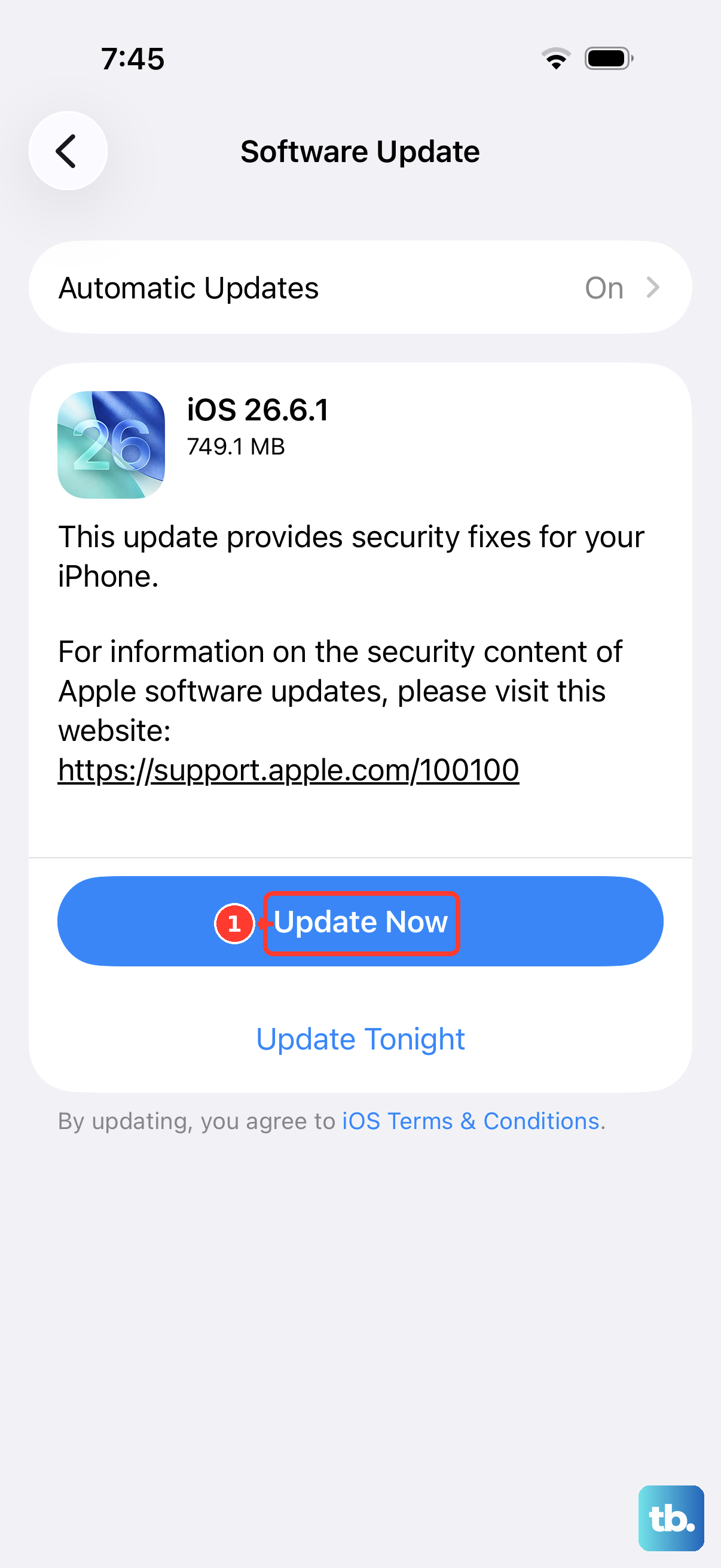
Apple frequently releases software updates that include bug fixes for the keyboard and system intelligence features. An update could directly address the predictive text issue you're experiencing.
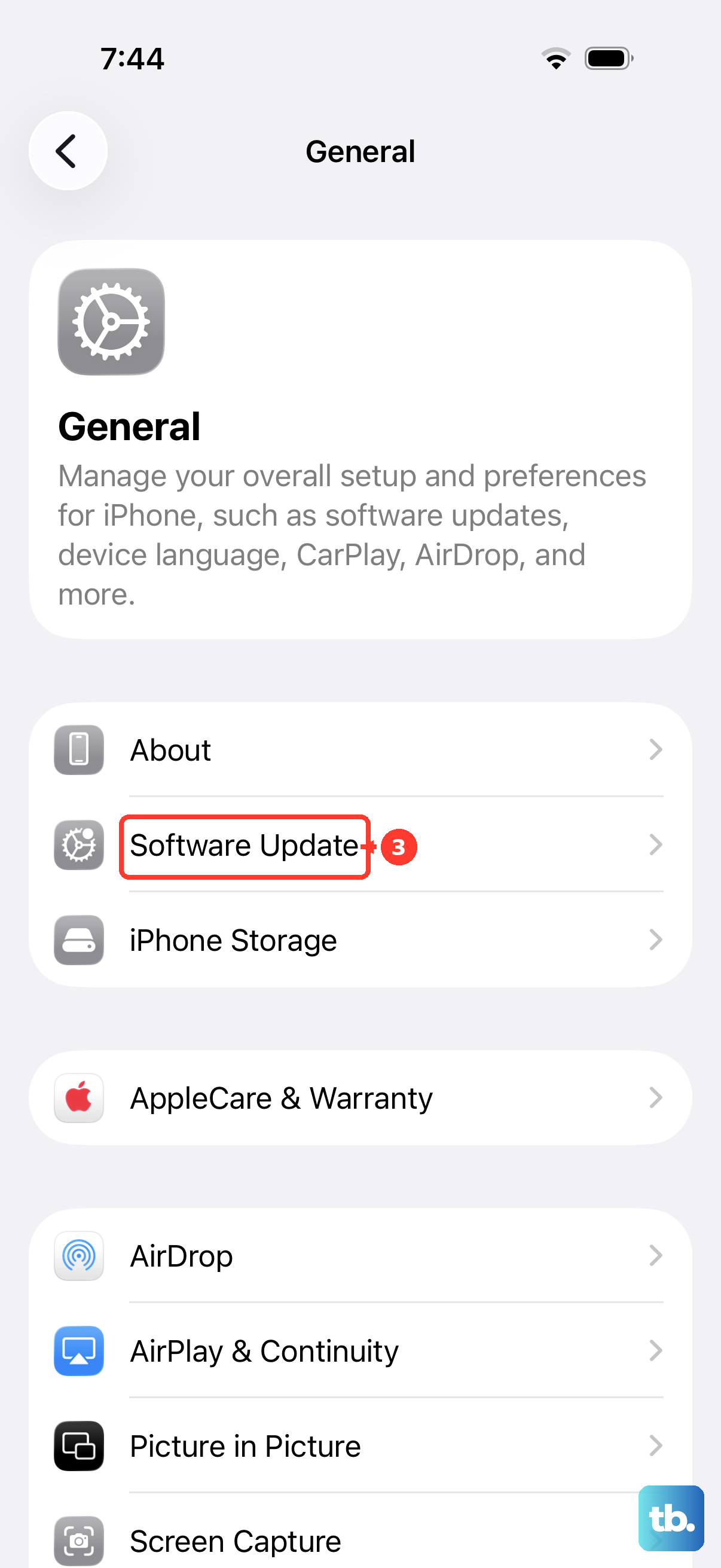
Go to Settings > General > Software Update. If an update for iOS 26 is available, tap "Download and Install". I'd recommend doing this over Wi-Fi and while your phone is charging.
Check for a Third-Party Keyboard Conflict
If you've installed a third-party keyboard from the App Store, like Gboard or SwiftKey, it might be interfering with the native iOS predictive text system. The easiest way to test this is to switch back to the standard Apple keyboard.
When you're typing, tap the globe or emoji icon on the keyboard to cycle through your enabled keyboards until you see the standard one. If predictive text works perfectly on the Apple keyboard, the issue is likely with the third-party app.
You can try updating that app via the App Store or, if the problem persists, you may need to remove it temporarily. Go to Settings > General > Keyboard > Keyboards, tap "Edit", and remove the third-party keyboard to test.