
When your iPhone 16 doesn't show up on your Windows PC, it can stop you from transferring photos, syncing music, or creating backups. Cable, trust settings, or software issues can prevent the connection, and some problems may need service.
Try swapping the cable. Grab a different USB-C cable that supports both data and charging, and try connecting again. If that doesn't work, try a force restart on your iPhone 16. Press and quickly release the Volume Up button, press and quickly release the Volume Down button, then press and hold the Side button until you see the Apple logo.
Check Your USB-C Cable and Port
Faulty cables can prevent an iPhone 16 from connecting to a PC. Not all USB-C cables are created equal, especially for data transfer. Start by trying the cable that came with your phone, which supports data transfer.
Also, check both the USB-C port on your iPhone and the port on your computer for any lint or debris. A clogged port can prevent a proper connection. Disconnect the cable and use a dry, soft-bristled brush to gently remove debris. Don't use compressed air.
Trust This Computer on Your iPhone
When you connect your iPhone 16 to a new PC, you must explicitly grant permission. Look for a pop-up alert on your iPhone's screen that says "Trust This Computer?" and tap Trust. If you accidentally tapped "Don't Trust," or the alert doesn't appear, reset your location and privacy settings using the steps below, then reconnect the phone.
Unlock your connected iPhone with your passcode. In the Apple Devices app on your PC, select your iPhone and click Trust if prompted. If you're using iTunes instead, click Continue. Then tap Trust on your iPhone to allow access to its data.
Update or Reinstall Apple Mobile Device Driver on Windows
Start by installing or updating the Apple Devices app from the Microsoft Store, then open it and connect your iPhone. Look for your device in the app's sidebar. If you use iTunes instead, update it too. To check drivers, press the Windows key + X and select Device Manager from the menu.
Look under "Portable Devices" or "Universal Serial Bus controllers" for an entry related to your iPhone, like "Apple Mobile Device USB Driver." Right-click on it and choose "Update driver," then select "Search automatically for updated driver software."
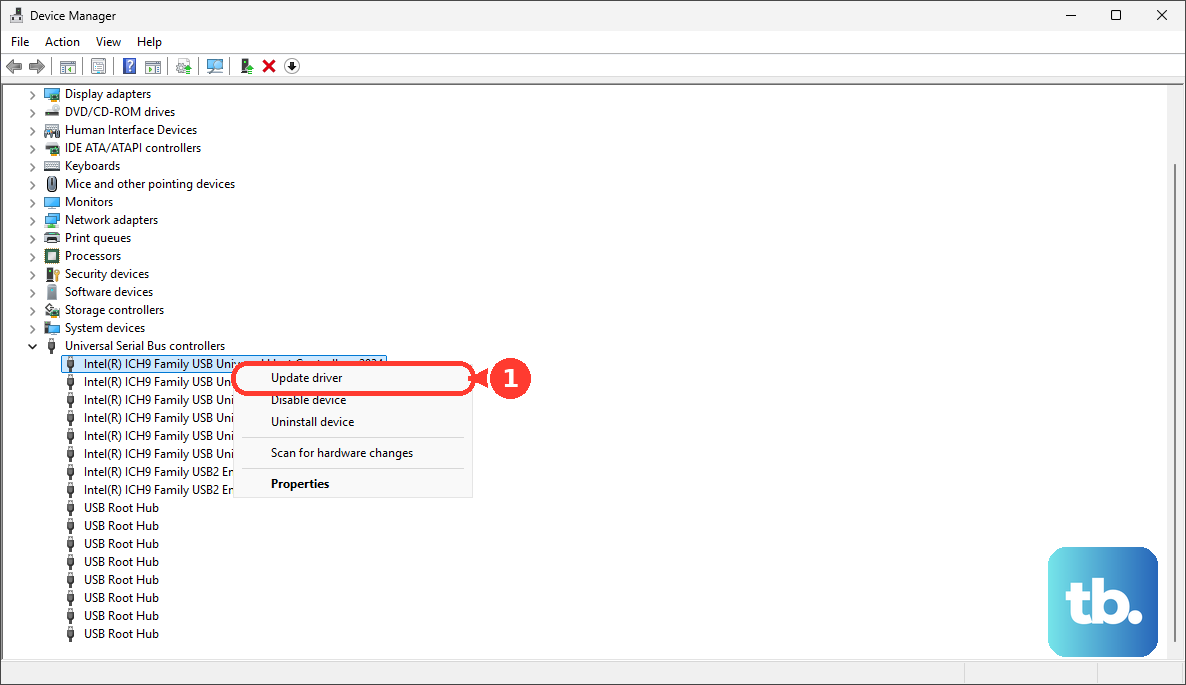
If updating doesn't work, try uninstalling the driver. Right-click the device in Device Manager and select "Uninstall device." Check the box that says "Delete the driver software for this device" if it appears. Then, disconnect your iPhone, restart your PC, and reconnect the phone. Windows will attempt to install a fresh driver.
Try a Different USB Port on Your Computer
Not all USB ports on a PC provide the same power or data connectivity. Front-panel ports, especially, can be problematic. Disconnect your iPhone and plug it into a different USB port, preferably one directly on the back of a desktop computer or a different side on a laptop.
If you're using a USB hub, try connecting the cable directly to the computer instead. Hubs can sometimes cause communication issues between the iPhone and Windows.
Restart Your iPhone and Computer
A simple restart can clear out temporary software glitches on both devices. Start by restarting your Windows PC. Once it's back up, perform a force restart on your iPhone 16 by pressing and quickly releasing Volume Up, then pressing and quickly releasing Volume Down, then holding the Side button until the Apple logo appears.
After both devices are back on, try connecting them again with your cable. Restarting both devices can help with connection problems.
Check for Pending iOS or Windows Updates
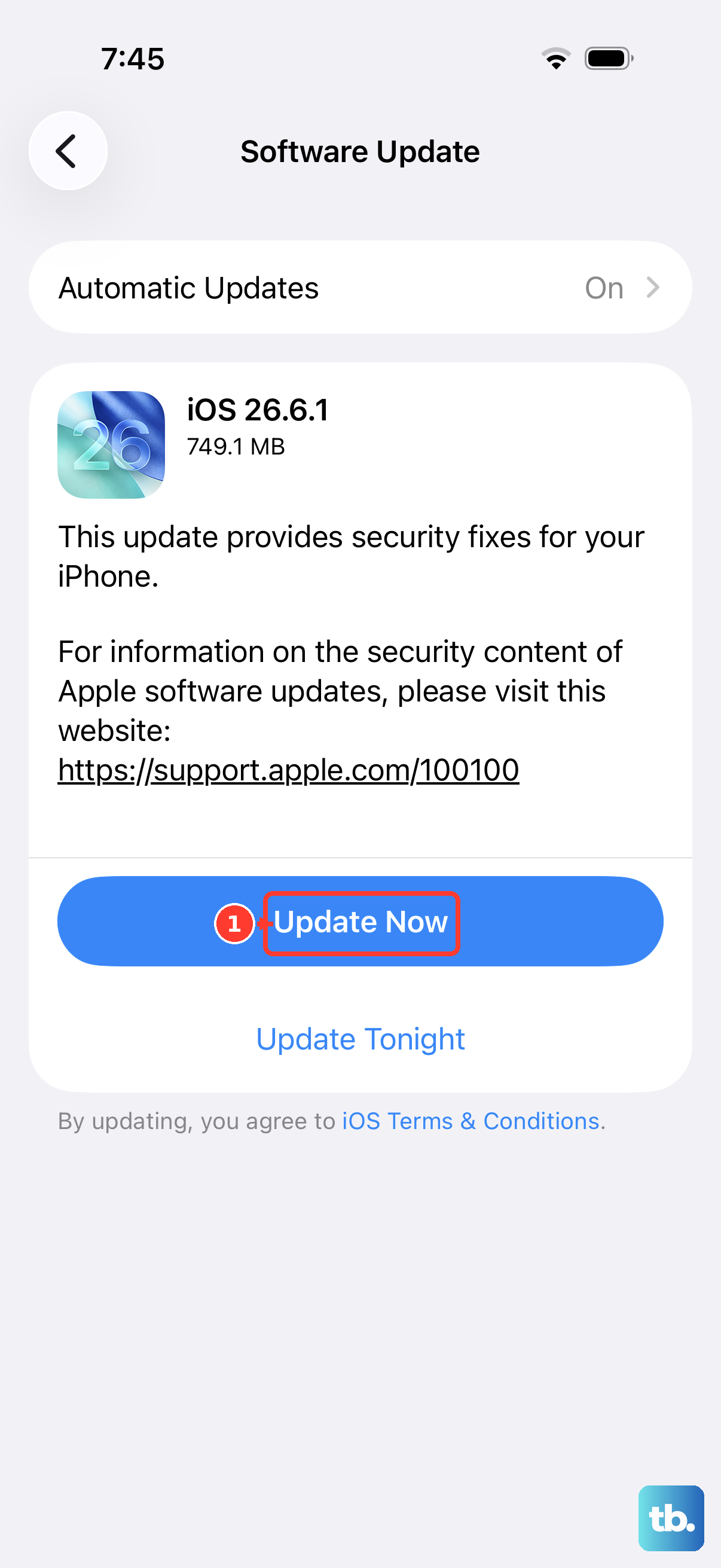
Software mismatches can cause connectivity to fail. On your iPhone 16, go to Settings > General > Software Update to install any available iOS updates. Apple frequently releases patches that improve device stability and connectivity.
On your Windows PC, search for "Check for updates" and install all the latest quality and feature updates. Keeping both operating systems current can help resolve connection problems.
Reset Location & Privacy Permissions
If you previously denied the "Trust" prompt, resetting the location and privacy settings on your iPhone can clear that decision and let you start fresh. Go to Settings > General > Transfer or Reset iPhone > Reset.
Then, tap "Reset Location & Privacy." You'll need to enter your passcode. This resets all your location and privacy settings to default, including computer trust, but it won't delete any of your personal data or media.
Disable Third-Party Security Software Temporarily
Sometimes, overzealous antivirus or firewall software on your PC can block the connection to your iPhone. Try temporarily disabling any third-party security suites you have running, then attempt to connect again.
Remember to re-enable your security software as soon as you're done testing. If this fixes the issue, check your security software's settings to add an exception for Apple Mobile Device services.
Use Apple Services on iCloud.com as a Workaround
If you need to access files urgently and the direct connection isn't working, you can use iCloud as a bridge. For photos and documents, you can upload them from your iPhone to iCloud Drive or Photos, then access them by signing into iCloud.com on your Windows PC.
This is obviously not a fix for syncing or local backups, but it's a practical way to move specific files when you're stuck. It relies on having a good internet connection on both devices.
Check for Hardware Issues
If you've tried everything and your iPhone 16 is still invisible, consider a hardware problem. Test your USB-C cable with another device to confirm it works for data. Also, try connecting a different iPhone or iPad to the same USB port on your PC.
If another device connects fine, the issue may be with your iPhone's USB-C port. Look inside the port with a flashlight for any signs of damage, bent pins, or persistent debris that cleaning didn't remove. Try your iPhone with another computer too. If it still isn't recognized, contact support for service.