
If your iPhone 15's Settings app keeps closing or crashing, it's usually a temporary software hiccup. The app might freeze for a second and then kick you back to the Home Screen. I'd start with a simple restart, as that clears out most minor glitches right away.
Force Restart Your iPhone 15
This is different from a normal restart and can fix issues a standard reboot can't. It doesn't erase any data. Quickly press and release the Volume Up button, then quickly press and release the Volume Down button. Immediately press and hold the Side button.
Keep holding the Side button until you see the Apple logo appear, then let go. Your phone will take a moment to restart. Once it's back on, try opening Settings again to see if it's stable.
Update to the Latest iOS Version
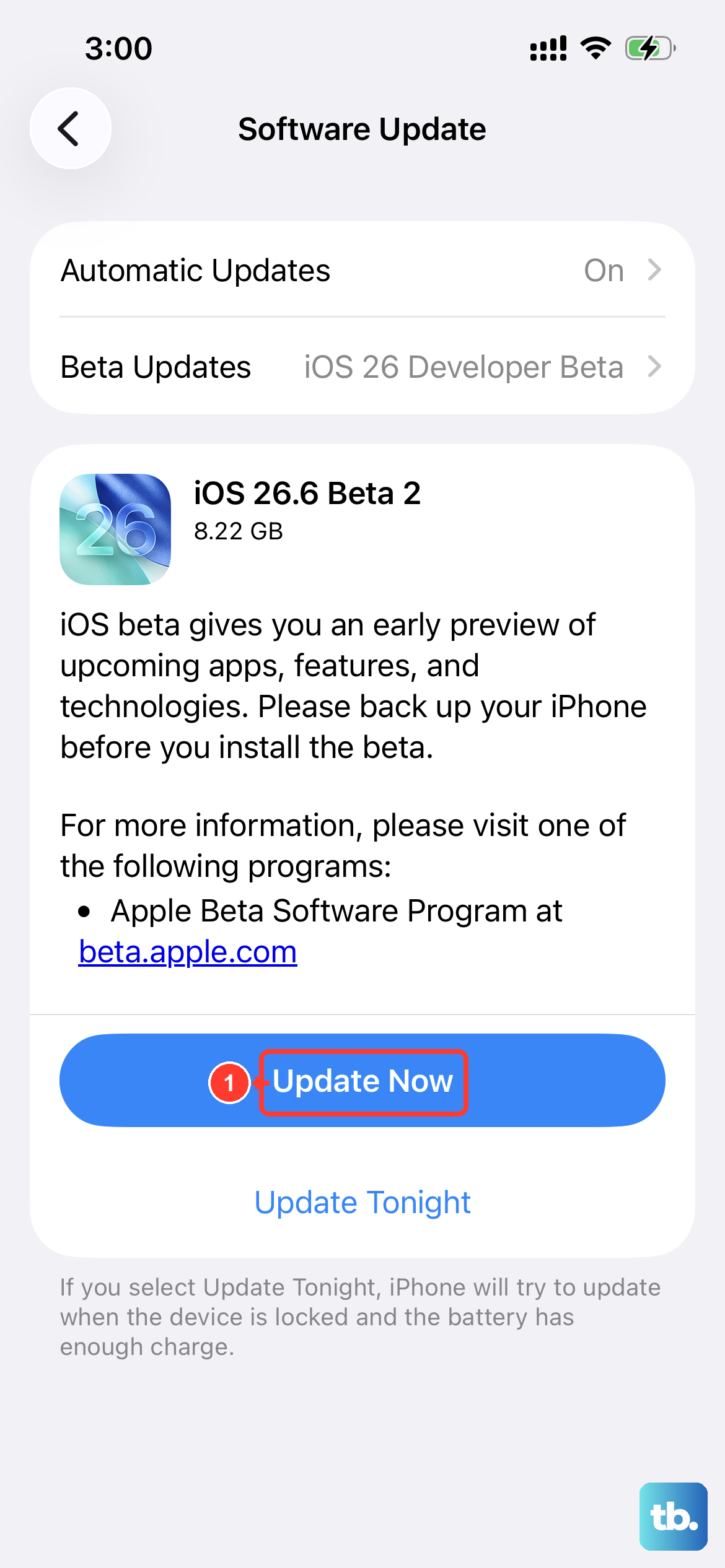
Apple frequently releases software updates that include bug fixes for system apps like Settings. Since you're on iOS 26, make sure you have the latest point update installed. Go to Settings > General > Software Update.
Your phone will check for available updates. If one is listed, tap "Download and Install." Make sure your iPhone 15 is connected to Wi-Fi and has at least 50% battery, or is plugged into power using a good USB-C cable.
Check for a Conflicting Configuration Profile
Sometimes, profiles installed for work, school, or certain apps can interfere with system services. To check, open Settings and scroll down. If you see a section called "Profile" or "Profiles & Device Management," tap on it.
Review any profiles listed there. If you see one you don't recognize or no longer need, you can tap on it and select "Remove Profile." You'll need to enter your passcode to confirm. After removing a profile, restart your phone.
Free Up Storage Space
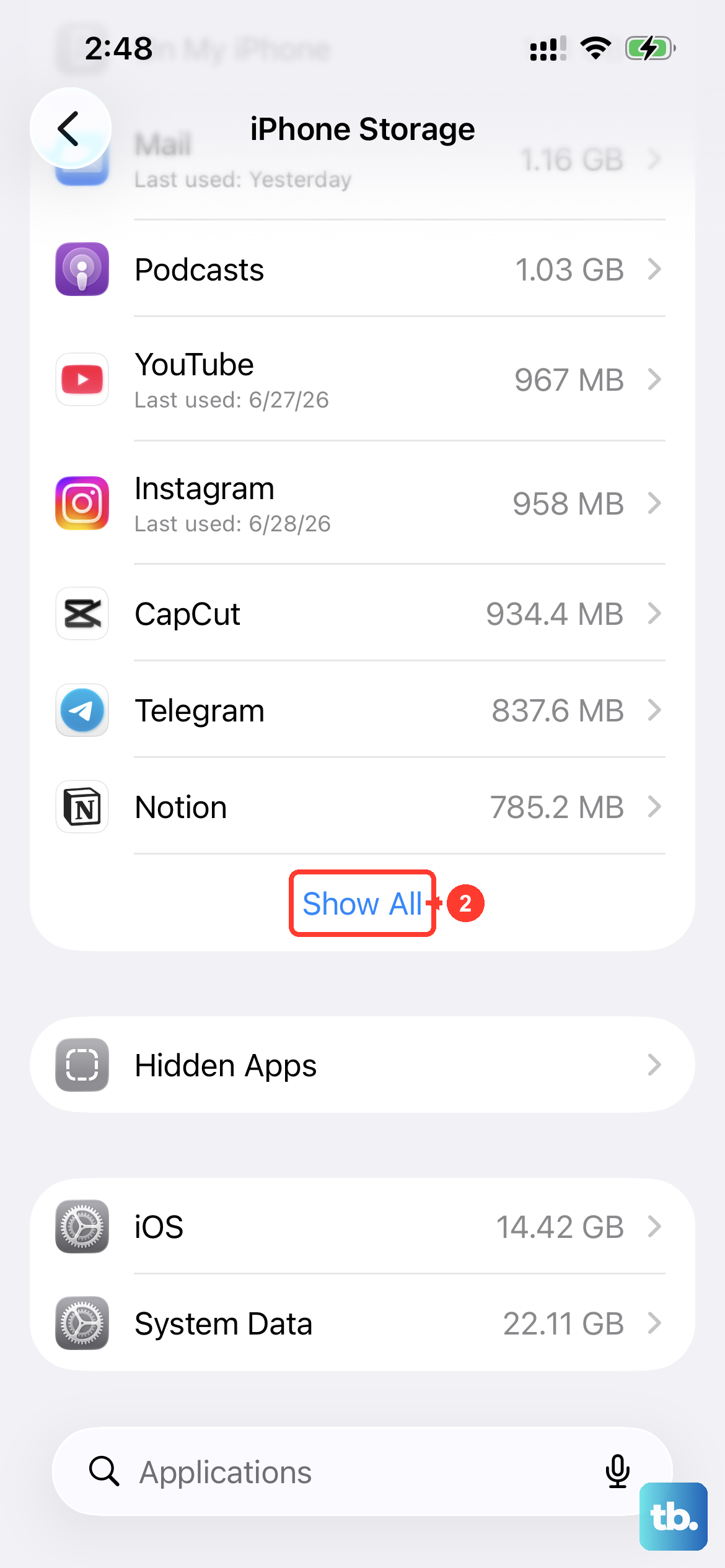
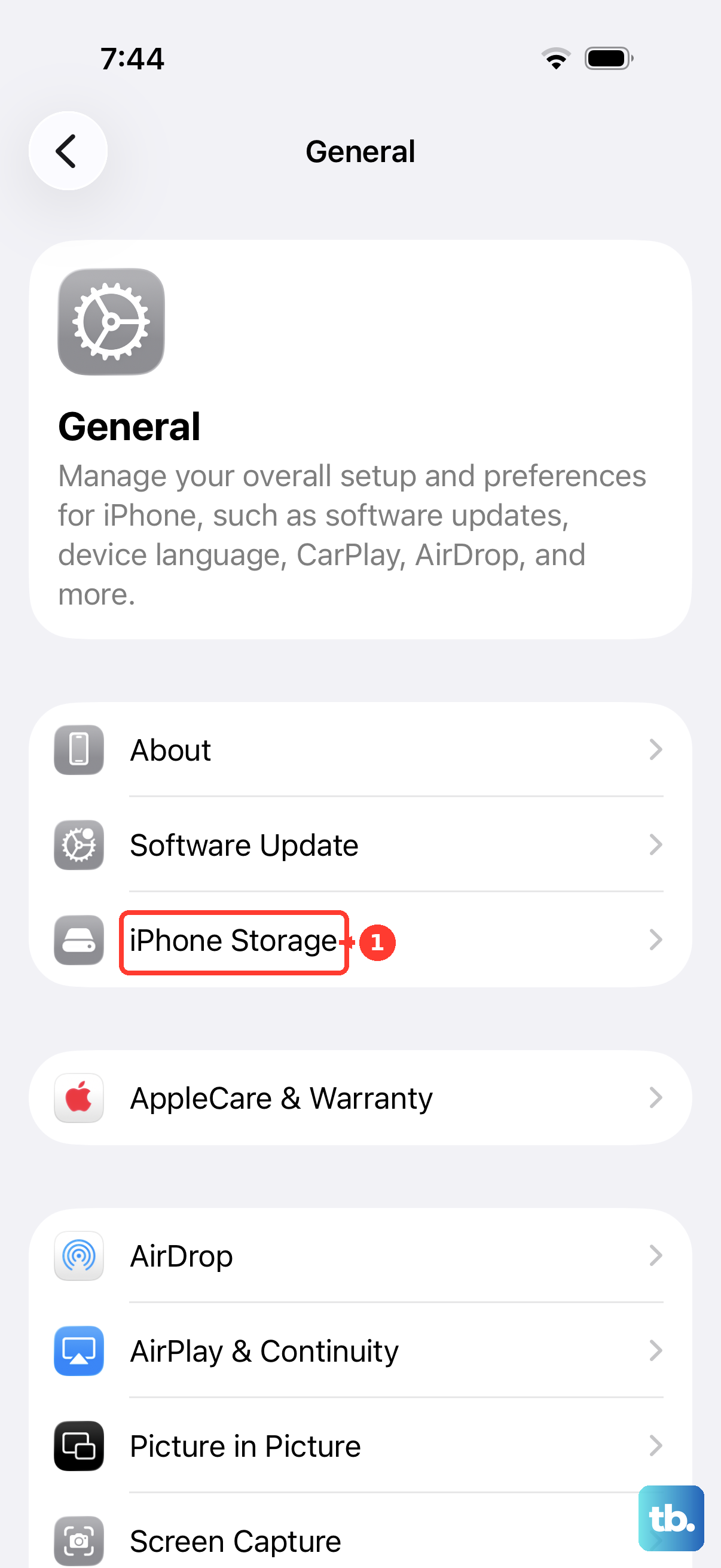
When your iPhone's storage is critically full, system apps can start to behave unpredictably. Open Settings and go to General > iPhone Storage. At the top, you'll see a bar showing your used and available space.
If you're nearly full, the system will offer recommendations for freeing up space, like offloading unused apps or reviewing large attachments. Try to clear at least a few gigabytes if possible. This gives the operating system the room it needs to run properly.
Reset All Settings
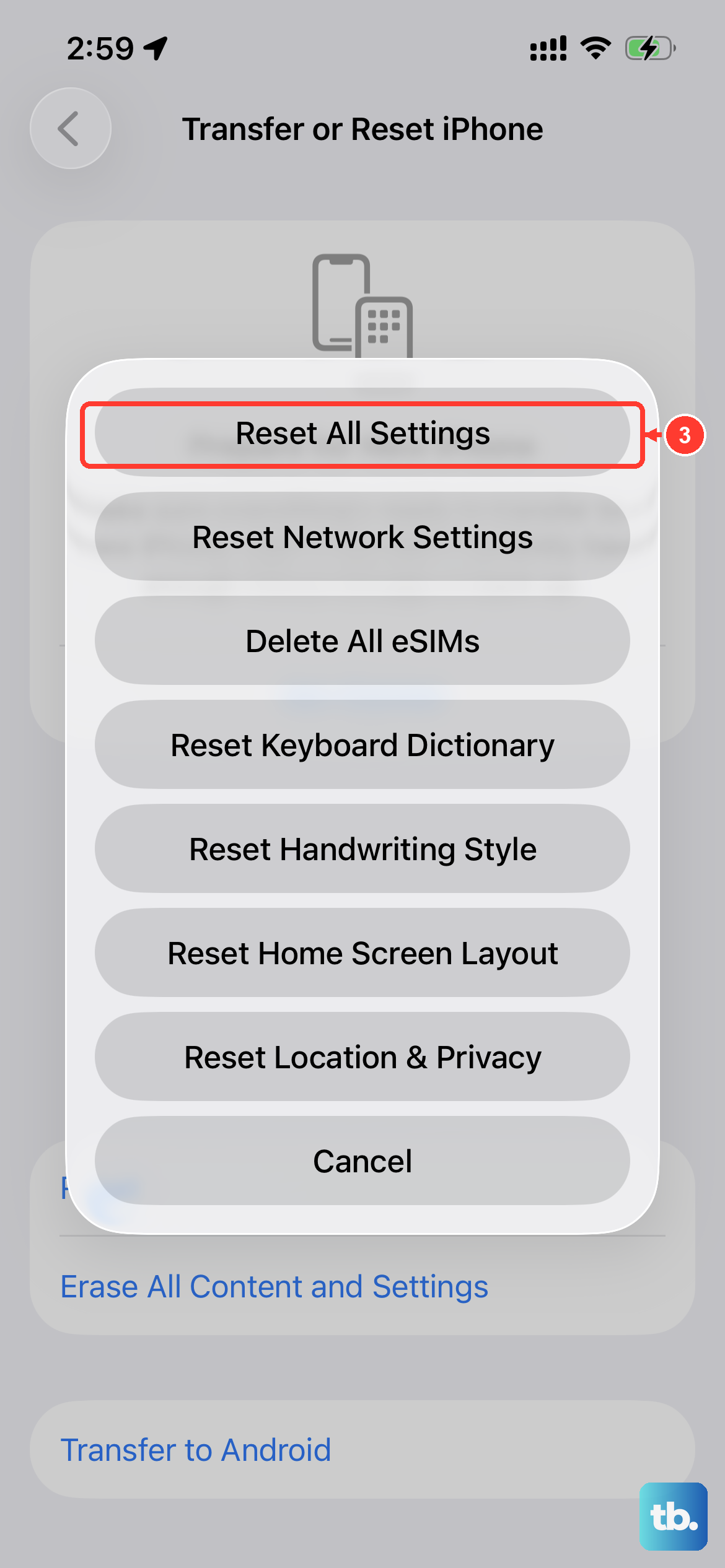
This is a more thorough step that resets all your preferences, like Wi-Fi passwords, wallpaper, and privacy settings, back to factory defaults. It won't delete your personal data, photos, or apps, but you will have to reconfigure things afterward.
To do this, go to Settings > General > Transfer or Reset iPhone. Tap "Reset" at the bottom, then choose "Reset All Settings." You'll need to enter your passcode to proceed. After the reset, your phone will restart. This often clears out deeper software corruption affecting the Settings app.