
If your iPhone 15 isn't showing notifications, you're probably missing important messages and alerts. This is a common issue that usually has a simple fix. I'd start by checking a few key settings that often get toggled off by accident.
The quickest thing to try is a force restart. On the iPhone 15, you press and quickly release the Volume Up button, then press and quickly release the Volume Down button. Finally, press and hold the Side button until you see the Apple logo appear. This can clear out a temporary software hiccup that's blocking alerts.
Check Focus Modes and Notification Settings
Focus modes are the most common culprit for missing notifications. Swipe down from the top-right corner of your screen to open Control Center. Look for the Focus icon (it looks like a crescent moon or might say "Work" or "Sleep"). If any Focus is active, tap it to turn it off.
Even with Focus off, you need to check each app's notification permissions. Go to Settings > Notifications. Scroll down and tap on the specific app that's not alerting you, like Messages or Mail. Make sure "Allow Notifications" is turned on at the very top.
Inside each app's notification settings, also check the alert styles. For lockscreen alerts, ensure "Lock Screen" is enabled. For banners that appear at the top of your screen, make sure "Banners" is turned on. Sometimes these get disabled individually.
Review Do Not Disturb and Scheduled Summary
Do Not Disturb can be scheduled to turn on automatically, which you might have forgotten about. Go to Settings > Focus > Do Not Disturb. Look under the "Set a Schedule" section and turn off any automatic schedules you find there.
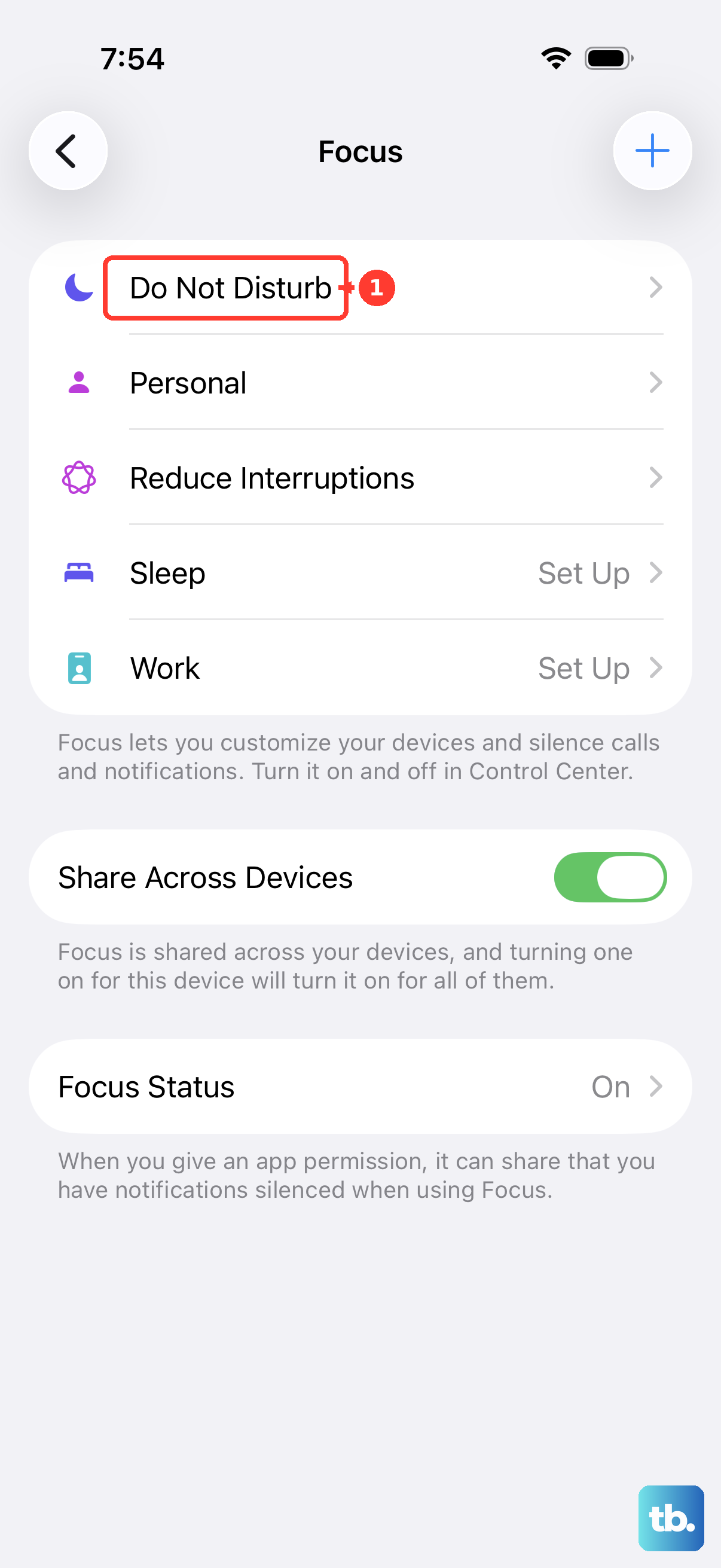
Another feature to check is Scheduled Summary. This bundles non-urgent notifications to deliver them at set times of day. If an app is only in your Scheduled Summary, you won't get instant alerts for it. In Settings > Notifications > Scheduled Summary, you can see which apps are included and remove the ones you need immediately.
Update iOS and Your Apps
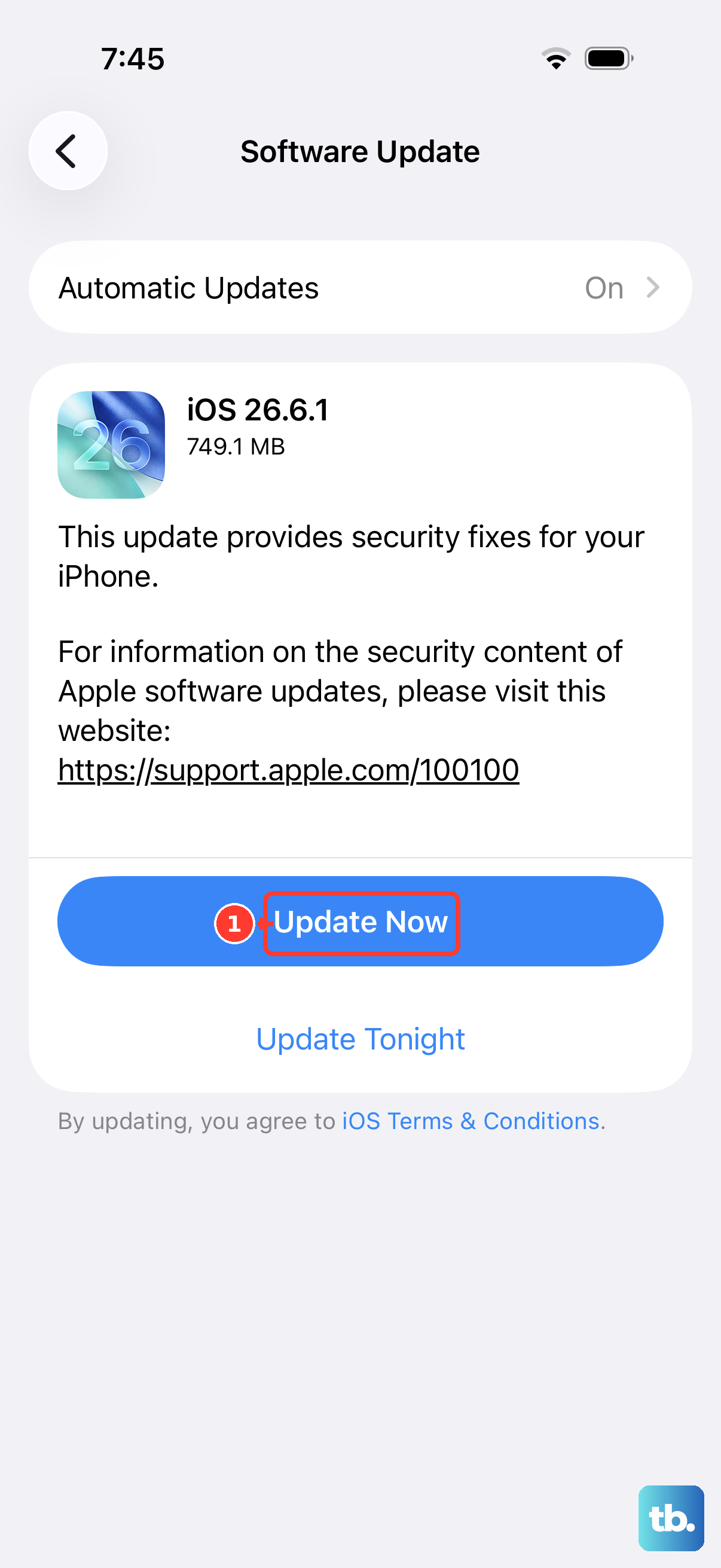
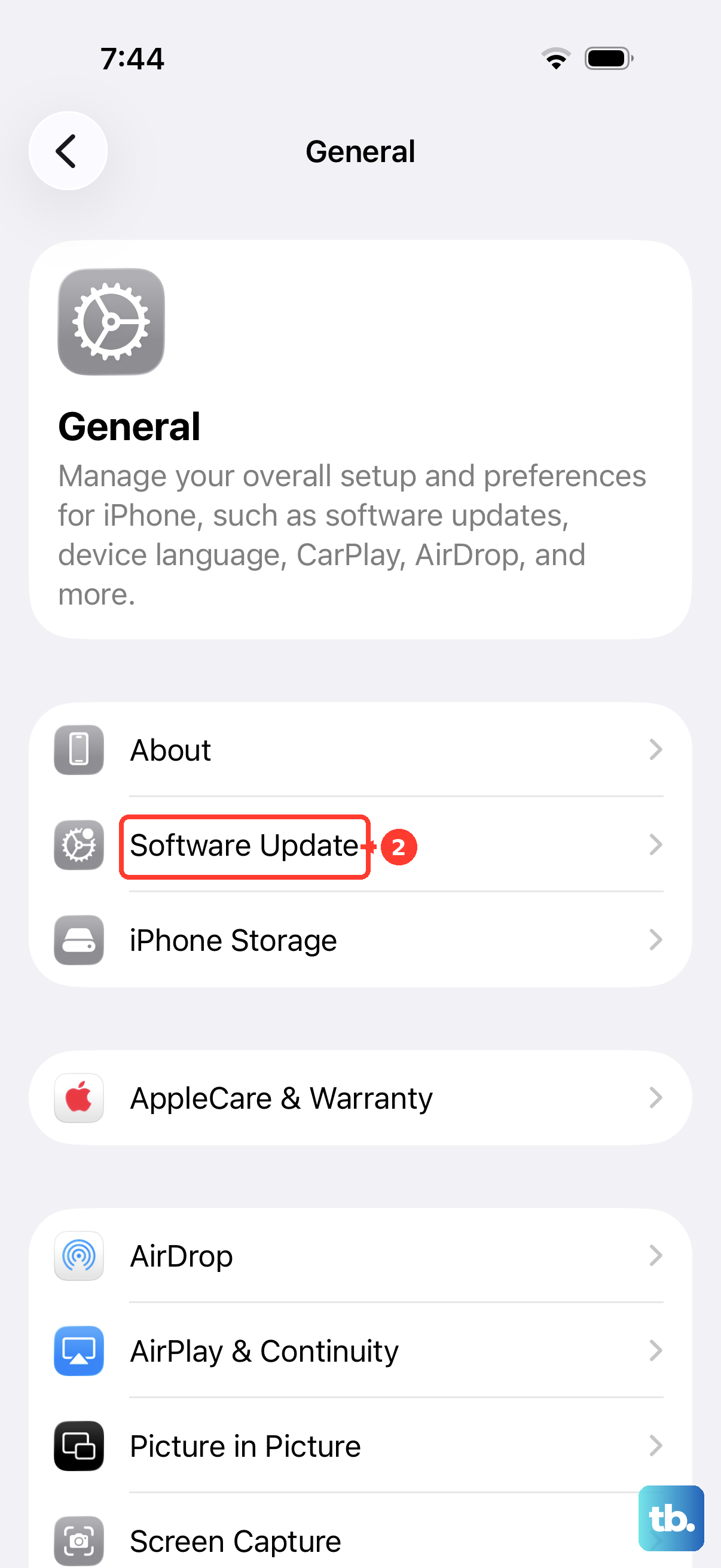
Software bugs can cause notification problems, and Apple frequently patches these in updates. Make sure you're running the latest version of iOS. Go to Settings > General > Software Update to check and install any available updates.
It's also a good idea to check for app updates. An outdated app might not be compatible with the latest iOS, which can break its notifications. Open the App Store, tap your profile icon in the top right, and scroll down to see pending updates.
Reset All Settings
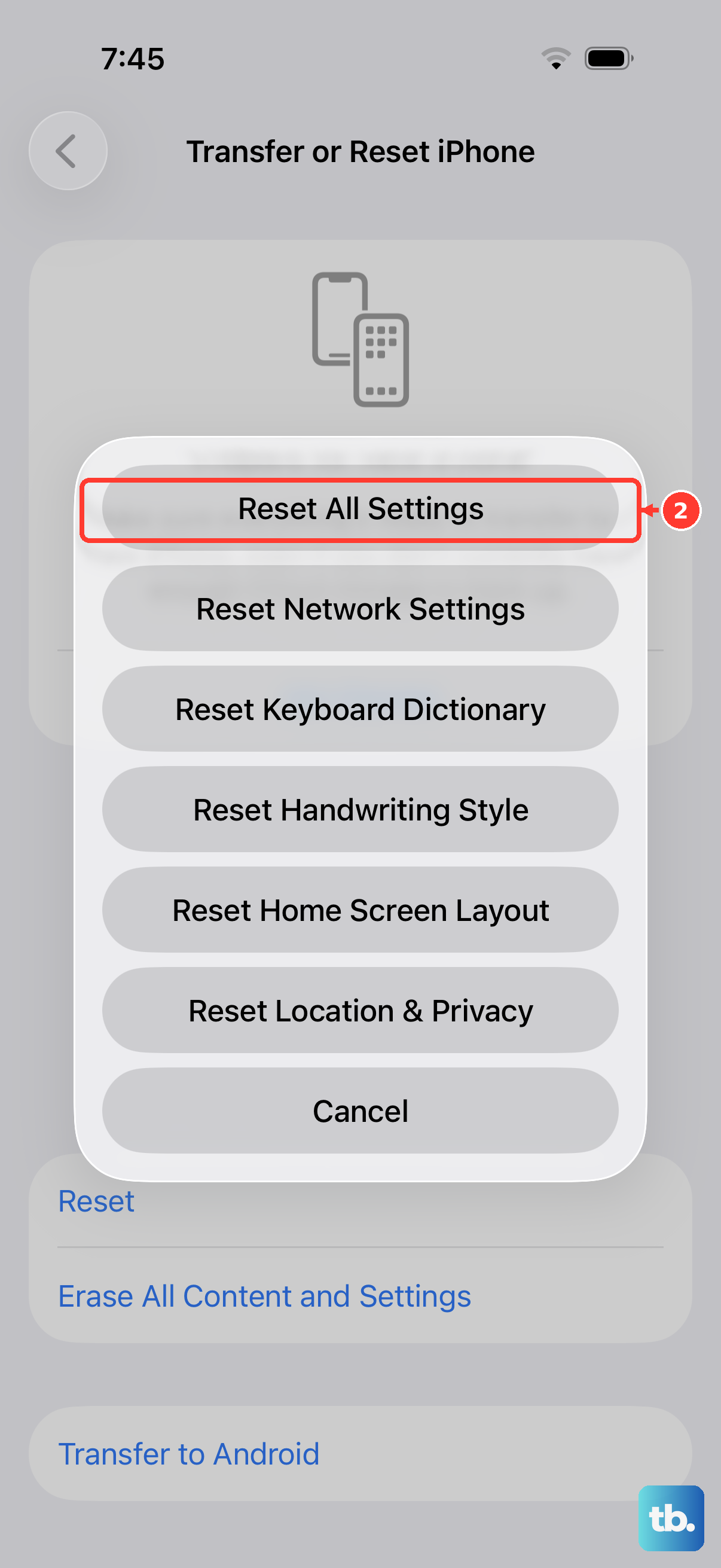
If you've checked everything and notifications are still broken, a settings reset can help. This will revert all your system preferences (like Wi-Fi passwords and wallpaper) back to default without deleting any of your personal data or apps.
To do this, go to Settings > General > Transfer or Reset iPhone. Then, tap "Reset" and choose "Reset All Settings." Your phone will restart. After it boots up, you'll need to reconfigure things like your display brightness and sounds, but it often clears up persistent notification glitches.
Check for Physical or Software Interference
It sounds odd, but a poorly fitted case can sometimes press against the screen and mimic a continuous touch. This can put the phone into a state where it ignores taps and notifications. Try removing your case for a little while and see if the alerts start coming through.
Also, consider if you've recently restored from a backup. A backup from an older iPhone can sometimes bring over corrupted settings files. If the problem started after a restore, you might need to set up the affected apps fresh or, as a last resort, set up the iPhone as new to rule out backup corruption.