
When your iPhone 14 volume buttons stop responding, it's a real nuisance. You press them and get no click, no volume change, nothing. I've found that most of the time, this is a simple software hiccup or a bit of pocket lint causing trouble, not a serious hardware failure.
Before you consider a repair, work through these steps. They're listed from quickest to most involved, so I'd start at the top.
Remove Your Phone Case
This is the easiest thing to check. Take your iPhone 14 completely out of its case. Some cases, especially if they're thick or not perfectly aligned, can press against the buttons and keep them from moving freely.
Once the case is off, press the volume up and down buttons a few times. If they work now, you've found the culprit. You might just need a different case.
Perform a Force Restart
A force restart clears out temporary software glitches that can make the buttons unresponsive. It doesn't delete any of your photos, messages, or apps.
For the iPhone 14, here's exactly how to do it. Press and quickly release the Volume Up button. Then, press and quickly release the Volume Down button. Finally, press and hold the Side button (on the right) until you see the Apple logo appear on the screen, then let go.
Check the Volume Button Setting
There's a software setting that could be turned off. Go to Settings > Sounds & Haptics. Look for the option that says "Change with Buttons" and make sure the toggle is green and switched on.
If this was off, your physical buttons wouldn't control your ringer and alert volumes. Toggle it on and test your buttons again.
Clean the Buttons Thoroughly
Dust and lint love to get stuck around the buttons. Over time, this gunk can stop the button from being pressed all the way in. First, power off your iPhone 14.
Take a can of compressed air and give short, gentle bursts around the edges of each volume button. You can also use a dry, soft-bristled toothbrush to gently dislodge any debris. Avoid using liquids directly on the phone.
Test the Buttons in Different Apps
Open your Music app and try to change the volume while a song is playing. Then, try it while watching a video in YouTube or Netflix. If the buttons work in one app but not another, the problem is likely with that specific app, not your phone's hardware.
Try force-quitting the problematic app by swiping it away from the app switcher, then reopening it.
Toggle the Ring/Silent Switch
It sounds too simple, but moving the Ring/Silent switch above the volume buttons back and forth a few times has helped some users. Flip it from silent (orange stripe showing) to ring and back a couple times.
This can sometimes reset the connection to the volume buttons. Give the volume buttons another press after you do this.
Use AssistiveTouch for a Soft Reset
Enabling AssistiveTouch creates a floating menu on your screen with virtual buttons. Using these can sometimes jog the physical ones back to life. Go to Settings > Accessibility > Touch > AssistiveTouch and turn it on.
Tap the floating gray circle, then tap Device > Volume Up. Tap it a bunch of times. Then do the same for Volume Down. After using the virtual buttons, try your physical ones again.
Update to the Latest iOS
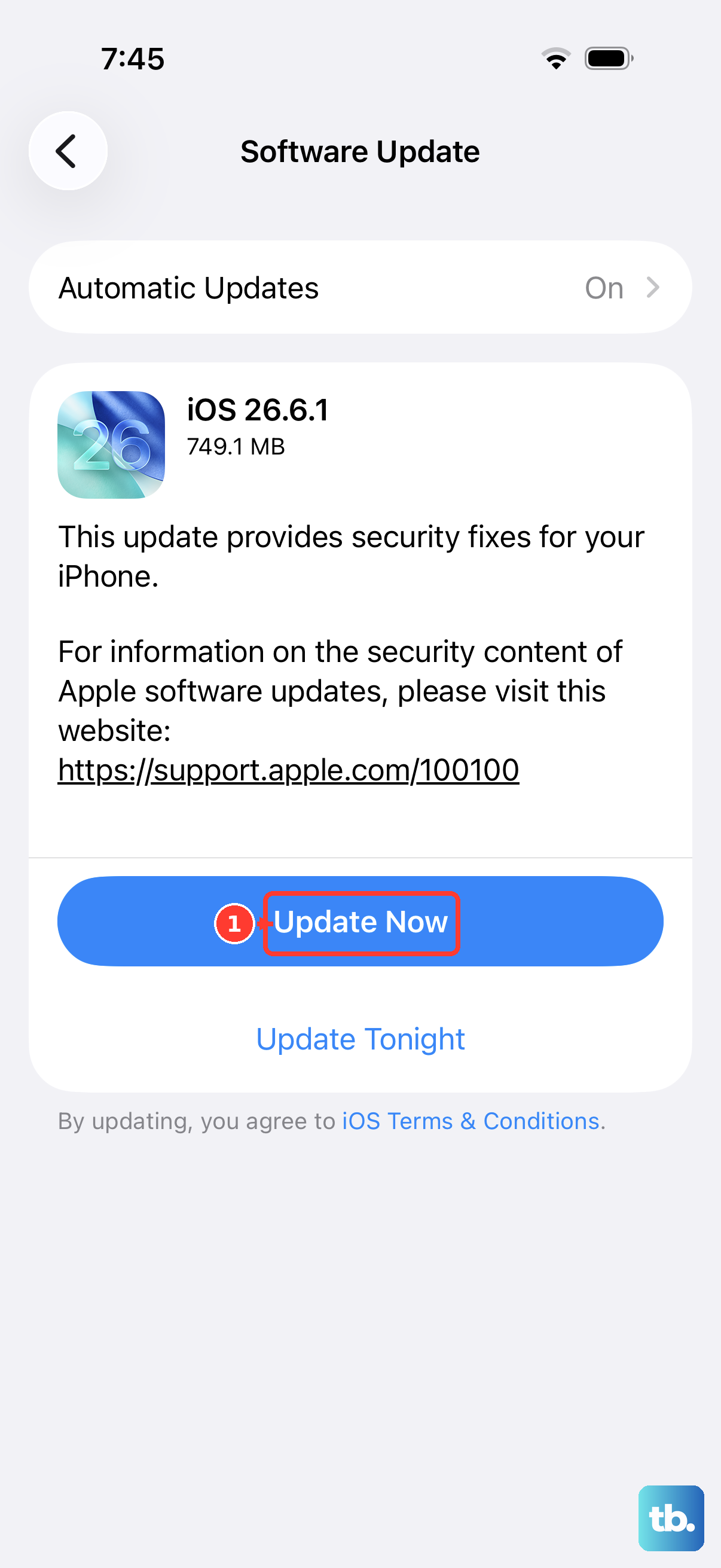
Software bugs can cause all sorts of strange behavior, including unresponsive buttons. Apple often fixes these issues in updates. Make sure your iPhone 14 is connected to Wi-Fi and plug it into power.
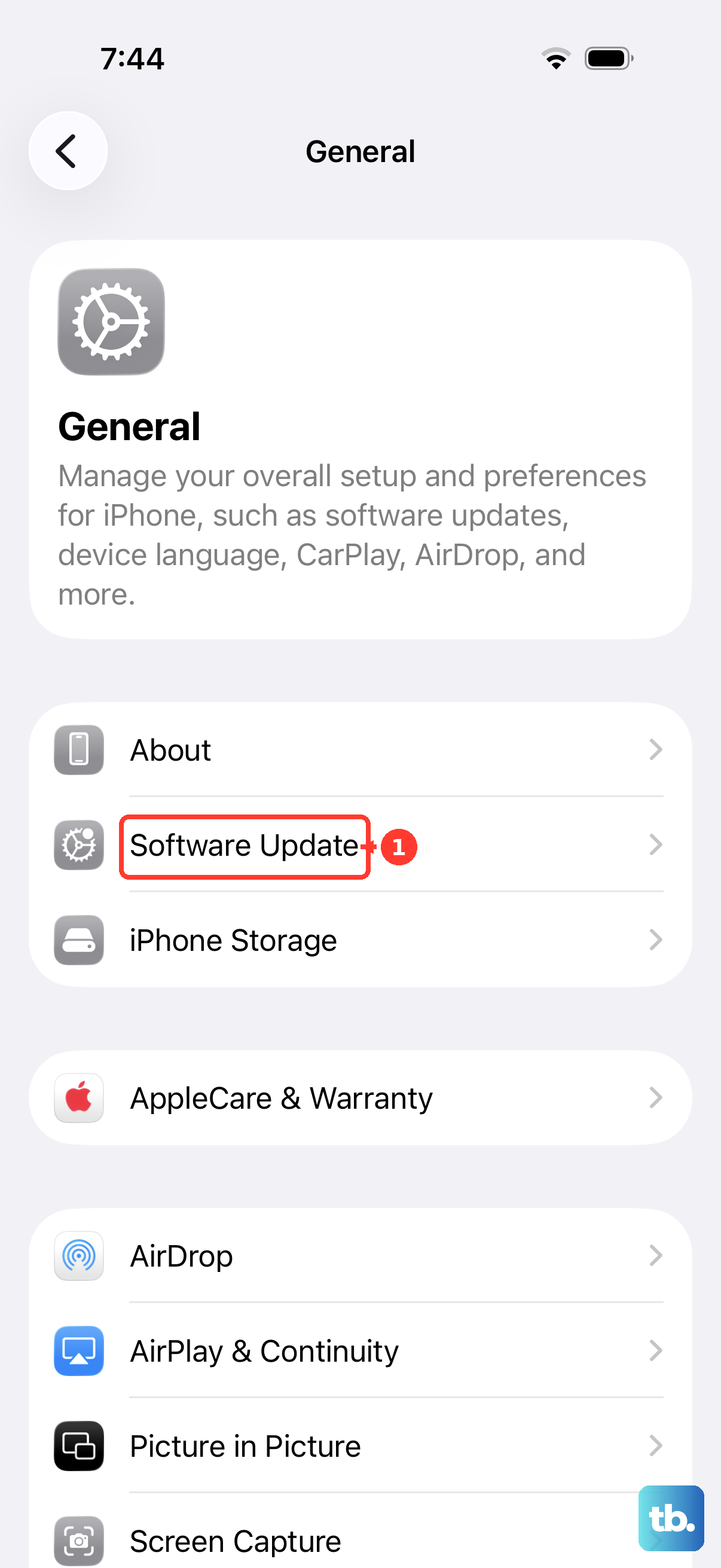
Go to Settings > General > Software Update. If an update is available, tap "Download and Install." After the update completes, check if your volume buttons are working.
Reset All Settings
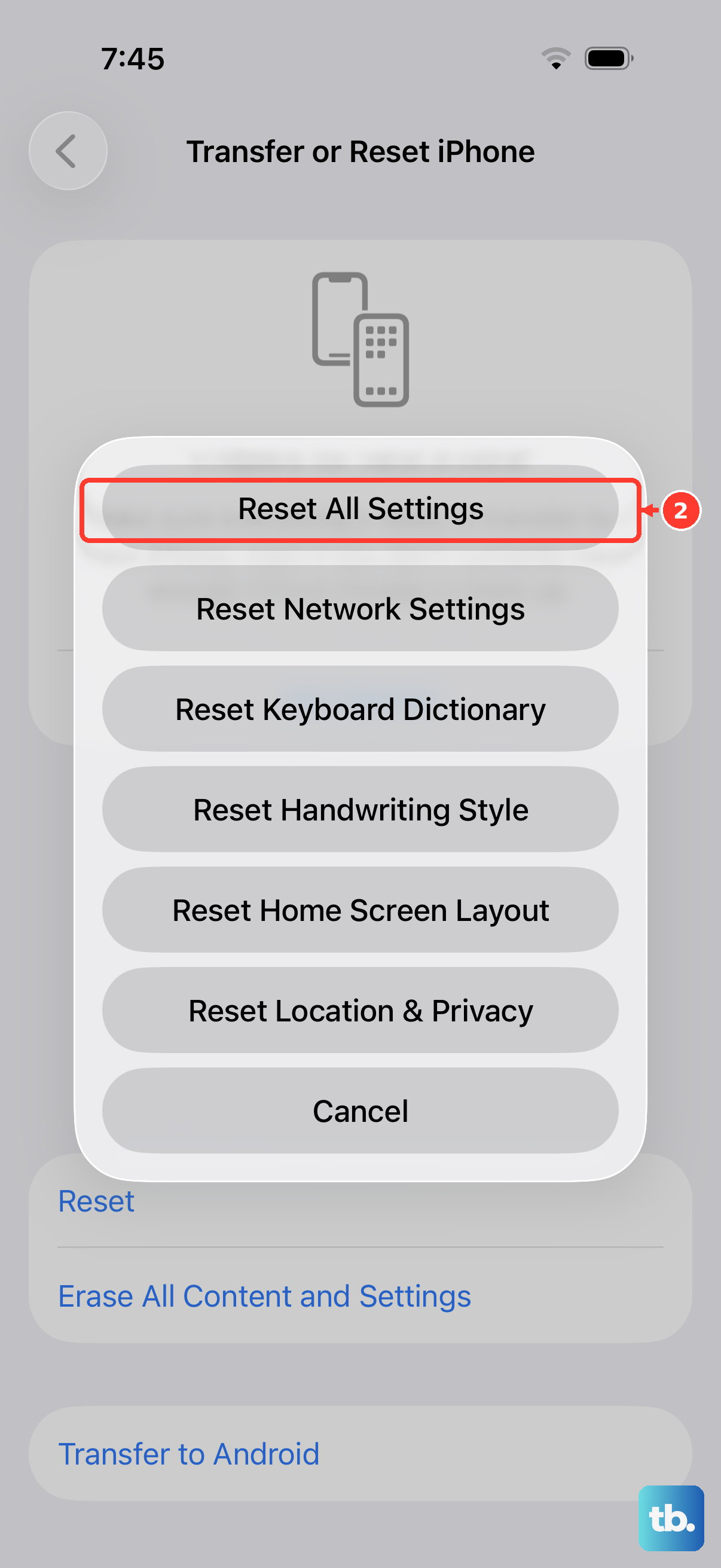
This is a bigger step, but it won't erase your personal data like photos or messages. It will reset your wallpaper, network settings, and preferences back to default, which can clear out any conflicting settings causing the issue.
Go to Settings > General > Transfer or Reset iPhone. Tap Reset and then choose Reset All Settings. You'll need to enter your passcode to confirm.
Check for Physical Damage or Moisture
Look closely at the volume buttons and the area around them. Are there any dents, cracks, or scratches? Has your phone been exposed to water or high humidity recently?
The iPhone 14 is water-resistant, but corrosion from moisture exposure can still damage the internal connectors for the buttons. If you see signs of physical or liquid damage, the issue is likely hardware-related.