
When your iPhone 14's Settings app keeps closing on you, it's usually a temporary software hiccup. The quickest thing to try is a simple restart. Just hold the side button and either volume button, then slide to power off. Wait about 30 seconds, then press the side button again to turn it back on.
This clears out any minor glitches in the system's memory. If Settings still crashes after that, don't worry. There are a few more specific steps you can take that often solve the problem.
Update to the Latest iOS Version
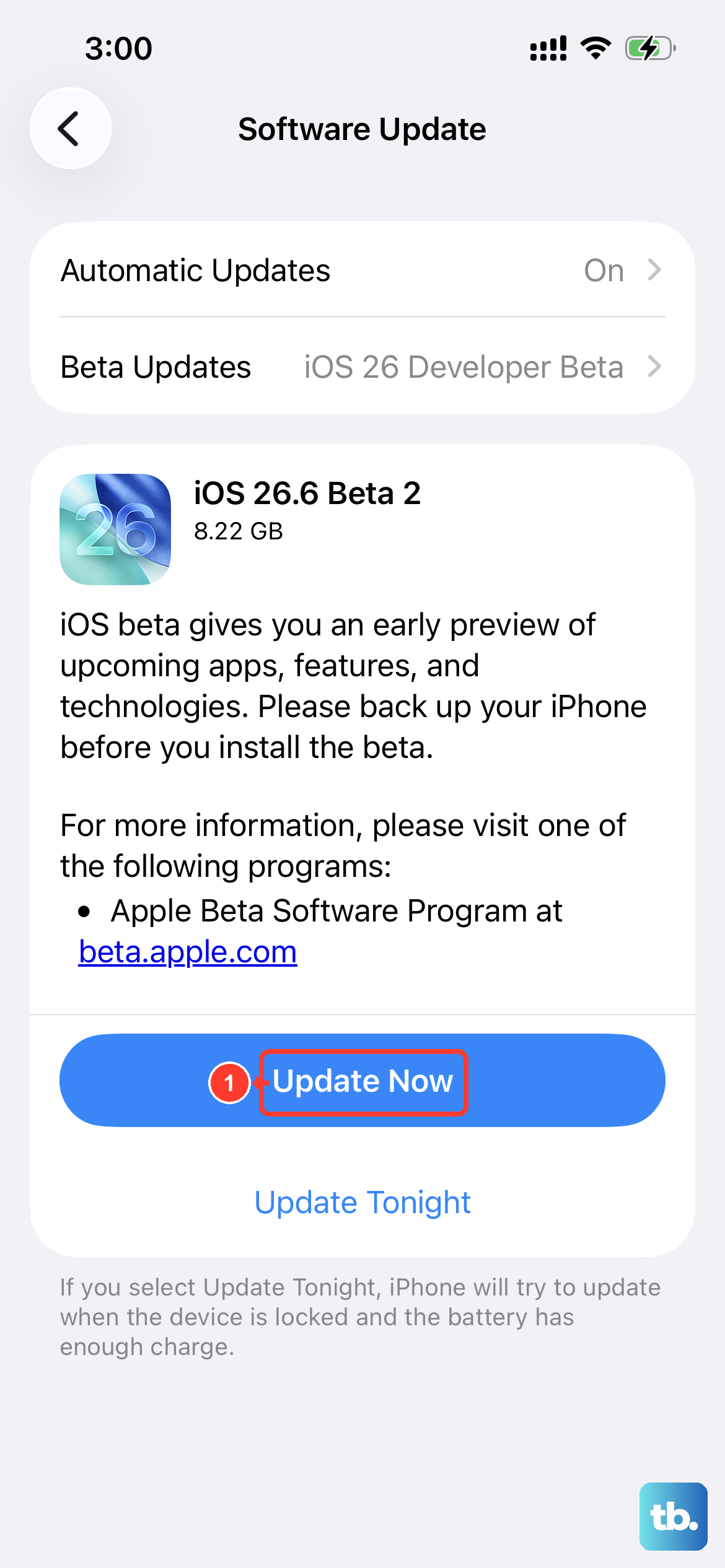
This is one of the most common fixes, especially if the issue started after a recent update. Apple releases patches for bugs all the time. Go to Settings > General > Software Update and see if anything is available.
Make sure your phone is connected to Wi-Fi and has at least 50% battery, or is plugged in. Tap "Download and Install" if an update is there. I've seen this resolve Settings crashes that popped up for some users after the iOS 18 update.
Force Restart Your iPhone 14
A force restart is a bit more thorough than a standard shutdown. It can clear deeper system issues that might be causing the Settings app to fail. The process for the iPhone 14 is specific.
Quickly press and release the Volume Up button. Then quickly press and release the Volume Down button. Finally, press and hold the Side button. Keep holding it until you see the Apple logo appear, then let go.
Your phone will reboot. This doesn't delete any data, it just gives the system a fresh start. Try opening Settings again once it's back on.
Check Your iPhone Storage
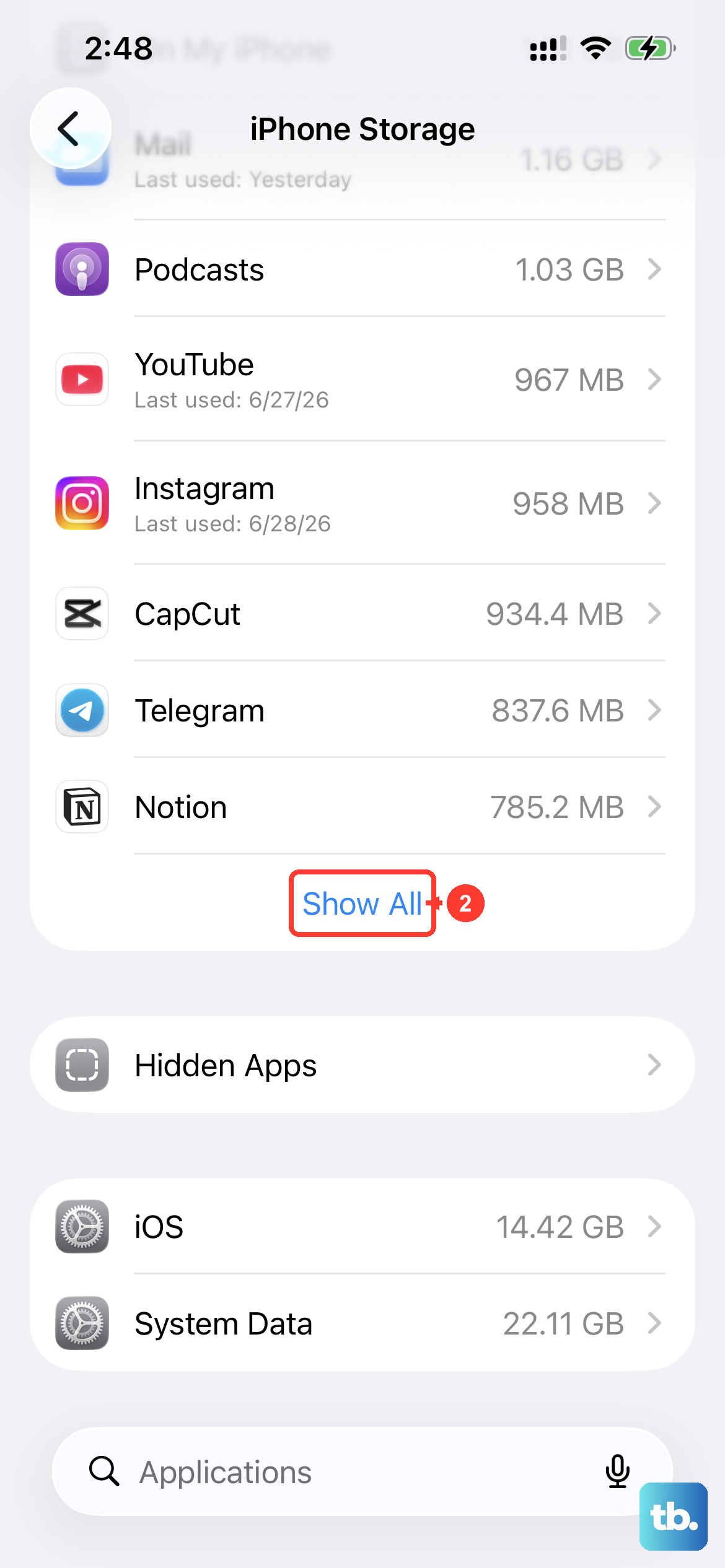
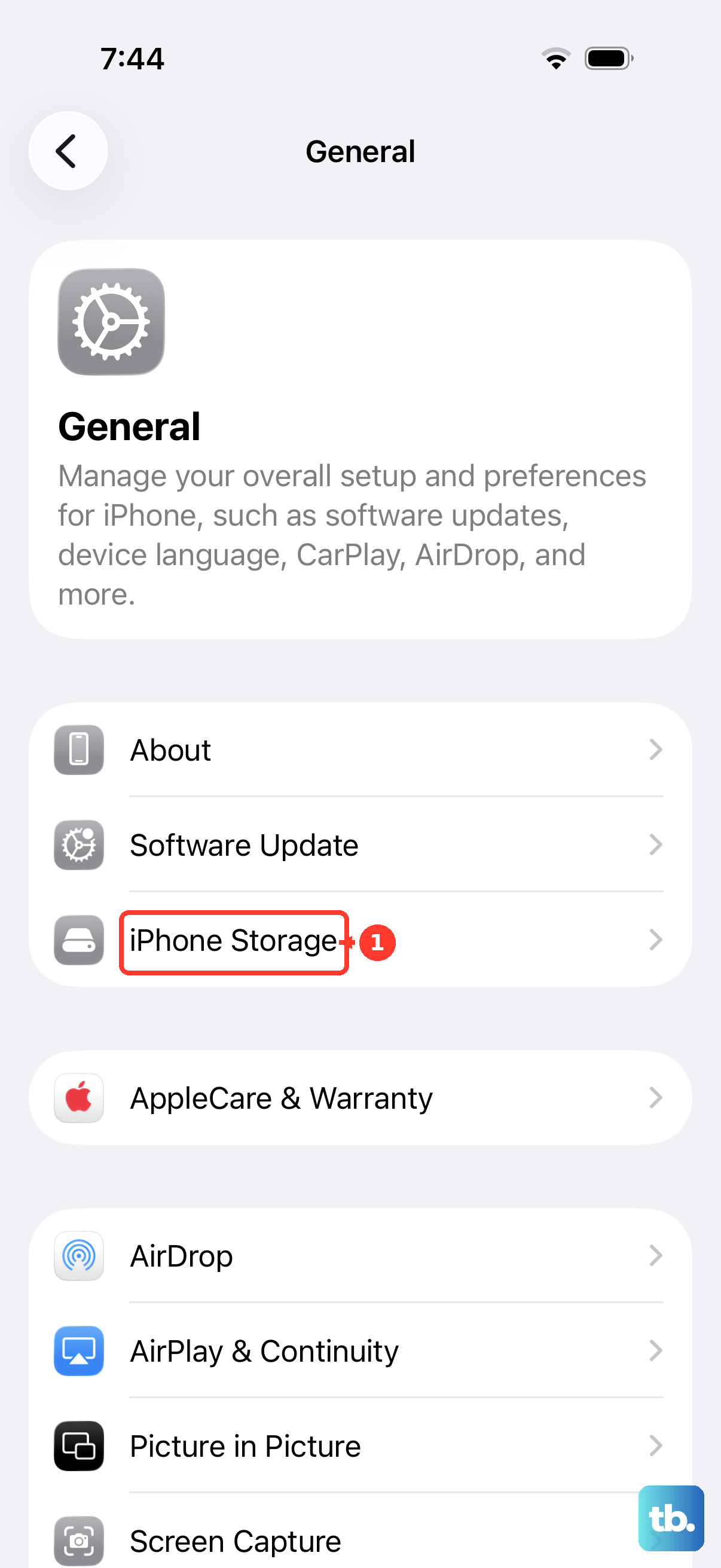
If your iPhone 14 is almost completely full, system apps like Settings can start to misbehave. It's a good idea to check. Head to Settings > General > iPhone Storage.
Take a look at the bar at the top. If it's nearly all blue, you need to free up some space. The system might offer recommendations for offloading unused apps or reviewing large attachments. Clearing out a few gigabytes can often stop the crashing.
Reset All Settings
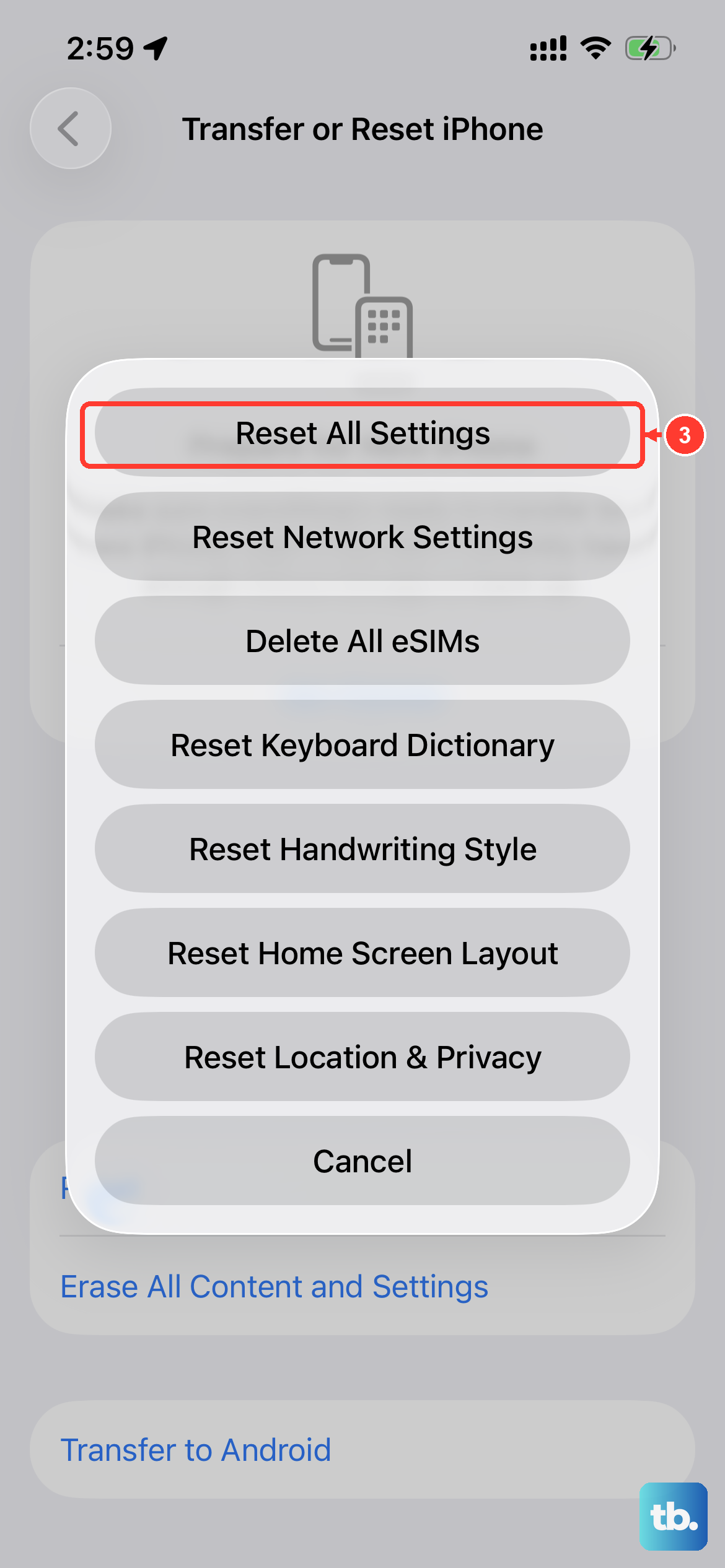
This is a more involved step, but it's very effective for persistent app crashes. It will reset your network settings, wallpaper, privacy permissions, and keyboard dictionary back to default. Your personal data like photos and messages will be safe.
Go to Settings > General > Transfer or Reset iPhone. Tap on "Reset" at the bottom. Then, select "Reset All Settings." You'll need to enter your passcode to confirm.
After the phone restarts, you'll have to reconnect to Wi-Fi and redo some preferences, but it often clears out the corrupted data causing Settings to close.
Check for a Problematic Configuration Profile
If you have a configuration profile installed, perhaps for work or school, it could be interfering with system functions. You can check this in your settings. Go to Settings > General > VPN & Device Management.
If you see a profile listed there that you don't recognize or no longer need, you can tap on it and select "Remove Profile." You might need to enter your device passcode. After removing it, restart your phone and see if the Settings app stabilizes.