
If your iPhone 17 Pro Max's Settings app keeps closing on you, it's usually a temporary software hiccup. The app might crash to the home screen the moment you open it, or it could freeze and quit when you try to access a specific menu. Let's get that fixed.
Force Restart Your iPhone
This is almost always the first thing I try. A force restart clears out the phone's working memory without deleting any of your data. It can stop a misbehaving app in its tracks.
On the iPhone 17 Pro Max, you press and quickly release the Volume Up button, then quickly press and release the Volume Down button. Finally, press and hold the Side button until you see the Apple logo appear on the screen.
Update to the Latest iOS Version
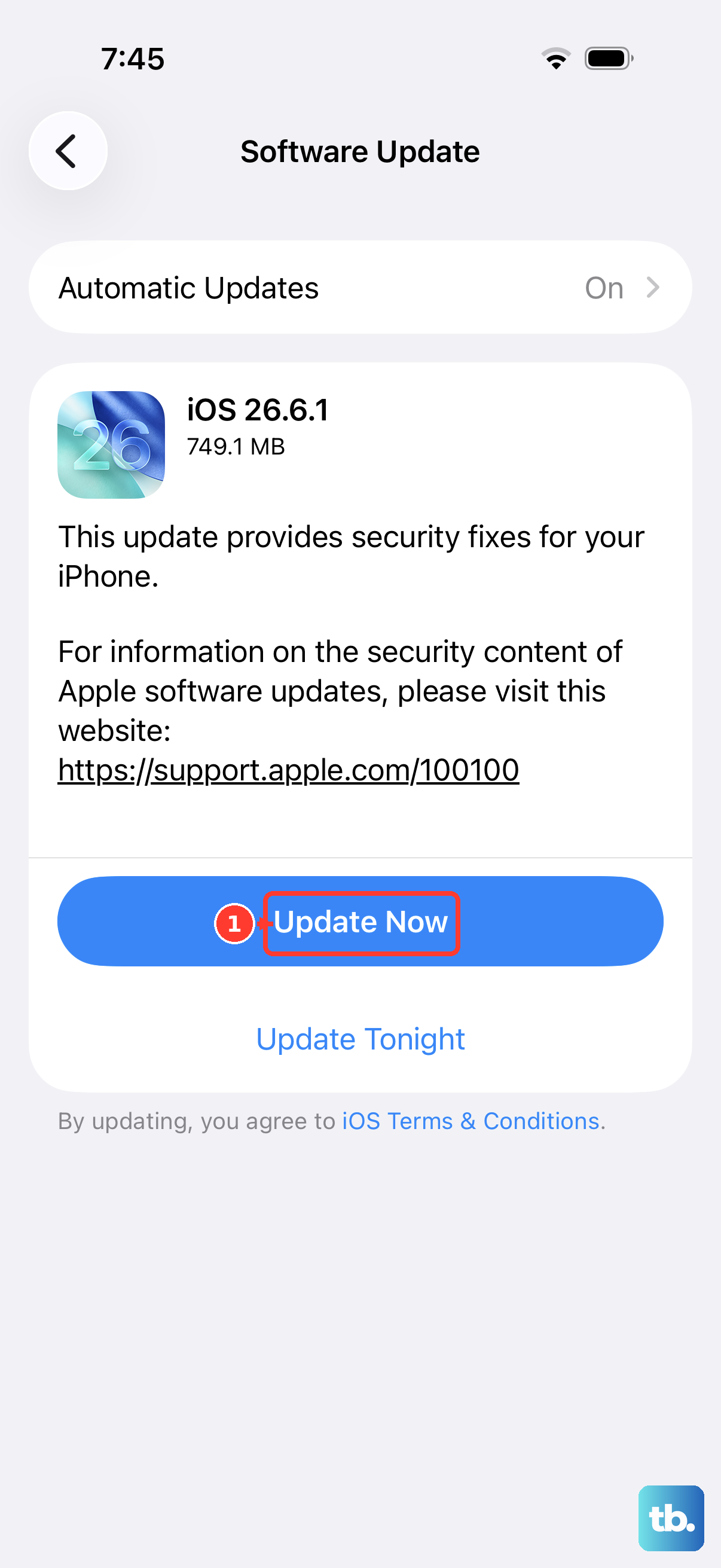
Apple is constantly releasing software updates that fix bugs. If your iPhone 17 Pro Max is running an older version of iOS 26, a known bug could be causing the Settings app to crash.
Go to Settings > General > Software Update. If an update is available, tap "Download and Install." Make sure your phone is connected to Wi-Fi and has a good charge, preferably using your Apple 40W Dynamic Power Adapter to keep it topped up during the process.
Check for a Settings App Update
While the core Settings app is part of iOS, some of its components can receive updates through the App Store. It's worth checking to make sure everything is current.
Open the App Store and tap your profile icon in the top right. Scroll down to see if there are any pending updates for system apps. If you see an update for "Settings" or something similar, tap "Update."
Reset All Settings
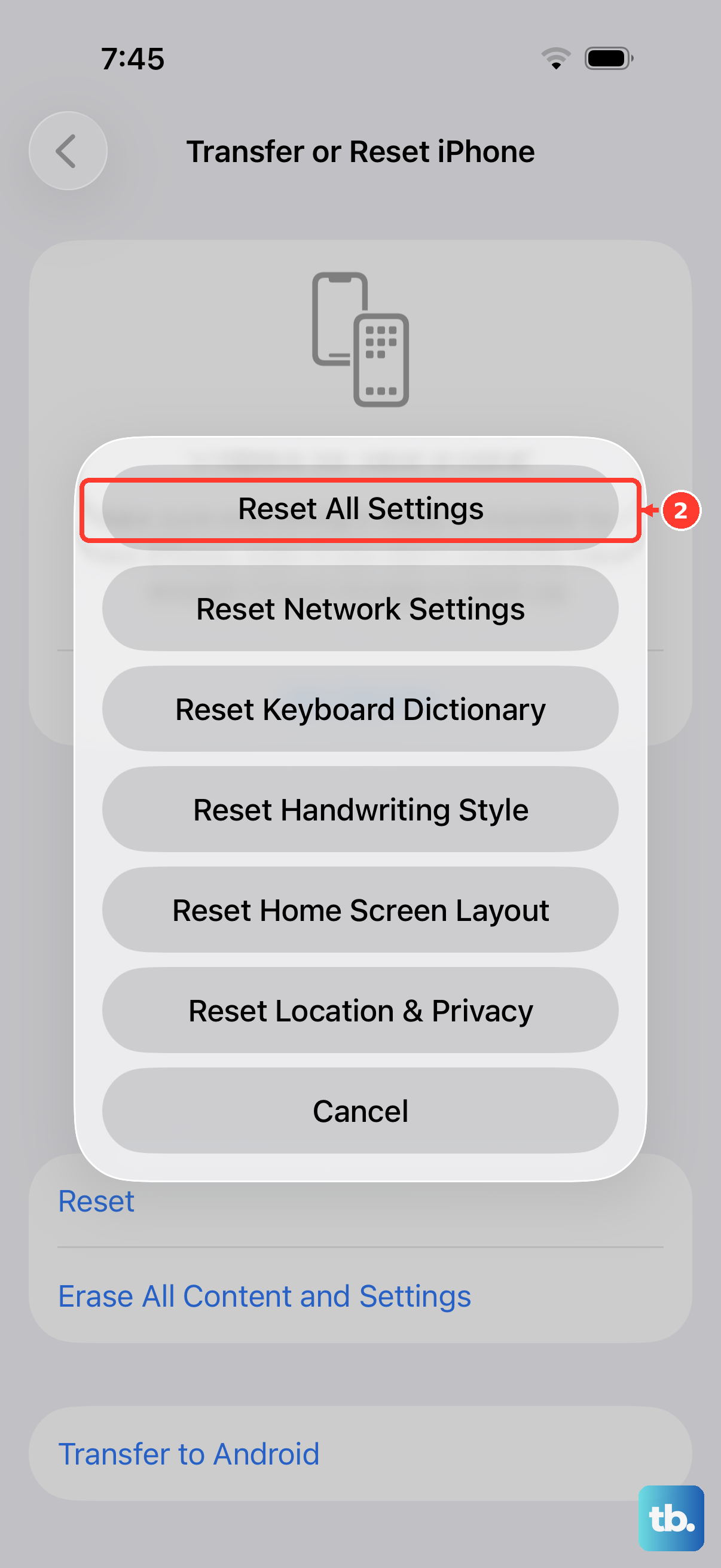
This is a more thorough step, but it doesn't erase your personal data like photos or messages. It will, however, reset all your preferences back to factory defaults.
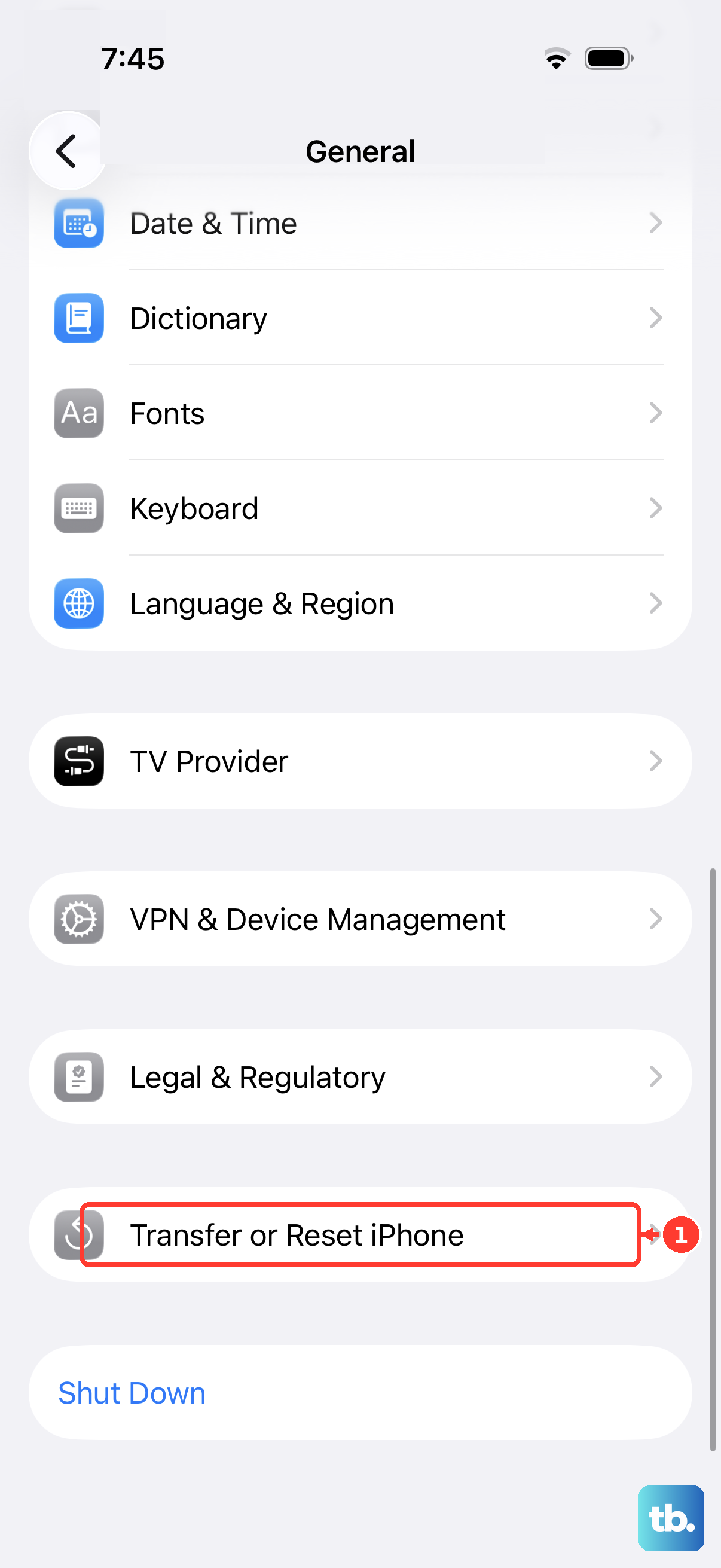
You'll need to reconfigure things like Wi-Fi passwords, wallpaper, and privacy settings afterward. To do it, go to Settings > General > Transfer or Reset iPhone > Reset. Then, tap "Reset All Settings." Enter your passcode when prompted and confirm.
Free Up Storage Space
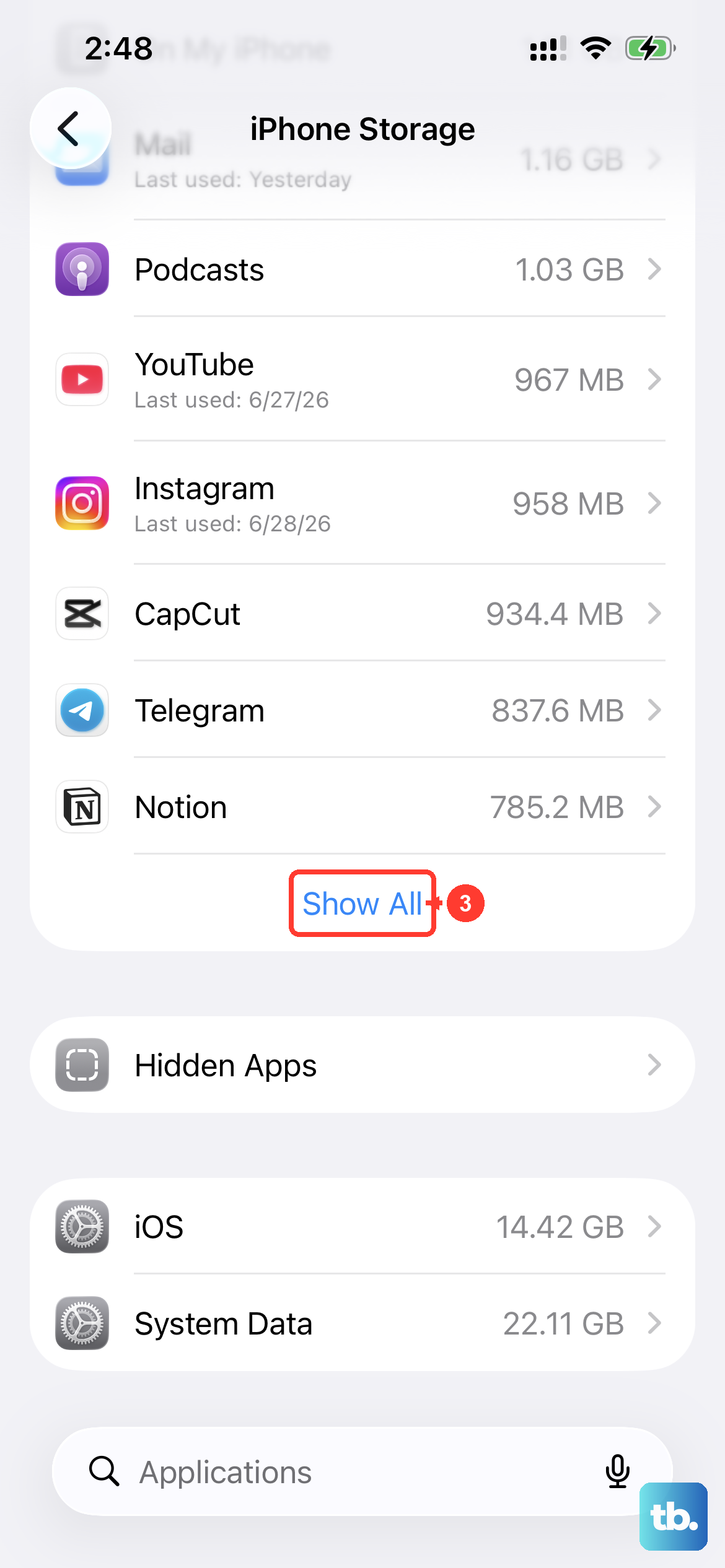
When your iPhone's storage is completely full, system apps can start to malfunction. The Settings app needs a little room to breathe and manage its temporary files.
Head to Settings > General > iPhone Storage. iOS will show you a breakdown of what's using space. Look for large apps, old message threads, or cached data you can delete. Getting your available storage above 5-10GB can often resolve strange app behavior.
Restore Your iPhone
If the Settings app is still crashing, the last software step is to restore your iPhone using a computer. This installs a fresh, clean copy of iOS 26. You have two main paths here: restoring from a backup or setting up as new.
First, make sure you have a recent backup in iCloud or on your computer. Connect your iPhone 17 Pro Max to a Mac or PC with a USB-C cable, open Finder (on Mac) or iTunes (on Windows), select your device, and choose "Restore iPhone." This will completely wipe the phone and install the latest iOS.
After the restore, you can choose to set it up as a new iPhone to see if the problem is gone. If it is, the issue was with your data or a specific setting. You can then choose to restore from your backup, though be aware the problem could come back with the old data.