


When your iPhone 14 screen stops responding, the first thing to try is a force restart. This is different from a normal restart and can clear out temporary software glitches that freeze the touchscreen. Press and quickly release the Volume Up button, then quickly press and release the Volume Down button. Finally, press and hold the Side button until you see the Apple logo appear on the screen, then let go.
A force restart doesn't erase any of your data. Keep holding the Side button until the Apple logo appears, even if it takes longer than 10 seconds.
If touches seem to go missing, run an online touch test first. The grid fills in wherever the screen registers contact, so gaps stand out immediately.
Clean the Screen and Your Hands
It sounds simple, but a dirty screen or wet fingers are common culprits. The iPhone 14's touch sensors can get confused by moisture, lotion, or grease. Use a soft, lint-free cloth to wipe the screen clean.
Make sure your hands are clean and completely dry, especially after using hand sanitizer or lotion. A screen protector that's cracked, dirty, or poorly applied can also interfere with touch sensitivity.
Try removing the protector temporarily to see if the screen responds normally without it. Some third-party protectors, particularly thick glass ones, aren't always perfectly compatible.
Check for a Software Update
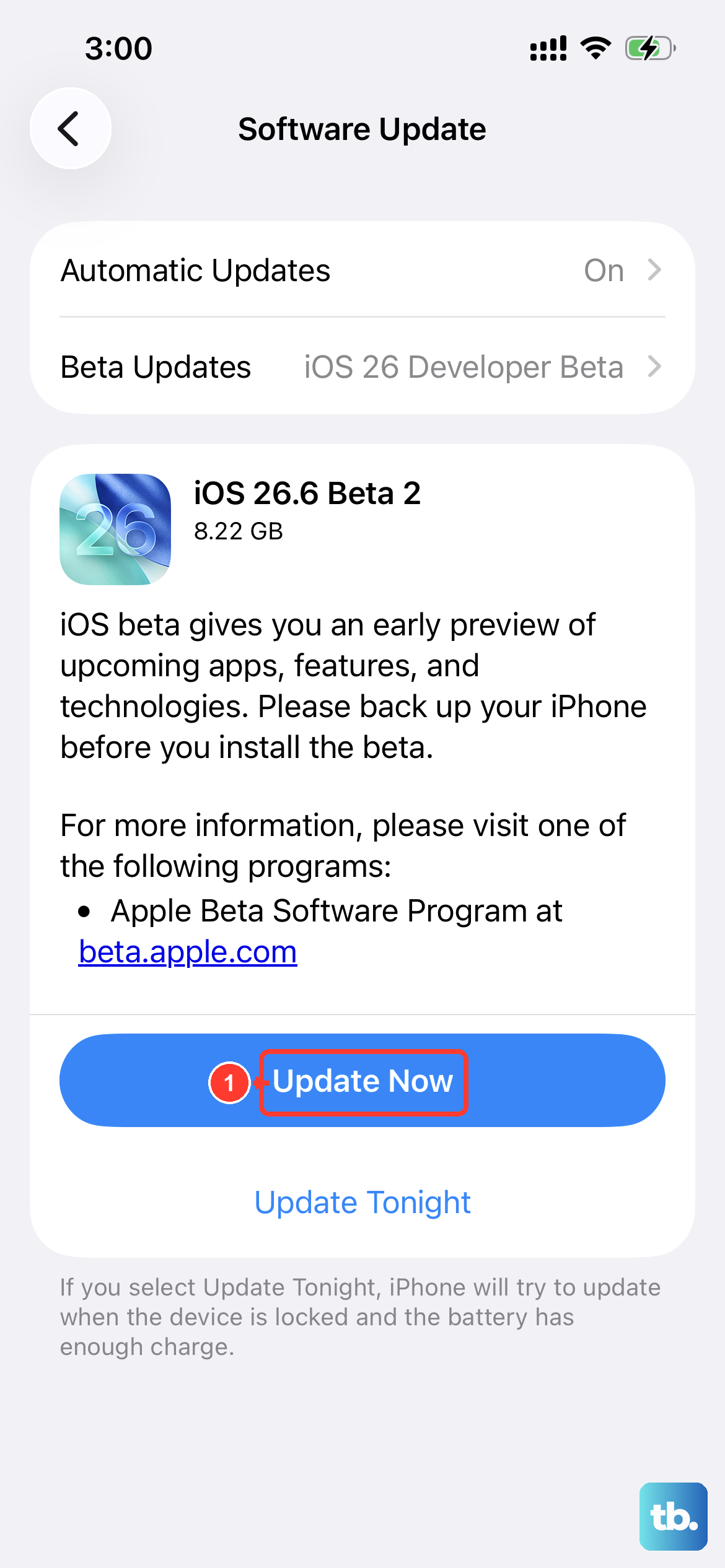
Apple frequently releases iOS updates that fix bugs, including ones related to touchscreen responsiveness. Go to Settings > General > Software Update to see if an update is available.
If your screen is unresponsive, you might need to update using a computer. Connect your iPhone 14 to a Mac or PC, open Finder (on a Mac with macOS Catalina or later), iTunes (on an older Mac), or the Apple Devices app or iTunes (on Windows), and check for an update there. Installing the latest iOS version may help if a software bug is causing your problem.
Back up your iPhone before updating. For an update through Settings, connect it to power and Wi-Fi before moving on to more involved solutions.
Charge Your iPhone
If your iPhone 14 won't turn on, charge it for one hour, then try the force restart again. Use a certified Lightning cable; a 20W or higher power adapter supports fast charging.
If touch stops working while charging, disconnect the Lightning cable and test the screen again. If touch works without it, try a different outlet, cable, or charger. The iPhone 14 also supports MagSafe charging up to 15W.
If the battery was completely drained, it might take a few minutes of charging before you even see the charging icon. Be patient and let it gain some charge.
Clean the Lightning Port
Your iPhone 14 still uses a Lightning port, not USB-C. These ports can collect pocket lint and debris over time, which can prevent a proper connection to your charger.
Power off your iPhone first. Then, gently use a soft, dry brush to remove any visible lint in the port. Do not use metal objects, as they can damage the delicate pins inside.
After cleaning, plug in your charger again. Removing debris can help the cable make a proper connection so the phone can charge.
Enter Recovery Mode and Update
If your iPhone stays on the Apple logo for several minutes without a progress bar, shows the "Connect to computer" screen, or isn't recognized by your computer, try recovery mode. Update your Mac or the Apple Devices app on Windows first, then connect your iPhone 14 and open Finder (Mac) or the Apple Devices app (Windows).
Press and quickly release the Volume Up button, then press and quickly release the Volume Down button. Press and hold the Side button. Keep holding it even after you see the Apple logo, until the "Connect to computer" screen appears.
On your computer, you'll see an option to "Update" or "Restore." Choose "Update" first if you haven't tried it; "Restore" erases your data. If the download takes more than 15 minutes and the phone leaves the "Connect to computer" screen, let the download finish, then repeat the button steps.
Check for Physical Damage or Moisture
Look closely at your screen for any new cracks, even hairline ones, that you might not have noticed. Internal damage from a drop can disconnect the digitizer, which is the layer responsible for touch input.
Also consider if the phone has been exposed to moisture. While the iPhone 14 is water-resistant, it's not waterproof. Corrosion from past water exposure can develop over time on internal connectors, including those for the screen.
If your iPhone shows a liquid-detection alert, unplug the cable. Gently tap the phone against your hand with the connector facing down, then leave it in a dry area with airflow. Wait at least 30 minutes before trying to charge again. If the screen still doesn't work after these checks, arrange service.
Reset All Settings
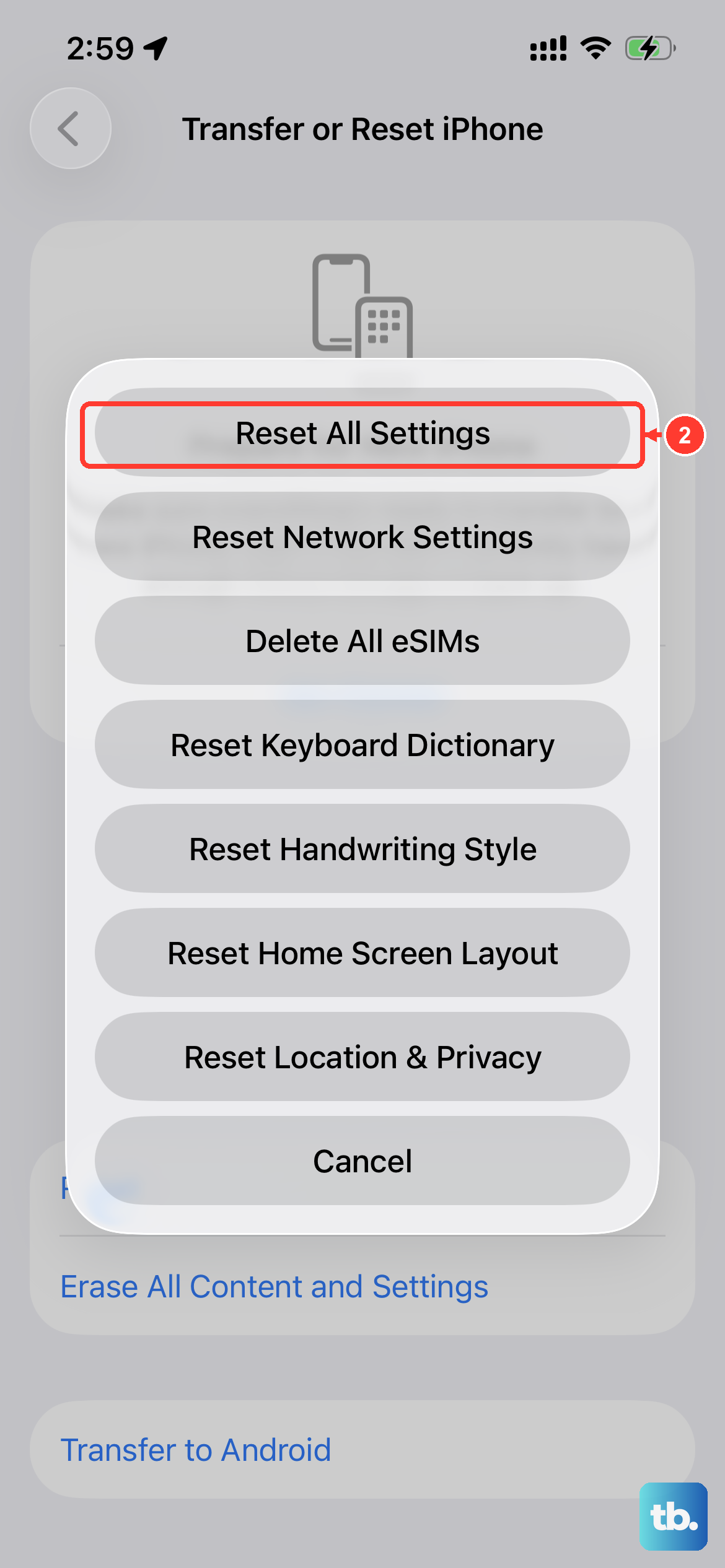
This resets all your preferences, like Wi-Fi passwords, wallpaper, and display settings, back to factory defaults, but it leaves your personal data and apps intact. It may help if a setting is affecting touch input.
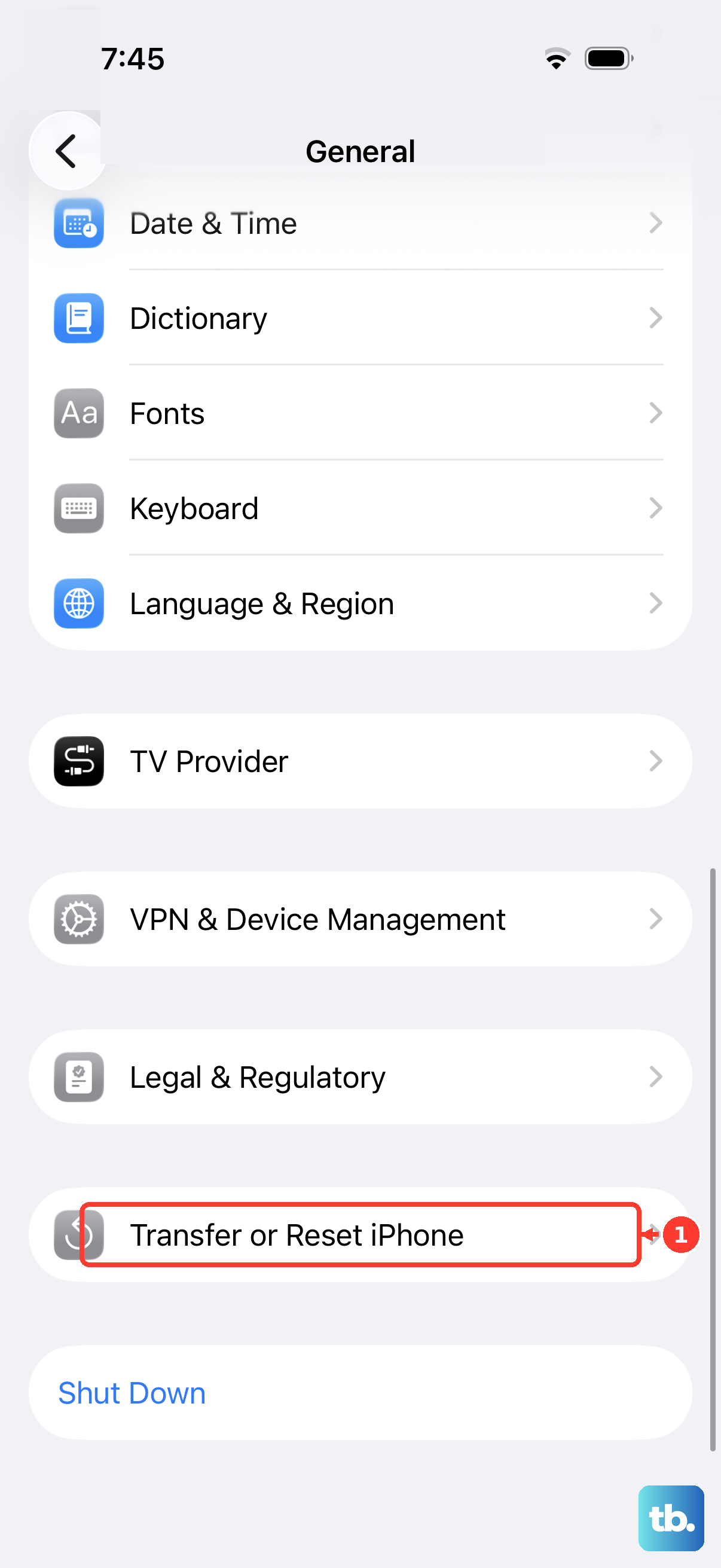
If the screen responds well enough to use Settings, go to Settings > General > Transfer or Reset iPhone > Reset. Then, tap Reset All Settings. You'll need to enter your passcode to confirm.
After the phone reboots, you'll have to reconfigure things like Face ID, Apple Pay, and display brightness. You'll also need to rejoin Wi-Fi and re-pair Bluetooth devices and your Apple Watch.